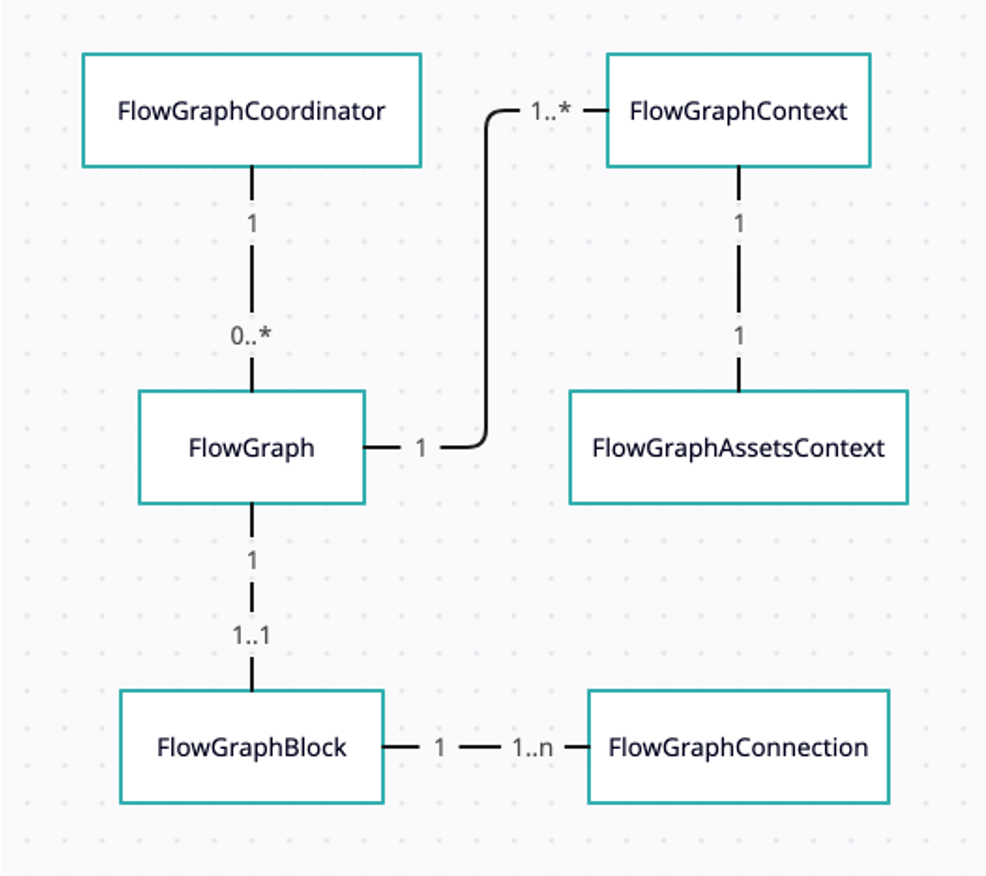
Getting Started With The Flow Graph Editor
The Basic Workflow
The Flow Graph Editor is built around a tight loop:
- Load or prepare a scene.
- Add blocks and connect them into one or more graphs.
- Run the graph against the scene.
- Inspect behavior, adjust the graph, and validate again.
- Save the graph to a file or snippet when it is ready.
Starting From The Default Scene
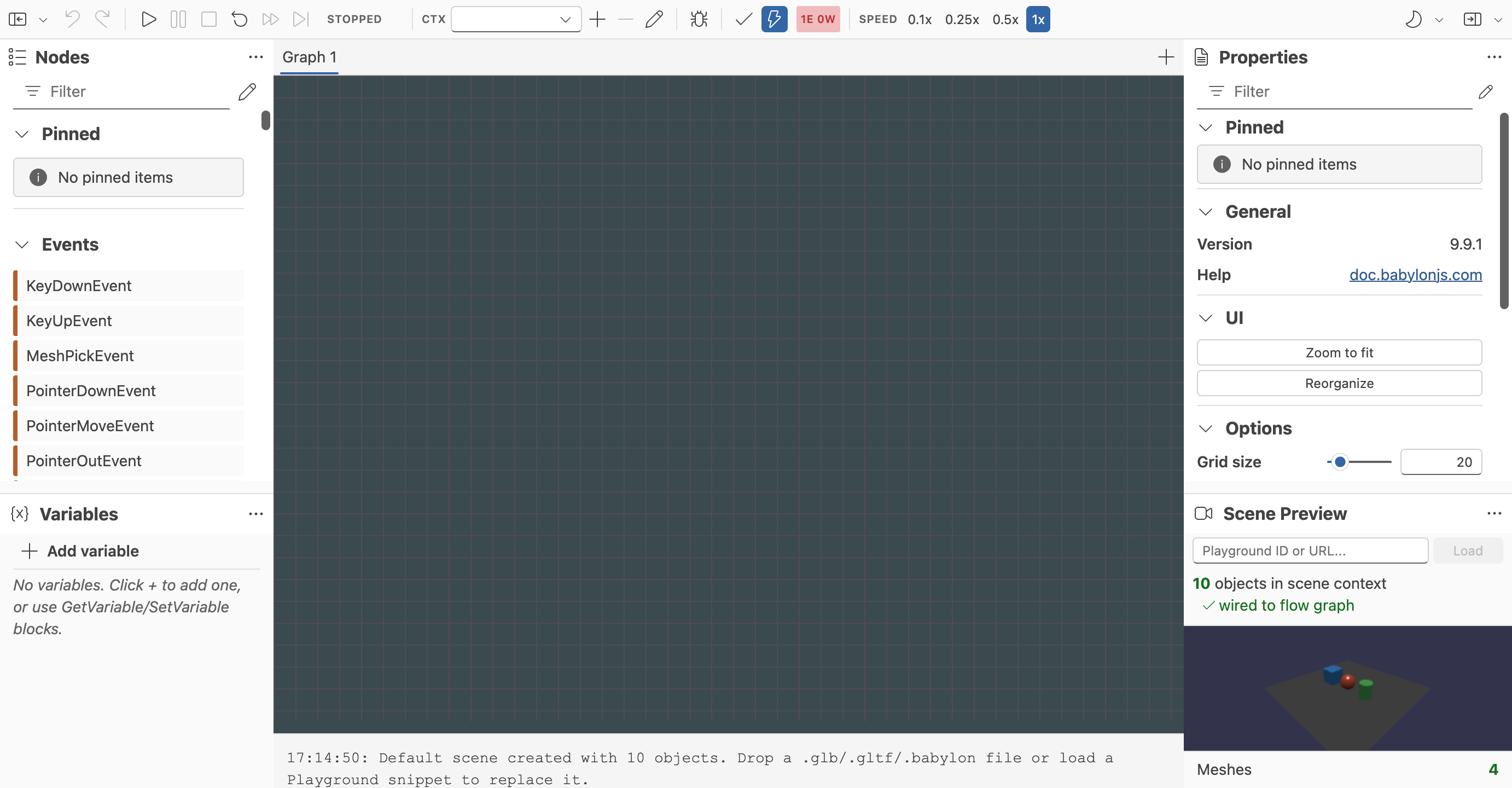
When the editor opens without a scene snippet, it starts with a simple default scene so you can experiment immediately. The default setup includes an orbit camera, a light, a ground plane, and a few primitive meshes.
This is useful for learning the editor, testing small logic chains, and verifying block behavior before you move to a real project scene.
Loading A Scene
The editor supports two practical ways to load a scene for testing:
Babylon.js Playground Snippet
You can load a Playground snippet into the Scene Preview panel by entering:
- A snippet ID such as
ABC123 - A versioned snippet ID such as
ABC123#5 - A full Playground URL
Once the scene loads, its meshes, cameras, lights, animation groups, and other objects become available to blocks and property pickers that depend on scene context.
That scene context is separate from the editor's execution contexts. The loaded scene provides assets and object references, while execution contexts provide separate runtime state for the same graph logic.
Local Scene File
You can also drag and drop scene files directly into the Scene Preview pane. This is useful when iterating on local assets or testing flow graphs against scenes that are not yet published to Playground.
Supported scene-loading workflows currently include Babylon scene files and glTF or GLB assets. For glTF scenes with external resources, drop the referenced files together.
When a glTF asset contains KHR_interactivity, the editor imports every behavior graph into a separate tab. It selects the asset's default graph when that graph can run, keeps invalid graphs available for inspection, and reports source-path diagnostics in the log. Imported KHR_interactivity graphs cannot currently be saved or reloaded as Flow Graph JSON because they depend on runtime services owned by the source asset. See Loading KHR_interactivity Assets for the full runtime and editor behavior.
Scene Context And Execution Contexts
The editor now supports more than one execution context for the same graph.
The distinction is:
- The scene context is the scene you loaded for preview and asset resolution.
- An execution context is one independent runtime instance of the graph, with its own variable state.
In the current implementation, execution contexts share the same scene context but keep separate variables and runtime inspection state.
For the dedicated reference, see Execution Contexts.
Working With Multiple Graphs
The editor can also keep multiple graph definitions open in the same session.
Those graphs appear as tabs above the toolbar. Each tab is a separate graph, while still sharing the same loaded scene context for preview and asset resolution.
This is different from execution contexts:
- Multiple graphs give you separate graph definitions in one session.
- Execution contexts give one selected graph multiple runtime instances.
Saving and loading preserves the full graph-tab session rather than collapsing everything back into a single graph.
For the dedicated feature reference, see Multiple Graphs In One Editor.
Building The First Graph
The editor works with two broad block types:
- Execution blocks drive control flow when events or signals fire.
- Data blocks compute or expose values that feed the execution graph.
A common first graph looks like this:
- Add an event block that starts the interaction.
- Add one or more data blocks to provide values or references.
- Connect those values into an action block.
- Run the graph and inspect the result in the preview scene.
If you already know the runtime concepts, this maps directly to the Flow Graph model described in Flow Graph Basic Concepts.
Saving And Restoring Graphs
The editor supports both local files and Babylon.js snippets.
Save To File
Saving to file downloads the graph as JSON. This is the most direct option when you want to keep graphs under local version control, share them outside the snippet service, or archive intermediate work.
Save To Snippet Server
Saving to the Babylon.js snippet server uploads the graph and returns a snippet ID that you can reuse later. If your graph is associated with a Playground scene snippet, that scene reference is stored alongside the graph so the editor can restore the testing context more easily.
Load From File Or Snippet
Previously saved graphs can be restored from either a local JSON file or a snippet ID. This makes it easy to switch between experiments, share a graph with collaborators, or move between quick prototypes and longer-lived documentation examples.
Practical Advice For Early Graphs
- Start from a small scene and a single interaction.
- Prefer a short graph that you can run and debug immediately.
- Load a real scene only after the core interaction pattern is proven.
- Save often when trying different graph shapes.
The next step is learning the tools that make larger graphs manageable: execution controls, validation, search, grouping, and runtime debugging.
- If you want a concrete first walkthrough, start with Example - Your First Runnable Graph.
- Read Multiple Graphs In One Editor if you want to organize several graph definitions in one editor session.
- Continue with Authoring, Validation, and Debugging for the main authoring workflow.
- Read Execution Contexts if you want to run the same graph logic with separate runtime state.
- Use Editor Operations and Shortcuts as the reference for grouping, clipboard behavior, notes, search, and navigation.
- Use Validation and Property Editing when you need the rules behind graph validation and block configuration.
Further reading
Flow Graph Editor
Build Babylon.js flow graphs visually with a UI-first editor for interactive scenes.
Flow Graph Basic Concepts and Getting Started
Learn all about the Babylon.js Flow Graph system.