Validation and Property Editing
Why This Page Exists
The Flow Graph Editor does more than let you connect blocks together. It also validates graphs, enforces data-port compatibility, and exposes block-specific configuration through the property panel.
This page is the reference for those behaviors.
Validation Modes
The editor supports both manual and live validation.
Manual Validation
Manual validation is useful when you want an explicit check before saving, sharing, or running a larger graph.
When you trigger validation manually:
- The toolbar shows the number of detected errors and warnings.
- Validation issues can be surfaced individually.
- Selecting an issue can navigate back to the relevant block.
This mode is useful when you want a controlled review step rather than constant feedback while editing.
Live Validation
Live validation runs automatically as the graph changes.
The editor debounces these checks to avoid slowing down authoring. This mode is valuable when building quickly because it catches structural and configuration problems close to the moment they are introduced.
What Validation Reports
Validation issues include:
- The affected block
- A severity level such as error or warning
- A message describing the problem
Connection Type Compatibility
The editor enforces compatibility rules on data connections.
Each data port carries a rich type, and the editor uses that type information while you drag a connection.
Visual Feedback While Connecting
During a drag operation:
- Compatible targets are visually emphasized.
- Incompatible targets are dimmed and highlighted as invalid.
- Releasing the connection onto an incompatible port shows a mismatch error instead of creating the link.
This means many graphing errors are rejected before they become runtime problems.
Compatibility Rules
Current compatibility behavior includes the following rules:
| Source Type | Accepted By |
|---|---|
Any | Any target type |
| Same type | The same type |
Number | Number or integer-compatible targets |
Integer | Integer or number-compatible targets |
Vector3, Vector4, Matrix | Quaternion-accepting targets through a supported type transformer |
Signal ports do not use this type system. Execution flow connections can connect to any compatible signal input without data-type restrictions.
Property Panel Overview
Selecting a block opens its property surface in the right-side panel.
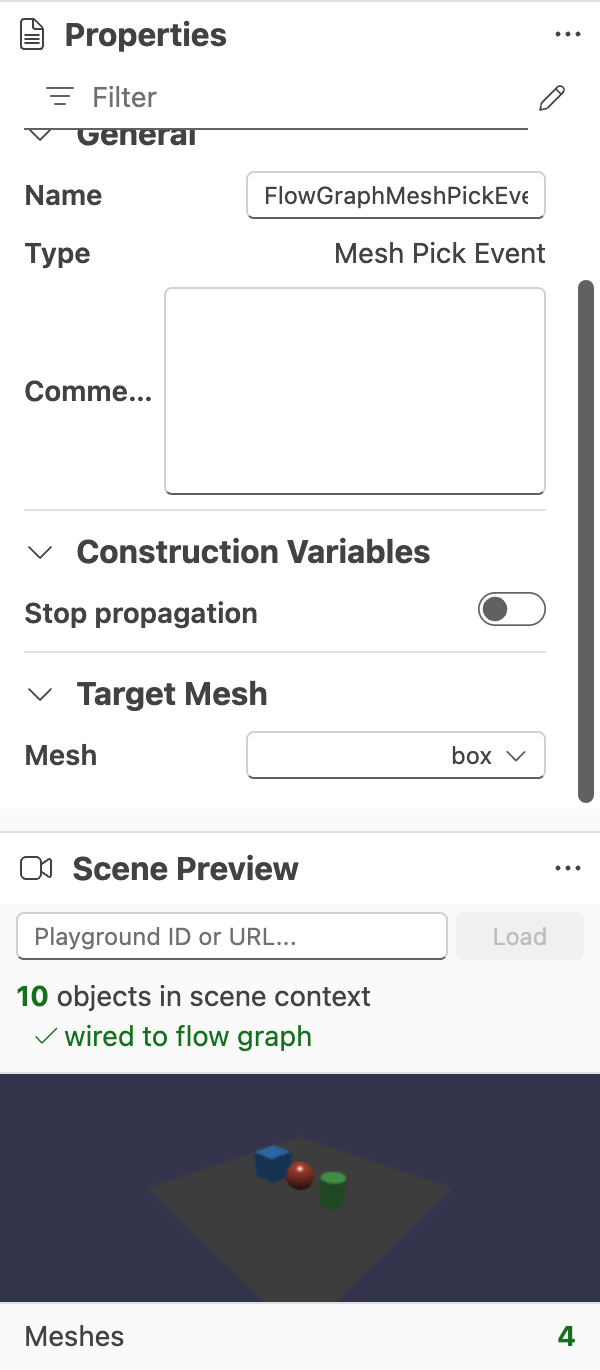
Depending on the block, the panel can include up to four common sections plus specialized editors.
The Variables panel is also context-aware. When the graph has multiple execution contexts, variable inspection and editing should be understood relative to the currently selected execution context.
General
The General section holds basic block metadata such as:
- Name
- Type
- Comments
This is the best place to make a graph easier to read for someone else.
Construction Variables
Construction variables control how a block is created and, in some cases, what shape of ports it exposes.
Examples of construction variables include:
- Numeric mode settings on math blocks
- Keyframe and animation-type settings on interpolation blocks
- Event IDs on custom send and receive event blocks
- Loop parameters on loop-oriented blocks
- Stop-propagation options on pointer and pick events
Some construction variables affect the block's structure, not just its runtime values. In those cases, the updated configuration is saved but the block may need to be recreated before the new port layout appears in the graph.
Input Values
For unconnected data inputs, the property panel can expose editable default values.
Supported value types currently include:
- Number
- Boolean
- String
- Integer
- Vector2
- Vector3
- Vector4
- Color3
- Color4
- Matrix
If an input is already connected, the editor treats that input as driven by the graph and shows it as read-only instead of as a local default value.
Properties
Some blocks expose additional editable values beyond construction variables and input defaults. These appear in the Properties section when the corresponding block class has registered editable properties.
Specialized Property Panels
Some blocks replace the generic editing surface with richer editors tailored to their function.
| Block or Block Family | Specialized Editor | What It Enables |
|---|---|---|
GetAsset | Asset Configuration | Pick an asset type and then choose a named asset from the loaded scene |
| Pointer and mesh-pick events | Target Mesh | Restrict the event to a specific mesh from the loaded scene |
PlayAnimation | Animation Group | Pick the animation group to play from the current scene context |
Constant | Constant Value | Choose the constant type and then edit a matching value shape |
Switch | Cases | Add and remove numeric case outputs |
DataSwitch | Cases | Add and remove numeric cases for data routing and configure integer treatment |
Multi-variable SetVariable | Variables | Add and remove named variable inputs dynamically |
| Custom send and receive events | Event Data Inputs/Outputs | Define named payload entries and their Flow Graph types |
These specialized editors are important because they make dynamic or scene-aware blocks practical to author without hand-editing graph data.
Scene-Dependent Pickers
Some property editors depend on the current preview scene. For example:
- Mesh pickers need a loaded scene with meshes.
- Animation-group pickers need a loaded scene with animation groups.
- Asset pickers are more useful when the relevant scene assets are already available.
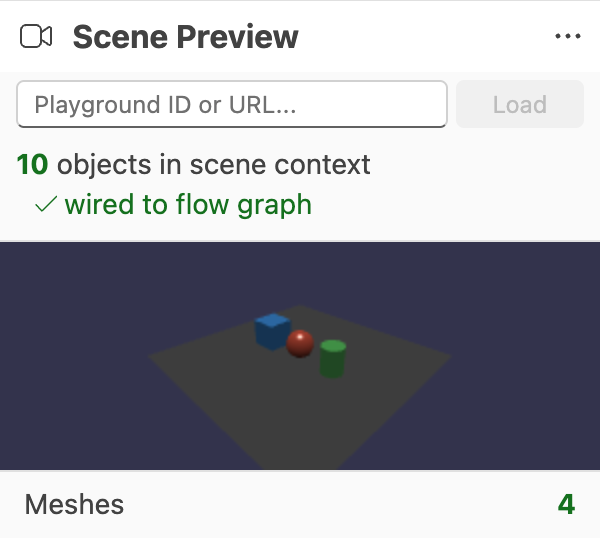
If the required scene context is not available, the editor shows an informational message rather than pretending the picker can resolve data that is not currently loaded.
Practical Workflow
When building a larger or more complex graph, a good pattern is:
- Load the scene first so scene-aware editors are useful immediately.
- Connect data ports while watching compatibility feedback.
- Use live validation during active editing.
- Run a manual validation pass before saving or sharing.
- Use names and comments in the General section to make the graph maintainable.
If the graph uses multiple runtime instances, also verify that the currently selected execution context is the one whose variables and debug state you intend to inspect. For the full behavior, see Execution Contexts.
Further reading
Authoring, Validation, and Debugging
Learn how to run, inspect, validate, and organize graphs in the Babylon.js Flow Graph Editor.

Editor Operations and Shortcuts
Reference for the Babylon.js Flow Graph Editor toolbar, keyboard shortcuts, grouping, search, notes, and canvas operations.
Supported Block Families
Overview of the current block families available in the Babylon.js Flow Graph Editor.