Multiple Graphs In One Editor
What Multiple Graphs Means
The Flow Graph Editor can now keep more than one graph open in the same editor session.
Each graph is a separate flow-graph definition, shown as its own tab at the top of the editor. Switching tabs changes which graph you are editing, validating, running, and saving as the active graph.
This is different from execution contexts:
- Multiple graphs means multiple graph definitions in one editor session.
- Execution contexts means multiple runtime instances of one selected graph.
So the overall picture is:
- One loaded scene context for asset lookup and preview
- Many graph tabs for separate graph definitions
- Many execution contexts inside each graph when you need separate runtime state
Graph Tabs
The graph tab strip lives above the main toolbar.

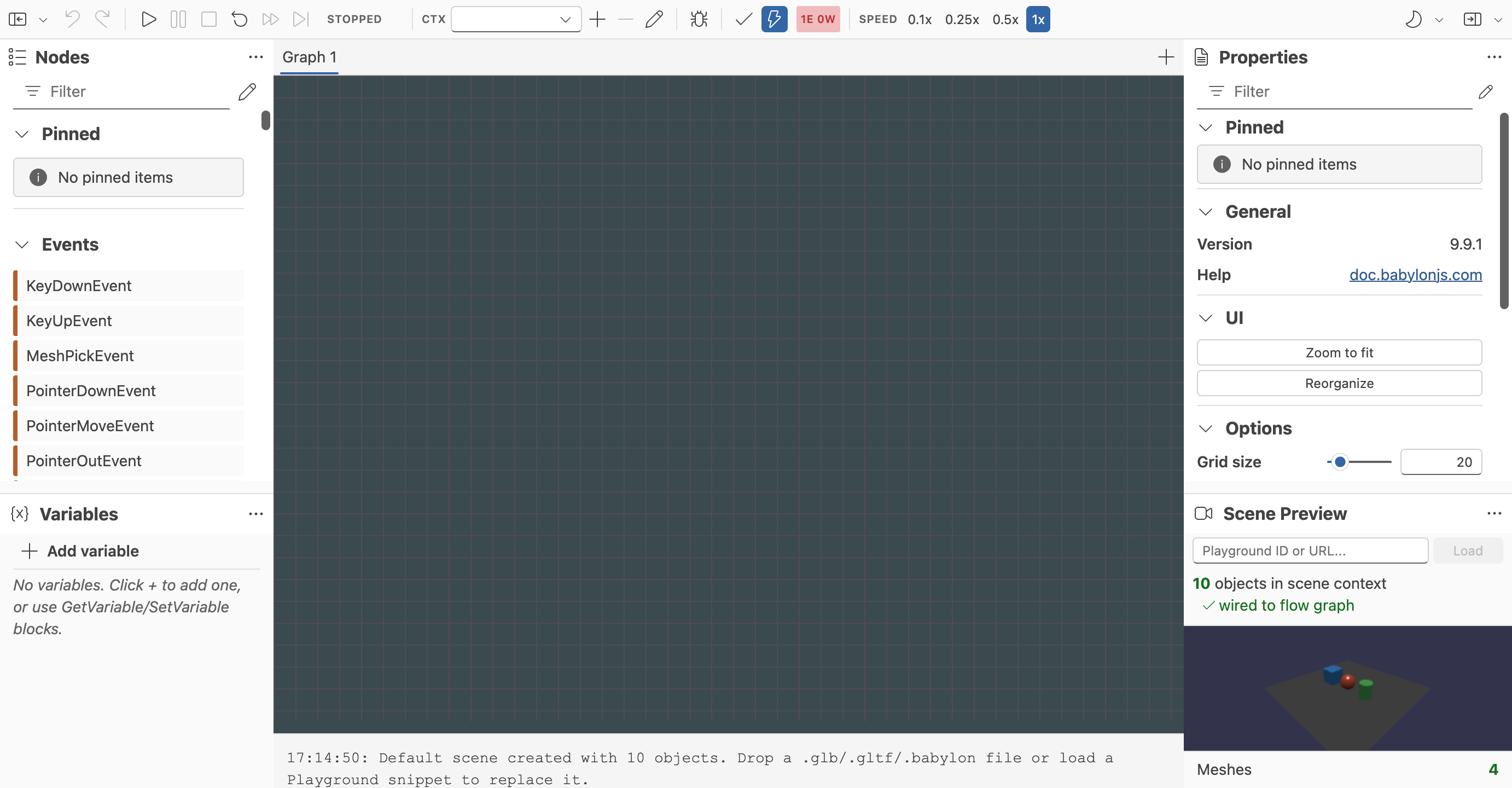
By default, the editor starts with one graph tab. Once you add another graph, each tab gets its own label and close button.
Switching Graphs
Click a tab to make that graph active.
The active tab controls:
- The graph shown on the canvas
- The graph targeted by the run, pause, stop, and reset controls
- The graph shown in validation results
- The variables and execution contexts you inspect for that graph
Adding A Graph
Use the + button in the tab strip to create a new graph.
Each new graph starts empty and becomes the active tab immediately. Because it starts empty, it is normal for validation to report issues until you add an event block or other valid graph structure.
Renaming A Graph
Double-click a tab name to rename it.
Renaming matters quickly once a session contains more than a couple of graphs, because generic names like Graph 1 and Graph 2 stop being useful.
Closing A Graph
When more than one graph exists, each tab shows an × close button.
The editor keeps at least one graph available, so the last remaining graph cannot be removed.
Tabs And Toolbar Workflow
Multiple graphs are integrated directly into the main editing workflow rather than living in a separate dialog.
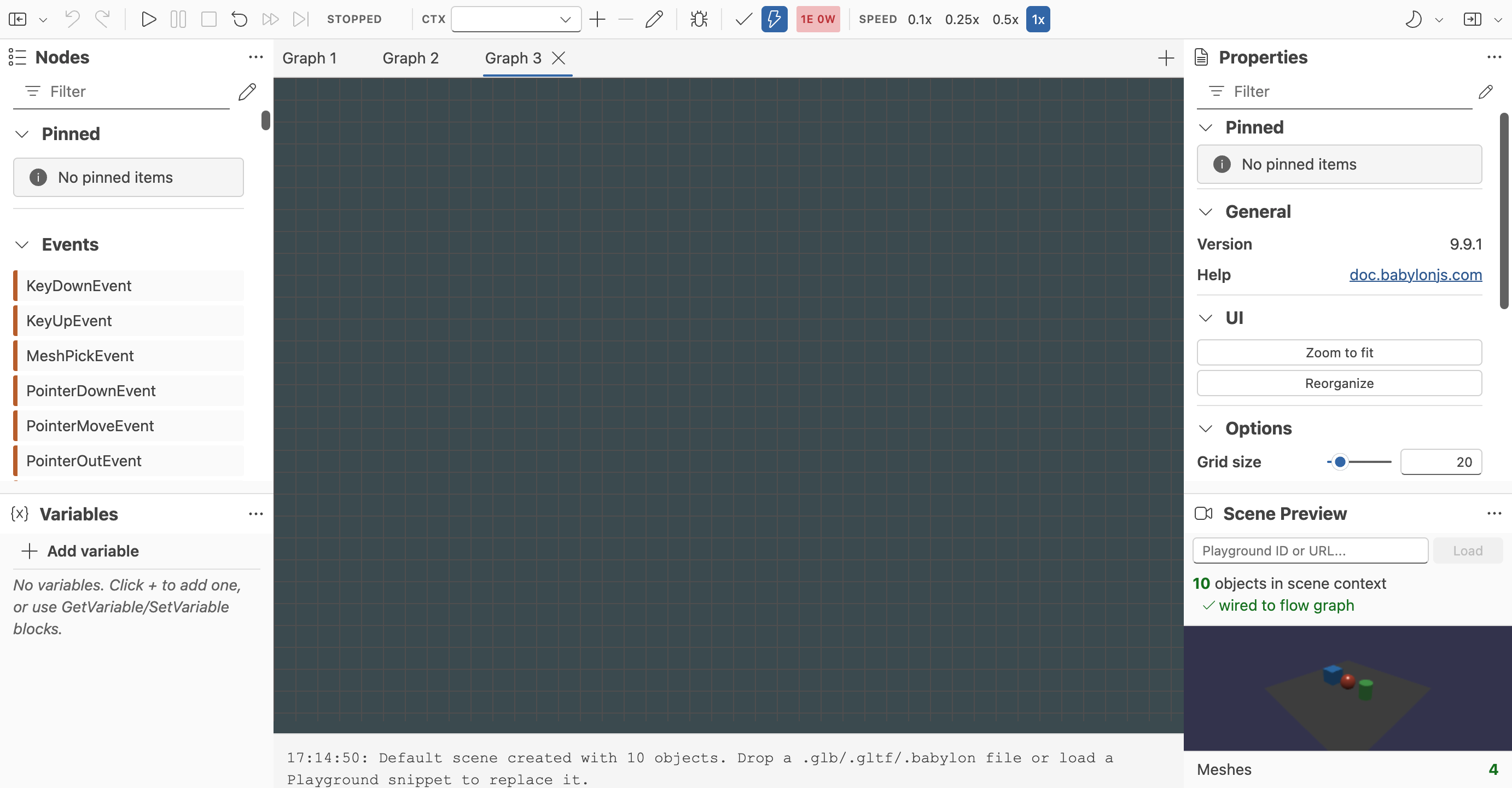
In practice, this means you can:
- Keep related graphs together while reusing the same loaded scene
- Switch between graph definitions without reloading the editor
- Run and debug one selected graph at a time
Saving, Loading, And Reopening
Multiple graphs are not editor-only UI state.
When the editor saves a session, it preserves:
- The full list of graphs in the session
- The active graph index
- The serialized data for each graph
- The editor layout data for each graph
That means saving to a file or the snippet server does not merge the session back into a single graph.
Loading older single-graph content still works. In that case, the editor opens it as a one-graph session.
Scene Context Versus Graph Tabs
Graph tabs do not create separate scene contexts.
All graphs in the current editor session share the same loaded preview scene for asset lookup. Mesh pickers, animation-group pickers, and other scene-aware controls still resolve against that one scene context.
This is useful because it lets you build several related graph definitions against the same scene without reloading assets each time.
Multiple Graphs Versus Execution Contexts
These two features solve different problems and should not be mixed up.
Use multiple graphs when you want:
- Separate graph definitions
- Separate tabbed canvases
- Different interaction flows kept together in one editor session
Use execution contexts when you want:
- The same graph logic to run more than once
- Separate variable state for each run
- One graph definition reused across several runtime instances
For the runtime-state feature, see Execution Contexts.
When To Use Multiple Graphs
Multiple graphs are a good fit when:
- You want to organize several related behaviors in one editor session
- You want to compare or iterate on graph variants without reloading the scene
- You want one tab per interaction or subsystem instead of one very large canvas
They are not a replacement for execution contexts, which still handle repeated runtime execution of a single graph definition.
Further reading
Flow Graph Editor
Build Babylon.js flow graphs visually with a UI-first editor for interactive scenes.
Getting Started With The Flow Graph Editor
Learn the basic workflow for creating, testing, saving, and restoring flow graphs in the Babylon.js Flow Graph Editor.

Execution Contexts
Learn how multiple execution contexts work in the Babylon.js Flow Graph Editor.
Editor Operations and Shortcuts
Reference for the Babylon.js Flow Graph Editor toolbar, keyboard shortcuts, grouping, search, notes, and canvas operations.