Editor Operations and Shortcuts
Editor Operations At A Glance
This page collects the non-block mechanics of the Flow Graph Editor: toolbar actions, keyboard shortcuts, clipboard behavior, graph organization, search, and canvas navigation.
For execution, debugging, and scene-aware workflows, see Authoring, Validation, and Debugging. For validation rules and property editing, see Validation and Property Editing.
Graph Tabs
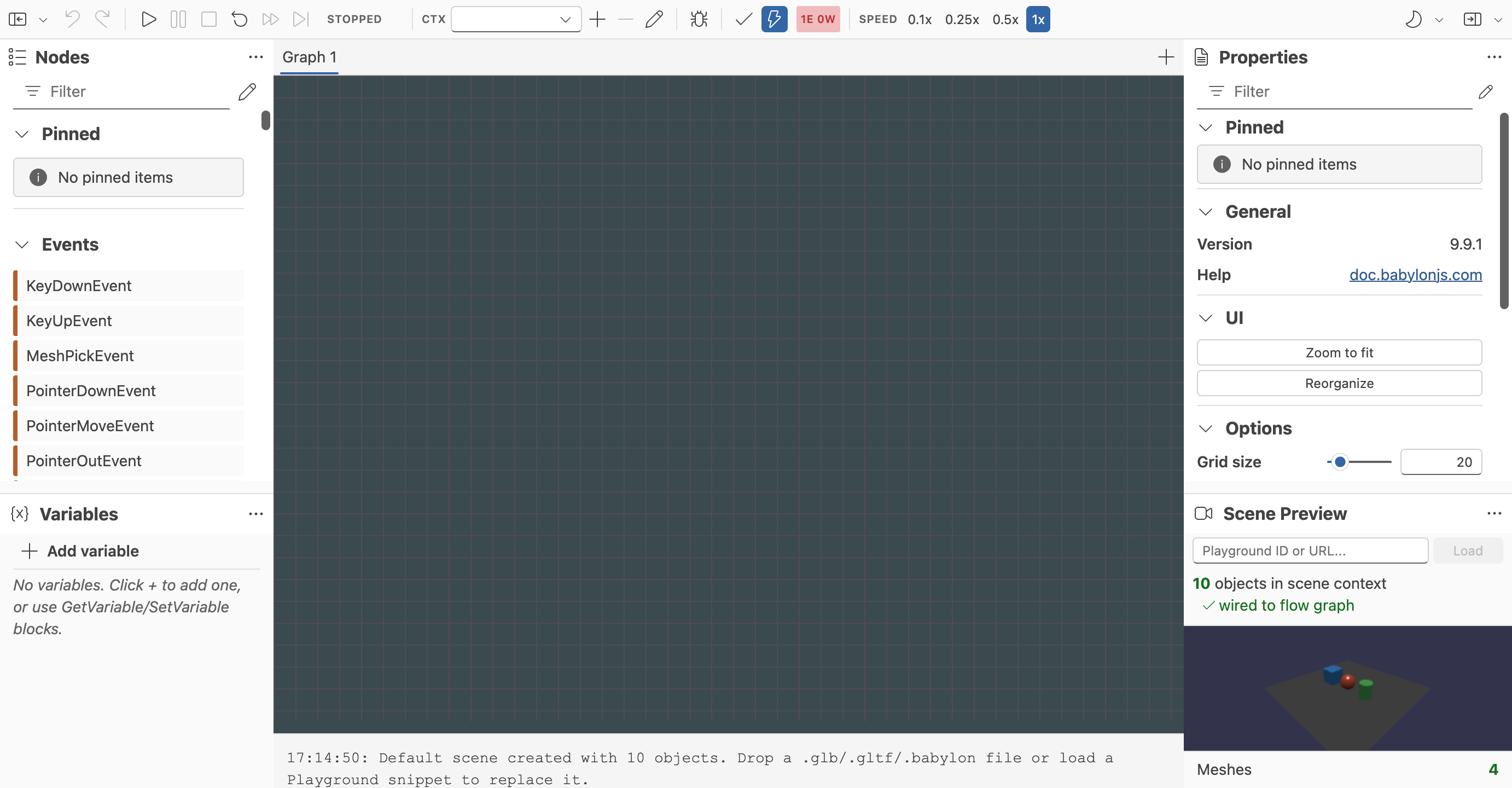
The editor now supports multiple graphs through a tab strip above the main toolbar.
These tabs manage separate graph definitions, not separate execution contexts.
Switching Graphs
Click a tab to make that graph active on the canvas.
The selected tab controls which graph you edit, run, validate, and inspect.
Adding, Renaming, And Closing Tabs
- Use the
+button in the tab strip to create a new graph. - Double-click a tab name to rename it.
- Use the
×button on a tab to close it when more than one graph exists.
The last remaining graph cannot be closed.
For the full feature behavior, including save/load semantics and the difference from execution contexts, see Multiple Graphs In One Editor.
Toolbar Basics
The toolbar is the main control surface for editing and running a graph.
Undo And Redo
The editor provides explicit undo and redo buttons in the toolbar and also supports the standard keyboard shortcuts.
- Undo is enabled only when there is an action to undo.
- Redo is enabled only when there is an action to replay.
- These controls are useful when experimenting with graph shapes, moving blocks around, or adjusting graph organization.
Execution And Speed Controls
The same toolbar also exposes graph execution controls and time scaling. Those behaviors are described in more detail in Authoring, Validation, and Debugging, but in practice they live alongside editing operations and form part of the main workflow loop.
Execution Context Controls
The toolbar also includes execution-context controls through the Ctx selector and adjacent create, remove, and rename actions.
Those controls manage multiple runtime instances of the same graph definition, not multiple separate graphs. For the full feature behavior, see Execution Contexts.
Keyboard Shortcuts
The editor already supports a practical set of shortcuts for frequent graph editing tasks.
Delete/Backspace: Delete the current selection.Alt+Delete/Alt+Backspace: Delete selected blocks and auto-reconnect surrounding nodes when possible.Ctrl+Z/Cmd+Z: Undo.Ctrl+Shift+Z/Cmd+Shift+Z: Redo.Ctrl+A/Cmd+A: Select all nodes and frames.Ctrl+C/Cmd+C: Copy selected blocks or frames.Ctrl+V/Cmd+V: Paste copied content at the cursor position.Ctrl+G/Cmd+G: Create a smart group from the current selection.F9: Toggle a breakpoint on the selected execution block.Ctrl+M/Cmd+M: Create a sticky note.Ctrl+F/Cmd+F: Open graph search.Enterin the scene preview input: Load the Playground snippet in the scene preview.
These shortcuts are worth learning early because they change the editor from a click-heavy tool into a faster iteration surface.
Copy And Paste
The editor supports copying both individual blocks and higher-level graph structures such as frames.
Block Copy Behavior
When blocks are copied and pasted:
- Configuration values are preserved.
- Default values for unconnected data inputs are preserved.
- Internal connections between pasted blocks are reconstructed.
- External connections are not recreated automatically.
That behavior is useful because it lets you duplicate a working graph fragment without accidentally connecting the clone back into the original graph.
Event Blocks
Event blocks pasted into the graph are automatically registered with the flow graph, so they remain usable as graph entry points after duplication.
Frame Copy Behavior
Frames can also be copied and pasted. This is especially useful for repeating a documented graph pattern or creating a variation of an existing grouped interaction.
Smart Groups
Smart groups let you wrap a set of blocks inside a collapsed frame and expose the relevant boundary ports automatically.
Creating A Smart Group
To create one:
- Select two or more blocks.
- Press
Ctrl+GorCmd+G.
The editor analyzes the selection and creates a frame with exposed inputs and outputs.
Single-Execution-Block Groups
If the selection contains exactly one execution block plus any number of data blocks, the editor auto-exposes the most useful boundary ports:
- The execution block's signal input becomes the group entry point.
- Its signal outputs become group exits.
- Unconnected or externally connected data inputs are exposed.
- Data outputs used outside the group are exposed.
This is the most common grouping pattern and works well for turning a repeated graph fragment into a reusable visual unit.
Multi-Execution-Block Groups
If the selection contains multiple execution blocks, signal ports that cross the group boundary are exposed automatically. After grouping, you can expand the frame and refine the exposed ports if needed.
Ungrouping
Deleting the frame removes only the frame container, not the blocks inside it. This means ungrouping preserves the underlying graph structure. If you want to remove the frame and its contents, expand it first and then delete the internal nodes explicitly.
Copying A Smart Group
Copying and pasting a smart group duplicates:
- The frame itself
- Its internal blocks
- Internal connections
- The current collapsed or expanded state
- The exposed-port configuration
Sticky Notes
Sticky notes are lightweight annotations for documenting intent directly on the canvas.
Creating Notes
Press Ctrl+M or Cmd+M to create a note at the current cursor position.
Editing Notes
- Double-click the title area to rename the note.
- Click the body area to edit note contents.
Moving And Resizing
- Drag the title bar to move the note.
- Drag the bottom-right resize handle to change its size.
Selection And Persistence
Sticky notes can be selected and deleted like other editable canvas elements. They are serialized with the graph and restored on load, which makes them useful for documenting larger authoring workflows or explaining grouped graph sections to other people.
Find In Graph
Graph search is built for navigating larger canvases where manually locating a block is slow.
Opening Search
Press Ctrl+F or Cmd+F to open the search UI.
What Search Matches
Search works against:
- Node display names
- Block class names
- Frame names
Navigating Results
Once a query is active:
- Matching items are highlighted.
- The current result is emphasized separately.
- The viewport pans to the active match.
Enteror Down Arrow advances to the next match.Shift+Enteror Up Arrow moves to the previous match.- Results wrap when you reach the end.
Closing Search
Press Escape or close the search bar explicitly to clear the visual highlights.
Minimap And Canvas Navigation
When you zoom or pan around the canvas, the editor can display a minimap in the bottom-right corner.
The minimap shows:
- Nodes
- Frames
- Sticky notes
- The current viewport region
You can click or drag inside the minimap to move quickly to another area of the graph. This is especially useful once the canvas grows beyond a single screenful of content.
The minimap auto-hides after a short period of inactivity, which keeps it available without permanently taking over screen space.
Practical Editing Advice
- Use shortcuts early; they matter more as graphs grow.
- Group related logic before the canvas becomes visually noisy.
- Add sticky notes when a graph section has intent that is not obvious from block names alone.
- Use search and the minimap together when working on larger interaction graphs.
Further reading
Flow Graph Editor
Build Babylon.js flow graphs visually with a UI-first editor for interactive scenes.
Getting Started With The Flow Graph Editor
Learn the basic workflow for creating, testing, saving, and restoring flow graphs in the Babylon.js Flow Graph Editor.

Authoring, Validation, and Debugging
Learn how to run, inspect, validate, and organize graphs in the Babylon.js Flow Graph Editor.