Image-based Lighting Shadows Rendering Pipeline
Introduction
In real-time rendering, shadows are commonly rendered using shadow maps but these are most practical for punctual lights (i.e. directional, point and spot lights). When it comes to image-based lighting (IBL), generating accurate shadows becomes much more difficult because light is coming from all directions. The IBL Shadows pipeline does what the name implies; it renders shadows cast by image-based lighting (i.e. HDR environment lights) and allows you to then apply the shadows to PBR and standard materials. It does this by generating a voxel grid for all objects that will cast shadows and then traces rays through the voxel grid to determine which pixels will be shadowed.
Here is a comparison of the rendering with and without the IBL Shadows pipeline enabled:
| With Shadows | Without Shadows |
|---|---|
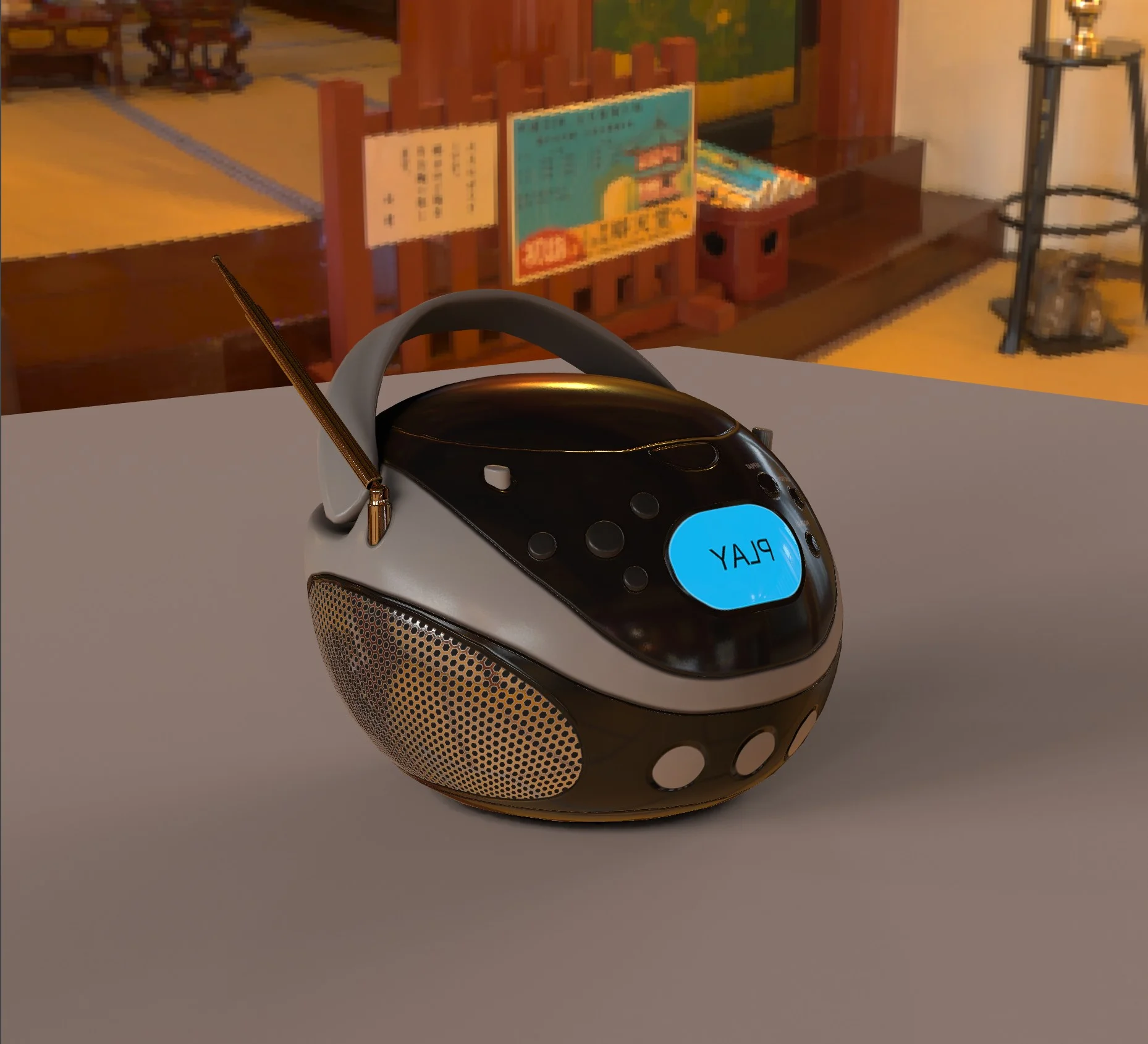 | 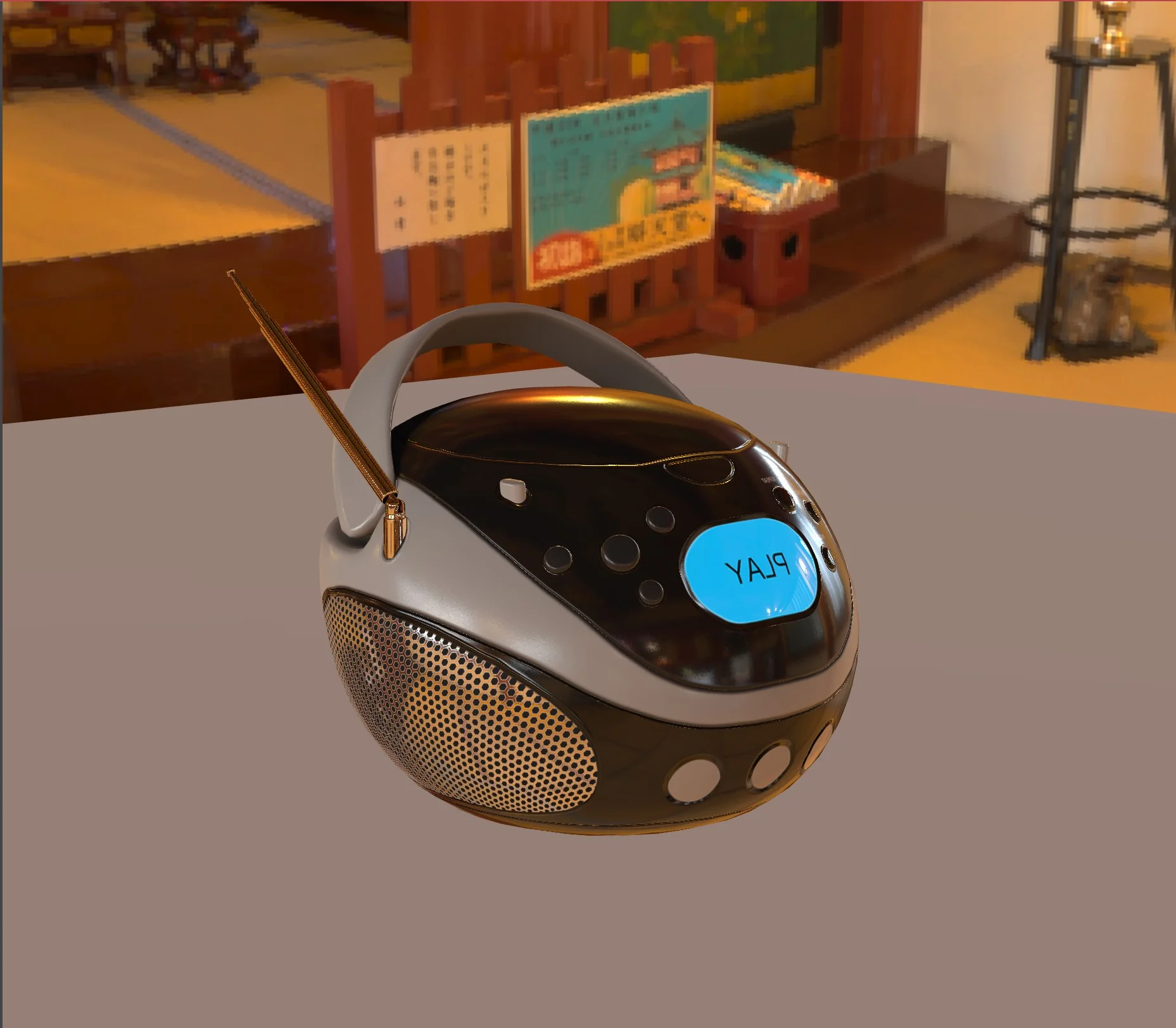 |
Here is the playground that generated the above images:
Important Usage Notes
In its current implementation, this technique is only practical for static shadow-casting scenes, i.e. scenes where shadow-casting objects are not animated. This is because moving shadow-casters requires updating the voxel grid, and this is too slow for real-time animation (improvements are planned for WebGPU). Moving shadow-receivers, moving the camera, and changing the IBL direction, intensity, etc. will work fine.
Prerequisites
The IBL Shadows Pipeline requires either WebGL 2.0 or WebGPU and, currently, can only be applied to PBR materials and Standard materials.
The IBL shadow pipeline relies on the Geometry Buffer Renderer so this should be kept in mind if combined with other pipelines. For example, if using the SSR pipeline, make sure you force it to also use the geometry buffer instead of the prepass renderer to save memory.
Using the IBL shadows rendering pipeline
Create the Pipeline
Start by creating an instance of BABYLON.IblShadowsRenderPipeline:
import { IblShadowsRenderPipeline } from "@babylonjs/core/Rendering/IBLShadows/iblShadowsRenderPipeline";const shadowPipeline = new IblShadowsRenderPipeline("ibl shadows", // The name of the pipelinescene, // The scene to which the pipeline belongsoptions, // The options for the pipeline[scene.activeCamera]);options is of type BABYLON.IblShadowsSettings which contains many properties to control the look of the shadows.
Configure the Shadows
- Add shadow-casters. You must explicitly add any mesh that you want to cast shadows to the pipeline with
shadowPipeline.addShadowCastingMesh(mesh | meshes[]). This will cause it to render to the voxel grid when the grid is re-rendered. Having control over which meshes cast shadows can be important for several reasons:- It allows you to filter out objects like skyboxes or ground planes that you may not want casting shadows on your scene.
- Since the voxel grid's resolution is limited, it allows you to constrain the size of the shadow-casting part of the world to only the most important objects.
- Rendering to the voxel grid can be expensive so it might be good to limit the shadow-casting objects. For example, if you have many blades of grass, you may choose to have them receive shadows but not cast them.
- Add shadow-receivers. You must also explicitly add any material that you want receiving shadows with
shadowPipeline.addShadowReceivingMaterial(material | materials[]). If you call this function without an argument, it will add all materials in the scene. - Update scene bounds. Once you've added all the shadow-casters to the pipeline, call
shadowPipeline.updateSceneBounds()to recalculate the size of the portion of the scene that the voxel grid will cover. - Update the voxel grid. Call
shadowPipeline.updateVoxelization()to cause the shadow-casters to be rendered into the voxel grid. Once this is done, the shadows should automatically appear in the scene. - The IBL used for shadows will be whatever is assigned to
scene.environmentTexture. This can be either a cubemap or equirectangular environment texture. HDR textures work best.
You can easily enable/disable the shadows by calling the toggleShadow(enabled: boolean) method of the pipeline.
How the IBL Shadows pipeline works
A basic understanding of the algorithm will help you understand how to configure the shadow pipeline for best results.
When the IBL map changes
When a new IBL texture is assigned to scene.environmentTexture, various CDF (cumulative distribution function) maps are generated internally that will be used to importance-sample the IBL during shadow computation. In short, this allows the brightest (i.e. most relevant) areas of the IBL to be sampled more, resulting in more accurate shadows with fewer samples.
When the scene changes
The voxel grid will need to be regenerated whenever the shadow-casting scene changes so that new or moved shadow-casters will be included in the shadows. The voxel grid is a low-resolution (256^3 or less), 3D texture, that contains all the shadow-casting geometry of the scene.
- The scene is rendered to the voxel grid, layer by layer, as it's not possible to render to the entire 3D texture at once in WebGL. The voxelization uses the maximum number of draw buffers to render several layers in each render pass. The higher the voxel grid resolution, the more passes will be necessary and the slower the voxelization will be.
- If
triPlanarVoxelizationis enabled (the default), the voxelization will be done three times, once along each axis. The purpose of this is to avoid missing triangles that are parallel to the camera's line-of-sight. DisablingtriPlanarVoxelizationwill speed up voxelization time but can often result in missing geometry. - After the voxel grid is generated, the hierarchical mips need to be generated for it. These are successively smaller and smaller textures that are used by the voxel tracing algorithm to efficiently traverse the voxel grid and find ray-geometry intersections, something like an octree.
Each Frame
Once the CDF maps and voxel grid are created, there are several fullscreen passes that happen every frame to render the shadows. These all happen before your scene is rendered with full materials and lighting.
- The Geometry Buffer Renderer renders the entire scene into several render target textures needed by the shadow pipeline. These include world-space normals, screen-space depth, world-space positions and motion vectors. These targets may also be shared by other pipelines that need them.
- A "Voxel-tracing" pass will use the CDF maps and voxel grid to produce a shadow value for every pixel.
- Several samples of the IBL can be taken (controlled using the
sampleDirectionsproperty). For each sample:- A light direction is generated using the CDF maps. The direction is randomly selected based on the intensity of the light in that direction. i.e. the probability that a particular direction will be chosen is relative to the brightness of the IBL in that direction.
- The voxel grid is traversed in this direction to see if it will intersect any geometry. The mips of the voxel grid are key to traversing the grid efficiently.
- A screen-space shadow sample (see below) is also taken using this light direction and is combined with the voxel sample.
- Two shadow values are then generated. The first is the simple accumulation of the shadow amount from each sample. The second is scaled by a view-dependent factor to approximate shadowing of specular lighting from the sampled direction.
- The total shadow contribution of both diffuse shadowing and specular shadowing is divided by the number of samples to get the amount of raw shadowing for this frame. Taking more samples per frame will decrease the noise in the image but is more expensive to compute.
- Several samples of the IBL can be taken (controlled using the
- A blur pass then blurs the shadows to help remove some of the noise.
- An accumulation pass will then combine the new shadow frame with shadows generated in previous frames. This has the effect of building up a smooth image of the shadows over several frames. The speed at which this happens can be adjusted using the
shadowRemanenceproperty. - The accumulated shadows are then applied to a mesh's material using Babylon's material plugin system. The diffuse shadows are applied directly to the diffuse component of the material, leaving emissive light unaffected. Specular shadows are applied to specular lighting, but this is a bit more complex because the view-dependence of specular lighting depends on the roughness of the surface. We blend between diffuse and specular shadow factors based on the roughness of the surface. Highly smooth surfaces get the specular shadows, and rough surfaces (which are essentially non-directional) get the diffuse shadows.
Screen-space Shadows
Screen-space shadows complement voxel shadows very nicely as they are great for rendering tiny shadow detail, where shadow-casters and shadow-receivers are very close together. As the name suggests, this technique works in screen-space, using the render targets output by the geometry buffer renderer. For each pixel, we trace a ray back to the light, taking samples as we step along the ray. At each step, if the depth of the pixel is less than the depth of the ray, the original pixel is assumed to be shadowed.
| No SS Shadows | With SS Shadows |
|---|---|
 |  |
Limitations
- This technique is currently only practical for static shadow-casters. Voxelization is very slow and needs to be done whenever a shadow-casting object moves or is animated.
- The resulting shadows are greyscale. That is, they don't account for the colour of light in the IBL.
- The resolution of the voxel grid can currently only go up to 256x256x256 so the sharpness of shadows in large scenes is limited. This is why we combine screen-space shadows with the voxel-tracing as it handles small geometry details well.
- Rather than actually blocking light, this technique approximates the percentage of light that will hit the surface and then modulates the light that's already applied, darkening the surface. This can result in over-darkening parts of a surface, particularly surfaces facing away from bright, compact lights (e.g. the Sun) when only 1 or 2 sample directions are used.
| 1 Sample | 4 Samples |
|---|---|
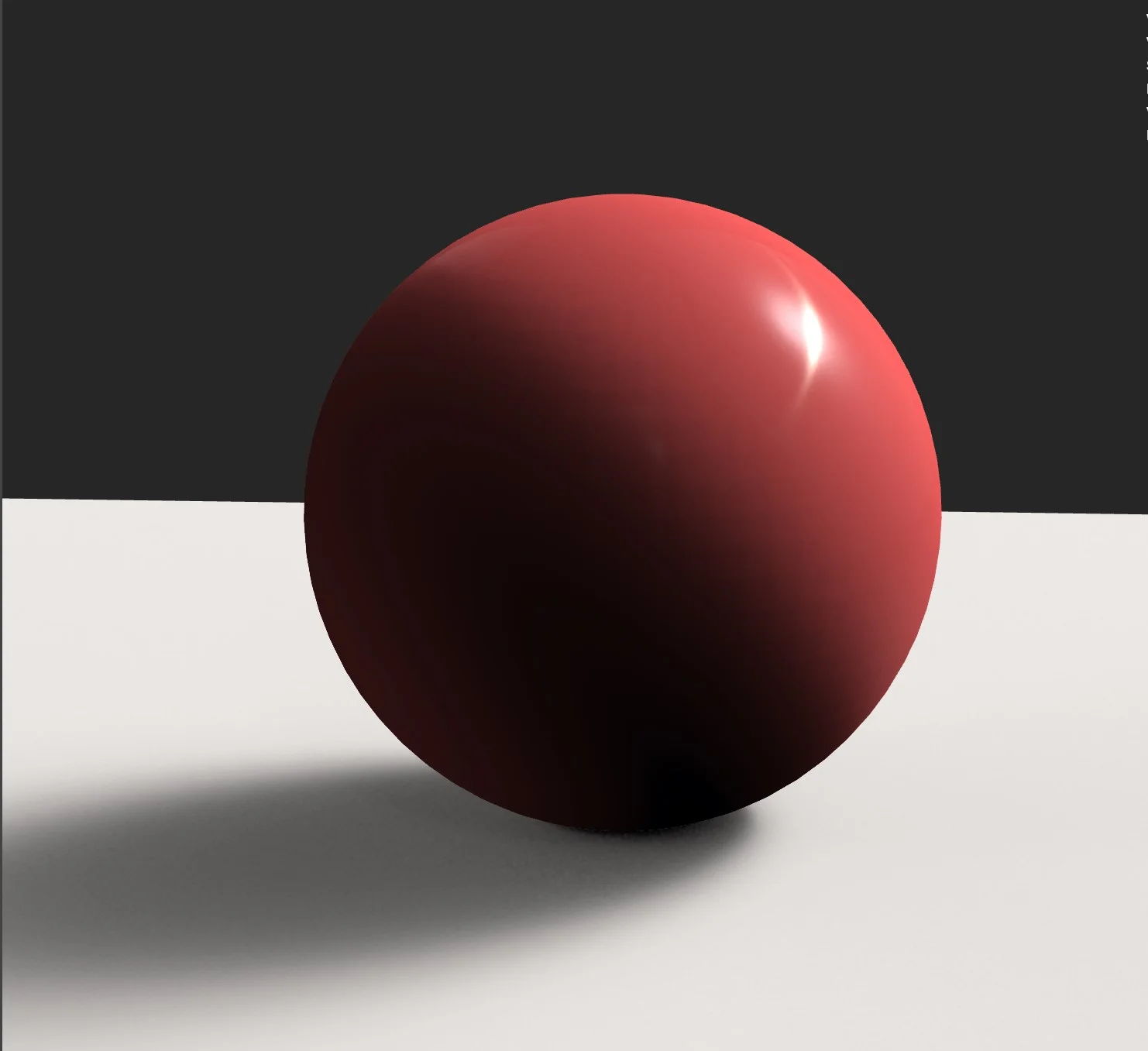 | 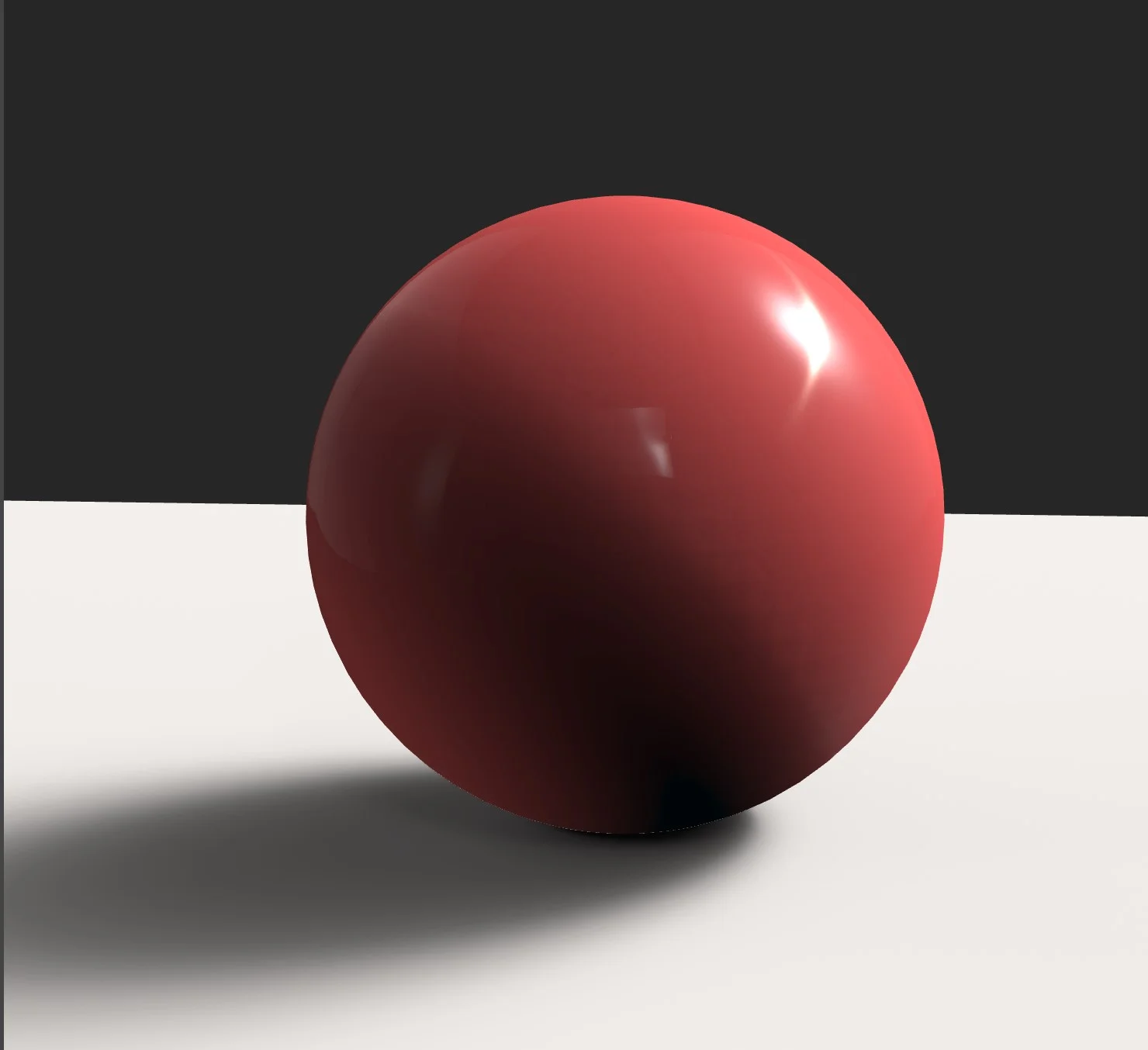 |
Note that the over-bright side of the sphere, facing away from the sun is an artifact of Babylon's use of spherical harmonics for diffuse IBL lighting.
Properties
The following properties can be set on the pipeline (or passed in the constructor on initialization)
General Properties
| Property | Description |
|---|---|
| shadowOpacity | How dark the shadows are. 1.0 is full opacity, 0.0 is no shadows. |
| sampleDirections | The number of different directions to sample during the voxel-tracing pass. Higher values will result in better quality and more stable shadows but will also be more expensive to compute each frame. Since shadows are accumulated from frame to frame, increasing this value doesn't help much when the camera isn't moving. |
| shadowRemanence | A factor that controls how long the shadows remain in the scene. 0.0 is no persistence, 1.0 is full persistence. This value applies only while the camera is moving. Once stationary, the pipeline increases remanence automatically to help the shadows converge. |
| shadowRenderSizeFactor | A size multiplier for the internal shadow render targets (default 1.0). A value of 1.0 represents full resolution. Scaling this below 1.0 will result in blurry shadows and potentially more artifacts, but it could help increase performance on less powerful GPUs. |
Voxel Properties
| Property | Description |
|---|---|
| resolutionExp | The exponent of the resolution of the voxel shadow grid. Higher resolutions will result in sharper shadows but are more expensive to compute and require more memory. The resolution is calculated as 2 to the power of this number. e.g. a value of 6 results in a voxel grid that is 64x64x64 |
| triPlanarVoxelization | Render the voxel grid from 3 different axis. This will result in better quality shadows with fewer bits of missing geometry. |
Screen-space Shadow Properties
| Property | Description |
|---|---|
| ssShadowsEnabled | Include screen-space shadows in the IBL shadow pipeline. This complements the voxel shadows by adding shadows for small geometry detail close to a shadow-casting object. |
| ssShadowSampleCount | The number of samples used in the screen space shadow pass. |
| ssShadowStride | This controls the distance between samples in pixels. |
| ssShadowDistanceScale | A scale for the maximum distance a screen-space shadow can be cast in world space. The maximum distance that screen-space shadows cast is derived from the voxel size and this value, so it shouldn't need to change if you scale your scene. |
| ssShadowThicknessScale | This value controls the assumed thickness of on-screen surfaces in world space. It scales with the size of the shadow-casting region, so it shouldn't need to change if you scale your scene. |
Functions
| Function | Description |
|---|---|
| toggleShadow | Turn the shadows on or off |
| updateSceneBounds | Trigger the scene bounds of shadow-casters to be calculated. This is the world size that the voxel grid will cover and will always be a cube. |
| updateVoxelization | Trigger the scene to be re-voxelized. This should be run when any shadow-casters have been added, removed or moved. |
| resetAccumulation | Reset the shadow accumulation. This has a similar effect to lowering the remanence for a single frame. This is useful when making a sudden change to the IBL. |
| addShadowCastingMesh | Add a mesh to be used for shadow-casting in the IBL shadow pipeline. These meshes will be written to the voxel grid. |
| removeShadowCastingMesh | Remove a mesh from the shadow-casting list. The mesh will no longer be written to the voxel grid and will not cast shadows. |
| addShadowReceivingMaterial | Apply the shadows to a material or array of materials. If no material is provided, all materials in the scene will be added. |
| removeShadowReceivingMaterial | Remove a material from the list of materials that receive shadows. If no material is provided, all materials in the scene will be removed. |
Debugging Shadows
The IBL Shadows Pipeline has a few debug modes to help in diagnosing issues. To enable these, you must first set allowDebugPasses to true. Once that is enabled, you can toggle the other debug modes on/off. If multiple are enabled at the same time, they will all attempt to display in different parts of the screen.
shadowPipeline.allowDebugPasses = true;| Property | Description | Image |
|---|---|---|
| gbufferDebugEnabled | This will display only the targets of the g-buffer that are used by the shadow pipeline. | 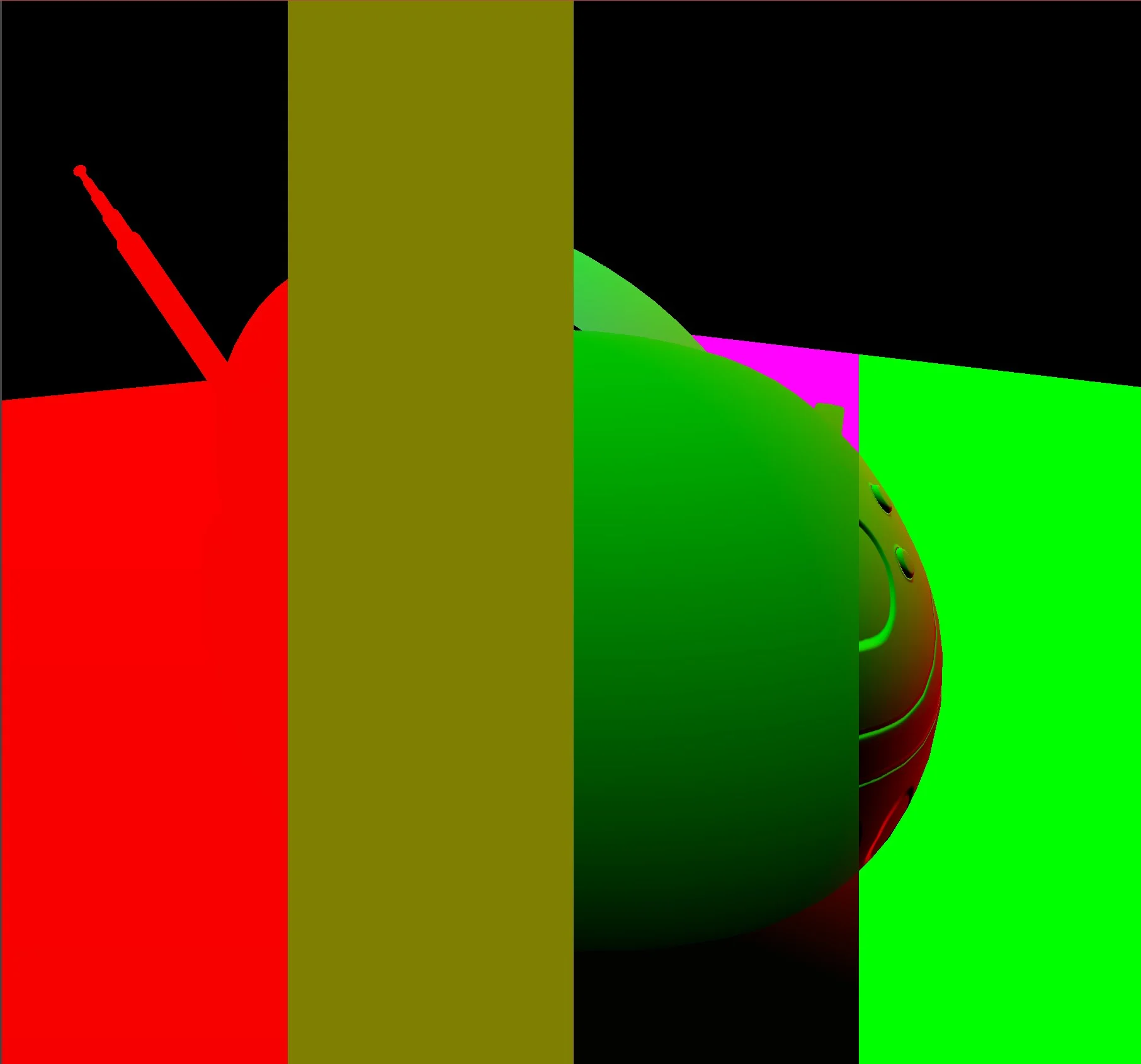 |
| cdfDebugEnabled | This displays the IBL and the CDF maps used for importance sampling. | 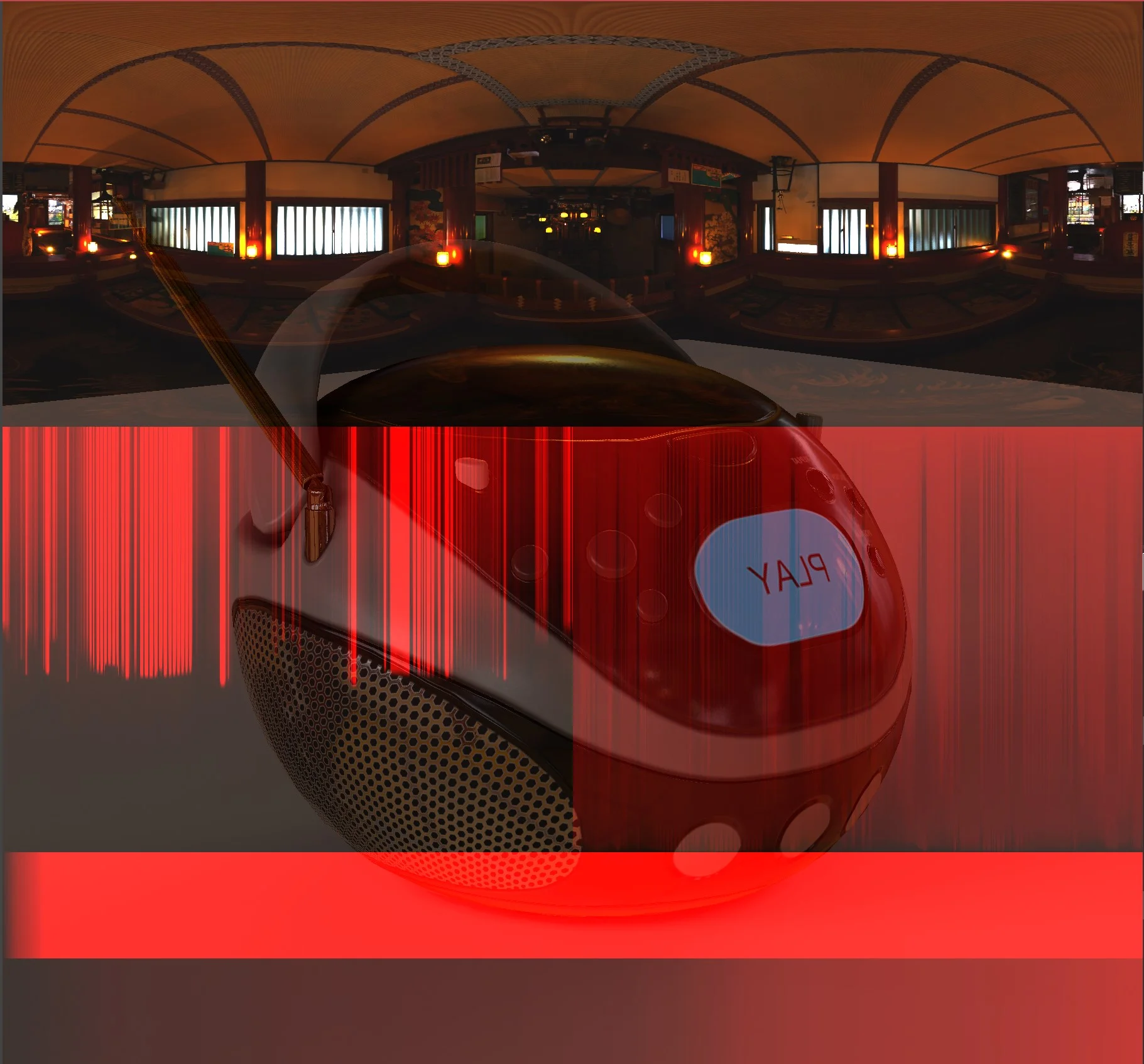 |
| voxelDebugEnabled | This displays the voxel grid in slices spread across the screen. It also displays what slices of geometry are stored in each layer of the voxel grid. Each stripe represents one layer of the grid and each full gradient (from bright red to black) represents the layers rendered in a single draw call. | 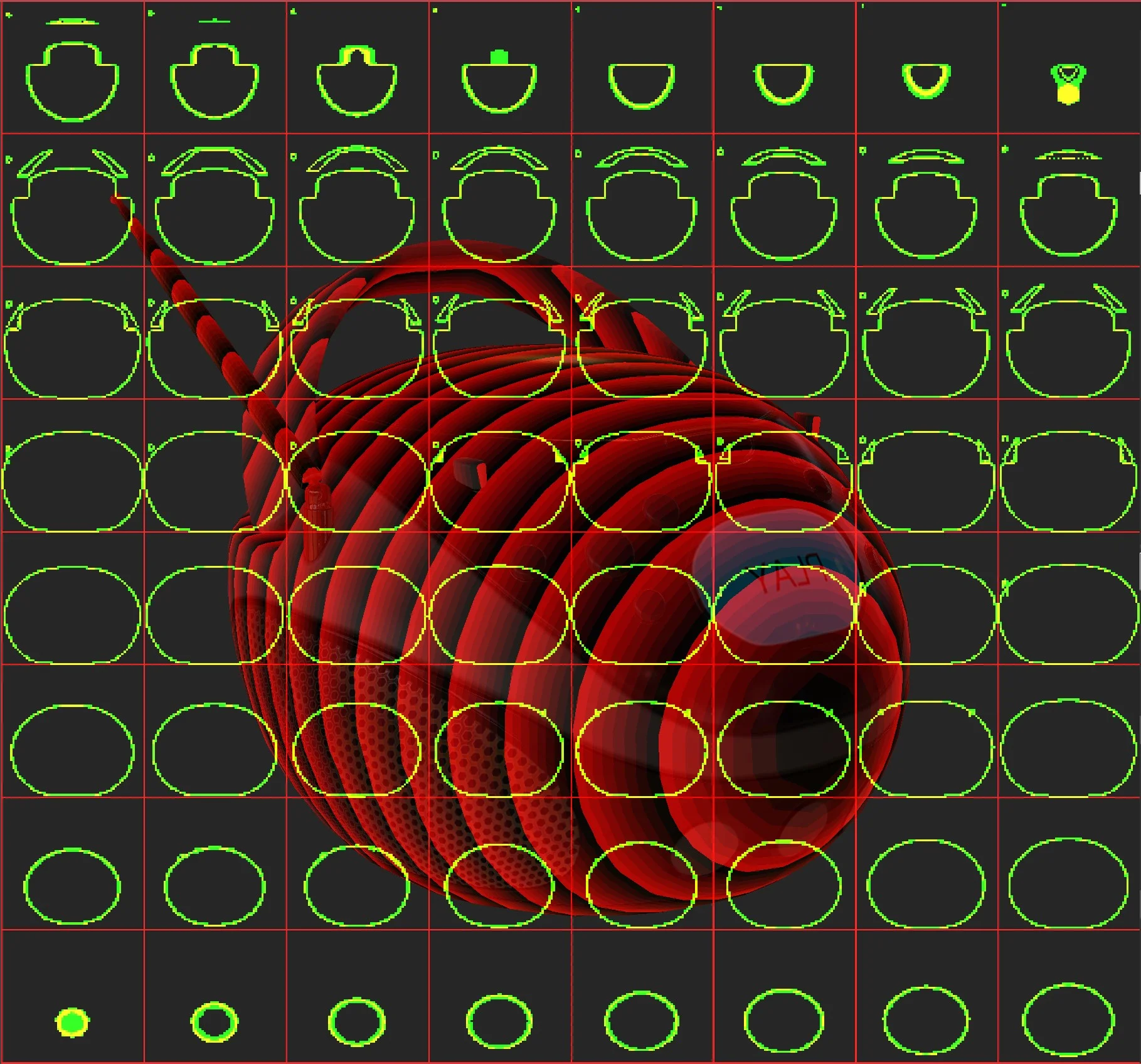 |
| voxelDebugAxis | When using tri-planar voxelization (the default), this value can be used to display only the voxelization result for that axis. 0 -> z-axis, 1 -> y-axis, 2 -> x-axis, undefined -> all axes combined | 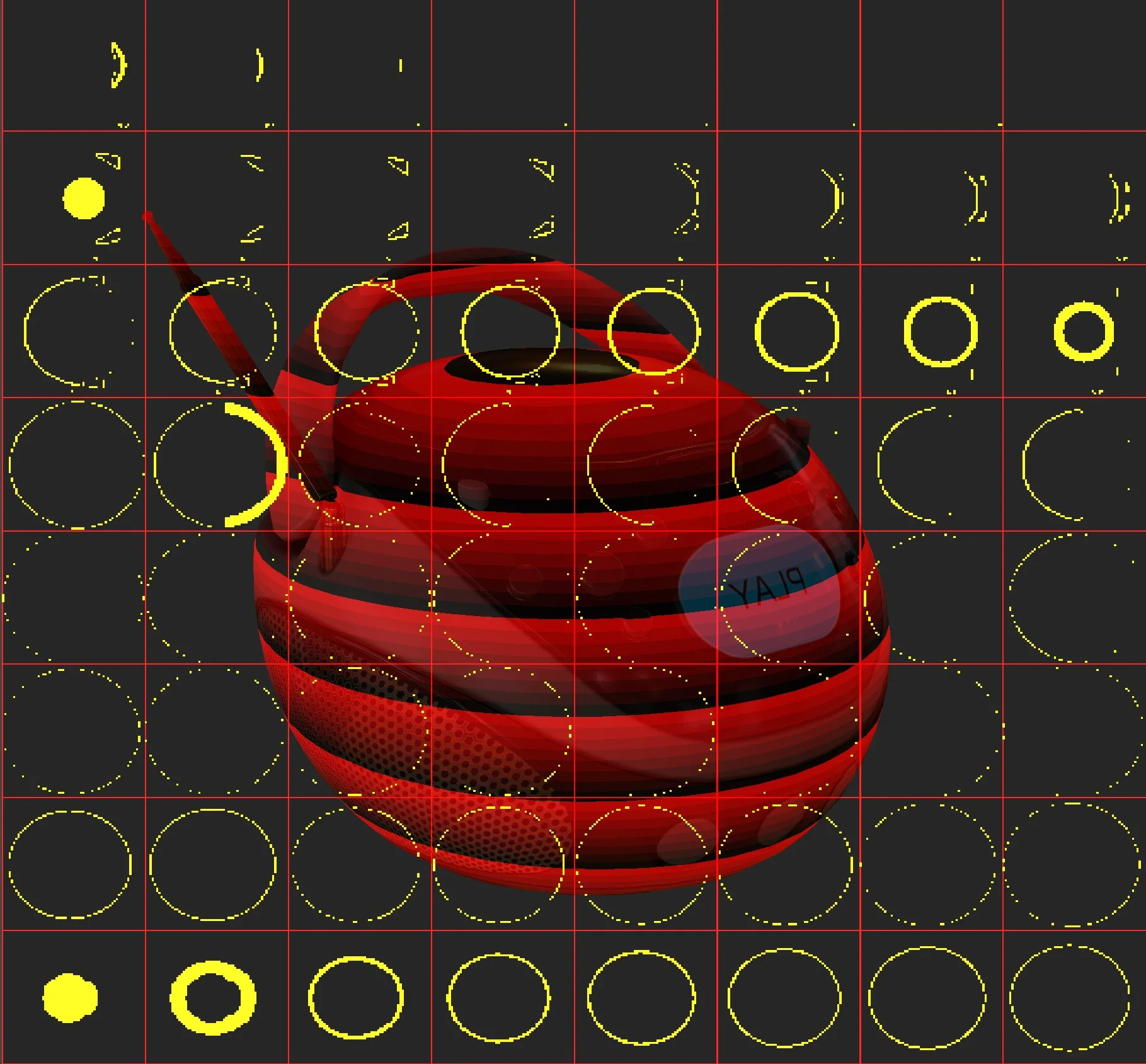 |
| voxelDebugDisplayMip | Displays a given mip of the voxel grid. voxelDebugAxis must be undefined in this case because we only generate mips for the combined voxel grid. | 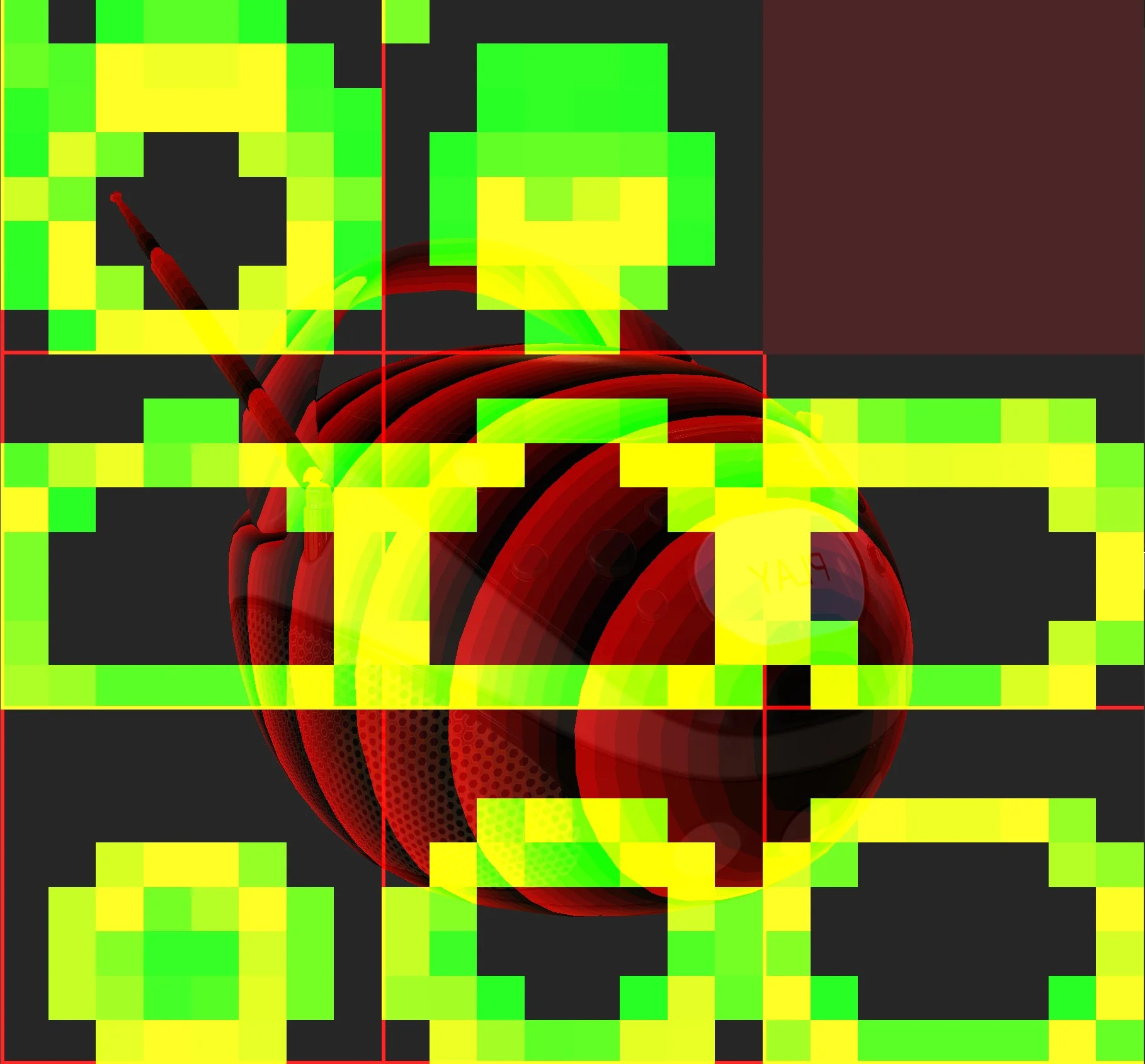 |
| voxelTracingDebugEnabled | Displays just the shadow samples taken this frame. | 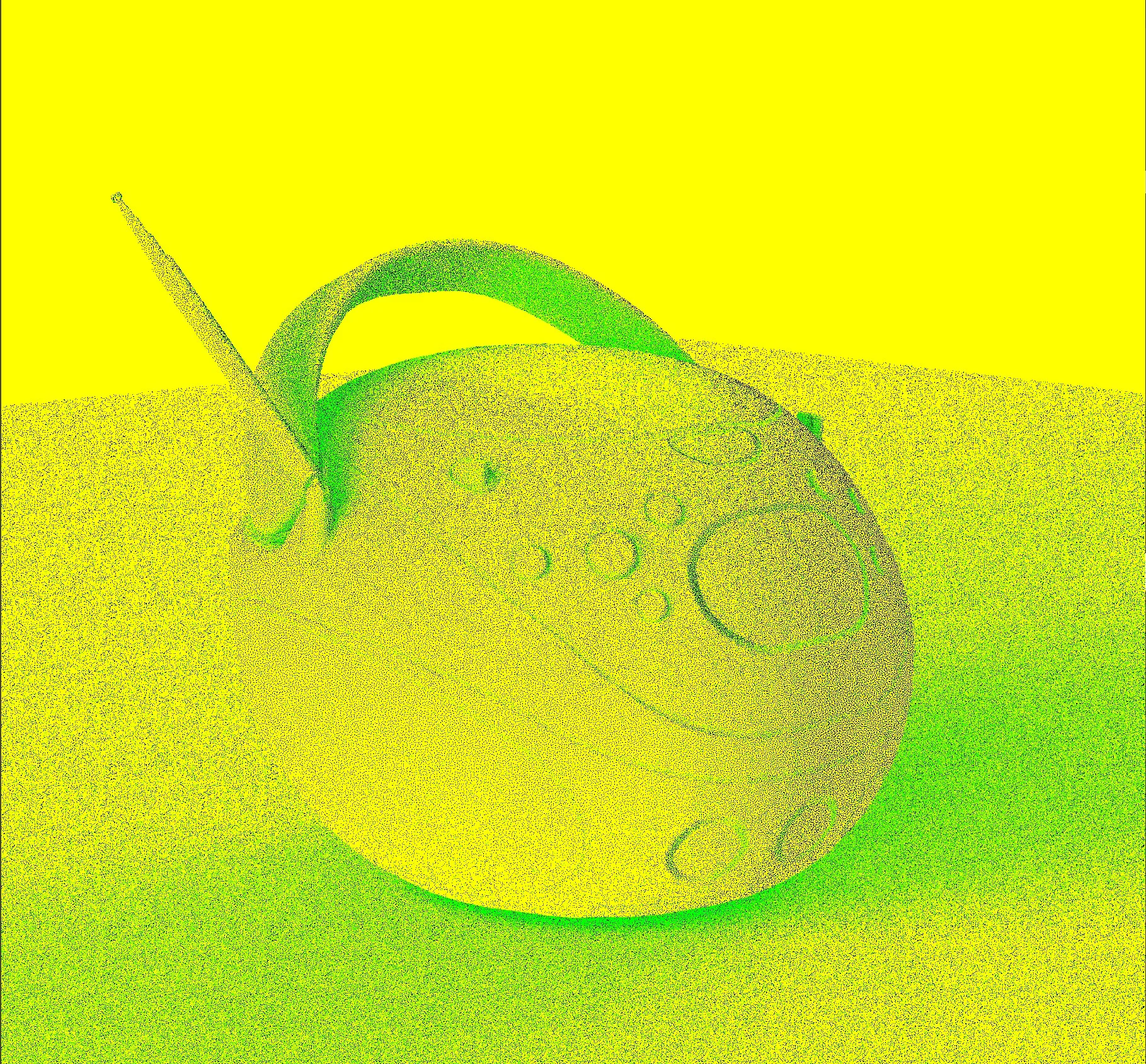 |
| spatialBlurPassDebugEnabled | Display the shadow samples taken this frame, spatially blurred. | 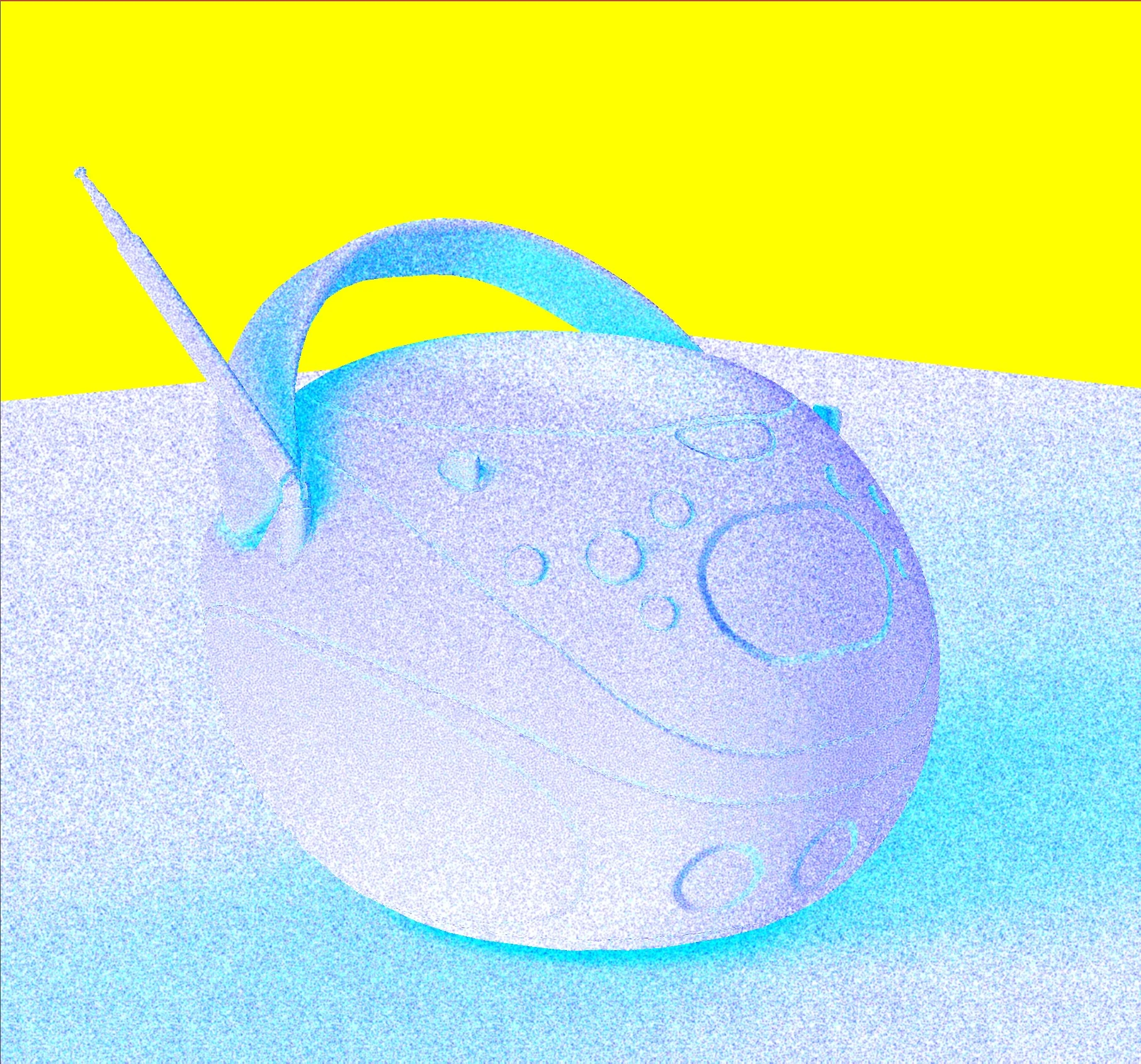 |
| accumulationPassDebugEnabled | Display the debug view for the shadows accumulated over time. | 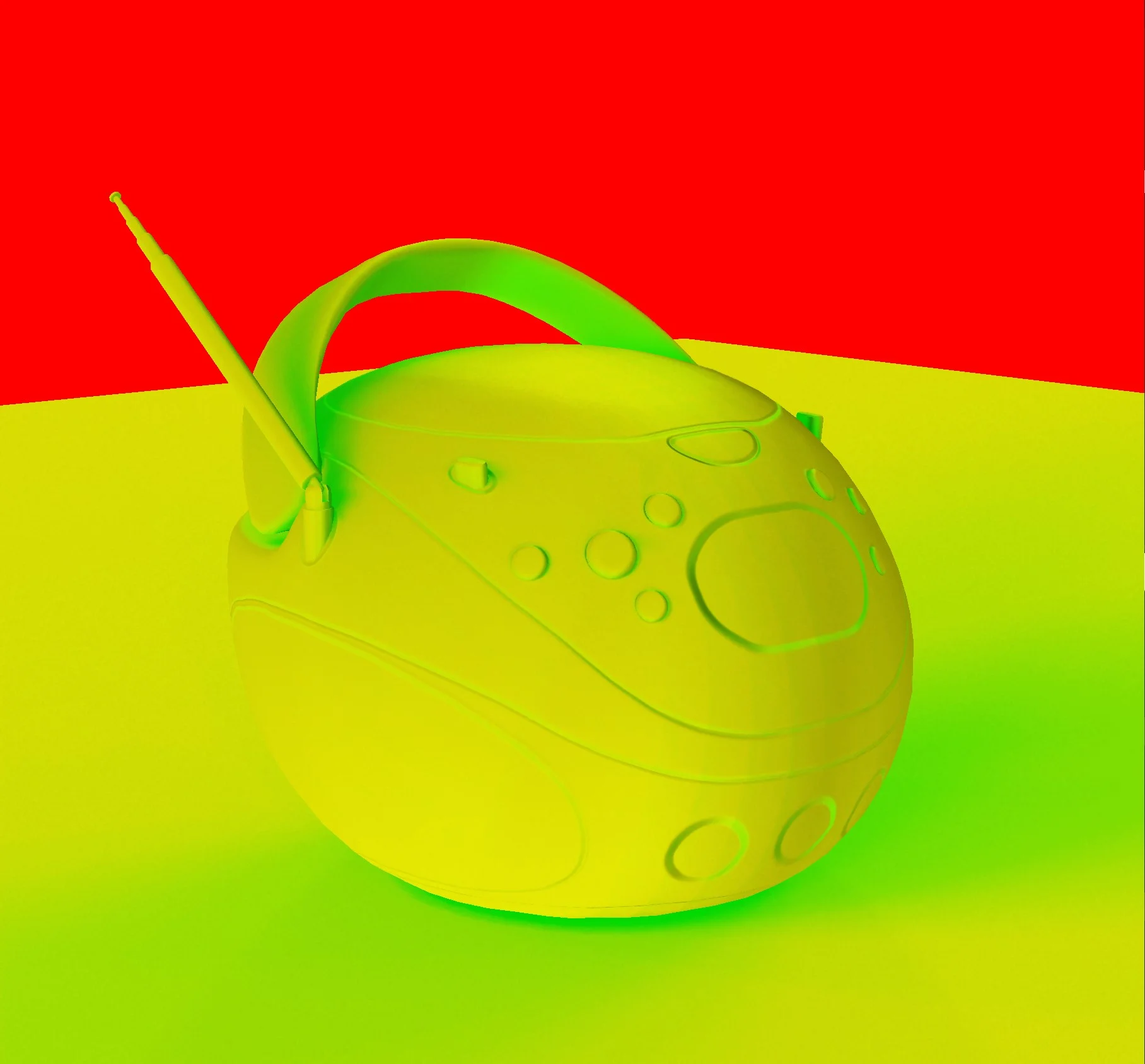 |
Performance Notes
Voxelization Performance
Voxelization performance depends on voxel resolution, shadow-caster complexity, and whether triPlanarVoxelization is enabled. WebGPU will generally be faster than WebGL.
Per-frame Shadow Rendering
Each frame, the time taken to compute shadows is primarily affected by two things.
-
sampleDirections- The number of sample directions determines the number of voxel traces and the number of screen-space traces done for shadows. These are the primary computations done each frame so lowering this number will help performance. -
shadowRenderSizeFactor- Since the shadow computations are done per fragment, lowering the resolution of the shadow buffers can have a significant impact on performance. Try settingshadowRenderSizeFactorbelow 1.0.