The Performance Profiler
What is it?
Introduced in Babylon.js 5.0, the Performance Profiler is a fantastic visual performance debugging tool. As you develop your Babylon experience, this tool can help you easily identify performance issues and hiccups in your scene.
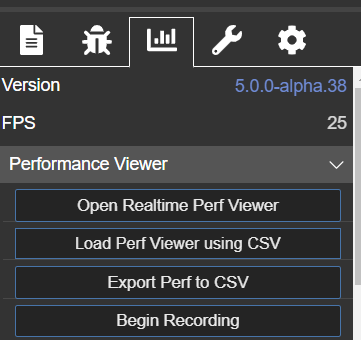
Available in the Statistics tab of the inspector, it lets you view data charted over time instead of only seeing the latest number at any given moment. The data is normalized to the displayed range, meaning the smallest value corresponds to the bottom y-position on the graph, while the highest value corresponds to the top y-position.
The Performance Profiler can collect and display three types of data: 1) all the data in the Statistics tab, 2) user-defined data, and 3) user-defined events through code.
It has two modes for recording data:
- Real-time graph mode.
- Headless recording mode.
Use Case
You would use this to debug performance issues in your scene and identify a potential cause. For example, you may notice that FPS drops whenever you do a specific action in the scene, and that draws increase simultaneously.
How to use it
There are four buttons to choose from on this screen:
- Open Realtime Perf Viewer
- Load Perf viewer using CSV
- Export Perf to CSV
- Begin Recording
"Open Realtime Perf Viewer" opens the performance viewer popout in real-time graph mode. "Load Perf Viewer using CSV" opens the performance viewer popout in view-only mode.
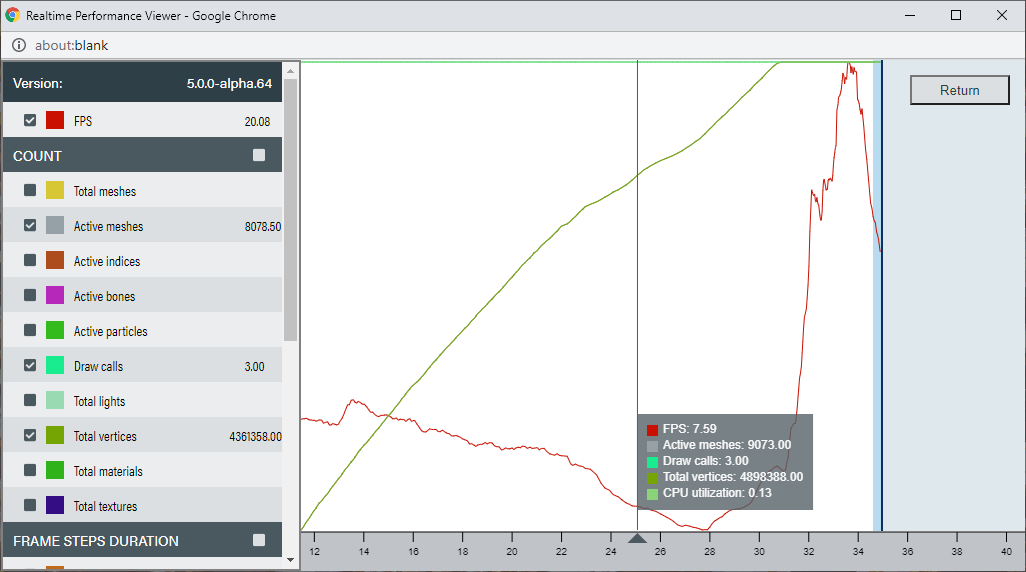
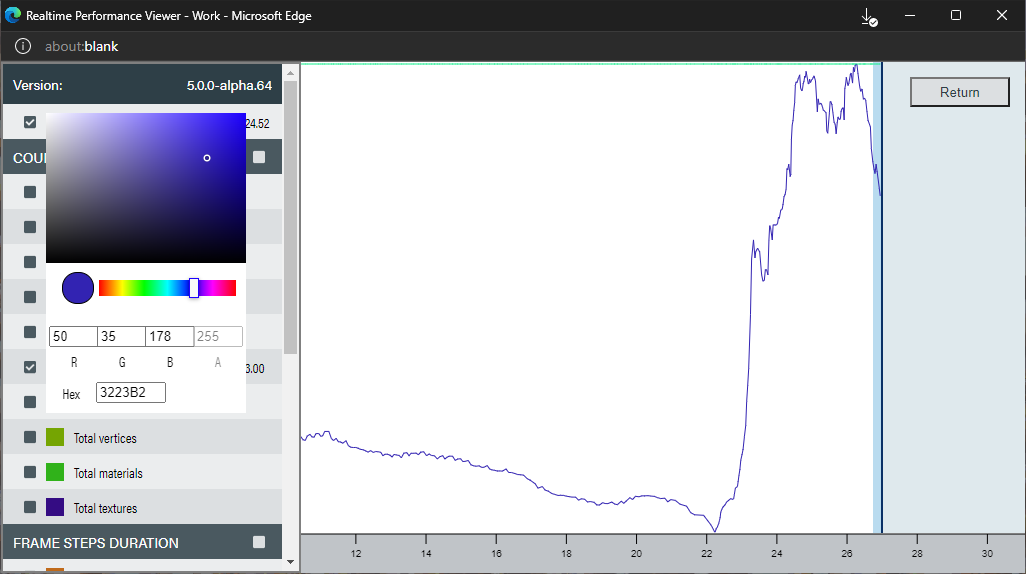
The left sidebar in the popout lists the active collection types. It allows the user to toggle visibility and change color through the checkbox and color picker, respectively.
The center contains the graph, and you can hover over a particular timestamp to view all data values at that point.
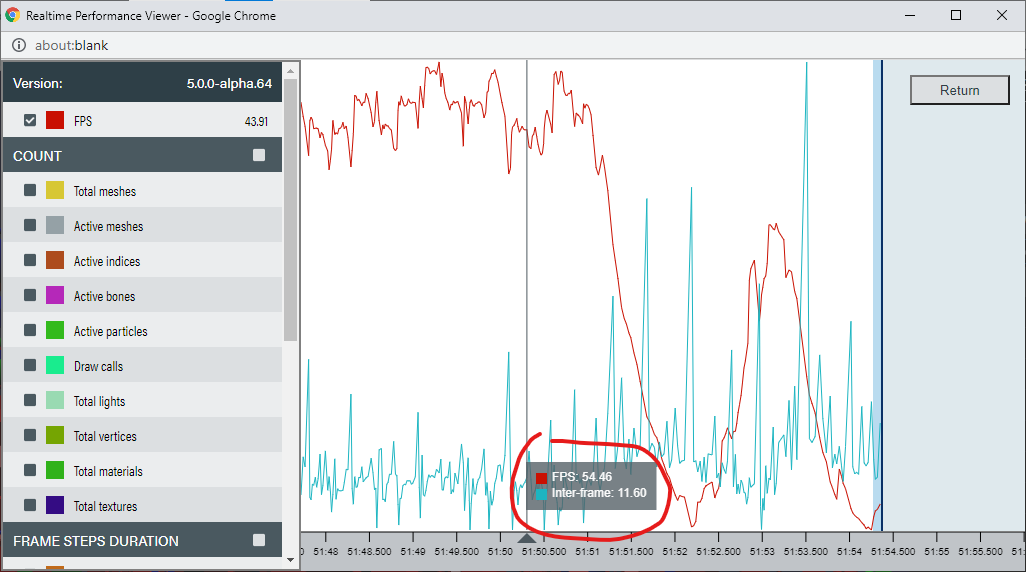
You can zoom in and out using the mouse wheel.
You can pan the graph by clicking and dragging, which takes the graph out of the live data stream.
You can hover over a single line outside the live data stream to focus on it, fading out the other lines.
A horizontal line shows where that point is relative to every other point on the focused line.
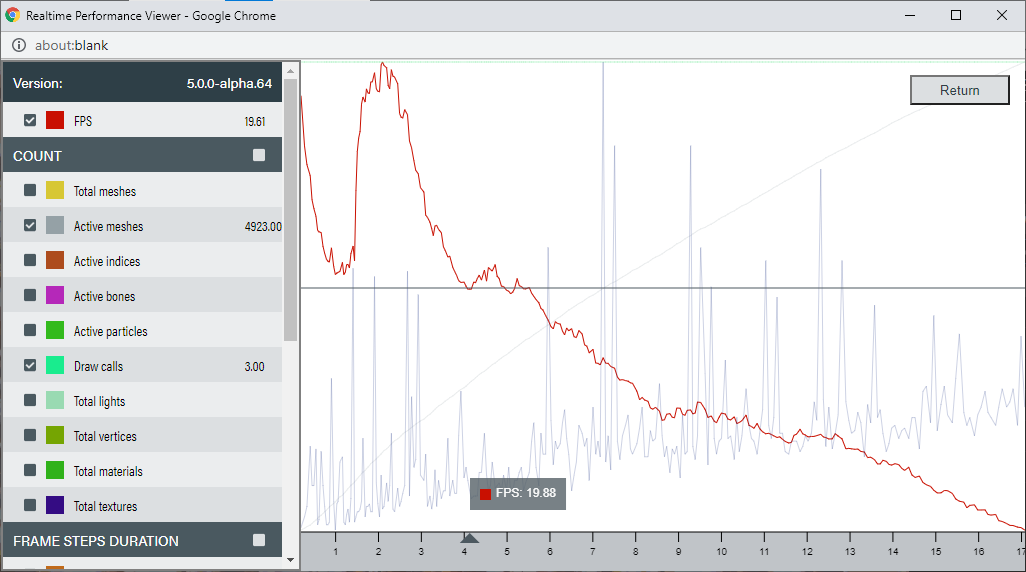
To return to the live data stream, you can either catch up to the live data stream or conveniently click the "Return" button.
"Begin Recording" starts recording only in headless recording mode. This button will also let you stop recording when its text changes to "Stop recording."
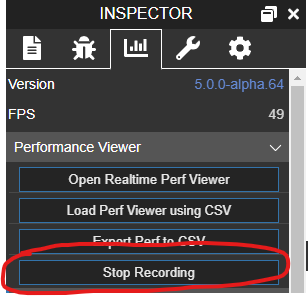
"Export Perf to CSV" lets you export the performance recording to a CSV file. The export makes it easy to share performance data and import it later.
"Begin Recording" and "Export Perf to CSV" are helpful on mobile, because the popout will not work as intended in real-time graph mode there. You will need to export the recording and import it on a PC. These options can also be used directly on a PC.
Headless recording mode vs. Real-time graph mode.
Real-time graph mode opens a popout and begins recording, while headless recording mode begins recording without the popout.
Therefore, real-time graph mode will allow you to see a graph updating once per frame with performance data.
Headless recording mode has a lower performance impact and does not rely on the popout, which makes it useful for mobile.
Collection Strategies
A collection strategy defines how to collect data and clean it up appropriately.
There are many collection strategies already defined for you in the PerfCollectionStrategy class.
We currently support these out of the box:
| Id | Strategy |
|---|---|
| FPS | FpsStrategy |
| Total Meshes | TotalMeshesStrategy |
| Active Meshes | ActiveMeshesStrategy |
| Active Indices | ActiveIndicesStrategy |
| Active Faces | ActiveFacesStrategy |
| Active Bones | ActiveBonesStrategy |
| Active Particles | ActiveParticlesStrategy |
| Draw Calls | DrawCallsStrategy |
| Total Lights | TotalLightsStrategy |
| Total Vertices | TotalVerticesStrategy |
| Total Materials | TotalMaterialsStrategy |
| Total Textures | TotalTexturesStrategy |
| Absolute FPS | AbsoluteFpsStrategy |
| Meshes Selection | MeshesSelectionStrategy |
| Render Targets | RenderTargetsStrategy |
| Particles | ParticlesStrategy |
| Sprites | SpritesStrategy |
| Animations | AnimationsStrategy |
| Physics | PhysicsStrategy |
| Render | RenderStrategy |
| Frame Total | FrameTotalStrategy |
| Inter Frame | InterFrameStrategy |
| GPU Frame Time | GpuFrameTimeStrategy |
| CPU Utilization | CpuStrategy |
The CPU strategy is more experimental because it uses the experimental Compute Pressure API. This strategy may not work as intended for all users. You might need to enable experimental web features in Chrome settings to use it. This strategy lets you see the CPU utilization percentage.
Adding a custom collection strategy
You may have custom data that you want to track that we do not support out of the box. Don't worry, we've made this very easy to do.
To start, you must define a function that returns an object like so:
// This variable would be updated somewhere else.var someVariableToTrack;
const someStrategyCallback = (scene) => {    return {        /**        * The id of the strategy.        */        id: "some strategy id",        /**        * Function which gets the data for the strategy.        */        getData: () => someVariableToTrack,        /**        * Function which does any necessary clean-up. Called when performanceViewerCollector.dispose() is called.        */        dispose: () => {            // do any clean up here.        }    }};
When it is added to the performance collector, the collector passes the scene object as a parameter to the function (you can omit the scene parameter if you like). The function can initialize any observers and other resources it needs.
The id parameter is the name of the strategy. Make sure to use a unique ID, or there may be unintended side effects. Also, if your ID contains the character "@", it will be removed because it is already used when exporting data. The left sidebar will display the defined ID.
The getData function in the object must return a number that cannot be NaN. It is called once per frame.
The dispose function in the object should do any clean-up of resources created in the initialization part of the function.
Here is an example of how we keep track of draw calls in the PerfCollectionStrategy class:
public static DrawCallsStrategy(): PerfStrategyInitialization {    return (scene) => {        let drawCalls = 0;        const onBeforeAnimationsObserver = scene.onBeforeAnimationsObservable.add(() => {            scene.getEngine()._drawCalls.fetchNewFrame();        });
        const onAfterRenderObserver = scene.onAfterRenderObservable.add(() => {            drawCalls = scene.getEngine()._drawCalls.current;        });
        return {            id: "draw calls",            getData: () => drawCalls,            dispose: () => {                scene.onBeforeAnimationsObservable.remove(onBeforeAnimationsObserver);                scene.onAfterRenderObservable.remove(onAfterRenderObserver);            },        };    };}
In the function, we create two observers and update the value of draw calls in the onAfterRenderObservable. We return the value of draw calls in getData. We remove all observers inside the dispose function.
Now that you have a collection strategy, you have to add it to the performance collector. To do so, you also have to specify a category for your strategy to be displayed in the left bar (you can leave it empty to display on top), and if that strategy is hidden or visible by default.
First, get the performance collector like so:
const perfCollector = scene.getPerfCollector();Then add the strategy we defined earlier to the performance collector:
const someStrategy = { strategyCallback: someStrategyCallback, category: "My custom category", hidden: false}perfCollector.addCollectionStrategies(someStrategy);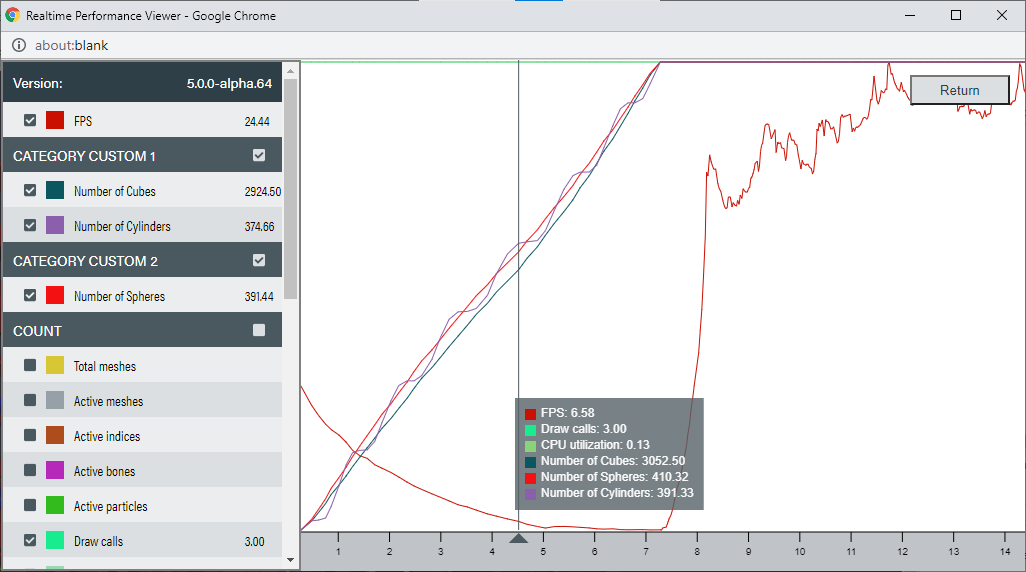 Custom Performance Profiler strategies
Registering a custom event.
An event is a particular type of strategy that can measure the number of times it was called in a frame or track a named custom value (related to an event usually) once per frame. To register an event, do the following:
const perfCollector = scene.getPerfCollector();const event = perfCollector.registerEvent("someEvent");The registerEvent function returns an object containing the event you passed in:
{ /** * The name of the event. */ name: "",}If you want to count the number of times an event was called, you would want the following somewhere in the code:
perfCollector.sendEvent(event);If you want to track a custom value once per frame related to an event, try this:
// somewhere in the code you want thisevent.value = someValue;
// followed by this somewhere in the codeperfCollector.sendEvent(event);Note: You shouldn't set the value property to undefined after selecting a value for it. Doing so may result in unexpected behavior (this will switch between counting the number of occurrences and tracking a custom value related to an event).
Custom Performance Profiler event with value