Bones and Skeletons
Bones and Skeletons
Babylon.js supports bone animations for your meshes.

A skeleton contains an ordered hierarchy of bones. Each bone stores a transformation relative to its parent. The root bone has no parent.
Creating a basic skeleton
Create the skeleton first, then create its bones from parent to child:
import { Bone } from "@babylonjs/core/Bones/bone";import { Skeleton } from "@babylonjs/core/Bones/skeleton";import { Matrix } from "@babylonjs/core/Maths/math.vector";const skeleton = new Skeleton("skeleton", "skeleton", scene);const rootBone = new Bone("root", skeleton, null, Matrix.Identity());const upperBone = new Bone("upper", skeleton, rootBone, Matrix.Translation(0, 1, 0));The translation places upperBone one unit above its parent in the bind pose. A bone's local matrix is relative to its parent, not the mesh or the world. Bones are appended to skeleton.bones when they are constructed, so create parents before their children. If bones are created out of order, call skeleton.sortBones() before using the skeleton.
The full constructor is:
import { Bone } from "@babylonjs/core/Bones/bone";new Bone(name, skeleton, parentBone, localMatrix, restMatrix, bindMatrix, index);| Argument | Meaning |
|---|---|
name | The bone's name. |
skeleton | The skeleton that owns the bone. The constructor adds the bone to skeleton.bones. |
parentBone | The parent bone, or null for a root bone. |
localMatrix | The bone's initial transformation relative to its parent. It defaults to the identity matrix. |
restMatrix | The local transformation restored by bone.returnToRest(). It defaults to a copy of localMatrix. |
bindMatrix | The bone's local transformation in the bind pose. It defaults to a copy of localMatrix. |
index | An optional explicit index for skinning data. It normally should be omitted, in which case bone.getIndex() returns the bone's position in skeleton.bones. |
For most manually created skeletons, pass the first four arguments and allow the rest and bind matrices to default to the local matrix. See Bone Class Internals for details about local, rest, bind, and final matrices.
Basic Skeleton Created in CodePreparing a mesh for skinning
A skeleton can be applied to a mesh through the mesh.skeleton property.
Skinning binds vertices, not faces, to bones. Each vertex needs matching bone-index and bone-weight data. Babylon.js supports up to 4 bone influences per vertex by default:
MatricesIndicesKindcontains four bone indices per vertex.MatricesWeightsKindcontains the corresponding four weights per vertex.
The entries at the same offset form a pair. For example, indices [0, 1, 0, 0] and weights [0.25, 0.75, 0, 0] make one vertex receive 25% of bone 0's transformation and 75% of bone 1's transformation. Active weights should add up to 1; set unused indices and weights to 0.
Legacy .babylon files can store the four indices for each vertex as one packed integer while storing four separate weights. The integer uses one byte per index, starting with the least significant byte. For example, 1027 is hexadecimal 0x00000403, so it represents indices [3, 4, 0, 0]. The loader expands these values into the four-index runtime format described above. Files with matricesIndicesExpanded: true already contain four separate indices per vertex and are not unpacked.
This example assigns every vertex of a box to exactly one of the two bones created above:
import { VertexBuffer } from "@babylonjs/core/Buffers/buffer";import { Axis, Space } from "@babylonjs/core/Maths/math.axis";import { MeshBuilder } from "@babylonjs/core/Meshes/meshBuilder";const mesh = MeshBuilder.CreateBox("skinnedBox", { height: 2 }, scene);const positions = mesh.getVerticesData(VertexBuffer.PositionKind);const matricesIndices = [];const matricesWeights = [];for (let vertexIndex = 0; vertexIndex < mesh.getTotalVertices(); vertexIndex++) { const y = positions[vertexIndex * 3 + 1]; const boneIndex = y > 0 ? upperBone.getIndex() : rootBone.getIndex(); // Four entries are stored for every vertex. This example uses only the first. matricesIndices.push(boneIndex, 0, 0, 0); matricesWeights.push(1, 0, 0, 0);}mesh.setVerticesData(VertexBuffer.MatricesIndicesKind, matricesIndices);mesh.setVerticesData(VertexBuffer.MatricesWeightsKind, matricesWeights);mesh.numBoneInfluencers = 1;mesh.skeleton = skeleton;// The bind pose is unchanged. Rotating the child now deforms its vertices.upperBone.rotate(Axis.Z, Math.PI / 8, Space.LOCAL);Mesh builders can create separate vertices that share the same position, for example where two faces need different normals or UVs. Assign influences to every entry in the position buffer rather than assuming that each visible corner is represented by one vertex.
The final matrix applied to each vertex is computed as follows:
finalMatrix = worldMatrix * (bonesMatrices[index0] * weight0 + bonesMatrices[index1] * weight1 + bonesMatrices[index2] * weight2 + bonesMatrices[index3] * weight3);On low-end hardware, the maximum bones influences per vertex is reduced to 3.
By default the system will try to store the bone matrices into a texture to save shader uniforms. If you still want to use shader uniforms, you can call:
skeleton.useTextureToStoreBoneMatrices = false;Loading bones
Skeletons and bones can be loaded from .babylon files.
Here is a sample of how to load a boned mesh and how to launch skeleton animation:
import { ImportMeshAsync } from "@babylonjs/core/Loading/sceneLoader";ImportMeshAsync("scenes/Dude/Dude.babylon", scene, { meshNames: "him" }).then(function (result) { scene.createDefaultCameraOrLight(true, true, true); scene.createDefaultEnvironment(); scene.beginAnimation(result.skeletons[0], 0, 100, true, 1.0);});A complete running example can be found here: Loading Bones
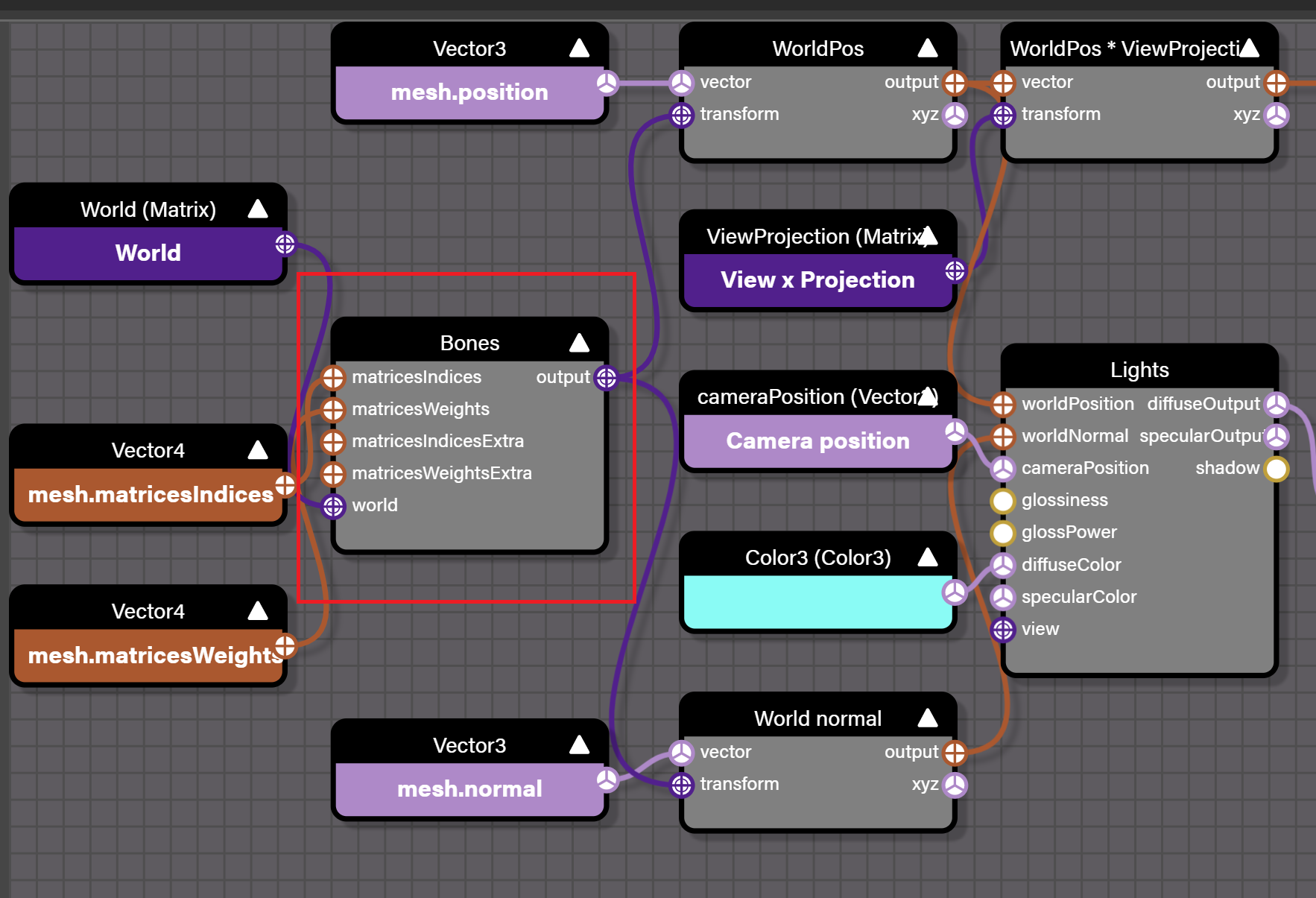
Use Bones with Node Material
The Node Material is a powerful tool that allows you to create shaders without having to write GLSL. To use a Node Material on a mesh with bones, you need to add the Bones node to it so that the bone influences are correctly computed:
Cloning bones
Bones and skeletons can be cloned (this is the case with the rabbits in the previous link).
Here is a sample of how to load and clone a mesh and its skeleton:
import { ImportMeshAsync } from "@babylonjs/core/Loading/sceneLoader";import { Vector3 } from "@babylonjs/core/Maths/math.vector";ImportMeshAsync("Scenes/Rabbit/Rabbit.babylon", scene, { meshNames: "Rabbit" }).then(function (result) { const rabbit = result.meshes[1]; rabbit.scaling = new Vector3(0.4, 0.4, 0.4); shadowGenerator.getShadowMap().renderList.push(rabbit); const rabbit2 = rabbit.clone("rabbit2"); const rabbit3 = rabbit.clone("rabbit2"); rabbit2.position = new Vector3(-50, 0, -20); rabbit2.skeleton = rabbit.skeleton.clone("clonedSkeleton"); rabbit3.position = new Vector3(50, 0, -20); rabbit3.skeleton = rabbit.skeleton.clone("clonedSkeleton2"); scene.beginAnimation(result.skeletons[0], 0, 100, true, 0.8); scene.beginAnimation(rabbit2.skeleton, 73, 100, true, 0.8); scene.beginAnimation(rabbit3.skeleton, 0, 72, true, 0.8);});Cloning Complex Models
More complex models, such as the Dude, contain submeshes. When cloning, you must iterate and clone the submeshes as well. Here is an example of how to clone a more complex model:
import { ImportMeshAsync } from "@babylonjs/core/Loading/sceneLoader";import { Vector3 } from "@babylonjs/core/Maths/math.vector";ImportMeshAsync("Dude/dude.babylon", scene, { meshNames: "him" }).then(function (result) { result.meshes[0].position = new Vector3(0, 0, 5); // The original dude scene.beginAnimation(result.skeletons[0], 0, 120, 1.0, true); dudes = []; for (i = 0; i < 10; i++) { // 10 clones const xrand = Math.floor(Math.random() * 501) - 250; const zrand = Math.floor(Math.random() * 501) - 250; const c = []; for (j = 1; j < result.meshes.length; j++) { c[j] = result.meshes[j].clone("c" + j); c[j].position = new Vector3(xrand, 0, zrand); c[j].skeleton = result.meshes[j].skeleton.clone(); scene.beginAnimation(c[j].skeleton, 0, 120, 1.0, true); } dudes[i] = c; }});Picking a mesh attached to a skeleton
Because bone transformations are applied to the vertices on the GPU, the CPU does not know where the mesh's vertices are. So picking a mesh with a skeleton will only work on the bind pose, which could be sub-optimal.
You can decide to call mesh.refreshBoundingInfo(true) to force the CPU to update its local version of the mesh so that you can pick it correctly:
mesh.refreshBoundingInfo(true);const pickResult = scene.pick(scene.pointerX, scene.pointerY);Please keep in mind that this operation uses the CPU, so it should be used carefully because it can impact performance.
That being said, starting with Babylon 7.12, you can now use a new class to use the GPU to compute complex meshes' bounding info:
import { BoundingInfoHelper } from "@babylonjs/core/Culling/Helper/boundingInfoHelper";var bbHelper = new BoundingInfoHelper(engine);await bbHelper.computeAsync(scene.meshes);That class will use Transform Feedbacks on WebGL2 and Compute Shaders on WebGPU to compute the bounding info.
Computing Bounding Info with the GPUPlease note that there is a limit to be aware of: the GPU will be faster only if the objects to scan are complex enough. Otherwise, the cost of uploading data to the GPU and preparing shaders will not be worth it.
Attaching a mesh to a specific bone
You can attach a rigid mesh, such as a sword, helmet, or shield, to a bone so that it follows the bone's animation:
sword.attachToBone(handBone, characterMesh);The second argument can be any TransformNode whose world matrix represents the intended reference transform for the attachment. A mesh that uses the skeleton containing the selected bone is a reliable default. An import root or another parent node is also valid when its world matrix provides the intended transform.
Selecting the transform-reference mesh
Imported characters frequently contain a transform root plus several skinned meshes for the body, clothing, or accessories. When you do not already know which node provides the intended reference transform, find the meshes that reference the selected skeleton:
const skeleton = result.skeletons[0];const skinnedMeshes = result.meshes.filter((mesh) => mesh.skeleton === skeleton);
if (skinnedMeshes.length === 0) {  throw new Error("The imported skeleton is not assigned to any mesh.");}
If the candidates have the same world matrix, any of them can provide the transform required by attachToBone. If their world matrices differ, they are not interchangeable: choose the mesh whose transform space should control the attachment. This requires knowledge of how the asset was authored. See Sharing Skeletons Between Skinned Meshes for more information.
The following worked example uses the Dude asset. Its import root, "him", has no skeleton, while five child meshes share Skeleton0 and have matching transforms. The example chooses the largest skinned part as a stable transform reference:
const characterMesh = skinnedMeshes.reduce((largest, mesh) => {  return mesh.getTotalVertices() > largest.getTotalVertices() ? mesh : largest;});
const handBone = skeleton.bones.find((bone) => bone.name === "bone34");
if (!handBone) {  throw new Error("The expected hand bone was not found.");}
attachment.attachToBone(handBone, characterMesh);
Use a semantic bone name such as "RightHand" when the asset provides one. A fixed index or generic name such as "bone34" is specific to the Dude asset and may change when a model is re-exported.
Applying attachment offsets
After attachToBone is called, the attachment's position, rotation, and scaling are local to the bone's transform chain. Set them after attaching to make that relationship explicit:
import { Quaternion } from "@babylonjs/core/Maths/math.vector";attachment.attachToBone(handBone, characterMesh);attachment.position.set(8, 0, 0);attachment.rotationQuaternion = Quaternion.RotationYawPitchRoll(0, 0, Math.PI / 2);A position of (0, 0, 0) places the attachment's origin at the bone origin. Nonzero values offset it in the bone's local space. Rotation is usually necessary when the attachment's modeling axes or pivot do not match the bone. When possible, author the accessory's pivot and orientation for the target bone in your modeling tool.
attachToBone does not preserve the attachment's previous world transform. Existing local transform values are reused in the new bone-relative transform chain, so reset or replace them as needed.
The attachment also inherits the scaling of the transform-reference mesh. To preserve its apparent size, compensate with reciprocal scaling. For example, if the reference mesh has scaling (2, 2, 3), use (0.5, 0.5, 0.333) on the attachment.
Use attachToBone for rigid objects that follow one bone. Clothing or armor that must deform across several joints should instead be skinned and weighted to the character's skeleton.
Rotating, Positioning, and Scaling bones
Starting with Babylon.js v2.5, you can easily position, rotate, and scale bones.
Bones can be rotated and positioned in local space and world space. To move a bone in world space, you must pass BABYLON.Space.WORLD and the mesh to the method. If a space isn't passed to the method, then the bone is moved in local space (relative to the parent bone).
Rotating
To rotate a bone around an axis, use the rotate function:
import { Space } from "@babylonjs/core/Maths/math.axis";bone.rotate(axis, angle, Space.WORLD, mesh);setAxisAngle, setYawPitchRoll, setRotation, or setRotationMatrix are used to rotate a bone to a specific rotation.
import { Space } from "@babylonjs/core/Maths/math.axis";bone.setAxisAngle(axis, angle, Space.WORLD, mesh);- setAxisAngle world space: SetAxisAngle World Space Demo 1
- setAxisAngle world space: SetAxisAngle World Space Demo 2
- setAxisAngle local space: SetAxisAngle Local Space Demo 1
- setAxisAngle local space: SetAxisAngle Local Space Demo 2
import { Space } from "@babylonjs/core/Maths/math.axis";bone.setYawPitchRoll(yaw, pitch, roll, Space.WORLD, mesh);import { Space } from "@babylonjs/core/Maths/math.axis";bone.setRotation(rotation, Space.WORLD, mesh);import { Space } from "@babylonjs/core/Maths/math.axis";bone.setRotationQuaternion(quat, Space.WORLD, mesh);import { Space } from "@babylonjs/core/Maths/math.axis";bone.setRotationMatrix(rotMat, Space.WORLD, mesh);Use getRotation or getRotationToRef to get the Vector3 rotation of a bone.
import { Space } from "@babylonjs/core/Maths/math.axis";const rotation = bone.getRotation(Space.WORLD, mesh);import { Space } from "@babylonjs/core/Maths/math.axis";import { Vector3 } from "@babylonjs/core/Maths/math.vector";const rotation = Vector3.Zero();bone.getRotationToRef(Space.WORLD, mesh, rotation);Use getRotationQuaternion or getRotationQuaternionToRef to get the Quaternion rotation of a bone.
import { Space } from "@babylonjs/core/Maths/math.axis";const rotationQuaternion = bone.getRotationQuaternion(Space.WORLD, mesh);import { Space } from "@babylonjs/core/Maths/math.axis";import { Vector3 } from "@babylonjs/core/Maths/math.vector";const rotationQuaternion = Vector3.Zero();bone.getRotationQuaternionToRef(Space.WORLD, mesh, rotationQuaternion);You can also use bone.rotation to set and get local space rotation quaternion.
Positioning
To change the position of a bone, you can rotate the parent bone, or you can leave the parent where it is and directly modify the position of the bone.
One way to do this is by translating the bone from its current position.
import { Space } from "@babylonjs/core/Maths/math.axis";bone.translate(x, y, z, Space.WORLD, mesh);If you need to set the bone to a specific location, use setPosition.
import { Space } from "@babylonjs/core/Maths/math.axis";bone.setPosition(pos, Space.WORLD, mesh);To get the position of a bone, use getPosition or getPositionToRef.
import { Space } from "@babylonjs/core/Maths/math.axis";const pos = bone.getPosition(Space.WORLD, mesh);import { Space } from "@babylonjs/core/Maths/math.axis";import { Vector3 } from "@babylonjs/core/Maths/math.vector";const pos = Vector3.Zero();bone.getPositionToRef(Space.WORLD, mesh, pos);You can also use bone.position to set and get local space position.
Scaling
You can scale a bone on the local x, y, z axes of the bone (it is a cumulative effect).
bone.scale(scaleX, scaleY, scaleZ);The last parameter of scale is scaleChildren. Set scaleChildren to true if you want the scale to affect all the children / descendants of the bone. By default this parameter is off.
scale Children Examplescale is called on every frame, because the character's animation resets the scale of the bones.
The setScale function can be used to directly set a bone to a certain scale vector value.
bone.setScale(scaleVector);Use getScale or getScaleToRef to get the current scale of a bone.
const scale = bone.getScale();import { Vector3 } from "@babylonjs/core/Maths/math.vector";const scale = Vector3.Zero();bone.getScaleToRef(scale);You can also use bone.scaling to set and get local space scaling.
Bone Controllers
Babylon.js v2.5 also introduced Bone controllers.
BoneLookController
The BoneLookController class is used to make a bone look toward a point in space.
With some bones, you will need to adjust the yaw, pitch, and roll to get the bone to look in the right direction.
import { BoneLookController } from "@babylonjs/core/Bones/boneLookController";import { MeshBuilder } from "@babylonjs/core/Meshes/meshBuilder";const target = MeshBuilder.createSphere();const lookCtrl = new BoneLookController(characterMesh, headBone, target.position, { adjustYaw: Math.PI * 0.5, adjustPitch: Math.PI * 0.5, adjustRoll: Math.PI });scene.registerBeforeRender(function () { lookCtrl.update();});BoneIKController
Inverse Kinematics (IK) is used to rotate a chain of bones so that the end of the first bone is at or closest to a target point. It's often used to rotate the limbs of a character.
The BoneIKController class is modeled after Blender's IK Bone Constraint, but is currently limited to 2 bones.
To use the BoneIKController, you must first create a target mesh and a pole target mesh.
import { MeshBuilder } from "@babylonjs/core/Meshes/meshBuilder";const target = MeshBuilder.CreateSphere("", { diameter: 5 }, scene);const poleTarget = MeshBuilder.CreateSphere("", { diameter: 2.5 }, scene);The bones will reach for the target mesh and the position of the pole target will determine how the joint between the bones will bend.
You most likely will want to parent your character to the pole target mesh so that it will move relative to the character.
poleTarget.parent = characterMesh;The BoneIKController constructor takes the mesh of the character, the bone that will be closest to the target, the target, and an options parameter. The current list of options is:
- targetMesh
- poleTargetMesh
- poleTargetBone
- poleTargetLocalOffset
- poleAngle
- bendAxis
- maxAngle
import { BoneIKController } from "@babylonjs/core/Bones/boneIKController";const ikCtrl = new BoneIKController(characterMesh, forearmBone, { targetMesh: target, poleTargetMesh: poleTarget, poleAngle: Math.PI });To use the controller, simply call the controller's update function before the scene is rendered.
scene.registerBeforeRender(function () { ikCtrl.update();});If you used a mesh for a target, you can hide it by disabling it.
target.setEnabled(false);poleTarget.setEnabled(false);Performance considerations
Bones are computed using shaders by default. This allows better performance. But on low-end devices, shaders could be limited and not able to process bones. In this case, you can ask Babylon.js to compute bones using the CPU by setting mesh.computeBonesUsingShaders = false.
Note however that when using instances / thin instances, things can be a bit different:
- When
computeBonesUsingShaders = true, the vertex shader code is doing 16 texture reads PER vertex PER instance PER frame (it's 32 if you have more than 4 influences per vertex - 8 being the maximum supported by Babylon.js) - When
computeBonesUsingShaders = false, there's no texture reads anymore but the vertices are transformed according to their bones on the CPU and the final vertex positions are uploaded to the GPU once PER frame.
As option 2 is independent of the number of instances and has a fixed cost (depending on the number of vertices), there is a point where 2 will be faster than 1, and it will favor 2 more and more as the number of instances increases.
If you are in a situation where 1 is slower than 2, you can try another option:
mesh.computeBonesUsingShaders = truemesh.skeleton.useTextureToStoreBoneMatrices = false
In this configuration, bones will be applied on the GPU but using a static bone array, so there are no texture reads involved. This will probably be faster than 1, but note that this latter configuration will set a limit on the total number of bones a skeleton can have (which depends on the number of uniforms a vertex shader can take).
Warning: mesh.computeBonesUsingShaders = false is incompatible with morph targets! If you have to use morph targets, you must set mesh.computeBonesUsingShaders to true!
Debugging
Starting with Babylon.js v4.0, you can use the Inspector to turn skeleton viewer on and off.
Debugging Extras
Starting with Babylon.js v4.2, you have a few more options for debugging a skeleton. We now provide additional bone views to help visualize bone positions, and they are accessible through the same Inspector entry explained in the sections above. Additionally, two new methods have been added to construct ShaderMaterials for both a skeleton map and assigned bone weights.
New Viewer Info
There are some requirements to keep in mind when trying to use the view modes for the skeleton viewer. First, the SkeletonViewer class accepts a new constructor argument of options that dictates the visual look of the debug mesh. Through this new argument, there are a number of new options to configure the outcome. Note that this is not a required parameter, and if it is omitted, then the debug mesh will use the classic line system.
There are some differences between the new views and how the old line view functioned. With the old method, for each bone in each frame the points are updated and the line system is redrawn with its buffer updated, all of which happens on the CPU. The new views are a unified mesh that matches the matrices of the skeleton system. There is some cost at creation time to properly create the buffers, but once that is done it offers better performance and less overhead because it is handled by the GPU. Keep in mind that your skeleton must have proper rest-pose matrices bound and updated; otherwise, the debug mesh will fail to position itself correctly.
import { SkeletonViewer } from "@babylonjs/core/Debug/skeletonViewer";let skeletonView = new SkeletonViewer(skeleton, //Target Skeletonmesh, //That skeletons Attached Mesh or a Node with the same globalMatrixscene, //The Scene scopefalse, //autoUpdateBoneMatrices?mesh.renderingGroupId > 0 ? mesh.renderingGroupId + 1 : 1, // renderingGroupIdoptions);To configure some of how the parsing happens, you can change these values. Also note that the options for the display modes live here as well.
let options { pauseAnimations?: boolean, //True or False flag to pause the animations while trying to construct the debugMesh. Default: True returnToRest?: boolean, //Flag to force the skeleton back into its restPose before constructing the debugMesh. Default: False computeBonesUsingShaders?: boolean, //Tell the debugMesh to use or not use the GPU for its calculations, if you ever want to do picking on the mesh this will need to be False. Default: True useAllBones?: boolean, //Visualize all bones or skip the ones with no influence. displayMode?: number //A value that controls which display mode to use. (SkeletonViewer.DISPLAY_LINES = 0, SkeletonViewer.DISPLAY_SPHERES = 1, SkeletonViewer.DISPLAY_SPHERE_AND_SPURS = 2). Default = 0. displayOptions?: any //The visual parameters for the debugMeshes.};To configure the display options for the new views, use these parameters.
let displayModeOptions { sphereBaseSize? : number, //The size of the sphere when scaled by the sphereScaleUnit after determining the longest bone in the system. Default = 0.15 sphereScaleUnit? : number, //The number that is used to determine the ratio of the spheres scale in relation to the longest bone in the system. Defaults to 2, with general assumptions that 1 scene unit is treated as 1 meter (you can assume what ever scene unit though). sphereFactor? : number, //A scalar that makes the spheres get smaller the farther away from the root bone they are. Default = 0.865 midStep? : number, //The number that represents where the bones 'spur' will be at its maximum thickness. Default = 0.235 midStepFactor? : number, //The ratio of how thick the bone should be in relation to its length. Default = 0.155 showLocalAxes? : boolean, //Flag to display te bones local axes as line systems. Default = False localAxesSize? : number, //Size of the local Axes. Default = 0.075};Debug Shader Usage
Sometimes you will need to see which parts of your mesh a certain bone is influencing. When this need arises, Babylon.js provides some useful new ShaderMaterials.
SkeletonMap Shader
The first one, which is a color map of the entire skeleton, is called a SkeletonMap. It shows a unique color for each bone and visual feedback for how all of their influences interact. It is a static method, and when creating one it expects two parameters: options and scene.
import { SkeletonViewer } from "@babylonjs/core/Debug/skeletonViewer";let mapShader = SkeletonViewer.CreateSkeletonMapShader(options, scene);Inside the options, you must pass a skeleton key and value. A secondary optional argument for generating the color gradient for the bones is called colorMap.
import type { Skeleton } from "@babylonjs/core/Bones/skeleton";interface SkeletonMapShaderOptions { skeleton: Skeleton; colorMap?: SkeletonMapColor[];}In order to leverage the color map you will need to pass in an array of objects with this format:
import type { Color3 } from "@babylonjs/core/Maths/math.color";interface SkeletonMapColor { color: Color3; // The color to use location: number; // Where on the gradient it is. Between 0-1}This array is expected to have the items arranged with their location value in ascending order.
Skeleteon Map ShaderBoneWeight Shader
The second of the two will show more specific data on a per-bone basis.
import { SkeletonViewer } from "@babylonjs/core/Debug/skeletonViewer";let boneWeightShader = SkeletonViewer.CreateBoneWeightShader(options, scene);Inside the options, you must pass a skeleton key and value. Optional arguments control color and the starting selected bone.
import type { Skeleton } from "@babylonjs/core/Bones/skeleton";import type { Color3 } from "@babylonjs/core/Maths/math.color";interface BoneWeightShaderOptions { skeleton: Skeleton; colorBase?: Color3; // The color when a bone has 0 influence. Default = Black colorZero?: Color3; // The color when a bone has > 0 influence < 0.25. Default = Blue colorQuarter?: Color3; // The color when a bone has >= 0.25 influence < 0.5. Default = Green colorHalf?: Color3; // The color when a bone has >= 0.5 influence < 0.75. Default = Yellow colorFull?: Color3; // The color when a bone has >= 0.75 influence <= 1. Default = Red targetBoneIndex?: number; // The bone._index value that you wish to display. Default = 0}The bone that is to be displayed is controlled by setting a uniform on the shader.
boneWeightShader.setFloat(targetBoneIndex, index);Sharing Skeletons Between Skinned Meshes
Multiple skinned meshes can reference the same skeleton, sometimes with different skinned mesh transforms. This is important for some scenarios, such as populating a crowd. Due to this, skeleton bone methods involving absolute transforms require the associated skinned mesh as an argument.
Here are two Bone methods that require the associated skinned mesh:
bone.getPositionfor world spacebone.getRotationfor world space
Failing to pass in the associated skinned mesh can potentially result in unexpected behavior since the math will not take the skinned mesh transform into account. This effectively computes transforms relative to the skeleton root instead of absolute transforms.
For example, consider this playground which loads the dude model with multiple skinned meshes pointing to one skeleton. This is loading the same model as referenced from earlier in this page.
In this case, all of the skinned meshes have the identity transform and any of these meshes passed to Bone methods will be equivalent, but this is not always the case.
Using the following code, the arms of the dude have been moved by 30 units on the x axis. A box has been placed with a matching transform of the bone so you can visually see the transform. Note that the associated skinned mesh is being passed to getPosition and getRotation.
import { Space } from "@babylonjs/core/Maths/math.axis";import { Vector3 } from "@babylonjs/core/Maths/math.vector";import { MeshBuilder } from "@babylonjs/core/Meshes/meshBuilder";const mesh = scene.getMeshByName(" / 3");mesh.position = new Vector3(30, 0, 0);const box = MeshBuilder.CreateBox("box", { size: 3 }, scene);const bone = scene.getBoneByName("bone30");scene.onBeforeRenderObservable.add(() => { box.position.copyFrom(bone.getPosition(Space.WORLD, mesh)); box.rotation.copyFrom(bone.getRotation(Space.WORLD, mesh));});This is what happens if the mesh is not passed in as an argument to the get methods.
import { Space } from "@babylonjs/core/Maths/math.axis";scene.onBeforeRenderObservable.add(() => { box.position.copyFrom(bone.getPosition(Space.WORLD)); box.rotation.copyFrom(bone.getRotation(Space.WORLD));});The box is in the wrong place (i.e., the math does not take the skinned mesh position shift of 30 units into account). This is also what happens when showing the gizmos for the bone because the gizmo doesn't know which skinned mesh is associated with the bone either.
It is important to identify the associated skinned mesh and then pass it to the bone methods to get absolute transforms. Depending on the model, there may be multiple skinned meshes that correspond to the skeleton. Without knowing the specifics of a model, the best a generic algorithm can do is narrow the list of possible skinned meshes to the ones that reference the target skeleton. In this example, the code is filtering the loaded meshes by the ones matching the first skeleton.
const skinnedMeshes = meshes.filter(function (mesh) { return mesh.skeleton === skeletons[0];});One of these will be the correct mesh to pass to the bone to get absolute transforms. It is up to the user loading the model to decide which is the correct one.
Note that some engines (e.g., Unity3D) and glTF do not support sharing skeletons between skinned meshes with different transforms because the skinned mesh transforms are ignored in these cases. If nothing is modified after loading from a glTF, any of the filtered list of skinned meshes should work as the skinned mesh argument to a bone method for getting absolute transforms. In this case, selecting the first mesh of this filter works for glTF assets. See this issue and linked issues for more detailed analysis of shared skeletons in glTF and glTF Skinning for more details about glTF skinning in Babylon.js.
Skinning and Skeleton Tutorials
This is a tutorial created by Snowden from our forum about customizing skinned characters by composing them from multiple meshes.