The Inspector
What Is It?
The Babylon.js Inspector is a visual debugging tool created to help pinpoint issues you may have with a scene.
For a video overview of the inspector, check out Introduction to the inspector - video series.
The Inspector offers multiple tools, such as:
- A hierarchical view of your scene
- Multiple property grids to let you dynamically change object properties
- Specific helpers like the skeleton viewer, etc.
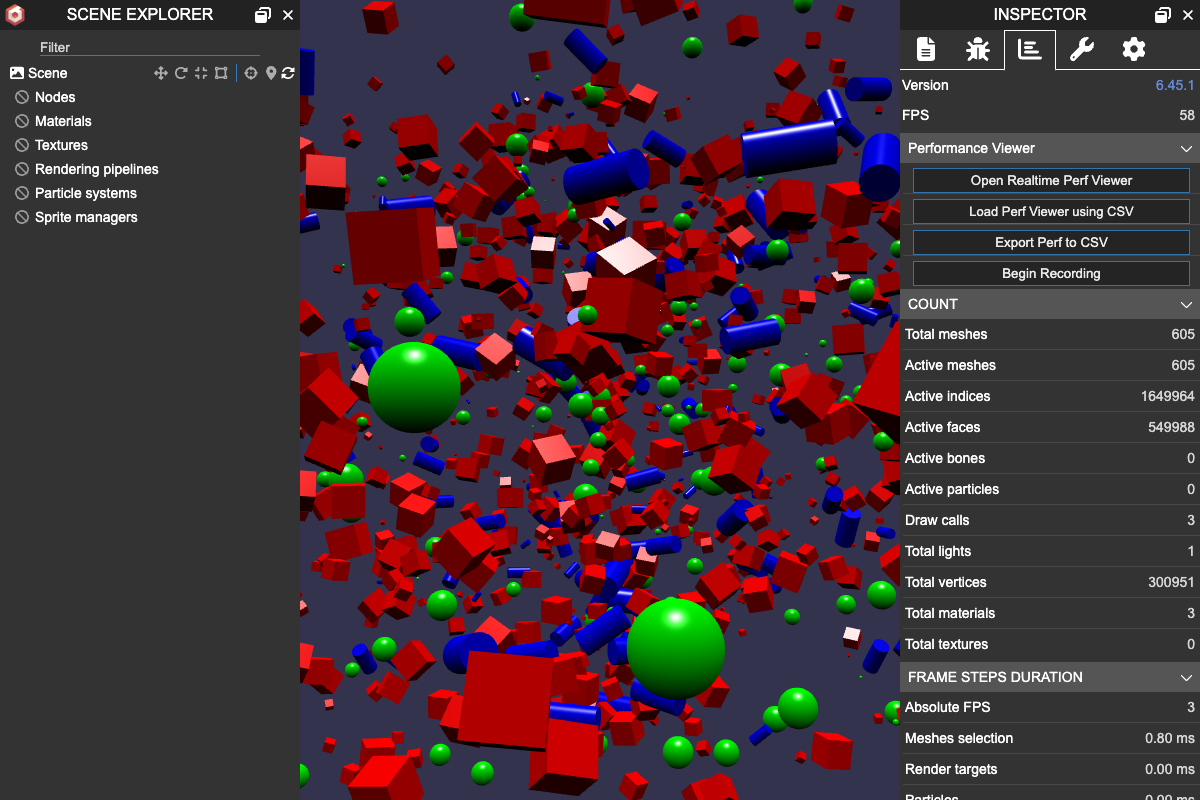
Its interface uses two panes:
- The scene explorer pane
- The inspector pane
It can be opened in two ways:
- Without ES Modules
scene.debugLayer.show();- Using ES Modules (Avoid using the first approach if you're already using modules):
import { Inspector } from '@babylonjs/inspector';
// ... YOUR SCENE CREATIONInspector.Show(scene, {});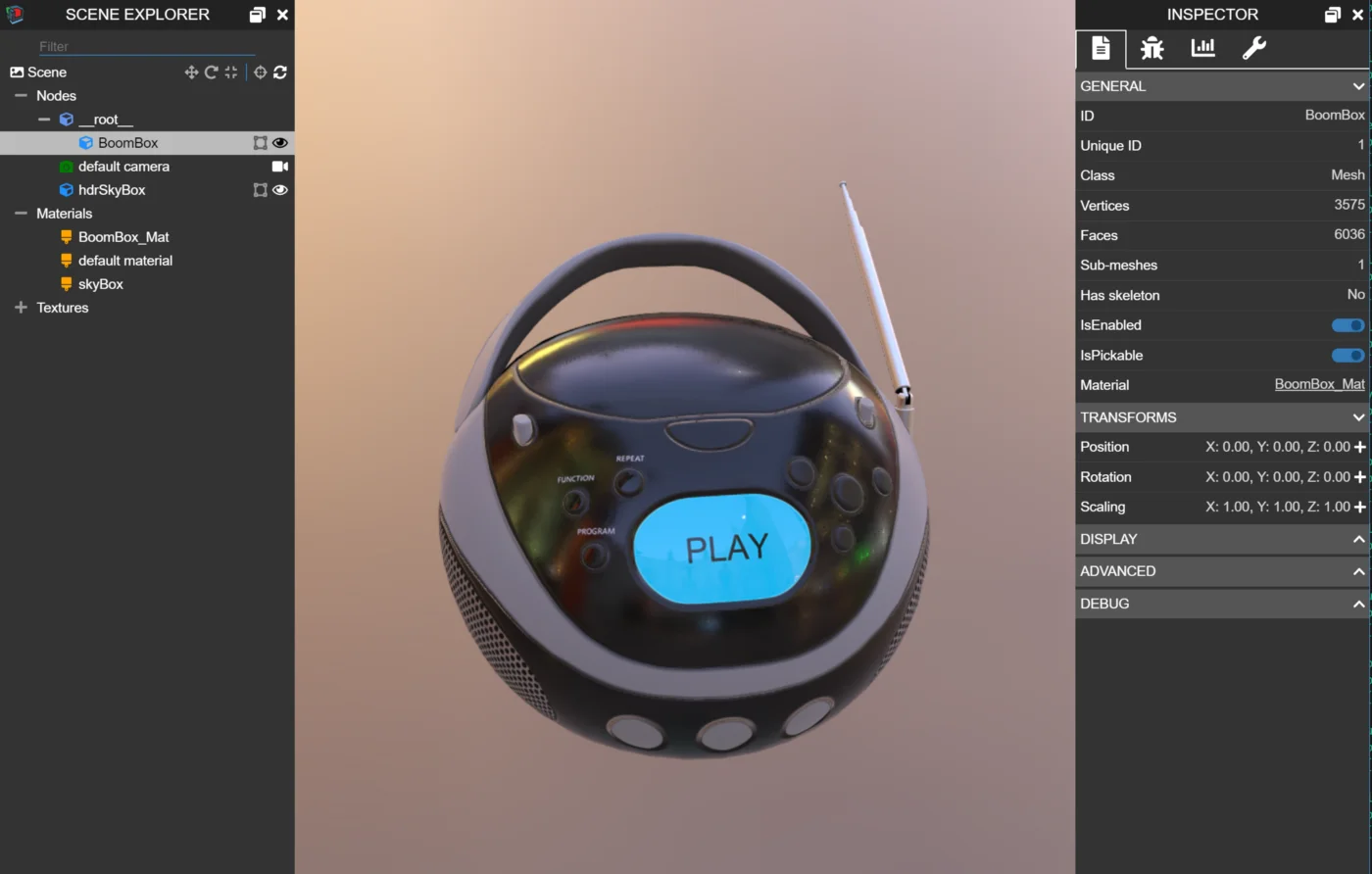
Embedded Mode
The two panes can also be opened in an embedded mode:
scene.debugLayer.show({ embedMode: true,});or:
Inspector.Show(scene, { embedMode: true});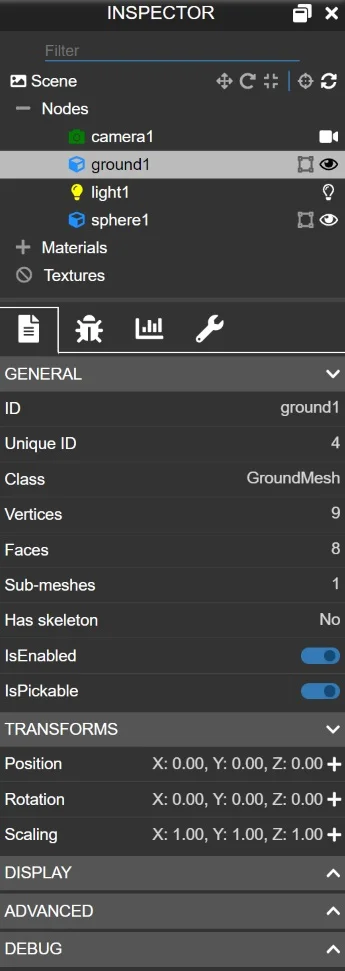
To hide the inspector:
scene.debugLayer.hide();or:
Inspector.Hide(); // You don't need to pass the sceneScene explorer pane
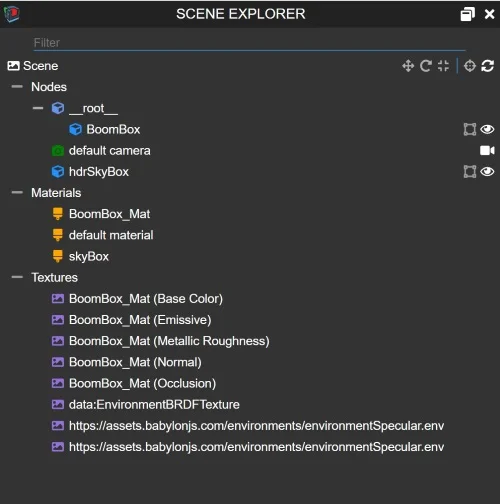
The scene explorer displays a hierarchical view of your scene. You can filter by name in the filter bar if you want to find a specific entry.
Clicking a line selects it, and the Inspector automatically updates to reflect the properties of the selected item.
Some entities offer shortcuts to contextual actions.
Scene actions

The scene shortcuts are as follows:
- The first 3 actions turn on a specific gizmo mode (translation, rotation, scaling). After you click one of them, you can click a node in the Scene Explorer or directly in your scene, and then control it with a gizmo:

- The fourth action is a picker. Just pick a mesh in your scene, and it will be selected in your Scene Explorer.
- The last one forces the Scene Explorer to update. For performance reasons, the Scene Explorer does not listen to all changes that can happen in the scene, so you may need to refresh it manually.
Mesh actions

The mesh shortcuts are as follows:
- The first action will enable the bounding box gizmo:
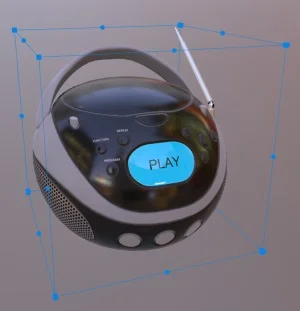
- The second action will show/hide the mesh.
Light actions

You can use the light action to turn a light on and off.
Camera actions

You can use the camera action to switch the active camera when there are multiple cameras in a scene.
GUI control actions

You can use the GUI control actions to:
- Display outline of a control
- Show / hide a specific control
Rendering pipeline actions

When your scene does not contain a default rendering pipeline, you can right-click on the rendering pipelines node to get a context menu letting you create a new default rendering pipeline.
Inspector pane
The Inspector pane contains 4 tabs:
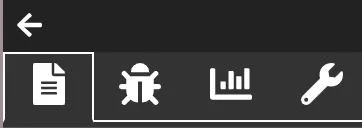
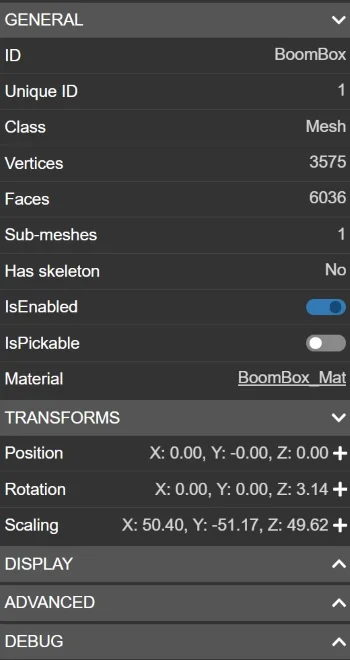
- The property grid, which displays configurable controls for the currently selected entity:
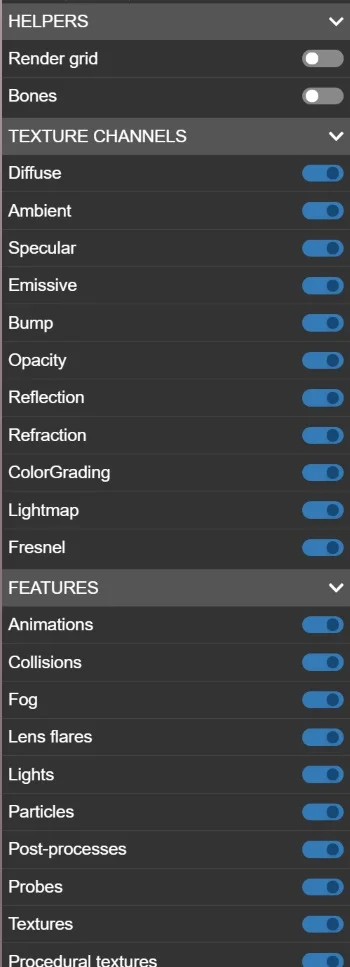
- The debug pane lets you turn features on and off. It also lets you display a grid and turn viewers (bones or physics) on and off:
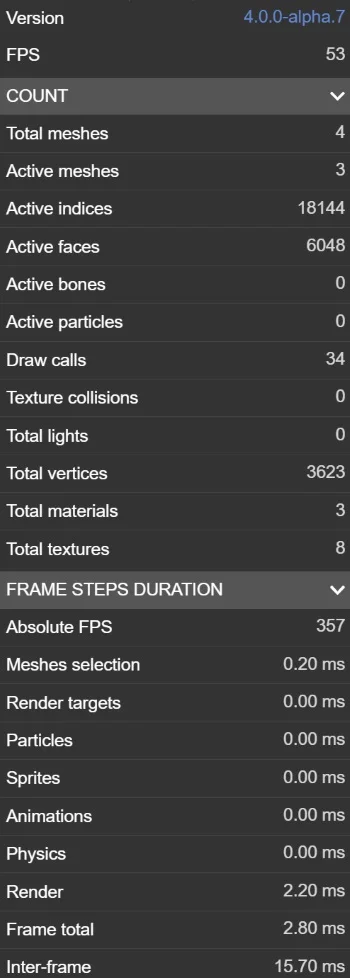
- The statistics pane gives information about all metrics captured by the engine:
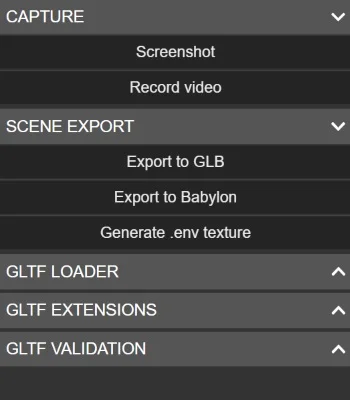
- The tools pane lets you access utilities such as screen capture, recording, and several tools related to glTF:
Popup mode
There are occasions when opening the Inspector in a child window is preferable. The canvas may be too small to use the Inspector effectively, or the Inspector may cover too much of the canvas, making the scene hard to debug. There are a few ways to pop the Inspector into a child window that is still connected to the scene. The first is to click the icon on the right side of the pane header bar adjacent to the close button.

This pops out the selected pane - either Scene Explorer or Inspector - into a child window. If the panes have been opened in embedded mode, the embedded Inspector opens in a single child window. Additionally, the Inspector can be opened as a popup by default. The individual Scene Explorer and Inspector panes can be opened as popups with the following code:
var debugLayer = await scene.debugLayer.show();
debugLayer.popupSceneExplorer();debugLayer.popupInspector();Embedded Popup Mode
Additionally, the embedded mode inspector can be opened as a popup by default:
var debugLayer = await scene.debugLayer.show({    embedMode: true});
debugLayer.popupEmbed()Specific debug tools
Specific debug tools can be found throughout the Inspector:
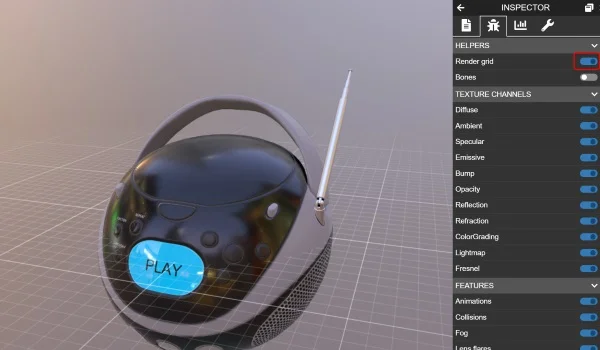
Render grid
This tool (available in the Debug pane) will render a grid on the (0,0,0) plane:
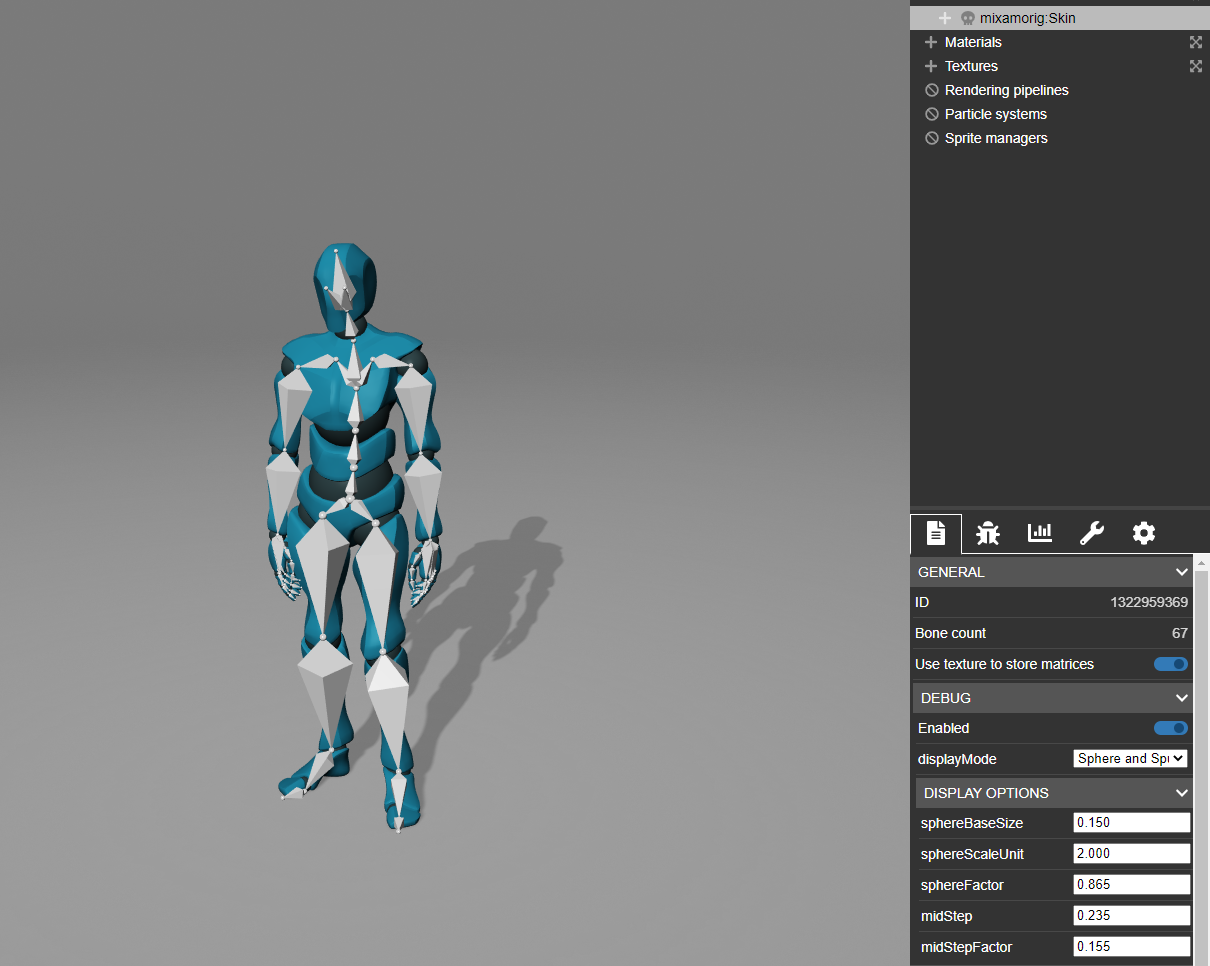
Bones viewer
This tool (available in the skeleton property grid) will render your skeletons:
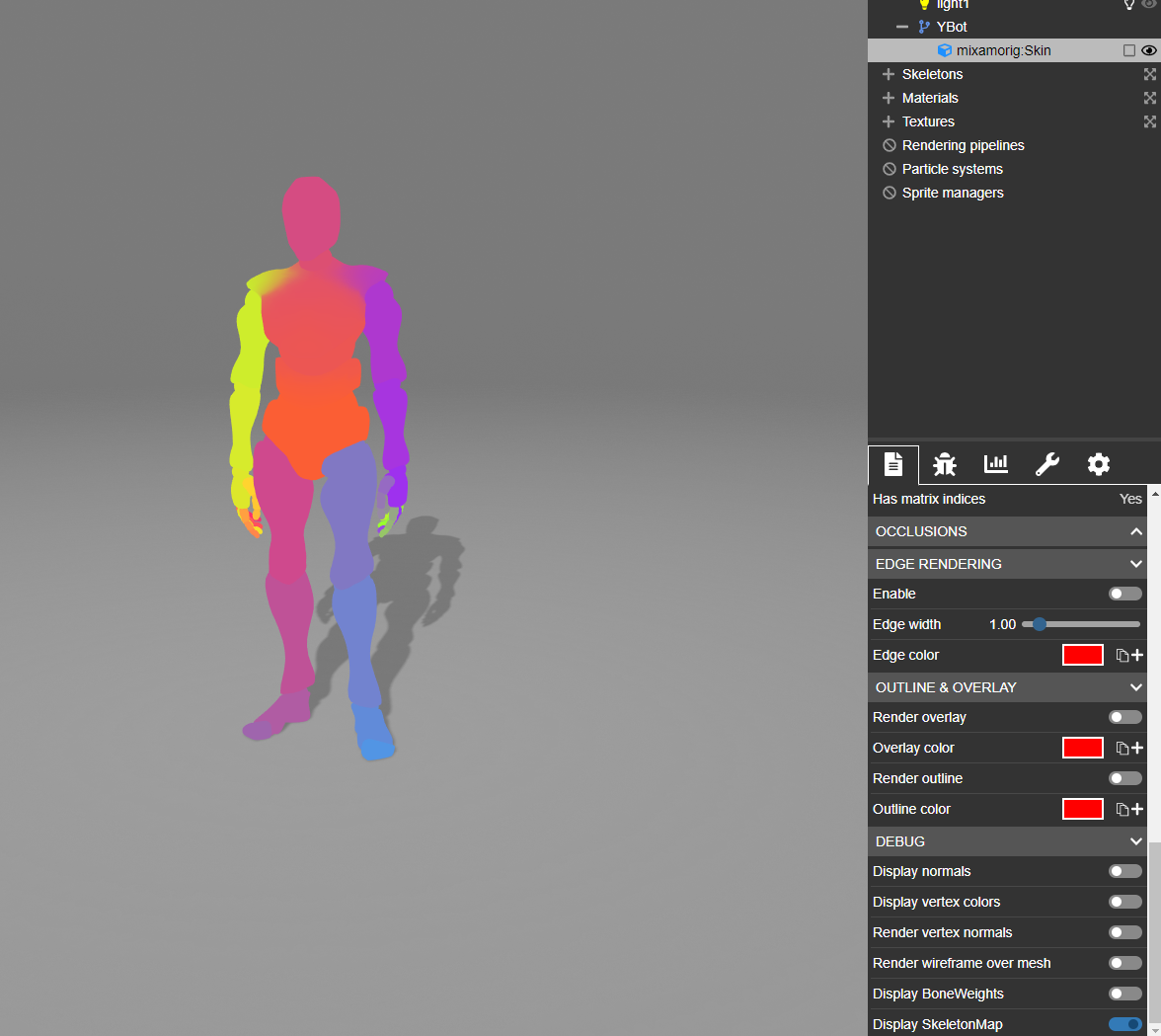
Skeleton Map Shader
This tool (available in the mesh property grid when the mesh has an attached skeleton) will render a unique color on the mesh, for each bone, showing their total contribution:
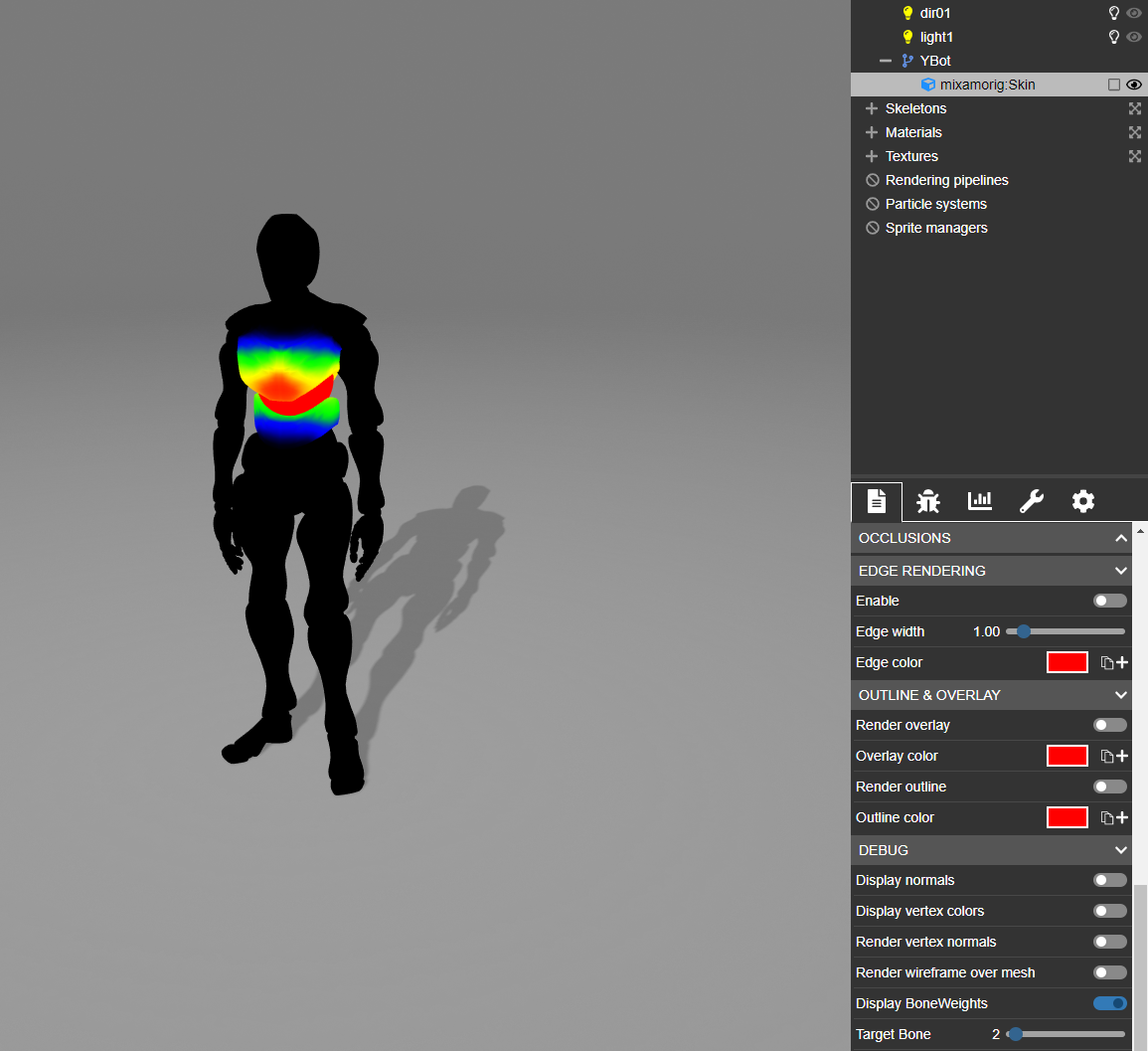
Bone Weight Shader
This tool (available in the mesh property grid when the mesh has an attached skeleton) will render a heat map showing the selected bones' contribution:
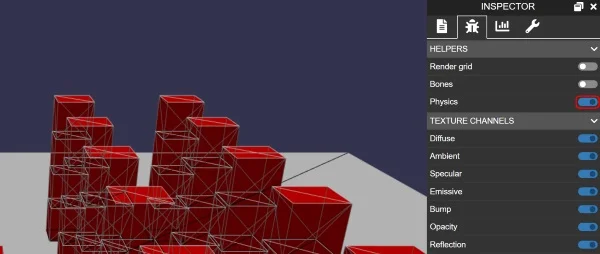
Physics viewer
This tool (available in the Debug pane) will render your physics impostors:
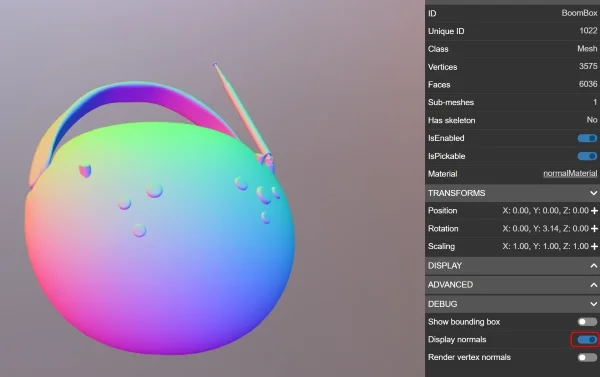
Normal painter
This tool (available in the property pane when you select a mesh) will paint the normals on your active mesh:
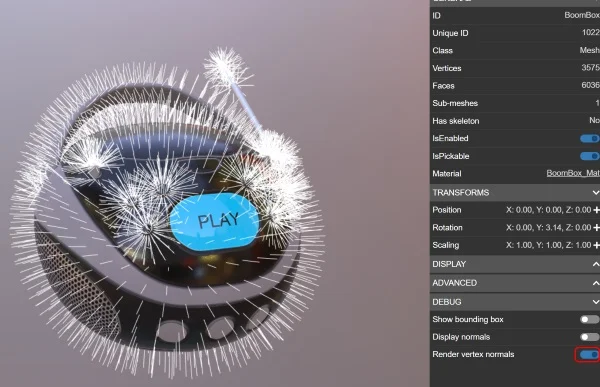
Vertex normal viewer
This tool (available in the property pane when you select a mesh) will render the vertex normals of a mesh:
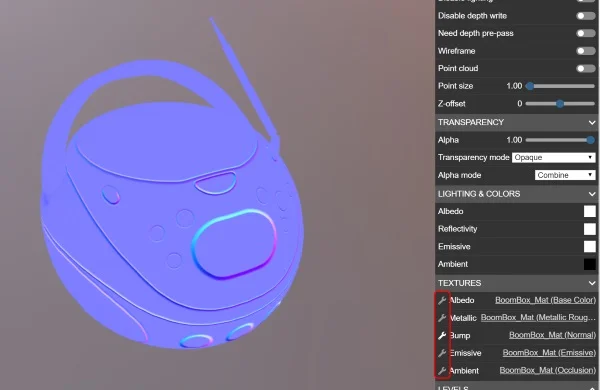
Texture painter
This tool (available in the property pane when you select a material that contains textures) will render the texture directly as an emissive one:
Extensibility
The Inspector can be easily extended to allow manipulation of custom node properties. Simply define your custom properties in the node's inspectableCustomProperties array, and they will be available under the CUSTOM heading after selecting the node in the Inspector.
import { InspectableType } from "@babylonjs/core/Misc/iInspectable";myNode.inspectableCustomProperties = [ { label: "My boolean field", propertyName: "myBooleanField", type: InspectableType.Checkbox, }, { label: "My color field", propertyName: "myColor3Field", type: InspectableType.Color3, }, { label: "My quaternion field", propertyName: "myQuaternionField", type: InspectableType.Quaternion, }, { label: "My numeric range field", propertyName: "myRangeField", type: InspectableType.Slider, min: 0.5, max: 5.0, step: 0.1, }, { label: "My string field", propertyName: "myStringField", type: InspectableType.String, }, { label: "My vector field", propertyName: "myVector3Field", type: InspectableType.Vector3, }, { label: "My tab field", type: InspectableType.Tab, }, { label: "My options field", propertyName: "myOptionsField", options: [ { label: "options1", value: 1 }, { label: "options2", value: 2 } ], callback: (option) => { }, type: InspectableType.Options, }, { label: "My button field", propertyName: "myButtonField", callback: () => { }, type: InspectableType.Button, }];The Inspector can also be extended to allow manipulation of custom material properties.
Inspector custom properties for a materialFurther reading
Intro to The Inspector Video Series
Dive into a video series overview of The Inspector in Babylon.js.

The Inspector
Learn all about the incredibly powerful debug layer called "The Inspector" in Babylon.js.
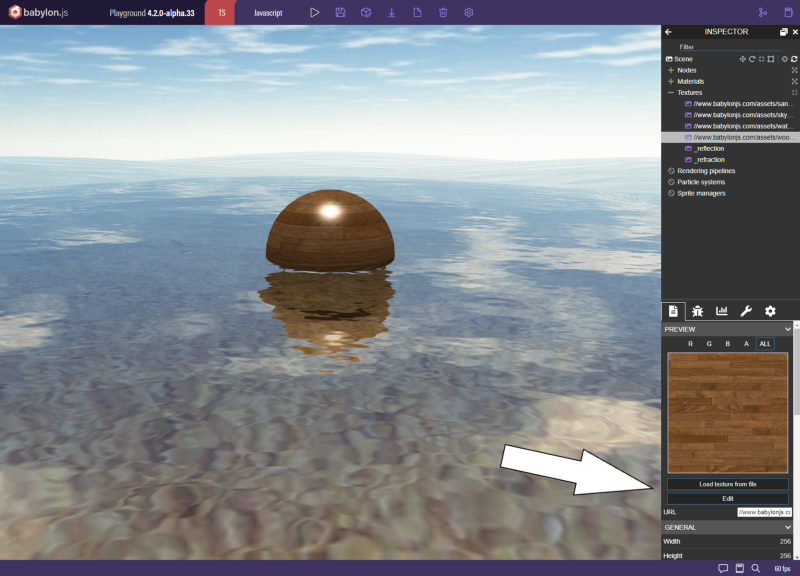
The Texture Inspector
Learn all about the texture inspector in Babylon.js.
Coming next
ACE - The Animation Curve Editor
Learn all about the powerful Animation Curve Editor.
The Texture Inspector
Learn all about the texture inspector in Babylon.js.
Intro to The Inspector Video Series
Dive into a video series overview of The Inspector in Babylon.js.
The Particle Editor
Learn all about the Particle Editor in Babylon.js.
The Sprite Editor
Learn all about the Sprite Editor in Babylon.js.
The Skeleton Viewer
Learn all about the Skeleton Viewer in Babylon.js.
The Performance Profiler
Learn all about the powerful Performance Profiling tool in Babylon.js.
Debug Scenes Remotely Using the Reflector
Debug scenes remotely by reflecting the scene over the network.