Frame Graph Basic Concepts and Getting Started
Frame Graph Introduction
Naming
First, a word about the names.
We used “Frame Graph” as the base name for our main classes (in the src/FrameGraph/ directory), because it is the name that their inventor used in the first place (see FrameGraph: Extensible Rendering Architecture in Frostbite), and also because we don't only have rendering tasks in a frame graph (for example, we also have a culling task).
However, we have used the name “Render Graph” for the node framework (under the directory src/FrameGraph/Node/), built on top of the frame graph framework. This makes it easy to differentiate the two frameworks (the frame graph framework is autonomous; you don't have to use the node render graph framework if you don't want to), and it also gives us a nice acronym (NRG - Node Render Graph) :).
Description
A frame graph is a DAG (Directed Acyclic Graph - a bit like NME / NGE) in which each node (task) represents a render pass, or more generally a task performed when rendering a frame (we have tasks that are not render passes, such as the culling task).
Each task declares its input and output resources.
The resources can be textures, lists of renderable meshes, cameras, or lights. As for textures, they are allocated and managed by the frame graph subsystem, not directly by the tasks. This allows us to optimize texture allocation and reuse textures during graph execution, thus saving GPU memory.
By default, resources do not persist between executions of a render graph, unless a resource is specifically labeled as “persistent” (think of a texture that must be reused from one frame to the next). In our implementation, persistent textures are used to implement “ping-pong” textures, where we change the read and write textures on each frame (used to implement the temporal antialiasing task, for example).
To clarify the ideas, here is a simple graph:
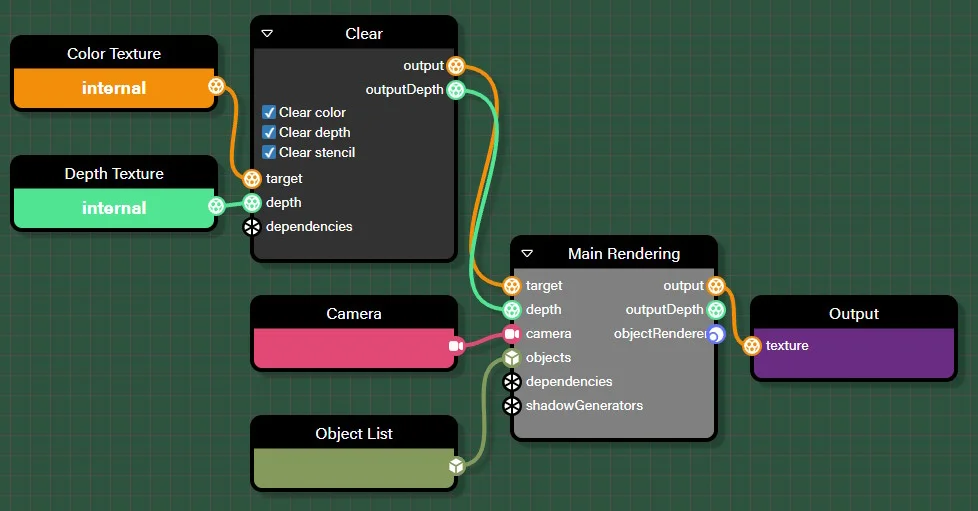
The “Color Texture”, “Depth Texture”, “Camera” and “Object List” nodes are input resources (respectively, of the texture, depth texture, camera and object list type). “Clear” and “Main Rendering” are two tasks, the first clears a texture/depth texture and the second renders objects in a texture. “Output” is the output buffer (think of it as the screen output).
As a user, the process of creating and using a frame graph is as follows:
- Create a frame graph, either by using the
FrameGraphXXXclasses (see Frame Graph Framework Description), or by loading a node render graph (see Node Render Graph Blocks). - Build the frame graph (
await FrameGraph.buildAsync()orawait NodeRenderGraph.buildAsync()). Calling these functions will also wait until the graph is ready to be displayed (it waits until all tasks + all internal states are ready).
At this point, the frame graph can be safely executed: call FrameGraph.execute(), or simply set scene.frameGraph = myFrameGraph, in which case the scene's rendering loop will call execute.
Note that in this scenario, you never have to manage passes: you will only need to create passes when you create your own tasks. As a user, you simply use the existing tasks (see Frame Graph Task List for the list of existing tasks in the framework), creating an instance of the task, setting its input parameters to reasonable values, and adding the task to the frame graph. See Introduction to Frame Graph classes for more information.
Benefits
A frame graph provides high-level knowledge of the whole frame, which:
- simplifies and optimizes resource management
- simplifies the configuration of the rendering pipeline => Visual Editor!
- simplifies asynchronous computation and resource barriers. This is an advantage for native implementations, but for the web, we don't (yet?) have asynchronous computation and we don't have to manage resource barriers ourselves.
- allows for autonomous and efficient rendering modules
- overcomes some of the limitations of our hard-coded pipeline.
The last advantage is particularly important, as it enables things that are not possible in our current fixed pipeline, which can be described as follows (this is what the existing Scene.render method does):
- Animate
- Update cameras
- Render RTTs declared at the scene level
- For each camera
- Evaluate and dispatch active meshes for rendering / Animate and dispatch particle systems for rendering
- Software skinning
- Rendering of RTT declared at camera level
- Rendering of active meshes
- Apply post-processing to the camera
We have a number of observables that allow you to inject code between these stages, as well as internal components that add functionality at key points (such as shadows, layers, effect layers, etc.), but the order of tasks is always fixed and strongly centered on the camera, as you can see.
With a frame graph, nothing is defined in advance; you simply create tasks and their interconnections. The camera has no particular status; it is a resource that you can use to construct the graph, in the same way that you can use textures or lists of objects.
Automatic texture management optimizes texture allocation and can lead to substantial GPU memory savings, depending on your graph:
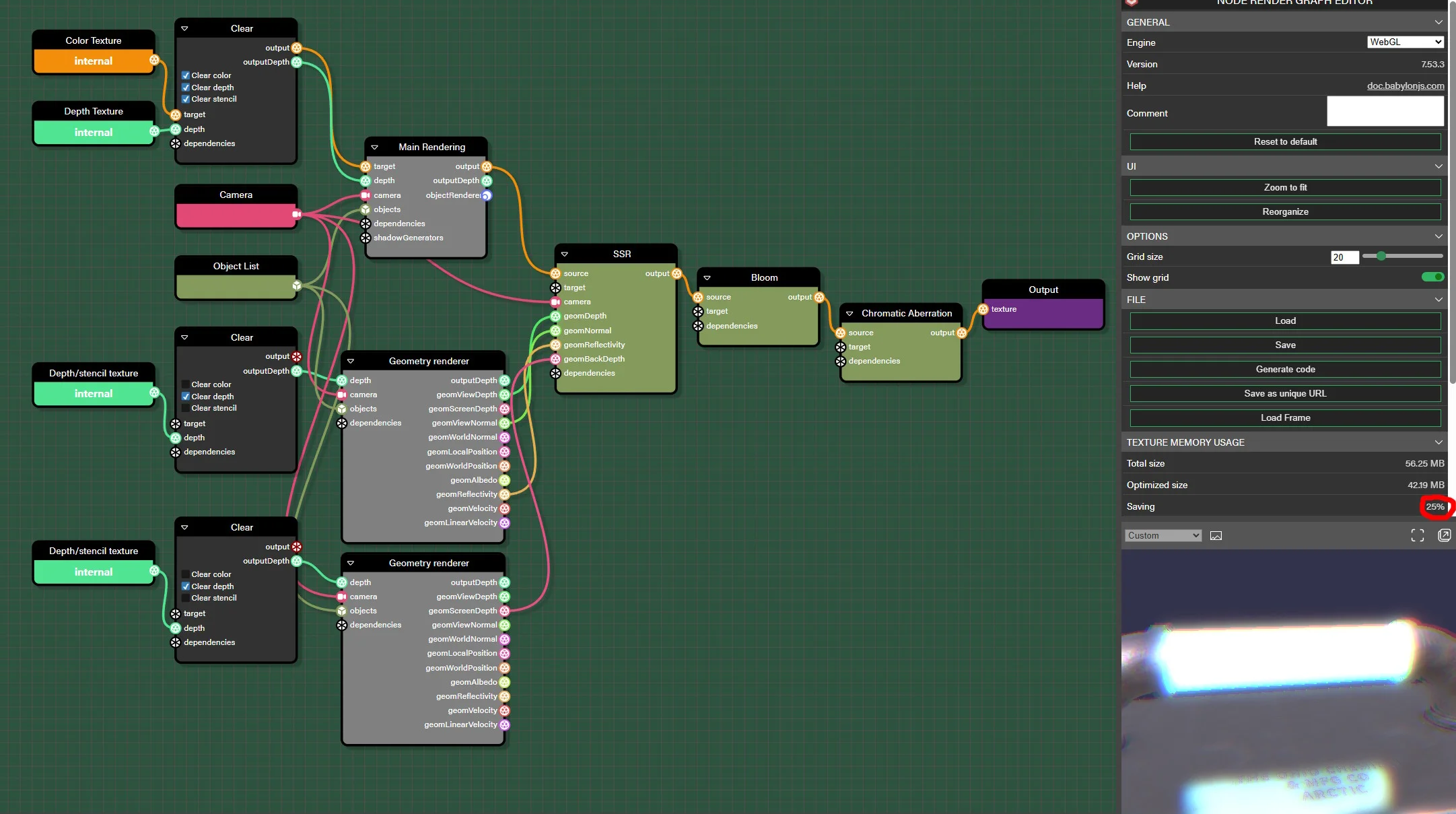
In this simple graph, reusing textures saves 25% of the GPU's memory, but we have already seen savings of 40% or more in other graphs.
Frame Graph Usage
There are two different ways to use a frame graph in a scene.
Use a frame graph instead of the scene render loop
This is the best way to use frame graphs, but because the implementation is not yet fully complete (in particular, a number of rendering tasks are not yet available for frame graphs), it is also possible to use one (or more) frame graph(s) at the same time as the existing scene render loop, which is the subject of the next section.
In this mode, the execution of a frame graph largely replaces the flow of operations normally performed by Scene.render, as described above. To activate this mode, simply define a frame graph instance in Scene.frameGraph. In this mode:
- There is no longer an active camera!
Scene.activeCameracan be defined by a frame graph task if it needs it to run, but it is reset tonullonce the task is finished. This is logical, because the camera is no longer the central resource that it was when frame graphs were not used. Therefore, you should not rely onScene.activeCameraalways having a non-null value in your code. - You must define
Scene.cameraToUseForPointersfor the camera to use for pointer operations. By default, if nothing is defined for this property,Scene.activeCamerais used. But since this property is nownullmost of the time, pointer operations will not work as expected if you do not defineScene.cameraToUseForPointers. - You will not be able to define the parameters of a certain number of components via the inspector (such as rendering pipelines, effect layers, post-processing) because these are now simple tasks within a frame graph. As a workaround, if you use a node render graph to generate the frame graph, you will be able to set parameters in the node render graph editor. We will also look at how to update the inspector (when possible), so that we can adjust the settings from this tool.
- Most of the existing observables notified by
Scene.renderare no longer notified. As explained above, the execution of the frame graph replaces much ofScene.render(see below), so a lot of code is no longer executed.
Regarding the last point, this is what Scene.render does when Scene.frameGraph is defined:
- Notifies
Scene.onBeforeAnimationsObservable - Calls
Scene.animate - Notifies
Scene.onBeforeRenderObservable - Updates the cameras
- Notifies
Scene.onBeforeRenderTargetsRenderObservable - Render RTTs declared at the scene level
- Notifies
Scene.onAfterRenderTargetsRenderObservable - Updates the world's mesh matrices
- Animates the particle systems
- Executes the frame graph
- Notifies
Scene.onAfterRenderObservable
As you can see, only five observables are notified in this case.
Note that the "Render RTTs declared at the scene level" step has been integrated into frame graphs to simplify porting legacy code to frame graphs.
Use a frame graph in addition to the existing scene render loop
In some cases, you may want to keep the existing scene rendering loop and use frame graphs as a complement. This may be because some features are still missing in frame graphs (so using a frame graph instead of the render loop is not possible), or because you want to keep your existing code and only need the additional features provided by frame graphs.
In this mode, you do not assign a value to Scene.frameGraph and you simply execute a frame graph yourself by calling its execute() method. The texture(s) updated by the execution of the frame graph can be retrieved and reused in your own code, or the output of the execution can be directly generated on the screen.
This is the simplest mode to use: using one (or more!) frame graphs is just another feature you can exploit in your own code.
Examples of frame graphs
By way of illustration, below are two examples of the two cases outlined above.