Using A Physics Engine
Introduction
Babylon.js has a plugin system for physics engines that enables the user to add physics interactions to the scene's objects. Unlike the internal collision system, a physics engine calculates objects' body dynamics and emulates "real-life" interactions between them. So if two objects collide, they will "bounce" off one another, just as you would expect from a real-life object.
Babylon.js' plugin system allows us to use well-established physics engines and integrate them into Babylon.js' render loop. Apart from very advanced usage, there is no need to interact directly with the physics engine. Babylon.js does the work for you.
This tutorial will show the basic usage of the physics system.
What physics engines are integrated
There are plugins for 4 physics engines:
- Cannon.js - a wonderful physics engine written entirely in JavaScript
- Oimo.js - a JS port of the lightweight Oimo physics engine
- Energy.js - (Not yet publicly available) - a JS port of a C++ physics engine
- Ammo.js - a JS port of the C++ Bullet physics engine
Each engine has its own features and its own way of calculating body dynamics. At Babylon.js, we tried to collect the common usage patterns of all engines and provide an easy-to-use interface for them.
Once you have picked an engine, do not forget to add a reference to its code:
- Cannon: https://cdn.babylonjs.com/cannon.js
- Oimo: https://cdn.babylonjs.com/Oimo.js
- Ammo: https://cdn.babylonjs.com/ammo.js or directly from https://github.com/kripken/ammo.js/blob/master/builds/ammo.js
Basic usage
Enabling the physics engine
To enable the physics engine, call the scene's enablePhysics function:
import { Vector3 } from "@babylonjs/core/Maths/math.vector";import { CannonJSPlugin } from "@babylonjs/core/Physics/v1/Plugins/cannonJSPlugin";import { Scene } from "@babylonjs/core/scene";var scene = new Scene(engine);var gravityVector = new Vector3(0, -9.81, 0);var physicsPlugin = new CannonJSPlugin();scene.enablePhysics(gravityVector, physicsPlugin);Both parameters are optional. The default parameters are shown in the example. This is the same as calling:
scene.enablePhysics();To use OimoJS, simply change the second parameter to new BABYLON.OimoJSPlugin():
import { Vector3 } from "@babylonjs/core/Maths/math.vector";import { OimoJSPlugin } from "@babylonjs/core/Physics/v1/Plugins/oimoJSPlugin";scene.enablePhysics(new Vector3(0, -9.81, 0), new OimoJSPlugin());Calling this function will create a new BABYLON.PhysicsEngine object that will be in charge of handling the physics interactions.
The physics engine is now enabled and is running during the render loop.
Please note that when using Ammo since version 5.0, you are required to initialize it before creating the Ammo plugin:
import { Vector3 } from "@babylonjs/core/Maths/math.vector";import { AmmoJSPlugin } from "@babylonjs/core/Physics/v1/Plugins/ammoJSPlugin";await Ammo();scene.enablePhysics(new Vector3(0, -9.81, 0), new AmmoJSPlugin());For Cannon, you need to set the CANNON attribute on window:
import * as cannon from "cannon";
window.CANNON = cannon;scene.enablePhysics(null, new CannonJSPlugin());
Impostors
To allow interaction between objects, physics engines use an impostor, which is a simpler representation of a complex object. An impostor, as a rule, is a rigid body - meaning it cannot be changed during interaction. A sphere will always have the same radius, a box will always have the same length. If you want to change the object, a new impostor will be created.
Each physics engine has different types of impostors. The following table shows what each engine supports, and what it uses to simulate the missing impostors.
| Impostor Type | Cannon.js | Oimo.js | Energy.js | Ammo.js | Notes |
|---|---|---|---|---|---|
| Box | Box | Box | Box | Box | |
| Sphere | Sphere | Sphere | Sphere | Sphere | |
| Particle | Particle | Sphere | Unknown | Sphere | |
| Plane | Plane | Box | Plane | Box | Simulates an unlimited surface. Like a floor that never ends. Consider using Box |
| Cylinder | Cylinder | Cylinder | Cylinder | Cylinder | |
| Mesh | Mesh | Box | Mesh | Mesh | Use only when necessary - will lower performance. Cannon's mesh impostor only collides against spheres and planes |
| Heightmap | Heightmap | Box | Mesh | Mesh | |
| ConvexHull | N/A | N/A | N/A | Mesh | Allows physics impostor support for convex mesh hull shapes |
Using simple impostors for complex objects will increase performance but decrease the realism of the scene's physics. Consider when complex impostors (like the mesh or the heightmap) are needed, and when simpler geometries can be used.
Authoring and loading a mesh with a collider mesh (Currently works with AmmoJS plugin only)
To get reasonably accurate collisions without overloading the physics engine, a collider mesh is recommended. One way to do this is as follows:
Authoring
- Model a mesh as usual (eg. in Blender, Babylon, Maya, etc.)
- Using impostor primitives (eg. Box or Sphere) create collider meshes outlining the mesh
- Label the collider meshes so they can be accessed within Babylon by name
- Ensure that the collider mesh nodes do not have their orientation frozen, as this information is needed within Babylon to generate the physics impostors
- Export to a Babylon supported file format: GLTF, GLB, Babylon, etc.
Loading
- Import the mesh file into Babylon
- Create a new Babylon mesh that will be used as the root of the physics mesh; the position of this mesh acts as the center of mass for the physics object
- Iterate over the loaded mesh's children and add the collider meshes (marked by the label during creation) as children of the root physics mesh, make them non-visible, and create physics impostors for each one
- Iterate over the loaded mesh again and add the parent nodes as children of the root physics mesh
- Scale the root physics mesh to the desired size (Scaling must be uniform)
- Create a physics impostor of the root physics mesh of type NoImpostor (The mass of this impostor will override the mass of the child impostors)
- Position/rotate the root physics mesh to the desired place within the world
Examples
- Loading mesh and colliders from file: Loading A Mesh And Colliders From A File
- Loading and adding colliders manually in Babylon: Loading And Adding Colliders Manually
- Loading and adding collider with joints and pointer interactions: Loading And Adding A Collider With Joints And Interactions
- Custom engine with
deterministicLockstep: Custom Engine With DeterministicLockStep Takes a few moments to load, use Run, ▷, to clear any error message.
Babylon's physics impostor
To enable physics on an object(*) you need to assign it a physics impostor. The signature of the impostor's constructor is (provided with TypeScript type definition):
import { PhysicsImpostor } from "@babylonjs/core/Physics/v1/physicsImpostor";import { Scene } from "@babylonjs/core/scene";new PhysicsImpostor(object: IPhysicsEnabledObject, type: number, options: PhysicsImpostorParameters, scene:Scene);object
You will notice that I keep writing object and not mesh, and that the first parameter is not a mesh but an interface (IPhysicsEnabledObject). It is possible to assign an impostor to any Babylon object that has at least two parameters:
import { Quaternion, Vector3 } from "@babylonjs/core/Maths/math.vector";position: Vector3;rotationQuaternion: Quaternion;An AbstractMesh will be the first choice, of course. But a Solid Particle also applies, and so does a light or certain cameras. I will show how to use an impostor on different object types in the advanced tutorial.
type
Type can be one of the following:
import { PhysicsImpostor } from "@babylonjs/core/Physics/v1/physicsImpostor";PhysicsImpostor.SphereImpostor;PhysicsImpostor.BoxImpostor;PhysicsImpostor.PlaneImpostor;PhysicsImpostor.MeshImpostor;PhysicsImpostor.CylinderImpostor;PhysicsImpostor.ParticleImpostor;PhysicsImpostor.HeightmapImpostor;PhysicsImpostor.ConvexHullImpostor;options
Options is a JSON object. The interface is as follows:
export interface PhysicsImpostorParameters { mass: number; friction?: number; restitution?: number; nativeOptions?: any; ignoreParent?: boolean; disableBidirectionalTransformation?: boolean; }- mass: The only mandatory parameter is mass, which is the object's mass in kg. A value of
0will create a static impostor - good for floors. - friction: is the impostor's friction when colliding against other impostors.
- restitution: is the amount of force the body will "give back" when colliding. A low value will create no bounce, a value of 1 will be a very bouncy interaction.
- nativeOptions: is a JSON with native options of the selected physics plugin. More about it in the advanced tutorial.
- ignoreParent: when using Babylon's parenting system, the physics engine will use the compound system. To avoid using the compound system, set this flag to true. More about it in the advanced tutorial.
- disableBidirectionalTransformation: disables the bidirectional transformation update. Setting this makes sure the physics engine ignores changes made to the mesh's position and rotation (and increases performance a bit)
- group: set the collision group (ammojs only)
- mask: collision bit mask. Only impostor's group that have at least one bit in the mask will have collisions (ammojs)
Basic physics scene
I will extend the playground's basic scene to have physics interactions between the sphere and the ground.
I will first have to enable physics:
scene.enablePhysics();Afterwards, I can create the impostors.
import { PhysicsImpostor } from "@babylonjs/core/Physics/v1/physicsImpostor";sphere.physicsImpostor = new PhysicsImpostor(sphere, PhysicsImpostor.SphereImpostor, { mass: 1, restitution: 0.9 }, scene);ground.physicsImpostor = new PhysicsImpostor(ground, PhysicsImpostor.BoxImpostor, { mass: 0, restitution: 0.9 }, scene);Playground example: Basic Physics Scene
Further functionality of the Impostor class
In the example above, you noticed that I kept a reference to the physics impostor attached to the sphere and the ground. This is not mandatory, but it is recommended in order to interact with the physics body.
The physics impostor holds a set of functions that can be executed on the physics engine's body:
Bidirectional transformation linking
The physics impostor synchronizes the physics engine's body and the connected object with each frame. That means that changing the object's position or rotation in Babylon code will also move the impostor. The impostor is also the one updating the object's position after the physics engine is finished calculating the next step.
Playground example (sphere rotation and position) - Rotating A Sphere's Physics Impostor Notice how the sphere rotates (due to the rotate function), but this rotation is not being taken into account by the physics engine.
Playground example (box rotation and position) - Rotating A Box's Physics Impostor In this case, the rotation does influence the physics engine due to the geometric shape - a box standing on its edge will need to fall to either side, which influences its velocities.
Linear velocity
Simply put, the linear velocity is in charge of updating the object's position. A velocity in any axis will cause a movement in its direction. To get the object's linear velocity (a BABYLON.Vector3):
impostor.getLinearVelocity();To set the object's linear velocity use:
import { Vector3 } from "@babylonjs/core/Maths/math.vector";impostor.setLinearVelocity(new Vector3(0, 1, 0));Playground example - Linear Velocity Example
The physics engine is in charge of calculating the body's velocity. Changing it will not make it fixed, but will give it a "push". The physics engine will take the velocity into account and modify it using gravity and collision interactions.
Angular velocity
If the linear velocity was changing the position, the angular velocity is changing the rotation.
To get the object's angular velocity (a BABYLON.Quaternion):
impostor.getAngularVelocity();To set the object's angular velocity use:
import { Quaternion } from "@babylonjs/core/Maths/math.vector";impostor.setAngularVelocity(new Quaternion(0, 1, 0, 0));Playground example - Angular Velocity Example
Same as the linear velocity - setting this value will only cause the physics engine to recalculate the body dynamics. The value will not stay fixed.
Impulses and forces
Applying a force/impulse on a body will change its velocities (linear and angular) according to the body's properties (mass is taken into account, for example).
Cannon supports both force and impulse (different aspects of the same concept, read about the difference here). Oimo only supports impulses. Applying a force will fall back to an impulse.
To apply an impulse, use the applyImpulse function of the impostor:
import { Vector3 } from "@babylonjs/core/Maths/math.vector";impostor.applyImpulse(new Vector3(10, 10, 0), sphere.getAbsolutePosition());The first variable is the direction and amount of impulse to apply. The second is where on the body itself the force will be applied. Using this in a game of pool, you can hit the ball at various contact points and the interaction will vary.
Playground example - Impulse Example Playground example with a different position of the impulse, giving the ball a "spin" - Different Impulse Positions
Radial explosion impulse/force & gravitational fields
You can create radial explosions and gravitational forces.
Forces are never applied to impostors that have a mass equal to 0 (the ground, for example).
import { Vector3 } from "@babylonjs/core/Maths/math.vector";import { PhysicsHelper, PhysicsRadialImpulseFalloff, PhysicsUpdraftMode } from "@babylonjs/core/Physics/physicsHelper";var physicsHelper = new PhysicsHelper(scene);var origin = Vector3(0, 0, 0);var radius = 10;var strength = 20;var falloff = PhysicsRadialImpulseFalloff.Linear; // or BABYLON.PhysicsRadialImpulseFalloff.Constantvar explosionEvent = physicsHelper.applyRadialExplosionImpulse(// or .applyRadialExplosionForceorigin, radius, strength, falloff);// the second `radius` argument can also act as options: `.applyRadialExplosionImpulse(origin, { radius: radius, strength: strength, falloff: falloff })`// orvar gravitationalFieldEvent = physicsHelper.gravitationalField(origin, radius, strength, falloff);// the second `radius` argument can also act as options: `.gravitationalField(origin, { radius: radius, strength: strength, falloff: falloff })`gravitationalFieldEvent.enable(); // need to call, if you want to activate the gravitational field.setTimeout(function (gravitationalFieldEvent) { gravitationalFieldEvent.disable(); }, 3000, gravitationalFieldEvent);// orvar updraftEvent = physicsHelper.updraft(origin, radius, strength, height, PhysicsUpdraftMode.Center // or BABYLON.PhysicsUpdraftMode.Perpendicular);// the second `radius` argument can also act as options: `.updraft(origin, { radius: radius, strength: strength, height: height, updraftMode: PhysicsUpdraftMode.Center })`updraftEvent.enable();setTimeout(function (updraftEvent) { updraftEvent.disable(); }, 5000, updraftEvent);// orvar vortexEvent = physicsHelper.vortex(origin, radius, strength, height);// the second `radius` argument can also act as options: `.vortex(origin, { radius: radius, strength: strength, height: height, centripetalForceThreshold: 0.7, centripetalForceMultiplier: 5, centrifugalForceMultiplier: 0.5, updraftForceMultiplier: 0.02 })`vortexEvent.enable();setTimeout(function (vortexEvent) { vortexEvent.disable(); }, 5000, vortexEvent);If you want to do some debugging, such as visually showing the sphere and/or rays, you can do that by calling event.getData() (note that if you do this, you will need to manually call event.dispose() to dispose of the unused meshes after you are done debugging). event.getData() returns the sphere mesh variable, which you can then use to apply a semi-transparent material so you can visualize it. explosionEvent.getData() also returns the rays variable in case you want it for debugging purposes.
For a more detailed explanation, please take a look at the playground example below.
Playground example - Radial Explosion
Collision callbacks
You can add a callback function that will be called when an impostor collides with another impostor. Here is how to change the color of an object if it collides with the ground.
import { Color3 } from "@babylonjs/core/Maths/math.color";sphereImpostor.registerOnPhysicsCollide(groundImpostor, function (main, collided) { main.object.material.diffuseColor = new Color3(Math.random(), Math.random(), Math.random());});Note that in this case, I assumed the impostor's body is a mesh with a material.
Playground example - Collision Callback Example
Notice that the callback will be executed each and every time both impostors collide, but will stop when they are touching (when the sphere no longer bounces).
Physics Joints
What are joints
To connect two impostors together, you can now use joints. Think of the joint as a limitation (or constraint) of either rotation or position (or both) between two impostors. Each engine supports different types of joints (which usually have different names as well):
| Joint Type | Cannon.js | Oimo.js | Energy.js | Notes |
|---|---|---|---|---|
| Distance | Distance | Distance | --- | A fixed distance between two impostors |
| Hinge | Hinge | Hinge | Hinge | A joint allowing rotation on a single axis (much like your knee) |
| Hinge2 | ---- | Wheel | Hinge2 | A joint allowing rotation on a single axis in two different points |
| Ball And Socket | Point To Point | Ball | Ball And Socket | A joint allowing one of the objects to rotate around a specific socket (like your hip) |
| Slider | ---- | Slider | Slider | A joint allowing changing the position along a single axis |
Cannon also has a special Spring joint that will simulate a spring connected between two impostors.
Adding a new joint
To add a new joint, the impostor has two helper methods:
impostor.addJoint(otherImpostor, joint);//orimpostor.createJoint(otherImpostor, jointType, jointData);Joint types can be selected from the following enum:
import { PhysicsJoint } from "@babylonjs/core/Physics/v1/physicsJoint";PhysicsJoint.DistanceJoint;PhysicsJoint.HingeJoint;PhysicsJoint.BallAndSocketJoint;PhysicsJoint.WheelJoint;PhysicsJoint.SliderJoint;PhysicsJoint.Hinge2Joint = PhysicsJoint.WheelJoint;PhysicsJoint.PointToPointJoint = PhysicsJoint.BallAndSocketJoint;PhysicsJoint.SpringJoint;Babylon has 3 helper classes to add joints:
BABYLON.DistanceJoint , BABYLON.HingeJoint, BABYLON.Hinge2Joint.
DistanceJoint playground - Adding A DistanceJoint SpringJoint example - Adding A SpringJoint
Setting the joint data
The physics joint data interface looks like this:
interface PhysicsJointData { mainPivot?: Vector3; connectedPivot?: Vector3; mainAxis?: Vector3, connectedAxis?: Vector3, collision?: boolean nativeParams?: any; //Native Oimo/Cannon data}- mainPivot: is the point on the main mesh (the mesh creating the joint) to which the constraint will be connected. Demo: Main Pivot Example
- connectedPivot: is the point on the connected mesh (the mesh creating the joint) to which the constraint will be connected.
- mainAxis: the axis on the main object on which the constraint will work. Main Axis Example
- connectedAxis: the axis on the connected object on which the constraint will work.
- collision: should the two connected objects also collide with each other. The objects are sometimes forced to be close by and this can prevent constant collisions between them.
- nativeParams: further parameters that will be delivered to the constraint without a filter. These are native parameters of the specific physics engine you chose.
You can read further about joint data in this blog article: WebGL physics-based car using Babylon.js and Oimo.js.
Interaction with the physics engine
Using scene.getPhysicsEngine(), you can get access to functions that will influence the engine directly.
Setting the time step
The physics engine assumes a certain frame-rate to be taken into account when calculating the interactions. The time between each step can be changed to "accelerate" or "slow down" the physics interaction. Here is the same scene with different time steps - accelerating and slowing down:
- Default time step: Default Time Step Example
- Slowing down: Slowing Down Time
- Speeding up: Speeding Up Time
Setting the scene's gravity
You can change the scene's gravity using the physics engine's setGravity(vector3) function.
This can be done in real time, even after setting the gravity:
Playground demo (click to toggle positive/negative gravity) - Playing With Gravity
See it all working together
Marble Tower Playground - Marble Tower Demo
Further reading
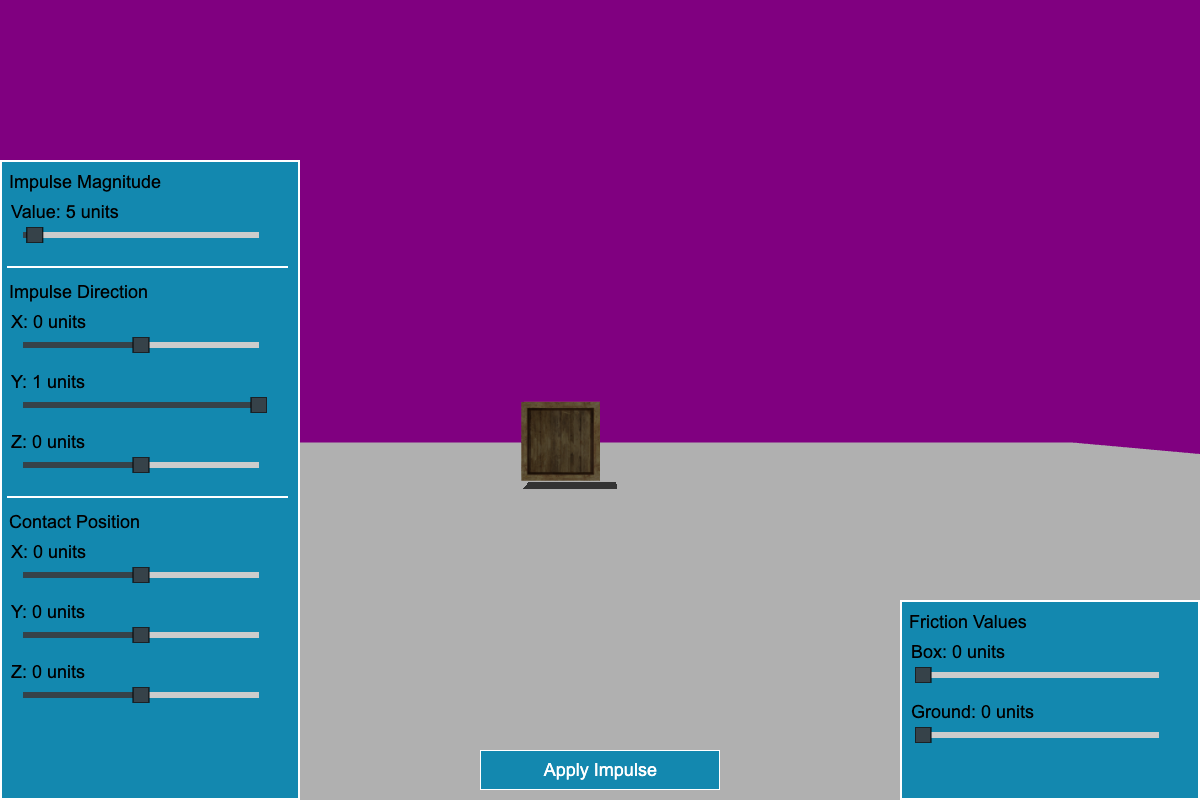
Forces
Learn all about applying physical forces in Babylon.js.
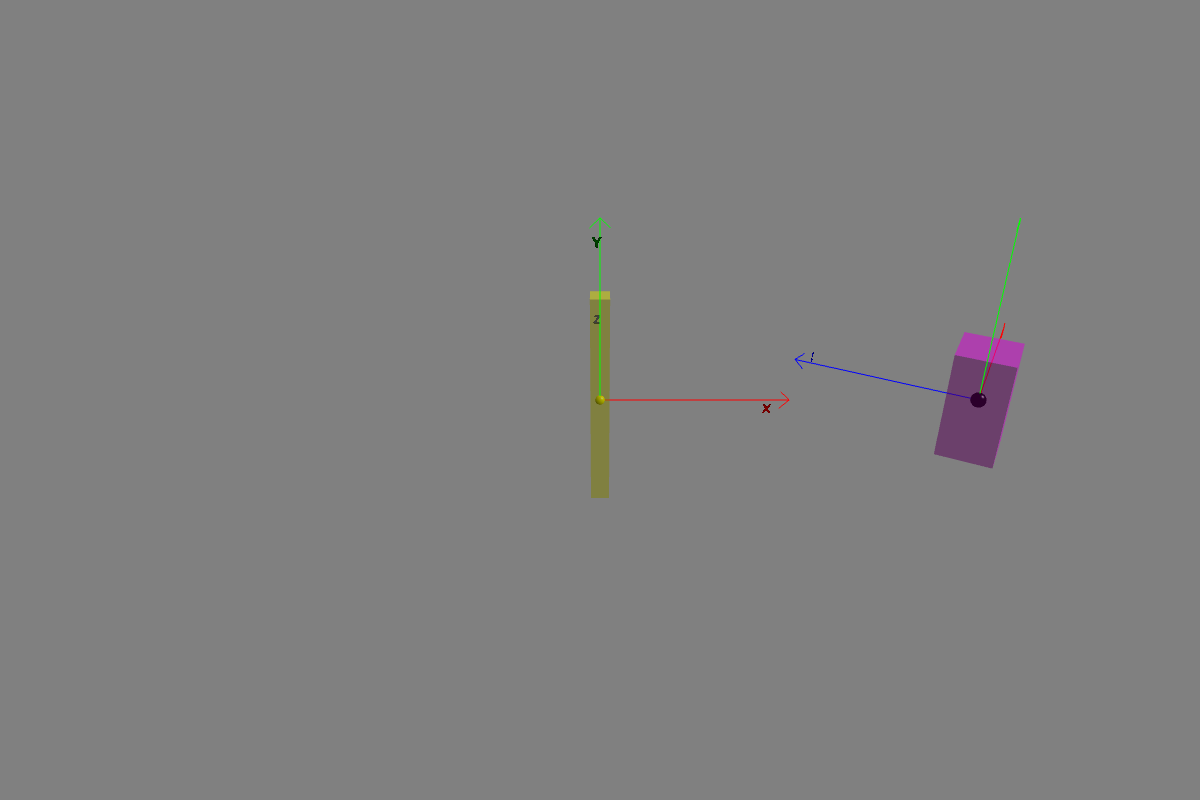
Pivots and Axes
Learn all about physics pivots and axes in Babylon.js.
Compound Bodies
Learn all about physics compound bodies in Babylon.js.
Soft Bodies
Learn all about physics soft bodies in Babylon.js.
Advanced Physics Features
Unlock the full potential of physics with advanced physics features in Babylon.js.
Joints
Learn all about using joints in physics engines within Babylon.js.