Advanced Animation Methods
Animations and promises
Starting with Babylon.js v3.3, you can use promises to wait for an animatable to end:
const anim = scene.beginAnimation(box1, 0, 100, false);
console.log("before");await anim.waitAsync();console.log("after");
You can find an example here: Animation End Promise Example
Controlling animations
Each Animation has a property called currentFrame that indicates the current animation key.
For advanced keyframe animation, you can also define the functions used to interpolate (transition) between keys. By default these functions are the following:
import { Animation } from "@babylonjs/core/Animations/animation";import { Quaternion, Vector3 } from "@babylonjs/core/Maths/math.vector";Animation.prototype.floatInterpolateFunction = function (startValue, endValue, gradient) { return startValue + (endValue - startValue) * gradient;};Animation.prototype.quaternionInterpolateFunction = function (startValue, endValue, gradient) { return Quaternion.Slerp(startValue, endValue, gradient);};Animation.prototype.vector3InterpolateFunction = function (startValue, endValue, gradient) { return Vector3.Lerp(startValue, endValue, gradient);};Here is the list of functions that you can change:
- floatInterpolateFunction
- quaternionInterpolateFunction
- quaternionInterpolateFunctionWithTangents
- vector3InterpolateFunction
- vector3InterpolateFunctionWithTangents
- vector2InterpolateFunction
- vector2InterpolateFunctionWithTangents
- sizeInterpolateFunction
- color3InterpolateFunction
- matrixInterpolateFunction
You can also query an animation to find the exact value of the animating property, at a specific time, using the evaluate method. This method takes a specific "time" and returns the exact interpolated or keyed value at that moment in the animation. You can see an example of the method being used to log the value of a scale animation to the console, in this playground: Animation Evaluate Example
Helper function
You can use an extended function to create a quick animation:
Animation.CreateAndStartAnimation = function(name, mesh, targetProperty, framePerSecond, totalFrame, from, to, loopMode);To use this function, you need to know that:
- Your animation will have predefined key frames (Only 2 keyframes are generated: Start and End)
- The animation works only on AbstractMesh objects.
- The animation is starting right after the method call.
Here is a straightforward sample using the CreateAndStartAnimation() function :
import { Animation } from "@babylonjs/core/Animations/animation";Animation.CreateAndStartAnimation("boxscale", box1, "scaling.x", 30, 120, 1.0, 1.5);Fast and easy. :)
Animation blending
You can start an animation with enableBlending = true to enable blending mode. This blended animation will interpolate FROM the current object's state. This is handy for user-controlled walking characters or for reacting to value changes from an input device.
In the playground demo below, every time you click on the FPS marker, the new animation is blended with the box's current position: Click to Blend
Although this playground is blending the same animation into itself, more often, a different animation will be blended into the original, such as when a walking character changes to running: Blending Animations Together
Animation weights
Starting with Babylon.js 3.2, you can start animations with a specific weight. This means that you can use this API to run multiple animations simultaneously on the same target. The final value will be a mix of all animations weighted based on their weight value.
To start an animation with a weight, you can use the new scene.beginWeightedAnimation API:
// Will have a weight of 1.0const idleAnim = scene.beginWeightedAnimation(skeleton, 0, 89, 1.0, true);// Will have a weight of 0const walkAnim = scene.beginWeightedAnimation(skeleton, 90, 124, 0, true);// Will have a weight of 0const runAnim = scene.beginWeightedAnimation(skeleton, 125, 146, 0, true);This function accepts the following parameters:
| Name | Type | Description | Optional |
|---|---|---|---|
| target | any | The target | No |
| from | number | The fps starting frame | No |
| to | number | The fps ending frame | No |
| weight | number | Weight of this animation. 1.0 by default | Yes |
| loop | boolean | If true, the animation will loop (dependent upon BABYLON.Animation.ANIMATIONLOOPMODE) | Yes |
| speedRatio | number | default : 1. The speed ratio of this animation | Yes |
| onAnimationEnd | () => void | The function triggered on the end of the animation, even if the animation is manually stopped (also dependent upon ANIMATIONLOOPMODE) | Yes |
| animatable | Animatable | An optional specific animation | Yes |
Like beginAnimation, this function returns an animatable but this time with its weight property set to a value.
You can also set the weight value of any Animatable at any time to switch to a weighted mode. This value has to be between 0 and 1.
In the same way, you can set it to -1 to turn the weight mode off. If you set the weight to 0, the animation will be considered paused.
const idleAnim = scene.beginWeightedAnimation(skeleton, 0, 89, 1.0, true);const runAnim = scene.beginWeightedAnimation(skeleton, 125, 146, 0, true);
idleAnim.weight = 0.5;runAnim.weight = 0.5;
If your animations are not of the same size (same distance between from and to keys) then you will need to turn animation synchronization on with the following code:
// Synchronize animationsidleAnim.syncWith(runAnim);To disable animation synchronization, just call animation.syncWith(null).
A complete demo can be found here: Blending Animations Together
Additive animation blending
So far the type of animation blending we've gone over has been override blending. This means that adding influence to an animation takes influence away from other animations that are playing. The result is always normalized, so the more animations playing at the same time, the smaller amount of influence each individual animation has over the final result. All of the keyframes in override animations are stored relative to the object's parent. Say for example you have an object with 2 override animations. The first animation has a translation value of [0, 0, 0] at frame 0, then it interpolates to [0, 2, 0] on frame 30, then back to [0, 0, 0] on frame 60. The second animation has a translation value of [0, 0, 0] at frame 0, interpolates to [0, 0, 2] on frame 30, and then back to [0, 0, 0] on frame 60. If you played these animations simultaneously at full weight, frame 30 would result in a translation value of [0, 1, 1]. Neither the Y nor Z axes would ever be able to fully reach a value of 2 with both animations playing. This behavior works great for transitioning between animations, like blending from a walk to a run, but what if you want the motions to build on top of each other? This is where additive animation becomes useful.
Additive animation is unique because it does not use that type of normalization logic. You can have N-number of additive animations playing simultaneously and each one will have the exact amount of influence specified. To accomplish this, additive animation values are relative to the current result of the override animations, not the parent. So if the second animation in the example above were to be played additively, frame 30 would result in a value of [0, 2, 2] because the second animation’s value adds on top of the first.
When designing an additive animation blend, remember that only the animations that will modify the values of other animations should be specified as additive animations. Any animation not specified as an additive animation will not modify the values of any other animation targeting the same asset in the scene, but can receive modifications from other additive animations targeting the same asset. As such, having one baseline animation that is modified by one or more additive animations is important. If all animations targeting an asset are set to additive, the results will likely be undesirable as all animations will be modifying all other animations, resulting in double transformations.
There are a few ways you can specify that you want an animation to be evaluated additively. First, an optional boolean isAdditive parameter has been added to all of the Scene methods for beginning animations. Check the Scene API documentation to see the most up to date parameter lists for each method. This parameter is false by default and will set the new boolean isAdditive property of the resulting Animatable. This isAdditive property controls whether the Animatable should be evaluated additively and can be changed at any time. AnimationGroups also now have an isAdditive accessor which is false by default. Setting this accessor will set the isAdditive properties of all the Animatables controlled by the group. Setting this property or accessor to true on an animation or group is the simplest way to make an entire animation additive to other animations targeting the same asset.
One issue with additive animations is the problem of authoring for hierarchies. Because additive animations are evaluated relative to the result of other animations rather than the object's parent, it is not very intuitive to create them directly. To ease this burden, static MakeAnimationAdditive methods have been added to the AnimationGroup, Skeleton and Animation classes. These methods allow you to specify a frame range in an existing animation to make additive while leaving the rest of the animation as non-additive. This simplifies the process quite a bit allowing the use of an additive blend on a portion of an authored animation imported to the scene.
The following example demonstrates how to convert skeletal animations to additive and blend them on top of override animations. The UI buttons allow you to blend between several override animations and the sliders blend in additive animations on top.
Additive Animation ExampleThis next example shows how to use additive blending with simple Babylon.js animations. This example makes use of an offset animation group to modify the position values of a baseline animation. The amount of influence that the offset animation has on the baseline animation's values is determined by the weight accessor value on the offset animation group. Note that since the desired offset is a static value for position.y the animation keys all hold the same Vector3 value, but the offset animation can be as complex as needed to achieve the desired motion.
This example also demonstrates how to target the weight accessor of an animation group with a direct animation to control the value. Using a separate animation to drive the value of an animation group's weight allows us to manage the timing of both animations in tight coordination. This is because we can set the value of the animation group's weight per frame in sync with the baseline animation's timeline and desired motion.
Additive Babylon AnimationsIt's important to note that to use additive animations, you need to set a weight other than -1! -1 is the default value for the weight property, and if you leave this value, the special code required to blend additive animations will not be executed. In addition, regular non-additive animations that are to be blended with additive animations must also have weights other than -1.
Overriding properties
When you have a mesh with multiple animations or a skeleton (where all bones can be animated) you can use an animationPropertiesOverride to specify some general properties for all child animations. These properties will override local animation properties:
import { AnimationPropertiesOverride } from "@babylonjs/core/Animations/animationPropertiesOverride";const overrides = new AnimationPropertiesOverride();overrides.enableBlending = true;overrides.blendingSpeed = 0.1;skeleton.animationPropertiesOverride = overrides;Here is the list of properties that can be overridden:
- enableBlending
- blendingSpeed
- loopMode
Please note that scene.animationPropertiesOverride will be used if the animation target does not contain one.
Easing functions
You can add some behaviors to your animations, using easing functions. If you want more information about easing functions, here are some useful links:
All of these easing functions are implemented in BABYLON, allowing you to apply custom mathematical formulas to your animations.
Here are the predefined easing functions you can use:
BABYLON.CircleEase()BABYLON.BackEase(amplitude)BABYLON.BounceEase(bounces, bounciness)BABYLON.CubicEase()BABYLON.ElasticEase(oscillations, springiness)BABYLON.ExponentialEase(exponent)BABYLON.PowerEase(power)BABYLON.QuadraticEase()BABYLON.QuarticEase()BABYLON.QuinticEase()BABYLON.SineEase()BABYLON.BezierCurveEase()
You can use the EasingMode property to alter how the easing function behaves, that is, change how the animation interpolates. There are three possible values you can give for EasingMode:
BABYLON.EasingFunction.EASINGMODE_EASEIN: Interpolation follows the mathematical formula associated with the easing function.BABYLON.EasingFunction.EASINGMODE_EASEOUT: Interpolation follows 100% interpolation minus the output of the formula associated with the easing function.BABYLON.EasingFunction.EASINGMODE_EASEINOUT: Interpolation uses EaseIn for the first half of the animation and EaseOut for the second half.
Here is a straightforward sample that animates a torus using a CircleEase easing function:
import { Animation } from "@babylonjs/core/Animations/animation";import { CircleEase, EasingFunction } from "@babylonjs/core/Animations/easing";import { Vector3 } from "@babylonjs/core/Maths/math.vector";//Create a Vector3 animation at 30 FPSconst animationTorus = new Animation("torusEasingAnimation", "position", 30, Animation.ANIMATIONTYPE_VECTOR3, Animation.ANIMATIONLOOPMODE_CYCLE);// the torus destination positionconst nextPos = torus.position.add(new Vector3(-80, 0, 0));// Animation keysconst keysTorus = [];keysTorus.push({ frame: 0, value: torus.position });keysTorus.push({ frame: 120, value: nextPos });animationTorus.setKeys(keysTorus);// Creating an easing functionconst easingFunction = new CircleEase();// For each easing function, you can choose between EASEIN (default), EASEOUT, EASEINOUTeasingFunction.setEasingMode(EasingFunction.EASINGMODE_EASEINOUT);// Adding the easing function to the animationanimationTorus.setEasingFunction(easingFunction);// Adding animation to my torus animations collectiontorus.animations.push(animationTorus);//Finally, launch animations on torus, from key 0 to key 120 with loop activatedscene.beginAnimation(torus, 0, 120, true);You can play with bezier curve algorithm too, using the BezierCurveEase(x1, y1, x2, y2) function. For that purpose, here is a good reference for creating your curve algorithm: http://cubic-bezier.com
Here is an implementation using the bezier curve algorithm:
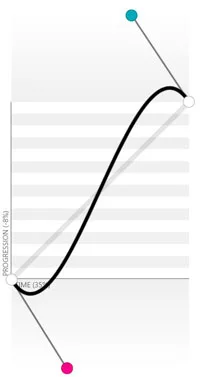
import { BezierCurveEase } from "@babylonjs/core/Animations/easing";const bezierEase = new BezierCurveEase(0.32, -0.73, 0.69, 1.59);Finally, you can extend the EasingFunction base function to create your own easing function, like this:
import { EasingFunction } from "@babylonjs/core/Animations/easing";const FunnyEase = (function (_super) { __extends(FunnyEase, _super); function FunnyEase() { _super.apply(this, arguments); } FunnyEase.prototype.easeInCore = function (gradient) { // Here is the core method you should change to make your own Easing Function // Gradient is the percent of value change return Math.pow(Math.pow(gradient, 4), gradient); }; return FunnyEase;})(EasingFunction);You will find a complete demonstration of the easing functions behaviors, in this playground: Easing Behavior Examples
If you need finer control of the easing function than at animation level, you can also define it at animation key level:
export interface IAnimationKey { /** * Frame of the key frame */ frame: number; /** * Value at the specifies key frame */ value: any; /** * The input tangent for the cubic hermite spline */ inTangent?: any; /** * The output tangent for the cubic hermite spline */ outTangent?: any; /** * The animation interpolation type */ interpolation?: AnimationKeyInterpolation; /** * Property defined by UI tools to link (or not ) the tangents */ lockedTangent?: boolean; /** * The easing function associated with the key frame (optional). If not defined, the easing function defined at the animation level (if any) will be used instead */ easingFunction?: IEasingFunction;}If an easing function is defined for a key, it will take precedence over the function defined at animation level.
Attach events to animations
From Babylon.js version 2.3, you can attach animation events to specific frames on an animation.
An event is a function that will be called at a given frame.
It's very simple to do this:
import { AnimationEvent } from "@babylonjs/core/Animations/animationEvent";// 3 parameters to create an event:// - The frame at which the event will be triggered// - The action to execute// - A boolean if the event should execute only once (false by default)const event1 = new AnimationEvent(50, function () { console.log("Yeah!");}, true);// Attach your event to your animationanimation.addEvent(event1);Deterministic lockstep
Sometimes it is important to make sure animations, physics and game logic code are in sync and decoupled by frame-rate variance. This might be useful to be able to replay how a scene evolved, given the same initial condition and inputs, or to minimize differences on multiple clients in a multi-user environment.
The principle is to quantize state execution time by updating the state at a fixed frequency with discrete time steps and keeping an accumulator to carry excess time over to the next frame update.
To achieve this, the Babylon engine needs to be created by passing the following two options:
import { Engine } from "@babylonjs/core/Engines/engine";this.engine = new Engine(theCanvas, true, { deterministicLockstep: true, lockstepMaxSteps: 4,});This way, the scene will render quantizing physics and animation steps by discrete chunks of the timeStep amount, as set in the physics engine. For example:
import { HavokPlugin } from "@babylonjs/core/Physics/v2/Plugins/havokPlugin";const physEngine = new HavokPlugin();newScene.enablePhysics(this.gravity, physEngine);With the code above, the engine will run discrete steps at 60Hz (0.01666667s) and, in case of a late frame render time, it will try to calculate a maximum of 4 steps (lockstepMaxSteps) to recover any accumulated delay, before rendering the frame.
To run logic code in sync with the steps, the following two observables are available on the scene:
newScene.onBeforeStepObservable.add(function (theScene) {  console.log("Performing game logic, BEFORE animations and physics for stepId: " + theScene.getStepId());});
newScene.onAfterStepObservable.add(function (theScene) {  console.log("Performing game logic, AFTER animations and physics for stepId: " + theScene.getStepId());});
Using them allows running arbitrary logic code before and after animations and physics are updated.
In the following example, you can see in the console the stepId at which the sphere is considered at rest and the rotation value for the rotating box. Multiple runs will always result in the same values, whatever the frame-rate.
Logging stepId For Sphere at Rest