Getting Started - Chapter 1 - First Scene
First Scene and Model
Whether you are creating a whole world or just placing one model into a web page, you need a scene to contain the world or model, a camera to view it, a light to illuminate it, and, of course, at least one viewable object as a model. All models, whether just a box or a complex character, are made from a mesh of triangles or facets.
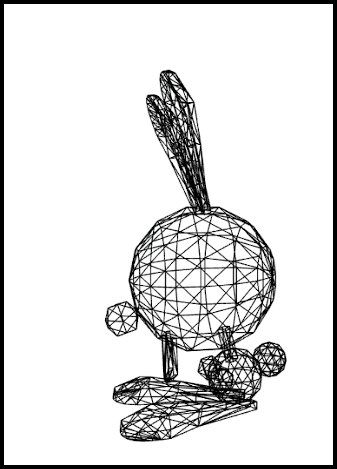
Wireframe View Showing Mesh Triangles
A large number of meshes can be created directly within Babylon.js using code, or, as you will shortly see, imported as models from meshes created with other software. Let us start simply with a box.
Examples on these pages can be viewed in the Playground, the place to try out Babylon.js live on the web, by clicking their titles. To edit the code, open them with 
Say Hello to Your First World
All projects using the Babylon.js Engine need a scene with a camera and a light added. Then we can create our box.
Wait... what is the Babylon.js Engine, you ask? Excellent question. The engine variable shown below is the class responsible for interfacing with lower-level APIs such as WebGL, audio, and more. The constructor used to create a Babylon scene (the context that renders visuals to the screen) needs the engine to talk to these lower-level APIs. This is why the engine variable is needed when creating a scene.
You can read more about the engine class here.
Use the tabs to view this example with standard ES6 imports, side-effect-free pure ES6 imports, or the global UMD package.
import { ArcRotateCamera } from "@babylonjs/core/Cameras/arcRotateCamera";import { HemisphericLight } from "@babylonjs/core/Lights/hemisphericLight";import "@babylonjs/core/Materials/standardMaterial";import { Vector3 } from "@babylonjs/core/Maths/math.vector";import { CreateBox } from "@babylonjs/core/Meshes/Builders/boxBuilder";import { Scene } from "@babylonjs/core/scene";
const scene = new Scene(engine);
const camera = new ArcRotateCamera("camera", -Math.PI / 2, Math.PI / 2.5, 3, new Vector3(0, 0, 0), scene);camera.attachControl(canvas, true);
const light = new HemisphericLight("light", new Vector3(0, 1, 0), scene);
const box = CreateBox("box", {}, scene);
Like most meshes created with Babylon.js's mesh creation helpers, the box is created with its center positioned at the origin and needs three parameters. These are a name, a string; options, a JavaScript object; and a scene. By leaving the options as an empty object with no properties, the box defaults to unit size for its width, height, and depth.
To make this usable in a Playground, we need to place these within a function called createScene that returns a scene. The Playground app takes care of the rest.
import { ArcRotateCamera } from "@babylonjs/core/Cameras/arcRotateCamera";import { HemisphericLight } from "@babylonjs/core/Lights/hemisphericLight";import "@babylonjs/core/Materials/standardMaterial";import { Vector3 } from "@babylonjs/core/Maths/math.vector";import { CreateBox } from "@babylonjs/core/Meshes/Builders/boxBuilder";import { Scene } from "@babylonjs/core/scene";
const createScene = () => {    const scene = new Scene(engine);
    const camera = new ArcRotateCamera("camera", -Math.PI / 2, Math.PI / 2.5, 3, new Vector3(0, 0, 0));    camera.attachControl(canvas, true);
    const light = new HemisphericLight("light", new Vector3(0, 1, 0));
    const box = CreateBox("box", {});
    return scene;}
Since there is only one scene at this point, you may notice that this parameter can be dropped from the camera, light, and box, as they default to being placed in the current scene.
Getting Started First Scene Playground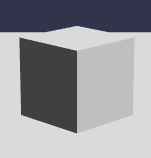
Having created our box we can save, or export, the scene from within the playground by selecting the Inspector

followed by Tools and choose which type to export, the .babylon format or the GLB format.
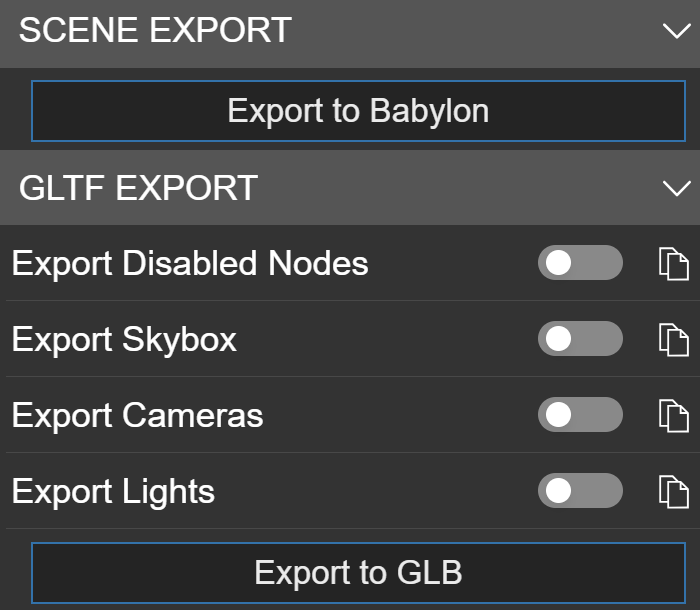
Now that we have a file, we can use it to demonstrate how to view it on a web page.