Coordinate Systems and Handedness
Why Handedness Matters
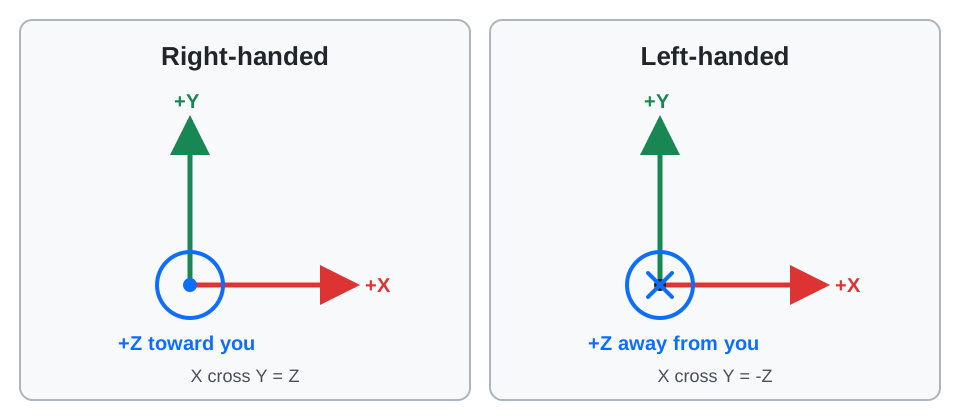
A 3D coordinate system needs three axes, but there are two consistent ways to choose the positive direction of the third axis. These are called right-handed and left-handed coordinate systems. Neither is more correct. Handedness is a convention, like choosing which direction on a map is north.
The distinction can be expressed with a cross product:
- Right-handed:
X cross Y = Z - Left-handed:
X cross Y = -Z
If positive X points right and positive Y points up on the page, positive Z points toward you in a right-handed system and away from you in a left-handed system.
Changing handedness is a reflection, not a rotation. For example, when the X and Y axes keep the same meaning, reflecting Z converts a point between otherwise aligned systems:
import { Vector3 } from "@babylonjs/core/Maths/math.vector";const leftHandedPoint = new Vector3(rightHandedPoint.x, rightHandedPoint.y, -rightHandedPoint.z);That example is useful for understanding the math, but it is not a complete asset-pipeline conversion. A full conversion may also need to update rotations, animation keys, normals, tangents, cameras, and triangle winding. Use a format-aware exporter and importer whenever possible.
Babylon.js and glTF Conventions
Babylon.js scenes are left-handed by default. Positive X is right, positive Y is up, and positive Z is forward. To use a right-handed Babylon.js scene, set the mode before creating or loading scene content. In that mode, positive X remains right and positive Y remains up, so forward becomes negative Z:
import { Scene } from "@babylonjs/core/scene";const scene = new Scene(engine);scene.useRightHandedSystem = true;This setting changes how the scene interprets coordinates; it does not rewrite geometry or transforms that already exist. Choose the handedness before creating cameras, meshes, or imported content.
glTF 2.0 uses a right-handed coordinate system, with positive Y up, positive Z forward, negative X right, and distances measured in meters. For triangle topology, glTF defines counterclockwise winding after a global transform with a positive determinant and clockwise winding after a transform with a negative determinant.
| Content | Handedness | Right | Up | Forward |
|---|---|---|---|---|
| Default Babylon.js scene | Left-handed | +X | +Y | +Z |
| Right-handed Babylon.js scene | Right-handed | +X | +Y | -Z |
| glTF 2.0 | Right-handed | -X | +Y | +Z |
The same axis names do not mean that every numeric transform can be copied unchanged: changing handedness changes the relationship among the axes.
Loading glTF in Babylon.js
The Babylon.js glTF loader handles the conversion automatically. Its default AUTO coordinate-system mode reads the scene setting:
- In a default left-handed scene, the loader adds a
__root__node and applies the handedness conversion there. - In a right-handed scene, glTF data already matches the scene handedness, so the
__root__node does not need that conversion.
In a left-handed scene, the loader currently represents this root conversion as a 180-degree rotation around Y together with a Z scale of -1. Keep the generated root in the hierarchy unless you deliberately bake and verify the complete conversion.
Set scene.useRightHandedSystem before loading the asset. Do not also mirror the imported meshes or negate an axis in application code unless you intentionally need an additional reflection.
import { ImportMeshAsync } from "@babylonjs/core/Loading/sceneLoader";import { Scene } from "@babylonjs/core/scene";const scene = new Scene(engine);// Choose this before loading. Omit it to keep Babylon.js's default LH scene.scene.useRightHandedSystem = true;const result = await ImportMeshAsync("model.glb", scene);const importedRoot = result.meshes[0]; // The glTF loader's __root__ node.The conversion on __root__ is part of the imported hierarchy. Code that reads local transforms, reparents imported nodes, drives bones, or creates physics bodies should account for that parent. Use world transforms such as getAbsolutePosition() when you need the final scene-space result.
Faces, Normals, and Tangent Space
Reflecting geometry reverses its orientation. If you manually convert raw vertex data, remember all related data:
- Reverse triangle winding, or select the matching Babylon.js side orientation, so front-face culling remains correct. Remember that a negative-determinant node transform already changes the glTF winding convention.
- Transform normals as directions and normalize them. Do not treat normals as positions.
- Transform tangents consistently. The
wcomponent of a glTF tangent stores the sign used to reconstruct the bitangent, so a reflection can require that sign to change. - Recheck normal maps after conversion because tangent-space orientation determines how their channels are interpreted.
The glTF loader performs these format-specific steps, including choosing the side orientation and normal-map inversion settings for the scene handedness. This checklist is for custom importers, procedural geometry, and pipelines that alter raw mesh buffers.
A Reliable DCC-to-Babylon Workflow
Blender, Maya, Unity, and other tools expose their own world, camera, and object-axis conventions. Those conventions can also vary by exporter, project settings, or plugin version. Avoid relying on a remembered statement such as "tool X is always left-handed."
- Mark the authored asset with temporary asymmetry: label its right side, add a forward-pointing marker, and place a small object on only one side.
- Export with a glTF 2.0 exporter that documents support for your tool version. Let the exporter convert the tool's coordinates to glTF.
- Test the GLB or glTF in the Babylon.js Sandbox before adding runtime corrections.
- Load it into a Babylon.js scene with your intended handedness. Do not apply another axis flip merely because the source tool uses a different convention.
- Verify front faces, normal maps, animation direction, camera orientation, and any code that depends on "forward."
- Keep any unavoidable correction on one named parent node and document why it exists. Do not scatter sign changes through gameplay code.
For tool-specific export settings, see Exporting to glTF, Blender to Babylon.js using glTF, and Exporting a Maya scene as glTF. For Unity or another engine, use a glTF exporter whose documentation states how it maps that engine's axes to glTF, then treat the exported glTF conventions as the interchange contract.
Tool-specific cautions
- Blender: Its supported glTF add-on converts Blender's scene axes to glTF. Keep the exporter's coordinate conversion enabled instead of adding a second Babylon-specific flip.
- Maya: The project up axis can be configured as Y or Z. Verify the active project and exporter settings rather than assuming a universal Maya default.
- Unity: Coordinate conversion depends on the selected glTF package and version. Follow that exporter's documentation and validate the emitted file; do not transfer conversion rules from an unrelated Unity package.
Common Symptoms
| Symptom | Likely cause | What to check |
|---|---|---|
| Model faces backward | An extra reflection or forward-axis assumption | Remove manual axis flips and inspect the imported __root__ transform |
| Model looks inside-out | Winding was not reversed after a manual reflection | Index order, sideOrientation, and material back-face culling |
| Normal map looks dented instead of raised | Tangent basis or normal-map convention does not match | Exported tangents, tangent w, and material normal-map settings |
| Animation turns the wrong way | Rotation data was converted like a position | Let the exporter/importer convert animation transforms |
| Physics shape is offset or mirrored | Physics was built from local values below a converted root | Build from world transforms or follow the glTF physics guidance |
Handedness bugs are easiest to solve at one pipeline boundary. First verify the exported glTF, then verify the loader's root conversion, and only then add a deliberate application-level transform if the asset's authored orientation requires it.