Mesh Behaviors
Introduction
Mesh behaviors are Behaviors that can be attached to a mesh.
PointerDragBehavior
This is used to drag a mesh around a plane or axis using a mouse or VR controller.
import { PointerDragBehavior } from "@babylonjs/core/Behaviors/Meshes/pointerDragBehavior";import { Vector3 } from "@babylonjs/core/Maths/math.vector";const pointerDragBehavior = new PointerDragBehavior({ dragAxis: new Vector3(0, 1, 0) });It can be initialized in three different modes:
dragAxis: Dragging will occur along the provided axisdragPlaneNormal: Dragging will occur along the plane defined by the normal- None: Dragging will occur along the plane facing the camera
By default, the dragging plane/axis is modified by the object's orientation. To keep the specified axis/plane fixed to the world, set useObjectOrientationForDragging to false.
pointerDragBehavior.useObjectOrientationForDragging = false;By default, the drag plane will update on every frame. To disable this, set updateDragPlane to false.
pointerDragBehavior.updateDragPlane = false;Before the attached mesh moves, validateDrag receives its proposed absolute position and determines whether to apply it. Override it to reject invalid positions or no-op updates. For example, the following prevents repeated world matrix updates once the proposed movement is within a tolerance appropriate for the scene:
const dragEpsilon = 0.001;
pointerDragBehavior.validateDrag = (targetPosition) => {  return !mesh.absolutePosition.equalsWithEpsilon(targetPosition, dragEpsilon);};
A larger tolerance stops the mesh farther from the exact target, so choose a value that matches the scale of the scene.
To listen to drag events, you can use the following:
pointerDragBehavior.onDragStartObservable.add((event) => { console.log("dragStart"); console.log(event);});pointerDragBehavior.onDragObservable.add((event) => { console.log("drag"); console.log(event);});pointerDragBehavior.onDragEndObservable.add((event) => { console.log("dragEnd"); console.log(event);});To use the drag behavior without moving the attached mesh, set moveAttached to false. The drag events above can then be used for custom drag interactions.
pointerDragBehavior.moveAttached = false;To disable all dragging behavior, set enabled to false.
pointerDragBehavior.enabled = false;To inspect the current state of the dragged mesh, you can check currentDraggingPointerID, dragging, and lastDragPosition.
// The id of the pointer that is currently interacting with the behavior (-1 when no pointer is active)pointerDragBehavior.currentDraggingPointerID;// The last position where the pointer hit the drag plane in world spacepointerDragBehavior.lastDragPosition;// If the behavior is currently in a dragging statepointerDragBehavior.dragging;SixDofDragBehavior
This is used to drag a mesh around in 3D space based on the pointer's origin (e.g. camera or VR controller position).
import { SixDofDragBehavior } from "@babylonjs/core/Behaviors/Meshes/sixDofDragBehavior";const sixDofDragBehavior = new SixDofDragBehavior();By default, pointer jitter is smoothed by slowly moving the mesh to where the pointer is pointing. To remove or modify this behavior, the following field can be modified.
// The distance towards the target drag position to move each frame. This can be useful to avoid jitter. Set this to 1 for no delay. (Default: 0.2)sixDofDragBehavior.dragDeltaRatio = 0.2;By default, dragging objects away from or toward you is magnified to make moving objects over large distances easier. To avoid or modify this, use the following:
// How much faster the object should move when the controller is moving towards it. This is useful to bring objects that are far away from the user to them faster. Set this to 0 to avoid any speed increase. (Default: 3)sixDofDragBehavior.zDragFactor = 3;Note - When picking, every triangle is tested with a raycast. To avoid large performance hits when using models that have complex geometries, the object should be wrapped in a bounding box mesh. See BoundingBoxGizmo.MakeNotPickableAndWrapInBoundingBox
MultiPointerScaleBehavior
This is used to scale a mesh based on two pointers (e.g. fingers or VR controllers).
import { MultiPointerScaleBehavior } from "@babylonjs/core/Behaviors/Meshes/multiPointerScaleBehavior";const multiPointerScaleBehavior = new MultiPointerScaleBehavior();Note - To avoid large performance hits when using with models that have complex geometries, the object should be wrapped in a bounding box mesh. See BoundingBoxGizmo.MakeNotPickableAndWrapInBoundingBox
AttachToBoxBehavior (AppBar)
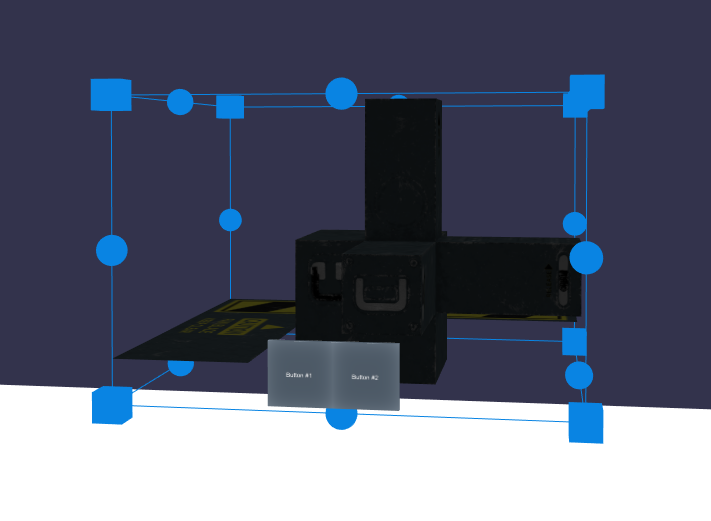
This is used to attach a mesh or UI on top of a mesh's bounding box.
import { AttachToBoxBehavior } from "@babylonjs/core/Behaviors/Meshes/attachToBoxBehavior";const behavior = new AttachToBoxBehavior(appBar);boundingBox.addBehavior(behavior);To adjust the positioning of the attached mesh, use the following.
behavior.distanceAwayFromFace = 0.15;behavior.distanceAwayFromBottomOfFace = 0.15;This can be used to attach an app bar to a mesh.
FollowBehavior
This is used to make a mesh follow the camera.
import { FollowBehavior } from "@babylonjs/core/Behaviors/Meshes/followBehavior";const followBehavior = new FollowBehavior();followBehavior.attach(mesh);The position/rotation of the mesh will be updated in three cases:
- The mesh goes outside the bounds of the field of view. Use
maxViewVerticalDegreesandmaxViewHorizontalDegreesto tweak these bounds. - The mesh goes too close to or too far from the camera. Use
defaultDistance,minimumDistance, andmaximumDistanceto tweak these distances. - The mesh is facing away from the camera. Use
orientToCameraDeadzoneDegreesto define the maximum angle that the mesh can face away.
In XR experiences, it can be useful not to consider the user's complete head rotation. Use the property ignoreCameraPitchAndRoll to only consider the yaw (rotation around the Y axis) of the head. In this mode, you can use pitchOffset, to slightly put the mesh under or over the horizontal plane.
Like SixDofDragBehavior, every transformation of the mesh is interpolated to avoid jitter. Use lerpTime to adjust the length of the interpolation (the higher the value, the slower it is).
SurfaceMagnetismBehavior
This is used to make a mesh stick to another mesh, and be oriented along its normal. It can, for instance, be used in XR experiences to make UI controls stick to walls.
The property meshes is the list of meshes that we should consider as intersectors.
import { SurfaceMagnetismBehavior } from "@babylonjs/core/Behaviors/Meshes/surfaceMagnetismBehavior";const surfaceMagnetismBehavior = new SurfaceMagnetismBehavior();surfaceMagnetismBehavior.attach(mesh);surfaceMagnetismBehavior.meshes = meshes;By default, it will intersect meshes every time the pointer moves, and the position will be updated accordingly (with interpolation, like FollowBehavior). Use the enabled flag to control whether this behavior should be active.
HandConstraintBehavior
HandConstraintBehavior makes a mesh follow one of the user's hands. It needs to be linked to a WebXRExperienceHelper so that it can retrieve hand positions.
The hand tracking feature also needs to be enabled for this behavior to function. WebXRDefaultExperience, if you use it, enables that feature by default if the user's system supports WebXR hand input.
Basic setup looks like this:
import { HandConstraintBehavior } from "@babylonjs/core/Behaviors/Meshes/handConstraintBehavior";const behavior = new HandConstraintBehavior();behavior.attach(mesh);behavior.linkToXRExperience(xr);Among the various public properties you can use to customize this behavior, handedness can be used to specify which hand the mesh should follow.