Gizmos
Introduction
Gizmos are objects that can be attached to a node (mesh, bone, transform) to provide interaction. The GizmoManager and BoundingBox gizmo work with meshes, whereas position, scale, and rotation gizmos are also usable with TransformNodes and Bones.
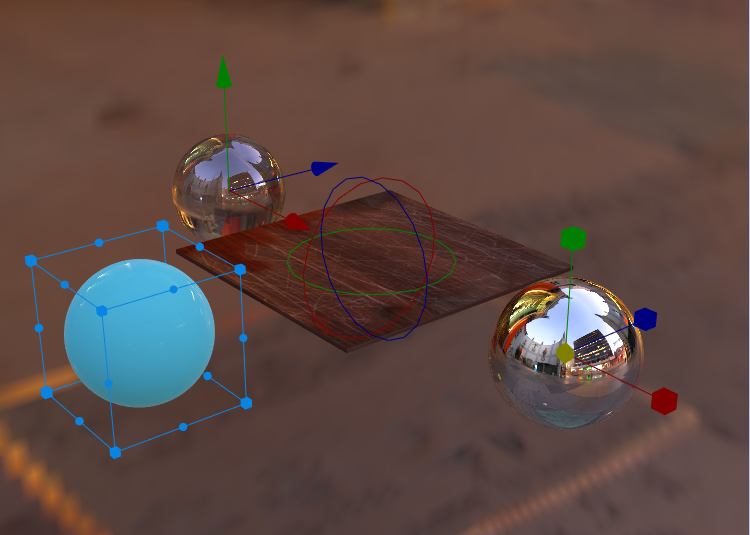
Note: BoundingBox Gizmo will set/modify the rotationQuaternion of the attached node. After attaching, any rotation of the mesh should be done with the rotationQuaternion property instead of rotation.
GizmoManager
To get a default gizmo setup, the GizmoManager class can be used.
import { GizmoManager } from "@babylonjs/core/Gizmos/gizmoManager";const gizmoManager = new GizmoManager(scene);The gizmo manager will attach the enabled gizmo to whatever object in the scene that is selected by a pointer. To enable a gizmo, any of the following can be used:
gizmoManager.positionGizmoEnabled = true;gizmoManager.rotationGizmoEnabled = true;gizmoManager.scaleGizmoEnabled = true;gizmoManager.boundingBoxGizmoEnabled = true;To specify the meshes which can have the gizmo attached, the attachableMeshes field can be set.
gizmoManager.attachableMeshes = [mesh1, mesh2, mesh3];To manually change the selected mesh, the gizmo manager's attachToMesh method can be called and the usePointerToAttachGizmos field can be used to disable the manager's default pointer behavior.
gizmoManager.usePointerToAttachGizmos = false;gizmoManager.attachToMesh(mesh);All the internal gizmos are accessible through the manager to support scenarios such as listening to drag events.
gizmoManager.gizmos.scaleGizmo;gizmoManager.gizmos.rotationGizmo;gizmoManager.gizmos.positionGizmo;
gizmoManager.gizmos.positionGizmo.xGizmo.dragBehavior.onDragStartObservable.add(() => {  console.log("Position gizmo's x axis started to be dragged");});gizmoManager.gizmos.positionGizmo.xGizmo.dragBehavior.onDragEndObservable.add(() => {  console.log("Position gizmo's x axis drag was ended");});
By default, gizmo orientation is in local space, so it is rotated to match the rotation of the object it is attached to. To switch to world orientation, set the updateGizmoRotationToMatchAttachedMesh property to false:
gizmoManager.gizmos.positionGizmo.updateGizmoRotationToMatchAttachedMesh = false;Note: This is not supported on the scale gizmo
Gizmo Manager ExampleSetup
Gizmos are displayed by a UtilityLayerRenderer to not disrupt the existing scene state. If not specified, the default utility layer will be used.
The utility layers are independent of the scene or engine. After creating a gizmo, it is exposed through gizmo.gizmoLayer. If you create a gizmo without specifying a utility layer, it will use the default utility layer’s UtilityLayerRenderer.DefaultUtilityLayer for overlay gizmos like position and scale, and UtilityLayerRenderer.DefaultKeepDepthUtilityLayer for occluded gizmos like the bounding box. It is recommended to use and reuse these layers in most cases, as every new utility layer comes with additional overhead.
import { AxisDragGizmo } from "@babylonjs/core/Gizmos/axisDragGizmo";import { Color3 } from "@babylonjs/core/Maths/math.color";import { Vector3 } from "@babylonjs/core/Maths/math.vector";import { UtilityLayerRenderer } from "@babylonjs/core/Rendering/utilityLayerRenderer";const utilLayer = new UtilityLayerRenderer(scene);const gizmo = new AxisDragGizmo(new Vector3(1, 0, 0), Color3.FromHexString("#00b894"), utilLayer);When created, the gizmo is not attached to a node and is not visible, so it must be attached to a node to become active. Setting this to null will disable or hide the gizmo again.
gizmo.attachedMesh = sphere;By default, the gizmo is updated to match the attached node's rotation and position, but this can be modified with the following:
// Keep the gizmo fixed to world rotationgizmo.updateGizmoRotationToMatchAttachedMesh = false;gizmo.updateGizmoPositionToMatchAttachedMesh = true;Position, scale and rotation gizmos
Default gizmos for position, rotation, and scale on a single axis are supported.
Snapping can be enabled on any of the single-axis gizmos.
gizmo.snapDistance = 0.3;gizmo.onSnapObservable.add((event) => { console.log(event);});A sensitivity factor can be customized for AxisScaleGizmo and ScaleGizmo. Default is 1, a higher value means more stretch for the same drag.
gizmoScale.sensitivity = 3;These gizmos internally use a pointerDragBehavior, which is exposed and can be used to perform tasks before, during, or after dragging a gizmo.
gizmo.dragBehavior.onDragObservable.add(() => { console.log("drag");});Classes for three-axis gizmos are also provided, each containing three single-axis gizmos.
The single-axis gizmos within these are exposed via the xGizmo, yGizmo, and zGizmo properties. The scale gizmo also has a uniformScaleGizmo property that references the center gizmo used for uniform scaling.
Bounding box Gizmo
The BoundingBoxGizmo displays a bounding box around an object as well as controls to rotate and scale the object.
The enabled rotation axis can be customized with the following:
// only enable rotation on x and y axisgizmo.setEnabledRotationAxis("xy");The size of rotation and scale controls on the gizmo can be adjusted by using the following controls:
// The size of the rotation spheres attached to the bounding box (Default: 0.1)gizmo.rotationSphereSize = 0.1;// The size of the scale boxes attached to the bounding box (Default: 0.1)gizmo.scaleBoxSize = 0.1;// If set, the rotation spheres and scale boxes will increase in size based on the distance away from the camera to have a consistent screen size (Default: false)gizmo.rotationSphereSize = false;The following events are fired when dragging occurs on either the scale or rotation meshes of the bounding box.
gizmo.onScaleBoxDragObservable.add(() => { console.log("scaleDrag");});gizmo.onScaleBoxDragEndObservable.add(() => { console.log("scaleEnd");});gizmo.onRotationSphereDragObservable.add(() => { console.log("rotDrag");});gizmo.onRotationSphereDragEndObservable.add(() => { console.log("rotEnd");});To drag around objects contained inside a bounding box, Mesh Behaviors can be attached. When using models with complex geometry, such as a custom glTF file, the complex model should be set to not be pickable by pointers and wrapped in a pickable bounding box mesh to improve performance. A helper method is provided for this.
import { BoundingBoxGizmo } from "@babylonjs/core/Gizmos/boundingBoxGizmo";const boundingBox = BoundingBoxGizmo.MakeNotPickableAndWrapInBoundingBox(gltfMesh);Additionally, the bounding box can ignore children of the attached mesh for additional performance gains when needed.
gizmo.ignoreChildren = true;To only ignore certain children when computing the bounding box, the includeChildPredicate can be set.
gizmo.includeChildPredicate = (m) => { return m == sphere2;};UI can be attached to the bounding box using the AttachToBoxBehavior.
Bounding Box Gizmo .glTF Example Bounding Box Gizmo Animated .glTF Example Bounding Box Gizmo ExampleGizmo customization
To customize the visual appearance of an existing gizmo, create a mesh on the same utility layer and then call setCustomMesh on the gizmo. Utility layers do not contain lights by default, so it is recommended to use a material with an emissive texture.
import { MeshBuilder } from "@babylonjs/core/Meshes/meshBuilder";const customMesh = MeshBuilder.CreateBox("", { size: 0.1 }, gizmo.gizmoLayer.utilityLayerScene);customMesh.material = material;gizmo.setCustomMesh(customMesh);