Smart Filter Editor
What Is Smart Filter Editor?
The Smart Filter Editor (SFE) is a visual tool, much like the Node Material Editor, designed to make it easy to rapidly build and preview Smart Filters.
It is available at https://sfe.babylonjs.com, and you can run it locally if you clone the BabylonJS/Babylon.js repo, then:
- Run
npm install - Choose one of these approaches to build the Smart Filter Editor:
- Select
Smart Filter Editor development (Edge)orSmart Filter Editor development (Chrome)in Visual Studio Code'sRun and Debugmenu then hit F5 - Run
npm run watch:assets:smart-filtersin a terminal, thennpm run watch:source:smart-filtersin another terminal, and finallynpm run serve -w @tools/smart-filters-editorin a third terminal
- Select
It includes the blocks from the @babylonjs/smart-filters-blocks package (also in the BabylonJS/Babylon.js) repo, and can also use custom blocks you upload as JSON or GLSL files. These custom blocks are persisted in local storage, so you can load your own blocks once, then make use of them each time you return to SFE.
You can save the Smart Filters you create with SFE as local JSON files or as custom URLs you can share with others.
Navigating SFE
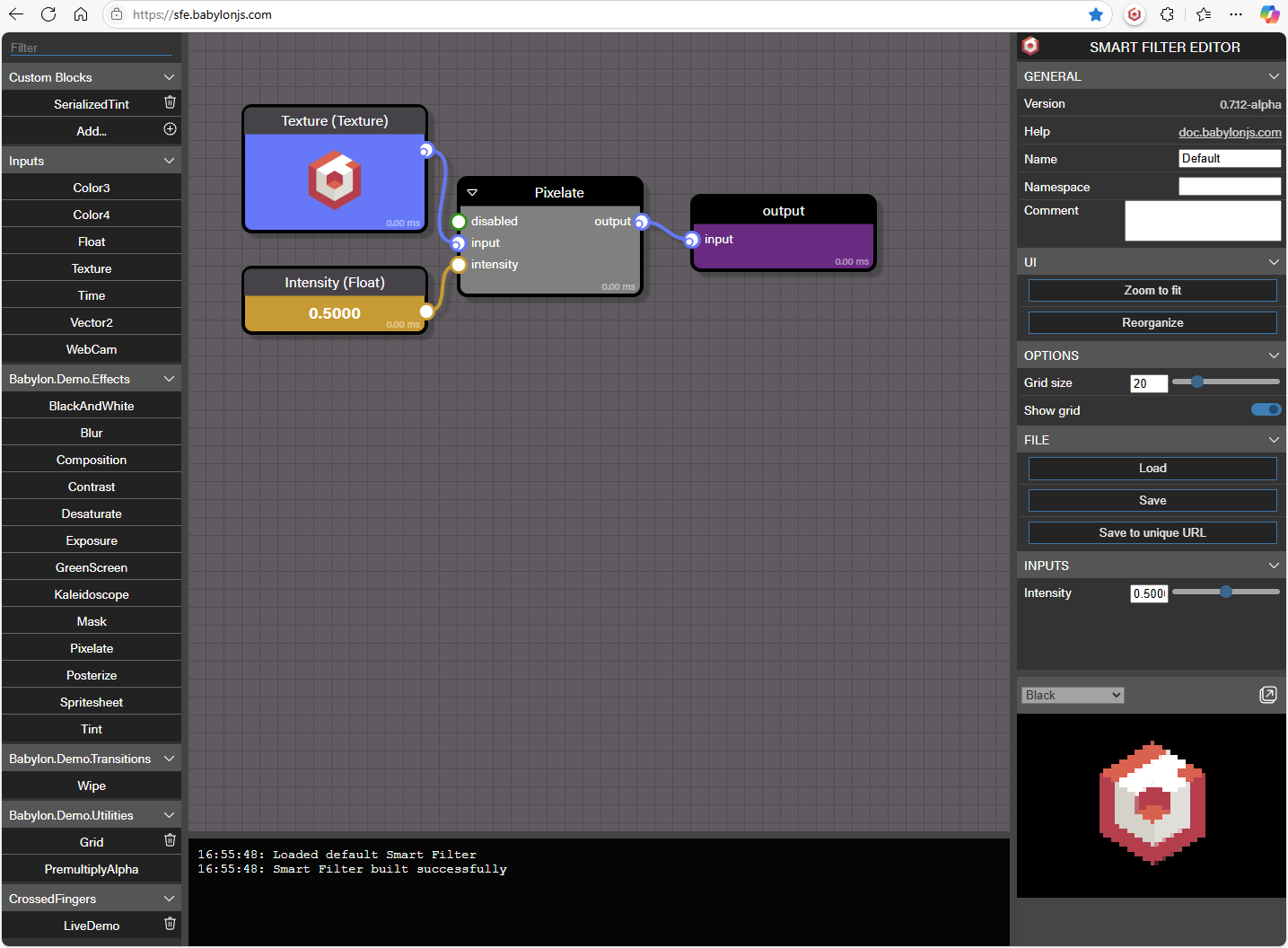
- The Block Library is on the left
- Click "Add..." in "Custom Blocks" to add a custom block to the library (see Custom Blocks below for details)
- Drag a block you'd like to use onto the canvas in the middle to create an instance of it
- The canvas is in the middle of the tool, and shows your current Smart Filter visually
- Drag from one connection point to another to form connections
- You can zoom in/out with the mouse scroll wheel
- Click on the background of the canvas to see Smart Filter level properties and actions in the right pane
- The right pane contains properties and actions relevant to the selected block (or the whole Smart Filter if nothing is selected), as well as a real-time preview of the Smart Filter output
- When no block is selected, you can choose to Load a Smart Filter from a local JSON file, Save to a local JSON file, or save to a unique URL
- If you save to a unique URL, the URL in your address bar will update to that new unique URL which you can use in the future to load this Smart Filter from any browser
- When no block is selected, you can choose to Load a Smart Filter from a local JSON file, Save to a local JSON file, or save to a unique URL
- The console at the bottom shows timestamped status messages, including helpful details if an error occurs (such as a required connection isn't made)
Custom Blocks
By default, SFE populates the block library with the blocks found in the @babylonjs/smart-filters-blocks package. You can add your own custom blocks to SFE without building it yourself by clicking the "Add..." button in the "Custom Blocks" section.
Custom blocks are saved in local storage, so you don't have to add them each time you visit SFE, but you will need to add them again if you need to open a Smart Filter that uses them in another browser or another computer.
There are 3 types of custom blocks that SFE supports adding:
- Annotated GLSL block definitions
- JSON block definitions
- JSON aggregate block definitions (saved Smart Filters themselves)
Annotated GLSL block definitions
These are fragment shaders defined in GLSL files with certain annotations in them to be loaded as Smart Filter blocks.
For example:
// { "smartFilterBlockType": "AnnotatedGlslTintBlock" }
uniform sampler2D input;// { "default": { "r": 1, "g": 0, "b": 0 } }uniform vec3 tint;// { "default": 0.25 }uniform float amount;
vec4 mainImage(vec2 vUV) { // main    vec4 color = texture2D(input, vUV);    vec3 tinted = mix(color.rgb, tint, amount);    return vec4(tinted, color.a);}
See Creating New Blocks for details of the annotation format.
JSON block definitions
Block definitions can be serialized SerializedShaderBlockDefinition objects, such as this example:
{ "format": "shaderBlockDefinition", "formatVersion": 1, "blockType": "JSONTintBlock", "namespace": "Babylon.Demo.Effects", "shaderProgram": { "fragment": { "uniform": " uniform sampler2D _input_; uniform vec3 _tint_; uniform float _amount_;", "mainFunctionName": "_mainImage_", "functions": [ { "name": "_mainImage_", "code": " vec4 _mainImage_(vec2 vUV) { vec4 color = texture2D(_input_, vUV); vec3 tinted = mix(color.rgb, _tint_, _amount_); return vec4(tinted, color.a); }" } ] } }, "inputConnectionPoints": [ { "name": "input", "type": 2 }, { "name": "tint", "type": 3, "defaultValue": { "r": 1, "g": 0, "b": 0 } }, { "name": "amount", "type": 1, "defaultValue": 0.25 } ], "disableOptimization": false}JSON aggregate block definitions
Entire Smart Filters themselves can be imported into other Smart Filters as custom aggregate blocks! Try saving a Smart Filter to a local JSON file, then add it as a custom block to SFE.
Notes:
- The input blocks in the imported Smart Filter will become input connection points on the custom aggregate block
- The name and namespace of the Smart Filter (see the top right of SFE when no block is selected) becomes the block name and namespace of the custom aggregate block
Special Input Blocks
SFE contains some special input blocks for testing your Smart Filters:
- WebCamBlock
- This is really a texture InputBlock which SFE automatically connects to your webcam as an easy way to preview live video in your Smart Filter
- Note that when integrating a Smart Filter that uses a WebCamBlock into an application, that application will need to supply a texture for that InputBlock, which could come from a webcam or any other source
- TimeBlock
- This is really a float InputBlock which SFE automatically increments as a simple animation
- Like with the WebCamBlock, when integrated into an application, this will behave as a regular InputBlock (this one of type float) whose value could be animated by the hosting application
Assets
SFE contains some built-in assets for testing your Smart Filters, which you will see in the properties panel on the right when a texture InputBlock is selected.
You can use those built-in assets, or:
- Upload your own image asset, which will be base64 encoded and saved in the Smart Filter for SFE to use later
- Enter a URL to an image or video asset you'd like to use