Node Particle Editor Blocks
What to Expect
This page is a breakdown of each block available in the Node Particle Editor. The blocks are listed in the same order by group as they appear in the tool's block list. The reason for this order is that there may be some generalities that apply to all blocks in a group and those will be listed once rather than repeating them for each block. For each block we will discuss all inputs, outputs, properties, and considerations to ensure all requirements for using a block are highlighted.
System Nodes
System node blocks provide the core system configuration and global values used throughout the particle graph. Every graph requires a System block, and the other blocks in this group provide time-based and positional system-level data.
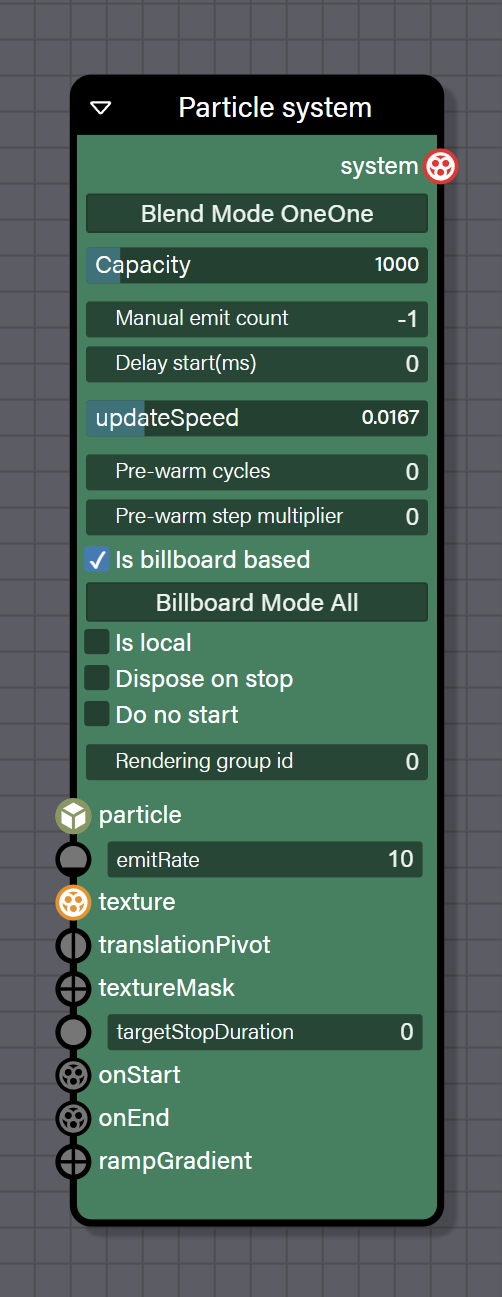
System
This is the core block that finalizes the particle system configuration. Every particle system graph must have exactly one System block, and it must be the last block in the chain. It manages particle capacity, rendering settings, blend modes, and emission rates. All emitter and update chains must eventually connect to this block. The block also handles sub-emitter triggers through the onStart and onEnd inputs, allowing particle systems to spawn other particle systems.
Properties
- blendMode defines how particles blend with the scene background. Options are ONEONE, STANDARD, ADD, MULTIPLY, and MULTIPLYADD.
- capacity sets the maximum number of particles that can exist simultaneously.
- manualEmitCount overrides the automatic particle emission count. Set to -1 to disable manual control.
- startDelay sets the delay in milliseconds before the particle system starts emitting.
- updateSpeed sets the frequency of particle updates in seconds. A value of 0.0167 corresponds to approximately 60 updates per second.
- preWarmCycles sets the number of update cycles to run before rendering begins. This is useful for having particles already visible when the system starts.
- preWarmStepOffset sets the time step multiplier for pre-warm cycles.
- isBillboardBased determines whether particles should always face the camera.
- billBoardMode sets how particles orient to the camera. Options are ALL which faces the camera completely, Y which rotates around the Y-axis only, STRETCHED which elongates based on velocity, and STRETCHED_LOCAL which stretches in local space.
- isLocal determines whether particles exist in local space or world space.
- disposeOnStop automatically disposes the particle system when it stops.
- doNotStart prevents the particle system from starting automatically.
- renderingGroupId sets the rendering group ID for controlling render order.
- customShader is a custom shader configuration object for advanced rendering.
- emitter is the mesh or position that serves as the emitter origin.
Inputs
- particle is the particle stream from emitter and update blocks and is required for the system to function.
- emitRate is an integer value setting the number of particles emitted per second.
- texture is the sprite texture applied to particles and is required for the system to render.
- translationPivot is a Vector2 value setting the texture pivot point for rotation.
- textureMask is a Color4 value that acts as a color mask applied to the texture.
- targetStopDuration is a Float value setting the duration in seconds for the system to fade out when stopped.
- onStart accepts a System connection to trigger another particle system when this one starts.
- onEnd accepts a System connection to trigger another particle system when this one stops.
Outputs
- system is the finalized particle system instance and can be connected to other system inputs or used as the final output.
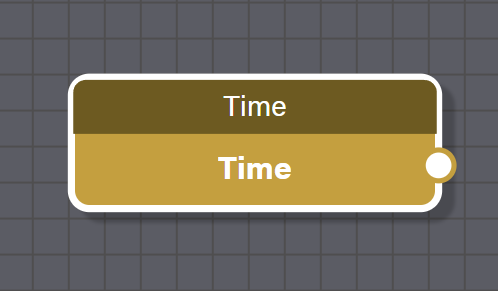
Time
This block provides the current system time in milliseconds. It gives access to the global elapsed time since the particle system started and is useful for creating time-based animations, oscillations, or synchronized effects. Combine with trigonometry blocks like Sin or Cos for wave patterns, or with math blocks for custom timing functions.
Outputs
- output is the current time in milliseconds as a Float value.
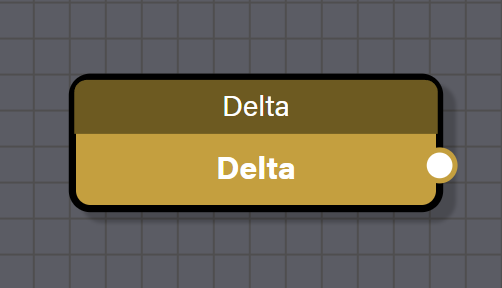
Delta
This block provides the frame time based on FPS and update speed. This value is a constant and does not measure the time since the last frame. It is essential for frame-rate-independent particle behaviors and should be used to scale velocity, rotation speed, or any time-dependent calculation so that the result is consistent regardless of frame rate.
Outputs
- output is the delta time as a constant value for all frames, based on update speed and renderer FPS, as a Float value.
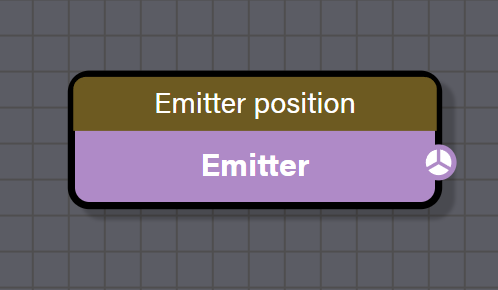
Emitter Position
This block provides the world-space position of the particle system emitter. It is useful for calculating distances from the emitter, creating effects relative to the emitter origin, or implementing custom attraction or repulsion toward the emitter. The value updates each frame if the emitter is moving.
Outputs
- output is the emitter position in world space as a Vector3 value.
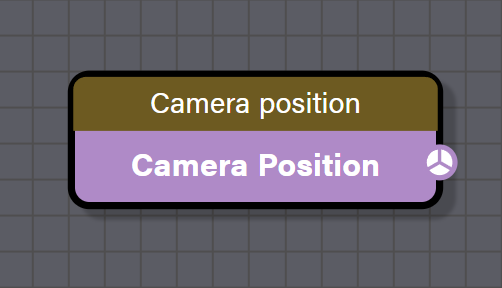
Camera Position
This block provides the world-space position of the active camera in the scene. It is useful for view-dependent effects such as particles that react to camera distance, billboard adjustments, or depth-based fading. Combine with math blocks to calculate camera-to-particle distances.
Outputs
- output is the active camera position in world space as a Vector3 value.
Setup
Setup blocks handle particle creation and sprite sheet configuration. Every particle system graph needs a Create Particle block as the starting point for its emission chain.
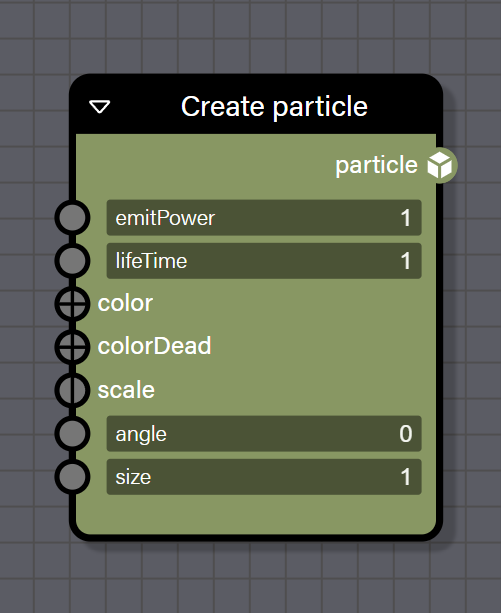
Create Particle
This block creates new particles and initializes their properties. It is the first block in an emission chain and must be placed before shape emitter blocks.
Inputs
- emitPower is a Float value that acts as a multiplier for emission velocity.
- lifeTime is a Float value setting the particle lifespan in seconds.
- color is a Color4 value setting the initial particle color.
- colorDead is a Color4 value setting the end-of-life particle color.
- scale sets the particle scale and accepts either a Vector2 for independent X and Y scaling or a Float which applies uniformly.
- angle is a Float value setting the initial rotation angle in radians.
- size is a Float value setting the particle size.
Outputs
- particle is the created particle system instance ready to be connected to a shape emitter block.
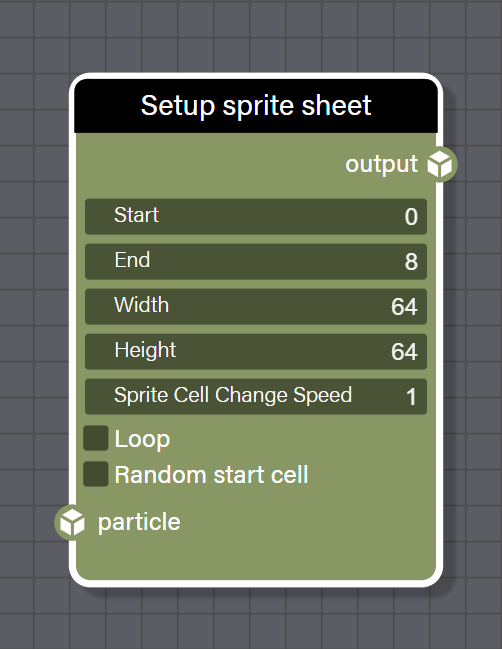
Setup Sprite Sheet
This block configures sprite sheet animation for particles, enabling animated sprite effects. It is used in conjunction with a texture input on the System block where the texture should contain a sprite sheet as a grid of sprite frames. All sprite parameters are configured through the properties panel.
Properties
- start sets the starting sprite cell index for animation.
- end sets the ending sprite cell index for animation.
- width sets the width of each sprite cell in pixels.
- height sets the height of each sprite cell in pixels.
- spriteCellChangeSpeed sets the speed of sprite cell animation.
- loop determines whether sprite animation should loop.
- randomStartCell determines whether the starting cell is randomized for each particle.
Inputs
- particle is the particle system to configure sprite sheets for and is required.
Outputs
- output is the particle system with sprite sheet animation configured.
Shapes
Shape blocks define the spatial distribution of particles, controlling where they spawn and in which direction they move initially. Every particle system needs at least one shape emitter block connected after the Create Particle block. All shape blocks take a particle input and output a particle type that flows through the graph to update blocks and eventually to the System block.
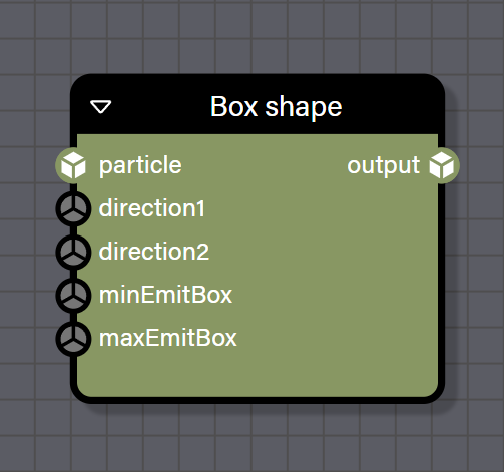
Box Shape
This emitter creates particles at random positions within a box volume with customizable directional vectors. Particles spawn at random positions within the box defined by minEmitBox and maxEmitBox, and initial direction vectors are randomized between direction1 and direction2 vectors.
Inputs
- particle is the particle system to apply the box emitter to and is required.
- direction1 is a Vector3 value setting the minimum direction vector for randomization.
- direction2 is a Vector3 value setting the maximum direction vector for randomization.
- minEmitBox is a Vector3 value setting the minimum corner of the emission box.
- maxEmitBox is a Vector3 value setting the maximum corner of the emission box.
Outputs
- output is the particle system with the box emitter applied.
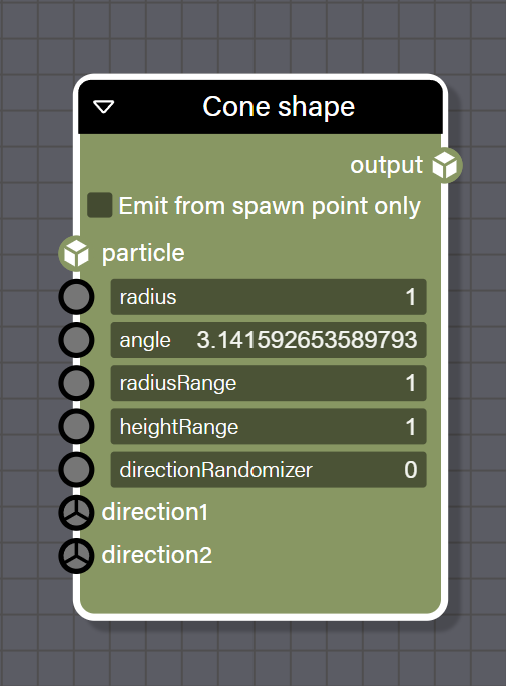
Cone Shape
This emitter creates particles from a cone shape with customizable spread angle and radius range. When emitFromSpawnPointOnly is false, particles spawn along the cone surface. The directionRandomizer is automatically used unless both direction1 and direction2 inputs are connected, which override the automatic direction calculation.
Properties
- emitFromSpawnPointOnly when enabled causes particles to emit only from the cone apex instead of the cone surface.
Inputs
- particle is the particle system to apply the cone emitter to and is required.
- radius is a Float value setting the radius of the cone base.
- angle is a Float value setting the cone spread angle in radians.
- radiusRange is a Float value between 0 (surface only) and 1 (full volume) that controls the randomization factor for spawn radius.
- heightRange is a Float value between 0 and 1 that controls the randomization factor for spawn height along the cone.
- directionRandomizer is a Float value between 0 and 1 that adds randomness to the initial direction.
- direction1 is a Vector3 value setting the custom direction range minimum.
- direction2 is a Vector3 value setting the custom direction range maximum.
Outputs
- output is the particle system with the cone emitter applied.
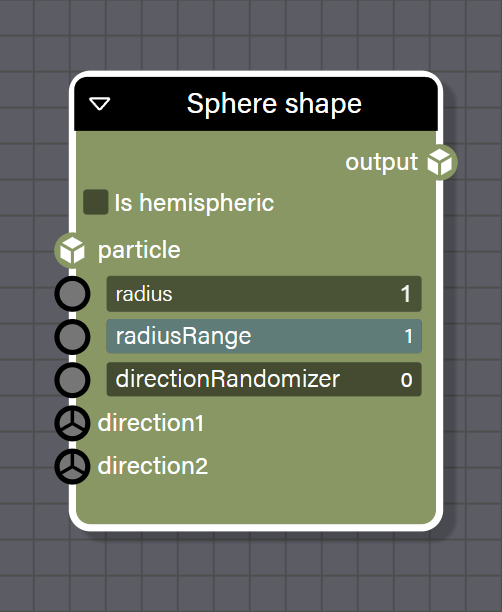
Sphere Shape
This emitter creates particles from a spherical surface with optional hemispheric mode. It uses proper spherical distribution with polar coordinates to ensure even particle distribution across the sphere surface. When isHemispheric is enabled, emission is restricted to the top half of the sphere.
Properties
- isHemispheric when enabled restricts emission to the top hemisphere of the sphere.
Inputs
- particle is the particle system to apply the sphere emitter to and is required.
- radius is a Float value setting the sphere radius.
- radiusRange is a Float value between 0 (surface only) and 1 (full volume) that controls the randomization factor for spawn radius.
- directionRandomizer is a Float value between 0 and 1 that adds randomness to the initial direction.
- direction1 is a Vector3 value setting the custom direction range minimum.
- direction2 is a Vector3 value setting the custom direction range maximum.
Outputs
- output is the particle system with the sphere emitter applied.
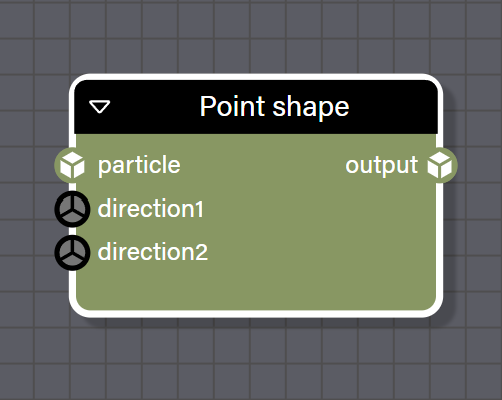
Point Shape
This is the simplest emitter block. All particles spawn at the emitter origin and the block only controls the initial direction which is randomized between direction1 and direction2.
Inputs
- particle is the particle system to apply the point emitter to and is required.
- direction1 is a Vector3 value setting the minimum direction vector for randomization.
- direction2 is a Vector3 value setting the maximum direction vector for randomization.
Outputs
- output is the particle system with the point emitter applied.
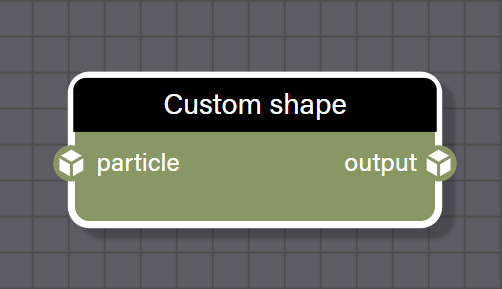
Custom Shape
This emitter allows complete control over particle emission using custom user-defined generator functions. These functions must be assigned programmatically in code, not through the UI. If particleDestinationGenerator is provided without particleDirectionGenerator, particle direction is automatically calculated from the destination and lifetime.
Properties (Assignable Functions)
- particlePositionGenerator is a custom function to generate particle positions with signature
(index: number, particle: Particle | null, outPosition: Vector3) => void. - particleDestinationGenerator is a custom function to generate particle destination positions with the same signature.
- particleDirectionGenerator is a custom function to generate particle initial directions with the same signature.
Inputs
- particle is the particle system to apply the custom emitter to and is required.
Outputs
- output is the particle system with the custom emitter applied.
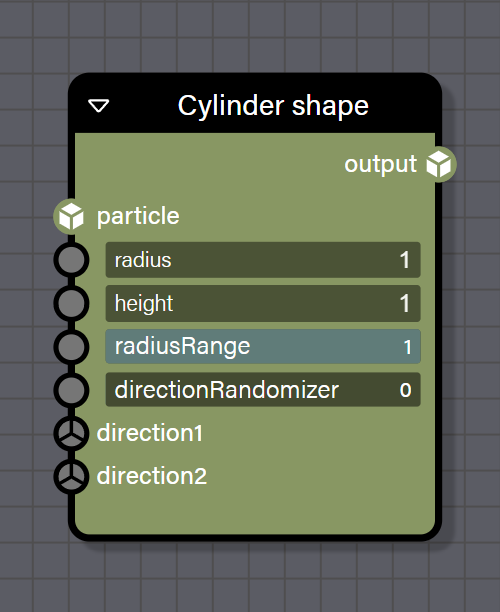
Cylinder Shape
This emitter creates particles from a cylinder surface with proper circular distribution. It uses a spherical distribution algorithm for circular positioning to avoid clustering. Direction is based on surface normals unless custom direction inputs are connected.
Inputs
- particle is the particle system to apply the cylinder emitter to and is required.
- radius is a Float value setting the cylinder radius.
- height is a Float value setting the cylinder height.
- radiusRange is a Float value between 0 (surface only) and 1 (full volume) that controls the randomization factor for spawn radius.
- directionRandomizer is a Float value between 0 and 1 that adds randomness to the initial direction.
- direction1 is a Vector3 value setting the custom direction range minimum.
- direction2 is a Vector3 value setting the custom direction range maximum.
Outputs
- output is the particle system with the cylinder emitter applied.
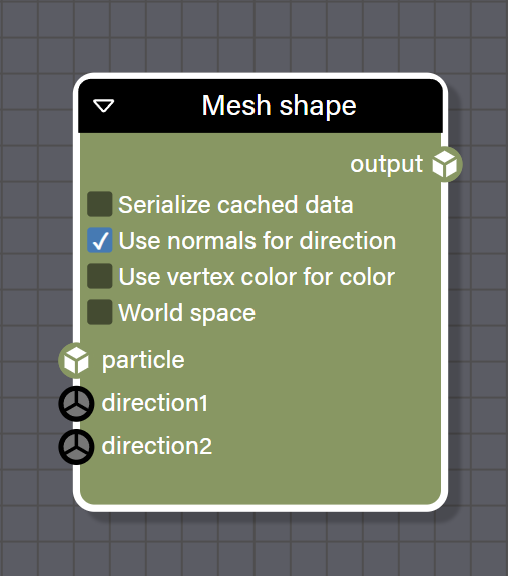
Mesh Shape
This emitter creates particles from a mesh surface using random triangles with barycentric interpolation. It caches vertex positions, normals, and color data from the source mesh for efficient sampling and uses barycentric coordinates to smoothly distribute particles across triangle surfaces.
Properties
- useMeshNormalsForDirection when enabled uses vertex normals from the mesh for particle initial direction.
- useMeshColorForColor when enabled uses vertex colors from the mesh for particle colors.
- serializedCachedData when enabled includes cached mesh data in serialization for offline use.
- worldSpace when enabled applies the mesh world transform matrix to particle positions.
Inputs
- particle is the particle system to apply the mesh emitter to and is required.
- direction1 is a Vector3 value setting the fallback minimum direction if not using mesh normals.
- direction2 is a Vector3 value setting the fallback maximum direction if not using mesh normals.
Outputs
- output is the particle system with the mesh emitter applied.
Updates
Update blocks update particle properties during their lifetime. They are placed between emitter blocks and the System block to create dynamic particle behaviors. Update blocks execute every frame for each active particle, allowing properties like color, size, position, and rotation to change over time. Multiple update blocks can be chained together to create complex behaviors, and the order matters as blocks execute in the order they are connected.
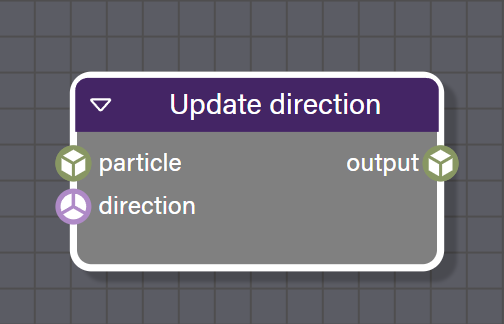
Update Direction
This block updates the particle velocity direction during simulation. It only executes if the direction input is connected. It can be used to create wind effects, vortices, or attraction and repulsion behaviors when combined with math blocks.
Inputs
- particle is the particle stream to update and is required.
- direction is a Vector3 value providing the new direction vector to apply to particles. This input must be connected for the block to activate.
Outputs
- output is the updated particle stream.
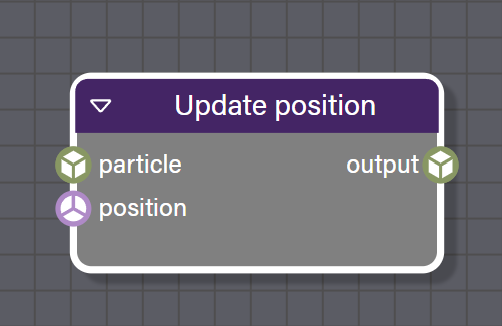
Update Position
This block updates particle position during simulation and will ignore parameters set during particle creation unless contextual inputs like position and scaled direction are part of the graph connected to this block's input. It only executes if the position input is connected and can be used for completely custom particle paths or to constrain particles to specific surfaces.
Inputs
- particle is the particle stream to update and is required.
- position is a Vector3 value providing the new position to apply to particles. This input must be connected for the block to activate.
Outputs
- output is the updated particle stream.
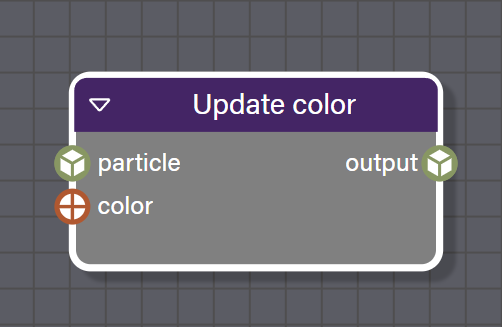
Update Color
This block updates particle color during simulation and will ignore parameters set during particle creation unless contextual inputs like current color and color step are part of the graph connected to this block's input. It only executes if the color input is connected and is useful for creating dynamic color effects based on gradients, noise, or other procedural sources.
Inputs
- particle is the particle stream to update and is required.
- color is a Color4 value providing the new color to apply to particles. This input must be connected for the block to activate.
Outputs
- output is the updated particle stream.
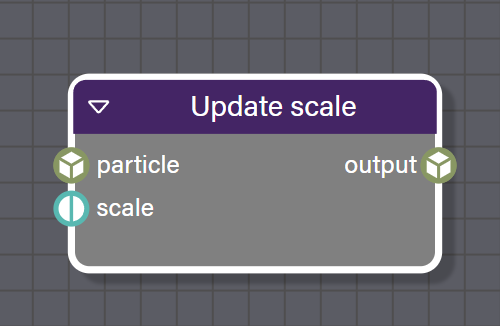
Update Scale
This block updates particle scale during simulation and will ignore parameters set during particle creation unless contextual inputs like current scale are part of the graph connected to this block's input. It provides separate control over X and Y dimensions, allowing particles to stretch or squash. It is useful for creating motion blur effects or non-uniform particle shapes.
Inputs
- particle is the particle stream to update and is required.
- scale is a Vector2 value providing the new scale to apply to particles. This input must be connected for the block to activate.
Outputs
- output is the updated particle stream.
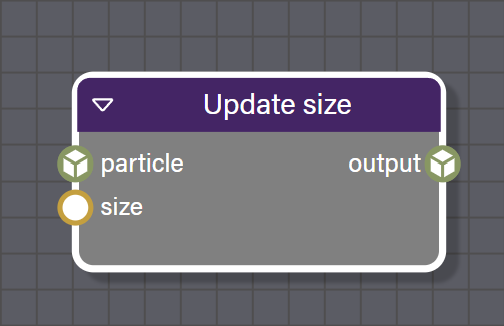
Update Size
This block updates particle size during simulation and will ignore parameters set during particle creation unless contextual inputs like current size are part of the graph connected to this block's input. It is a scalar size adjustment that affects particle scale uniformly and is commonly used with gradients to fade particles in and out or pulse based on lifetime.
Inputs
- particle is the particle stream to update and is required.
- size is a Float value providing the new size to apply to particles. This input must be connected for the block to activate.
Outputs
- output is the updated particle stream.
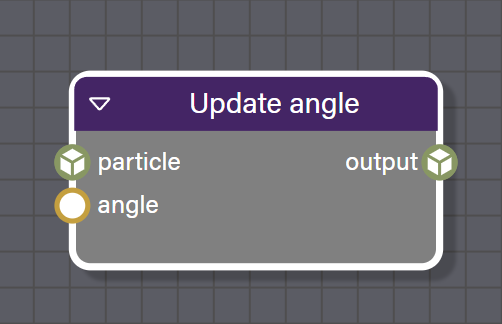
Update Angle
This block updates particle rotation angle during simulation. It sets the rotation of the particle's quad using its local pivot point and will ignore parameters set for angle in particle creation unless the contextual input for angle is part of the graph connected to this block's input. This block is useful for spinning particles or aligning particles with their direction of motion.
Inputs
- particle is the particle stream to update and is required.
- angle is a Float value providing the new rotation angle in radians to apply to particles. This input must be connected for the block to activate.
Outputs
- output is the updated particle stream.
Update Age
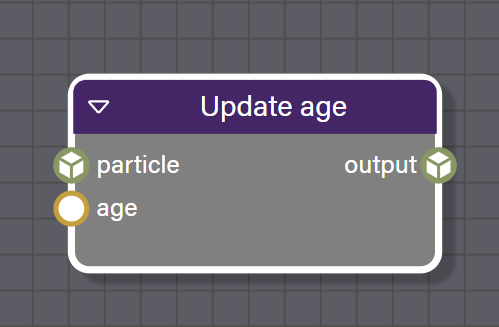
This block updates particle age during simulation and will ignore parameters set during particle creation unless contextual inputs like current age are part of the graph connected to this block's input. It only executes if the age input is connected and can be used to create custom lifetime behaviors or synchronize particles with external timers.
Inputs
- particle is the particle stream to update and is required.
- age is a Float value providing the new age value to set for particles. This input must be connected for the block to activate.
Outputs
- output is the updated particle stream.
Basic Color Update
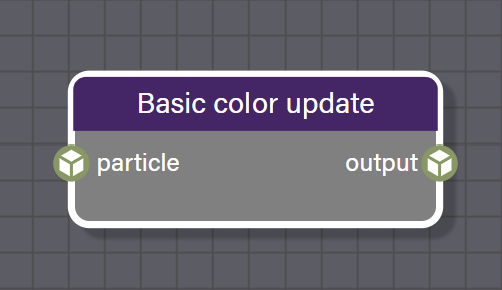
This block is necessary to interpolate a particle's color between the color input and the colorDead input on the Create Particle block. If this block is not included in the graph the particle will only inherit the value from the color input and the colorDead input will be ignored. This block uses the particle's color step value calculated from the lifetime of the particle. Each frame, the block adds the particle's scaled color step to its current color and clamps alpha to a minimum of zero. This is the standard way to interpolate color from the initial color toward the dead color over the particle's lifetime. This block has no additional inputs beyond the particle stream as it uses the color step values computed from the initial color and colorDead set in the Create Particle block.
Inputs
- particle is the particle stream to update and is required.
Outputs
- output is the updated particle stream.
Basic Position Update
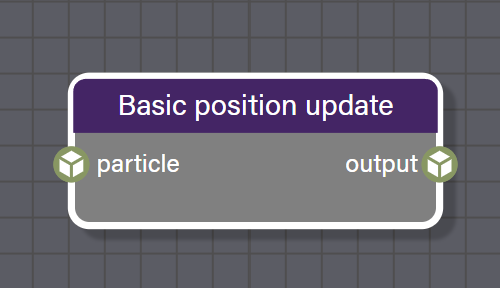
This block applies the default position update each frame using the particle's direction and direction scale using the emitPower input on the Create Particle block and a direction calculated from the emitter shape block. Each frame, it adds the direction vector scaled by the direction scale to the particle position. This is the standard velocity-based movement for particles. This block has no additional inputs beyond the particle stream as it uses the direction values set during particle creation and any modifications from other update blocks.
Inputs
- particle is the particle stream to update and is required.
Outputs
- output is the updated particle stream.
Basic Sprite Update
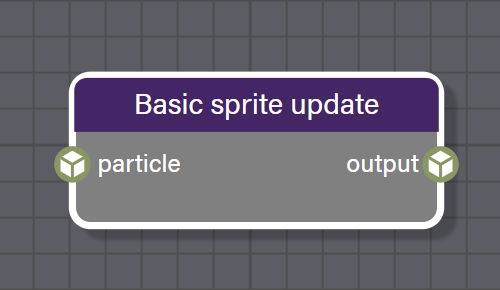
This block updates the sprite sheet cell index each frame, automatically advancing through the sprite animation. It uses the sprite parameters configured in the Setup Sprite Sheet block to determine animation speed, looping, and cell boundaries. This block has no additional inputs beyond the particle stream.
Inputs
- particle is the particle stream to update and is required.
Outputs
- output is the updated particle stream.
Update Sprite Cell Index
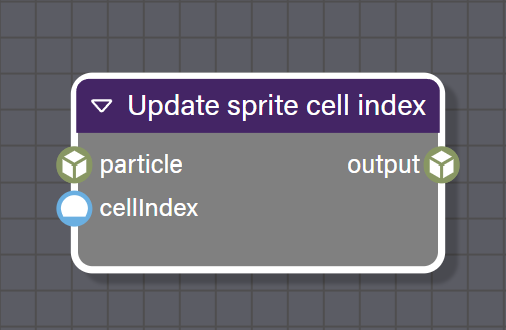
This block replaces the Sprite Cell Change Speed value on the Setup Sprite Sheet block to update the sprite sheet cell index according to the graph attached to this block's input. This allows fine control over which sprite frame is displayed at any point in the particle's lifetime. It is useful for creating custom animation patterns or synchronizing sprite animation with other particle properties. Float values connected to the cellIndex input are floored to an integer.
Inputs
- particle is the particle stream to update and is required.
- cellIndex is an integer value setting the new sprite cell index to display. This input must be connected for the block to activate.
Outputs
- output is the updated particle stream.
Update Flow Map
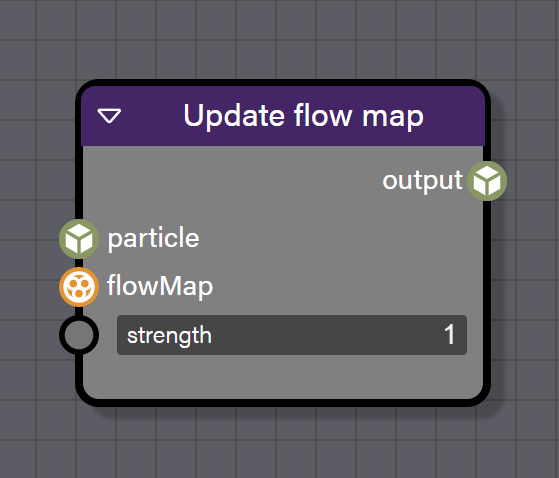
This block updates particle movement using a flow map texture, creating flowing or swirling patterns. It reads RGB values from the flow map texture to determine particle movement direction where Red, Green, and Blue channels encode XYZ direction. It is useful for creating water flow, wind fields, or guided particle paths.
Inputs
- particle is the particle stream to update and is required.
- flowMap is a texture where RGB values encode direction for particle flow.
- strength is a Float value controlling the flow map influence strength.
Outputs
- output is the updated particle stream.
Update Noise
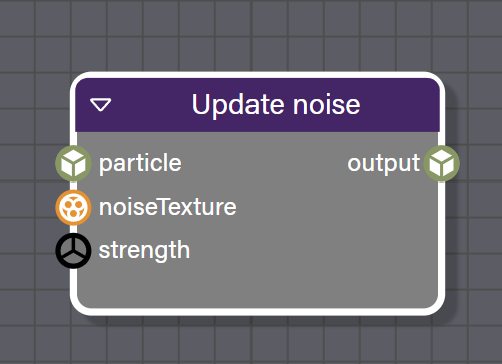
This block applies noise to particle velocities for organic randomness. It uses a noise texture to add natural-looking randomness to particle motion by modifying particle direction. The strength is a Vector3 allowing independent control over each axis. It is possible to make this noise dynamic by updating the texture connected to the noiseTexture input of this block each render loop in the code driving the scene. This can be useful for smoke, fire, and magical effects.
Inputs
- particle is the particle stream to update and is required.
- noiseTexture is a procedural noise texture providing the noise pattern.
- strength is a Vector3 value controlling the noise intensity per axis.
Outputs
- output is the updated particle stream.
Update Attractor
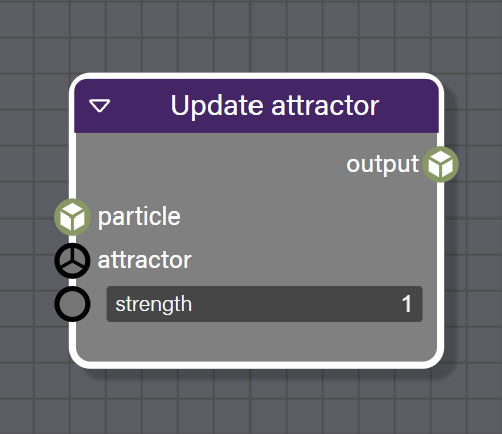
This block applies attraction or repulsion forces to particles toward or away from a single target point. It uses inverse-distance-squared falloff to create gravitational-like effects where particles closer to the attractor experience stronger forces. The force is added to the existing particle velocity rather than replacing it, and the strength can be negative for repulsion. Use multiples of this block to create several attractors, one per block, or update the position input in real time to create complex particle motion as they move across a scene.
Inputs
- particle is the particle stream to update and is required.
- attractor is a Vector3 value setting the target position for attraction or repulsion.
- strength is a Float value controlling the force strength where positive values attract and negative values repel.
Outputs
- output is the updated particle stream.
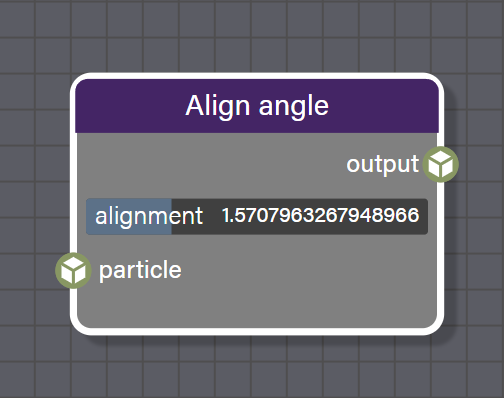
Align Angle
This block updates particle rotation to match their direction of movement by calculating the rotation angle from the particle velocity direction in camera view space. The alignment property allows adding a constant offset to the calculated angle. It is useful for making elongated particles like sparks or streaks point in their direction of travel and works best with STRETCHED billboard mode.
Properties
- alignment is the angle offset in radians applied after the alignment calculation. The value ranges from 0 to 2π.
Inputs
- particle is the particle stream to update and is required.
Outputs
- output is the updated particle stream with aligned angles.
Inputs
Input blocks provide constant values that can be edited in the properties panel and accessed from code at runtime. They are the source of numeric values, colors, vectors, and textures that drive particle behavior. All input blocks can be named and accessed programmatically to dynamically change values at runtime.
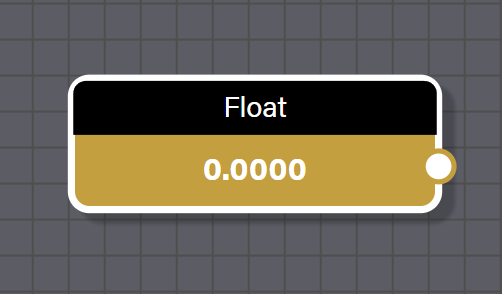
Float
This input block represents a Float value. The value can be set in the properties panel.
Properties
- Min provides the minimum value constraint. Adding a min value will add a slider control to the value property and on the value in the inspector if Display in the Inspector is checked.
- Max provides the maximum value constraint. Adding a max value will add a slider control to the value property and on the value in the inspector if Display in the Inspector is checked.
- Value is the Float value set on the block.
- Mode allows the user to select between user-defined, contextual, or system values for this block.
- Visible on frame toggles the display of this block's value in the Inputs section of the frame when the frame is collapsed.
- Display in the Inspector toggles the display of this block's name and an editable value in the inputs section for the node particle system in the inspector.
- Inspector Group is an optional string that can be assigned to create a group for this block in the inspector. Assigning the same string to multiple blocks will display them under a common group name.
Outputs
- output is the Float value set on the block.
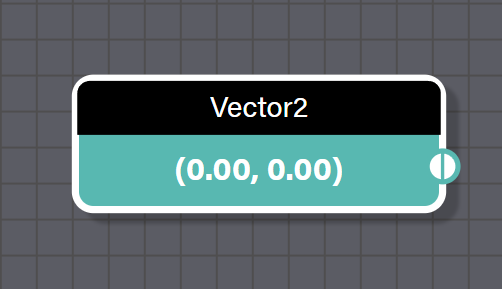
Vector2
This input block represents a Vector2 value. The value can be set in the properties panel by expanding the input fields for each component.
Properties
- Value is the Vector2 value set on the block.
- Mode allows the user to select between user-defined, contextual, or system values for this block.
- Visible on frame toggles the display of this block's value in the Inputs section of the frame when the frame is collapsed.
- Display in the Inspector toggles the display of this block's name and an editable value in the inputs section for the node particle system in the inspector.
- Inspector Group is an optional string that can be assigned to create a group for this block in the inspector. Assigning the same string to multiple blocks will display them under a common group name.
Outputs
- output is the Vector2 value set on the block.
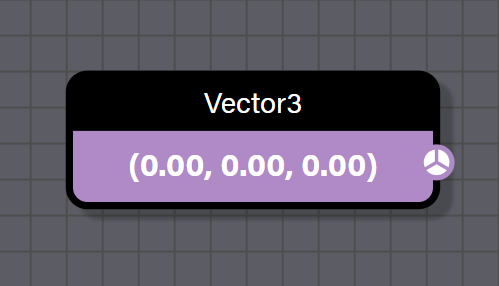
Vector3
This input block represents a Vector3 value. The value can be set in the properties panel by expanding the input fields for each component.
Properties
- Value is the Vector3 value set on the block.
- Mode allows the user to select between user-defined, contextual, or system values for this block.
- Visible on frame toggles the display of this block's value in the Inputs section of the frame when the frame is collapsed.
- Display in the Inspector toggles the display of this block's name and an editable value in the inputs section for the node particle system in the inspector.
- Inspector Group is an optional string that can be assigned to create a group for this block in the inspector. Assigning the same string to multiple blocks will display them under a common group name.
Outputs
- output is the Vector3 value set on the block.
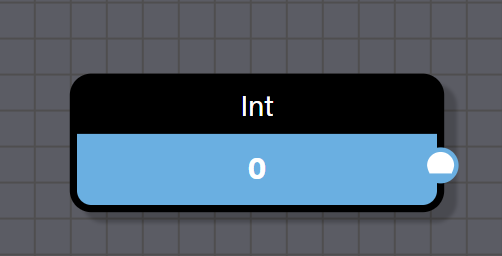
Int
This input block represents an integer value. The value can be set in the properties panel.
Properties
- Value is the integer value set on the block.
- Mode allows the user to select between user-defined, contextual, or system values for this block.
- Visible on frame toggles the display of this block's value in the Inputs section of the frame when the frame is collapsed.
- Display in the Inspector toggles the display of this block's name and an editable value in the inputs section for the node particle system in the inspector.
- Inspector Group is an optional string that can be assigned to create a group for this block in the inspector. Assigning the same string to multiple blocks will display them under a common group name.
Outputs
- output is the integer value set on the block.
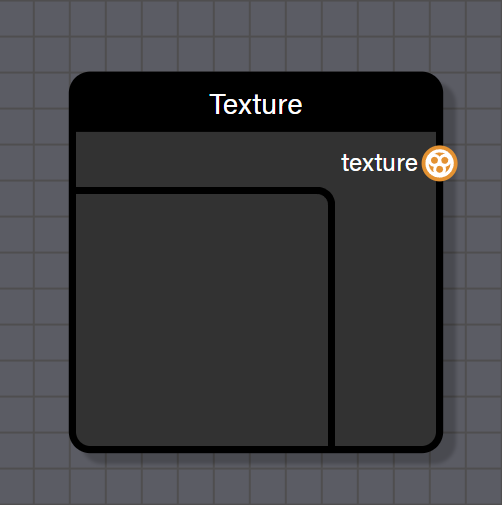
Texture
This block provides a texture that can be used as input to the System block, flow map blocks, noise blocks, or any other block requiring texture input. Textures can be loaded from URLs or selected from scene assets.
Properties
- Load opens a dialogue window to load a texture from local storage into the texture block.
- Serialize cached data will serialize the texture loaded into memory so it can be written into the JSON for this particle node graph when saved. Note that saving to the snippet server ignores this toggle, as no serialized data is saved to the snippet server.
- Invert Y enables the texture to be flipped on the Y axis to account for either DirectX or OpenGL standards for which pixel of a texture is read first.
Outputs
- output is the texture resource.
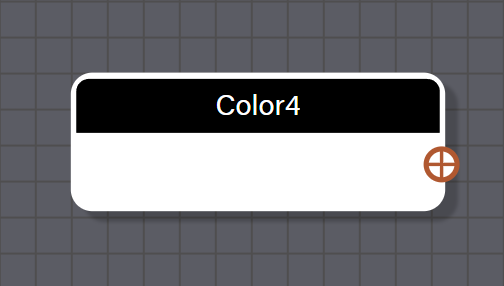
Color4
This input block represents an RGBA color value. The value can be set using the color picker in the properties panel.
Properties
- Value is the Color4 value set on the block.
- Mode allows the user to select between user-defined, contextual, or system values for this block.
- Visible on frame toggles the display of this block's value in the Inputs section of the frame when the frame is collapsed.
- Display in the Inspector toggles the display of this block's name and an editable value in the inputs section for the node particle system in the inspector.
- Inspector Group is an optional string that can be assigned to create a group for this block in the inspector. Assigning the same string to multiple blocks will display them under a common group name.
Outputs
- output is the Color4 value set on the block.
Contextual
Contextual blocks provide read access to per-particle properties during the update phase. They output the current value of a particle attribute and are used to build expressions that reference particle state. All contextual blocks have a single output and no inputs as they read the current particle's data at evaluation time. These blocks are essential for creating dynamic particle behaviors that respond to each particle's individual state.
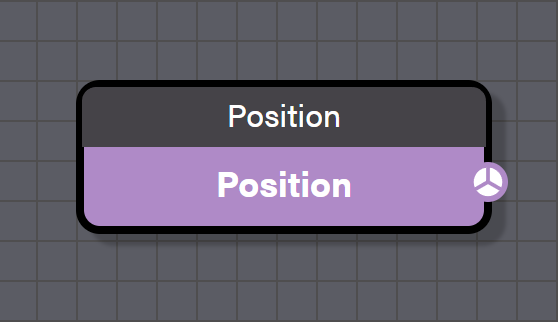
Position
This contextual block returns the current position of the particle as a Vector3 value.
Properties
- Mode allows the user to select between user-defined, contextual, or system values for this block.
- Contextual Value allows the user to select which contextual value for the particle is referenced when Mode is set to Contextual Value.
Outputs
- output is the particle's current position as a Vector3 value.
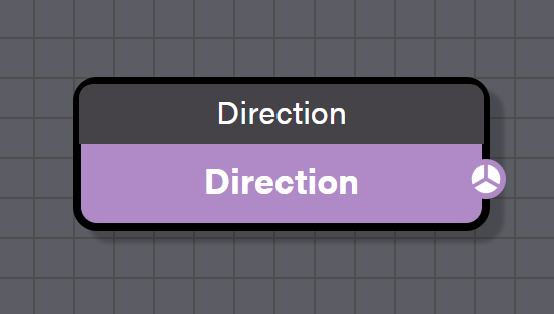
Direction
This contextual block returns the current direction or velocity vector of the particle as a Vector3 value.
Properties
- Mode allows the user to select between user-defined, contextual, or system values for this block.
- Contextual Value allows the user to select which contextual value for the particle is referenced when Mode is set to Contextual Value.
Outputs
- output is the particle's current direction vector as a Vector3 value.
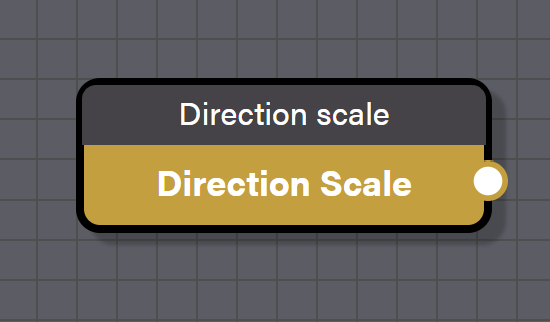
Direction Scale
This contextual block returns the direction scale factor of the particle, which is the multiplier applied to direction when computing position updates.
Properties
- Mode allows the user to select between user-defined, contextual, or system values for this block.
- Contextual Value allows the user to select which contextual value for the particle is referenced when Mode is set to Contextual Value.
Outputs
- output is the particle's direction scale as a Float value.
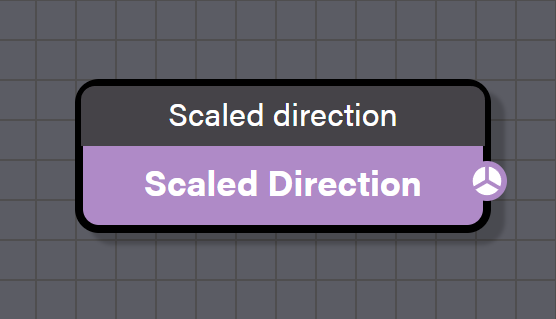
Scaled Direction
This contextual block returns the direction vector already multiplied by the direction scale. This is the effective velocity used in position updates.
Properties
- Mode allows the user to select between user-defined, contextual, or system values for this block.
- Contextual Value allows the user to select which contextual value for the particle is referenced when Mode is set to Contextual Value.
Outputs
- output is the particle's scaled direction vector as a Vector3 value.
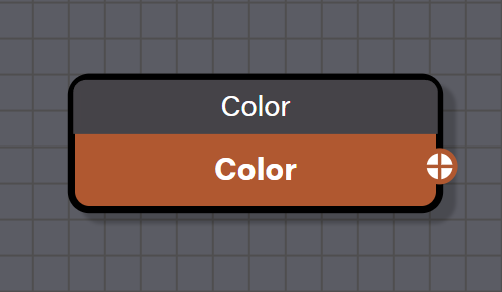
Color
This contextual block returns the current color of the particle.
Properties
- Mode allows the user to select between user-defined, contextual, or system values for this block.
- Contextual Value allows the user to select which contextual value for the particle is referenced when Mode is set to Contextual Value.
Outputs
- output is the particle's current color as a Color4 value.
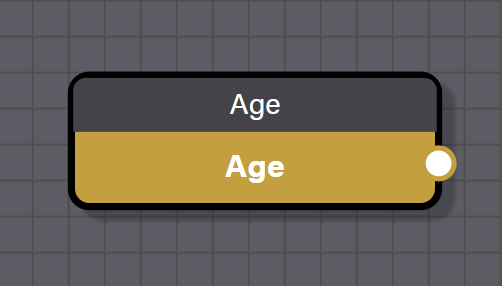
Age
This contextual block returns the current age of the particle in seconds since it was created.
Properties
- Mode allows the user to select between user-defined, contextual, or system values for this block.
- Contextual Value allows the user to select which contextual value for the particle is referenced when Mode is set to Contextual Value.
Outputs
- output is the particle's age in seconds as a Float value.
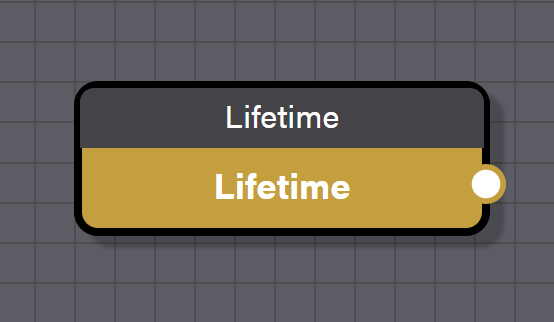
Lifetime
This contextual block returns the total lifetime of the particle in seconds as set by the Create Particle block.
Properties
- Mode allows the user to select between user-defined, contextual, or system values for this block.
- Contextual Value allows the user to select which contextual value for the particle is referenced when Mode is set to Contextual Value.
Outputs
- output is the particle's total lifetime in seconds as a Float value.
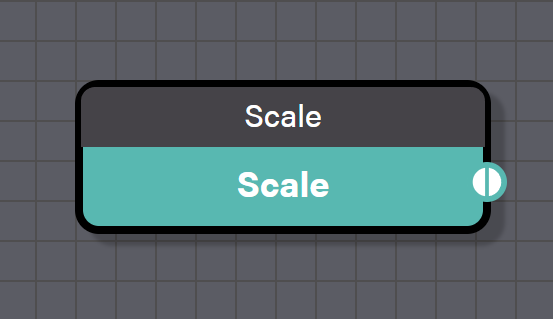
Scale
This contextual block returns the current scale of the particle.
Properties
- Mode allows the user to select between user-defined, contextual, or system values for this block.
- Contextual Value allows the user to select which contextual value for the particle is referenced when Mode is set to Contextual Value.
Outputs
- output is the particle's current scale as a Vector2 value.
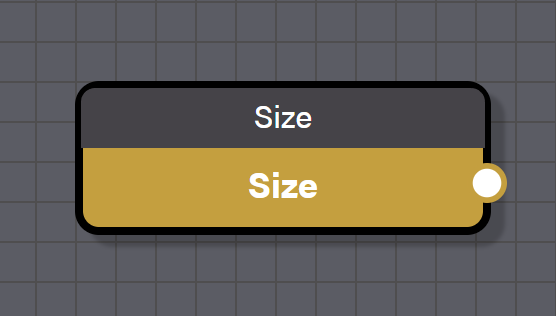
Size
This contextual block returns the current uniform size of the particle.
Properties
- Mode allows the user to select between user-defined, contextual, or system values for this block.
- Contextual Value allows the user to select which contextual value for the particle is referenced when Mode is set to Contextual Value.
Outputs
- output is the particle's current size as a Float value.
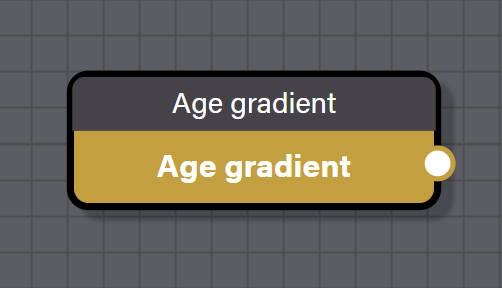
Age Gradient
This contextual block returns the particle's age divided by its lifetime, giving a normalized value from 0 at birth to 1 at death. This is the most commonly used contextual block for driving gradients and interpolation over a particle's life. Connect it to the gradient input of Lerp, Gradient, or Gradient Value blocks to create time-based transitions.
Properties
- Mode allows the user to select between user-defined, contextual, or system values for this block.
- Contextual Value allows the user to select which contextual value for the particle is referenced when Mode is set to Contextual Value.
Outputs
- output is the particle's normalized age as a Float value in the range of 0 to 1.
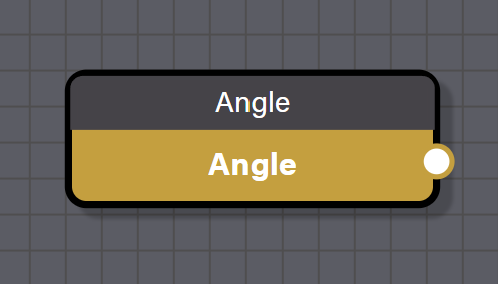
Angle
This contextual block returns the current rotation angle of the particle in radians.
Properties
- Mode allows the user to select between user-defined, contextual, or system values for this block.
- Contextual Value allows the user to select which contextual value for the particle is referenced when Mode is set to Contextual Value.
Outputs
- output is the particle's current rotation angle as a Float value.
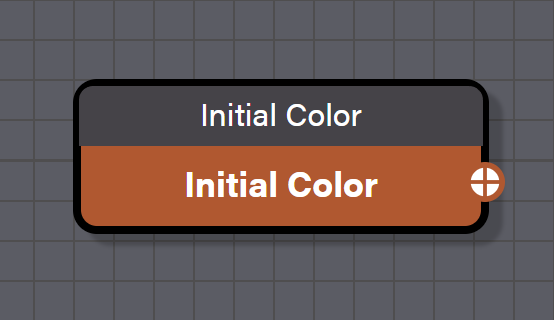
Initial Color
This contextual block returns the initial color that was assigned to the particle at creation time.
Properties
- Mode allows the user to select between user-defined, contextual, or system values for this block.
- Contextual Value allows the user to select which contextual value for the particle is referenced when Mode is set to Contextual Value.
Outputs
- output is the particle's initial color as a Color4 value.
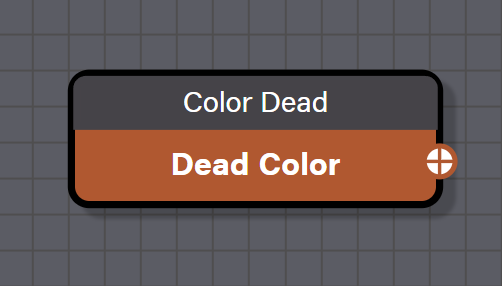
Color Dead
This contextual block returns the dead color that was assigned to the particle at creation time. This is the target color the particle will reach at the end of its lifetime.
Properties
- Mode allows the user to select between user-defined, contextual, or system values for this block.
- Contextual Value allows the user to select which contextual value for the particle is referenced when Mode is set to Contextual Value.
Outputs
- output is the particle's dead color as a Color4 value.
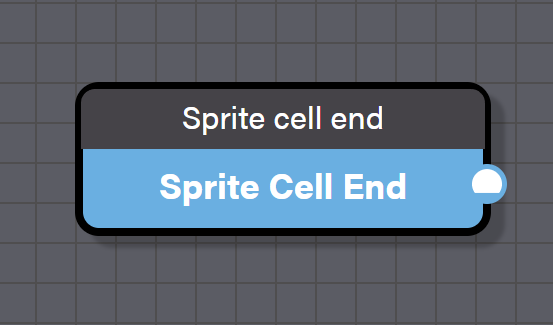
Sprite Cell End
This contextual block returns the ending sprite cell index for the particle's sprite animation.
Properties
- Mode allows the user to select between user-defined, contextual, or system values for this block.
- Contextual Value allows the user to select which contextual value for the particle is referenced when Mode is set to Contextual Value.
Outputs
- output is the sprite cell end index as an Int value.
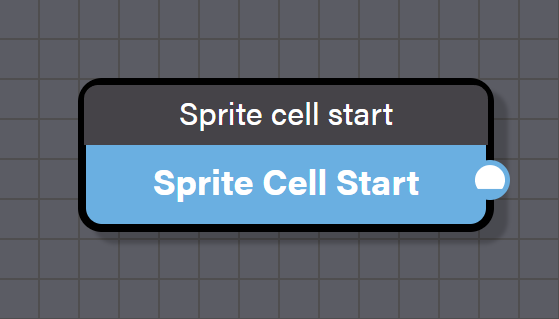
Sprite Cell Start
This contextual block returns the starting sprite cell index for the particle's sprite animation.
Properties
- Mode allows the user to select between user-defined, contextual, or system values for this block.
- Contextual Value allows the user to select which contextual value for the particle is referenced when Mode is set to Contextual Value.
Outputs
- output is the sprite cell start index as an Int value.
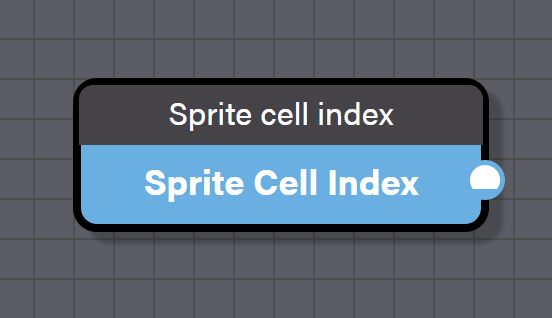
Sprite Cell Index
This contextual block returns the current sprite cell index being displayed for the particle.
Properties
- Mode allows the user to select between user-defined, contextual, or system values for this block.
- Contextual Value allows the user to select which contextual value for the particle is referenced when Mode is set to Contextual Value.
Outputs
- output is the current sprite cell index as an Int value.
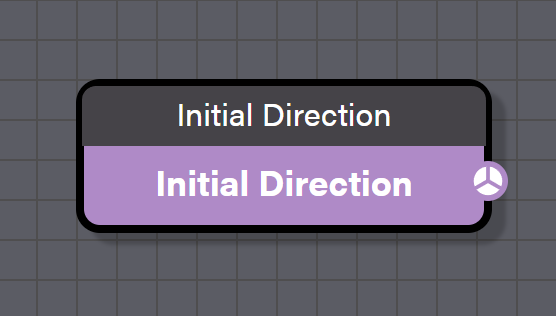
Initial Direction
This contextual block returns the initial direction vector that was assigned to the particle at creation time.
Properties
- Mode allows the user to select between user-defined, contextual, or system values for this block.
- Contextual Value allows the user to select which contextual value for the particle is referenced when Mode is set to Contextual Value.
Outputs
- output is the particle's initial direction as a Vector3 value.
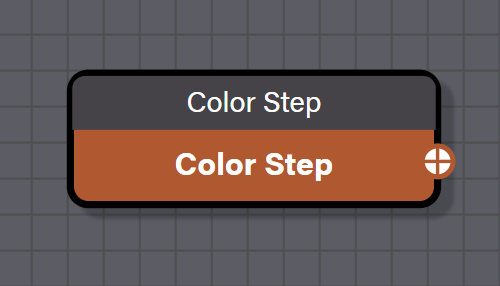
Color Step
This contextual block returns the color step value which is the per-frame color change that is applied by the Basic Color Update block. The color step is computed from the difference between the initial color and dead color divided by the particle's lifetime.
Properties
- Mode allows the user to select between user-defined, contextual, or system values for this block.
- Contextual Value allows the user to select which contextual value for the particle is referenced when Mode is set to Contextual Value.
Outputs
- output is the particle's color step as a Color4 value.
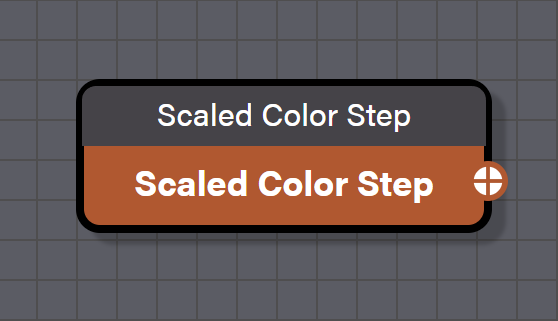
Scaled Color Step
This contextual block returns the color step value already scaled by the system's update speed.
Properties
- Mode allows the user to select between user-defined, contextual, or system values for this block.
- Contextual Value allows the user to select which contextual value for the particle is referenced when Mode is set to Contextual Value.
Outputs
- output is the particle's scaled color step as a Color4 value.
Math: Standard
These blocks are simple mathematical operations like add, subtract, min, max, or round. The blocks in this section are some of the most used blocks in any particle graph. They are very straightforward, but many of the blocks in this set support multiple types including Float, Int, Vector2, Vector3, and Color4 and operate component-wise on vectors and colors.
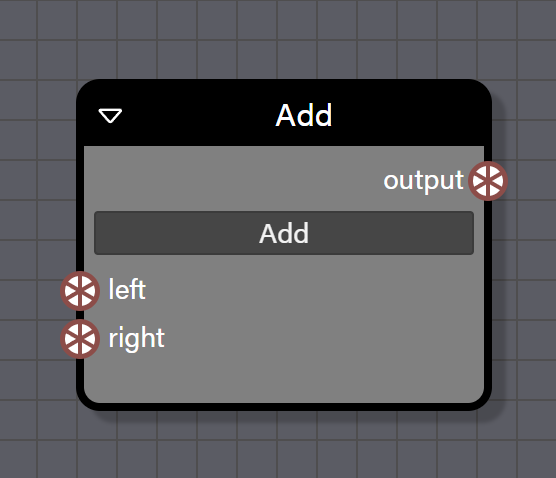
Add
This is a simple math block which adds two inputs together. This block can support Float, Int, Vector2, Vector3, and Color4 types, though the block cannot add mixed types with the exception of one case. A float value can be connected to the right input of this block and that value will be used for the operation on each channel of the type connected to the left input. The type of the block first connected to an input determines the type for the block output, but a float can be connected to the right input in any case regardless of the type that has automatically been set.
Advanced
- Operation determines which math operation to perform on the inputs to this block. Pre-set to Add.
Inputs
- left is connected to a block providing the first value to be used in the operation.
- right is connected to a block providing the second value to be used in the operation.
Outputs
- output is the sum of the left and right inputs and matches the type of the value connected to the left input.
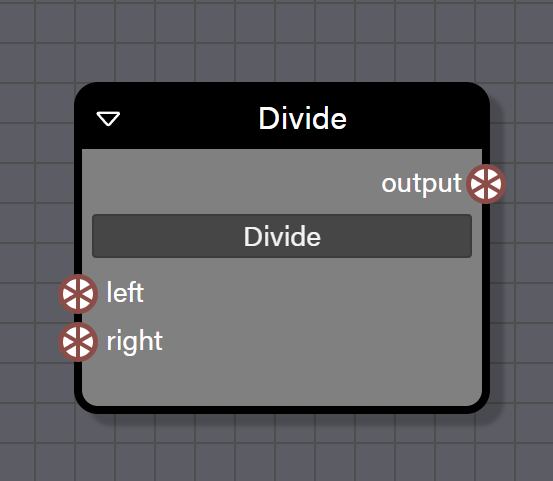
Divide
This is a simple math block which divides the left input by the right input. This block can support Float, Int, Vector2, Vector3, and Color4 types, though the block cannot divide mixed types with the exception of one case. A float value can be connected to the right input of this block and that value will be used for the operation on each channel of the type connected to the left input. The type of the block first connected to an input determines the type for the block output, but a float can be connected to the right input in any case regardless of the type that has automatically been set.
Advanced
- Operation determines which math operation to perform on the inputs to this block. Pre-set to Divide.
Inputs
- left is connected to a block providing the dividend.
- right is connected to a block providing the divisor.
Outputs
- output is the quotient of the left input divided by the right input and matches the type of the value connected to the left input.
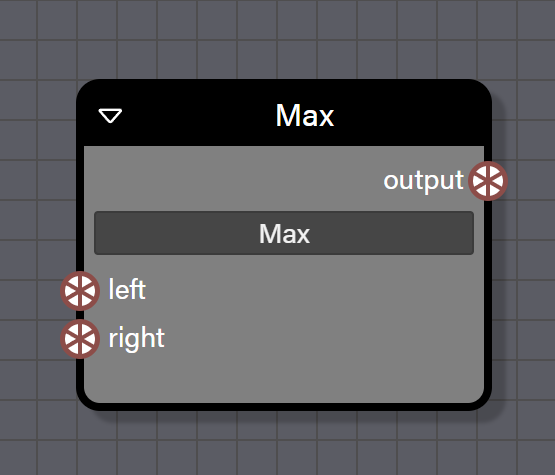
Max
This is a simple math block which returns the larger value between the left input and the right input. This block can support Float, Int, Vector2, Vector3, and Color4 types, though the block cannot evaluate mixed types with the exception of one case. A float value can be connected to the right input of this block and that value will be used for the operation on each channel of the type connected to the left input. The type of the block first connected to an input determines the type for the block output, but a float can be connected to the right input in any case regardless of the type that has automatically been set.
Advanced
- Operation determines which math operation to perform on the inputs to this block. Pre-set to Max.
Inputs
- left is connected to a block providing the first value to be used in the evaluation.
- right is connected to a block providing the second value to be used in the evaluation.
Outputs
- output is the larger value between the left input and the right input and matches the type of the value connected to the left input.
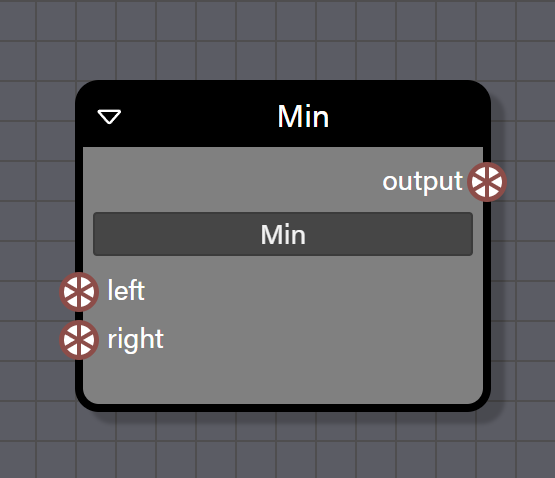
Min
This is a simple math block which returns the smaller value between the left input and the right input. This block can support Float, Int, Vector2, Vector3, and Color4 types, though the block cannot evaluate mixed types with the exception of one case. A float value can be connected to the right input of this block and that value will be used for the operation on each channel of the type connected to the left input. The type of the block first connected to an input determines the type for the block output, but a float can be connected to the right input in any case regardless of the type that has automatically been set.
Advanced
- Operation determines which math operation to perform on the inputs to this block. Pre-set to Min.
Inputs
- left is connected to a block providing the first value to be used in the evaluation.
- right is connected to a block providing the second value to be used in the evaluation.
Outputs
- output is the smaller value between the left input and the right input and matches the type of the value connected to the left input.
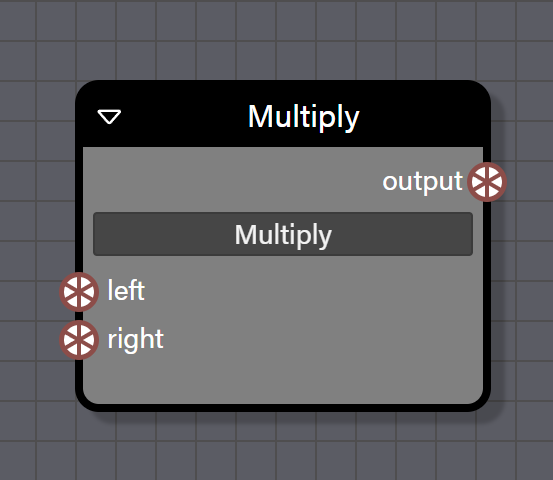
Multiply
This is a simple math block which multiplies the left input and the right input. This block can support Float, Int, Vector2, Vector3, and Color4 types, though the block cannot multiply mixed types with the exception of one case. A float value can be connected to the right input of this block and that value will be used for the operation on each channel of the type connected to the left input. The type of the block first connected to an input determines the type for the block output, but a float can be connected to the right input in any case regardless of the type that has automatically been set.
Advanced
- Operation determines which math operation to perform on the inputs to this block. Pre-set to Multiply.
Inputs
- left is connected to a block providing the first value to be used in the operation.
- right is connected to a block providing the second value to be used in the operation.
Outputs
- output is the product of the left input multiplied by the right input and matches the type of the value connected to the left input.
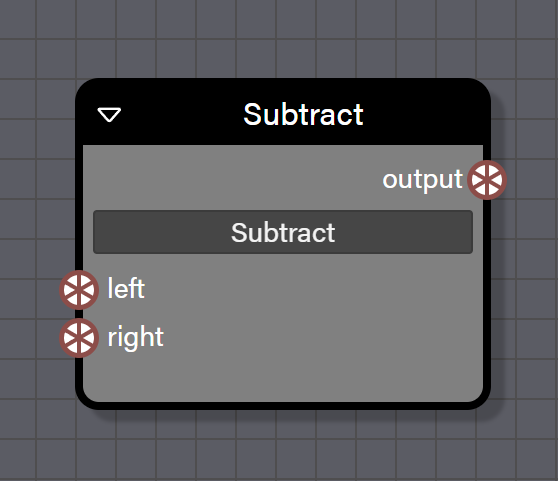
Subtract
This is a simple math block which subtracts the right input from the left input. This block can support Float, Int, Vector2, Vector3, and Color4 types, though the block cannot evaluate mixed types with the exception of one case. A float value can be connected to the right input of this block and that value will be used for the operation on each channel of the type connected to the left input. The type of the block first connected to an input determines the type for the block output, but a float can be connected to the right input in any case regardless of the type that has automatically been set.
Advanced
- Operation determines which math operation to perform on the inputs to this block. Pre-set to Subtract.
Inputs
- left is connected to a block providing the value to subtract from.
- right is connected to a block providing the value to subtract.
Outputs
- output is the difference of the right input subtracted from the left input and matches the type of the value connected to the left input.
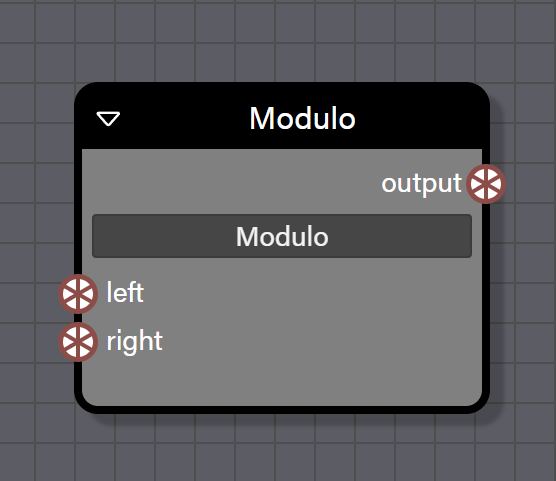
Modulo
This is a simple math block which returns the remainder of the division of the left input by the right input. This block only supports Float and Int types. The type of the block first connected to an input determines the type for the block output.
Advanced
- Operation determines which math operation to perform on the inputs to this block. Pre-set to Modulo.
Inputs
- left is connected to a block providing the dividend.
- right is connected to a block providing the divisor.
Outputs
- output is the remainder of the left input divided by the right input and matches the type of the value connected to the left input.
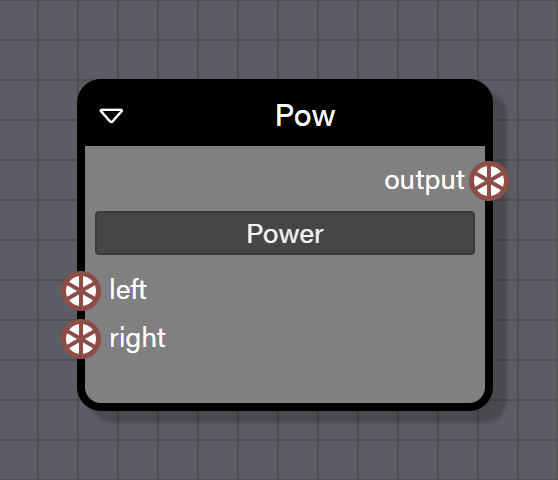
Pow
This is a simple math block which raises the left input to the power of the right input. This block only supports Float and Int types. The type of the block first connected to an input determines the type for the block output.
Advanced
- Operation determines which math operation to perform on the inputs to this block. Pre-set to Pow.
Inputs
- left is connected to a block providing the base value.
- right is connected to a block providing the exponent.
Outputs
- output is the result of the left input raised to the power of the right input and matches the type of the value connected to the left input.
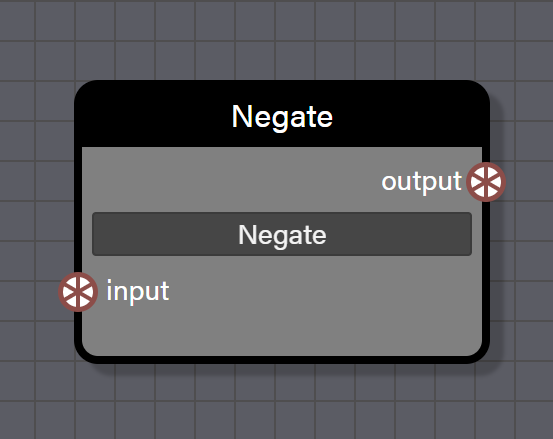
Negate
This is a simple function which changes the sign of the input by multiplying it by -1. This block can support Float, Int, Vector2, Vector3, and Color4 types and operates component-wise. The type for the block connected to the input determines the type for the block output.
Advanced
- Operation determines which math operation to perform on the inputs to this block. Pre-set to Negate.
Inputs
- input is connected to a block providing a value to be negated.
Outputs
- output is the negated value from the input and matches the type of the value connected to
input.
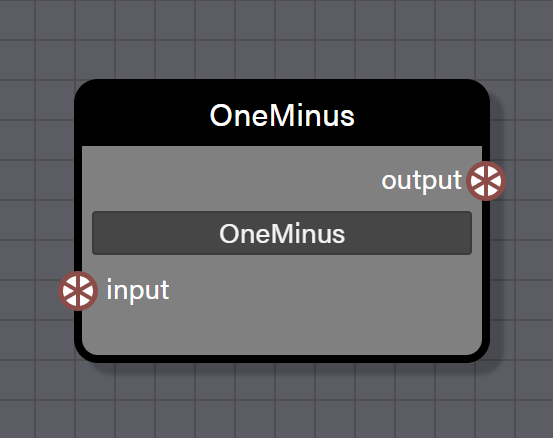
One Minus
This is a shortcut function which subtracts the input value from 1. When this function is applied to a value in the range of 0 to 1 the result will be an inversion of the input on that scale. This is useful for inverting normalized values such as converting an age gradient that goes from 0 to 1 into one that goes from 1 to 0 for fade-out effects. This block can support Float, Int, Vector2, Vector3, and Color4 types. The type for the block connected to the input determines the type for the block output.
Advanced
- Operation determines which math operation to perform on the inputs to this block. Pre-set to OneMinus.
Inputs
- input is connected to a block providing a value to be used in the function.
Outputs
- output is the transformed value from the input and matches the type of the value connected to
input.
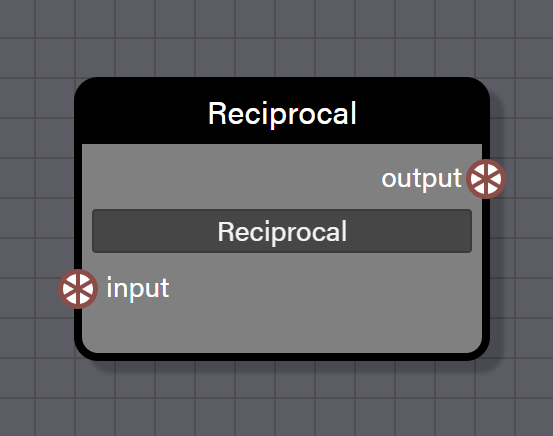
Reciprocal
This is a shortcut function which divides 1 by the input value. This block can support Float, Int, Vector2, Vector3, and Color4 types. The type for the block connected to the input determines the type for the block output.
Advanced
- Operation determines which math operation to perform on the inputs to this block. Pre-set to Reciprocal.
Inputs
- input is connected to a block providing a value to be used in the function.
Outputs
- output is the transformed value from the input and matches the type of the value connected to
input.
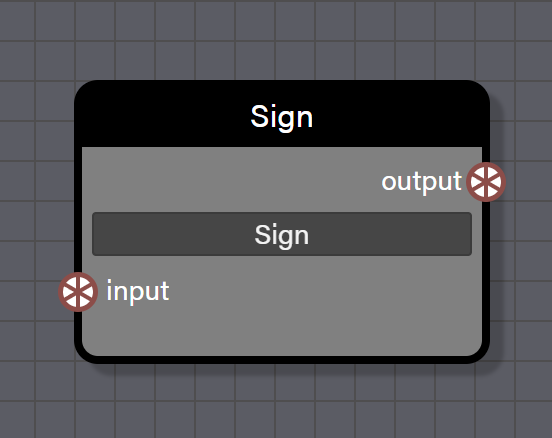
Sign
This is a simple function to return whether an input is positive, negative, or exactly zero. If the input is negative this block will return a value of -1. If the input is exactly zero, the block will return a value of 0. If the value is positive the block will return a value of 1. This block can support Float, Int, Vector2, Vector3, and Color4 types and operates component-wise. The type for the block connected to the input determines the type for the block output.
Advanced
- Operation determines which math operation to perform on the inputs to this block. Pre-set to Sign.
Inputs
- input is connected to a block providing a value to be used in the function.
Outputs
- output returns -1 for a negative value in input, 0 for a value of zero in input, and 1 for a positive value in input.
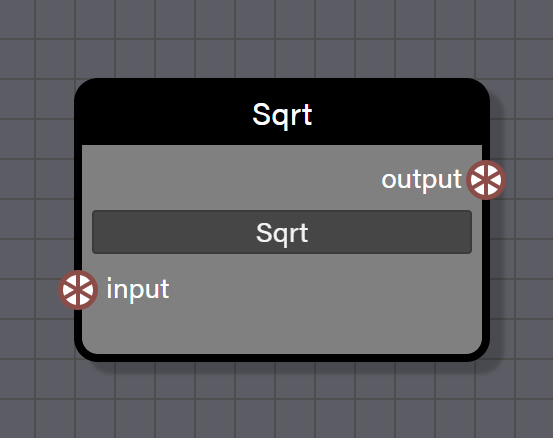
Sqrt
This is a simple function to return the principal square root of a nonnegative value connected to the input port. This block can support Float, Int, Vector2, Vector3, and Color4 types and operates component-wise. The type for the block connected to the input determines the type for the block output.
Advanced
- Operation determines which math operation to perform on the inputs to this block. Pre-set to Sqrt.
Inputs
- input is connected to a block providing a value to be used in the function.
Outputs
- output is the principal square root of the input value in a type that matches the input value type.
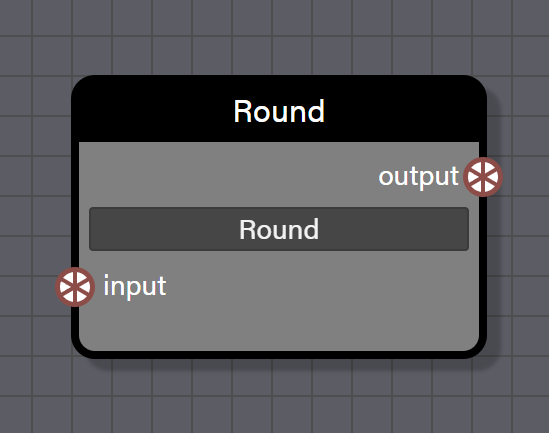
Round
This is a simple function which transforms the input to the nearest whole number. This block can support Float, Int, Vector2, Vector3, and Color4 types and operates component-wise. The type for the block connected to the input determines the type for the block output.
Advanced
- Operation determines which math operation to perform on the inputs to this block. Pre-set to Round.
Inputs
- input is connected to a block providing a value to be used in the function.
Outputs
- output is the rounded value from the input and matches the type of the value connected to
input.
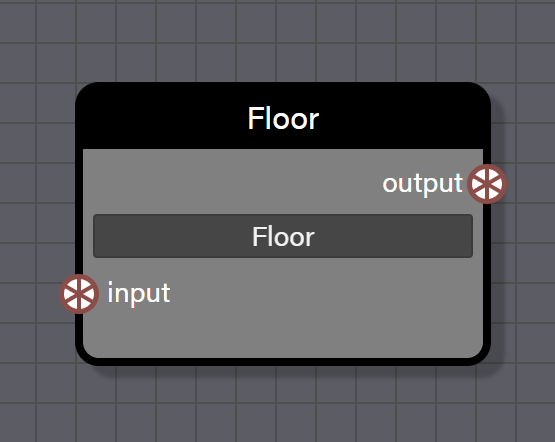
Floor
This is a simple function which transforms the input to the largest whole number that is less than or equal to the input. This block can support Float, Int, Vector2, Vector3, and Color4 types and operates component-wise. The type for the block connected to the input determines the type for the block output.
Advanced
- Operation determines which math operation to perform on the inputs to this block. Pre-set to Floor.
Inputs
- input is connected to a block providing a value to be used in the function.
Outputs
- output is the transformed value from the input and matches the type of the value connected to
input.
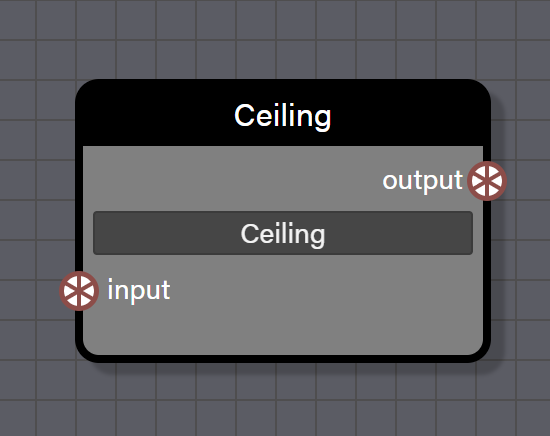
Ceiling
This is a simple function which transforms the input to the smallest whole number that is greater than or equal to the input. This block can support Float, Int, Vector2, Vector3, and Color4 types and operates component-wise. The type for the block connected to the input determines the type for the block output.
Advanced
- Operation determines which math operation to perform on the inputs to this block. Pre-set to Ceiling.
Inputs
- input is connected to a block providing a value to be used in the function.
Outputs
- output is the transformed value from the input and matches the type of the value connected to
input.
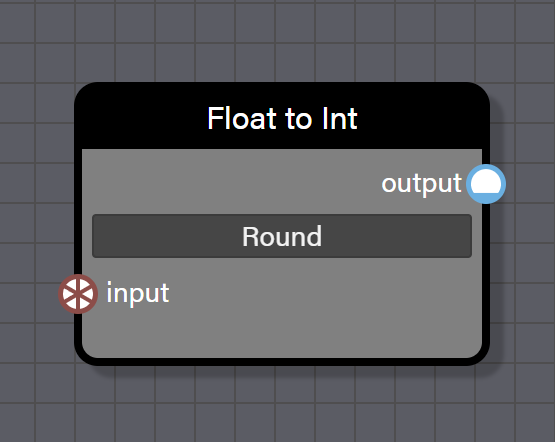
Float To Int
This block converts a floating-point value to an integer using a configurable operation. The operation property controls how the decimal portion is handled. It is useful for sprite cell indices or discrete parameter values.
Properties
- operation sets the conversion method and can be set to Round, Ceil, Floor, or Truncate.
Inputs
- input is connected to a block providing a Float value to be converted.
Outputs
- output is the converted integer value.
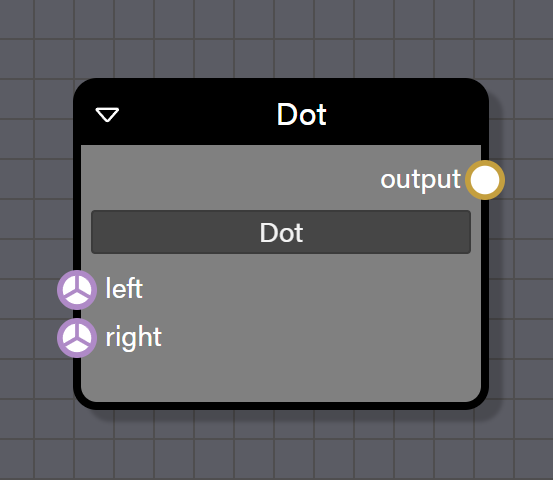
Dot
This block computes the dot product of two Vector3 inputs, returning a scalar value. The dot product returns the cosine of the angle between two vectors when those vectors are normalized. It is useful for angle calculations, projection, and determining how parallel two vectors are.
Advanced
- Operation determines which math operation to perform on the inputs to this block. Pre-set to Dot.
Inputs
- left is connected to a block providing the first Vector3 value.
- right is connected to a block providing the second Vector3 value.
Outputs
- output is the dot product of the two vectors as a Float value.
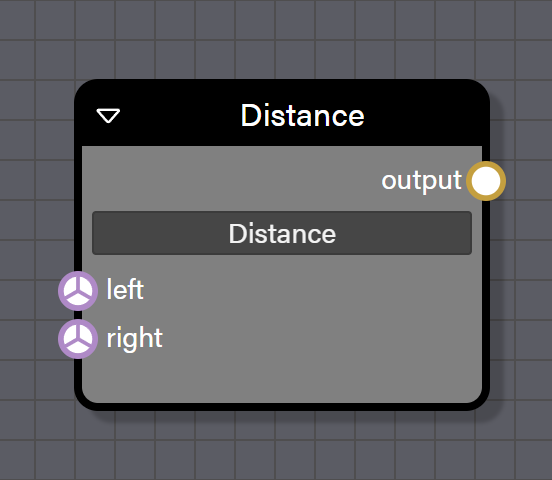
Distance
This block computes the Euclidean distance between two Vector3 positions. It is useful for proximity checks, distance-based fading, or triggering behaviors when particles are within a certain range of a target.
Advanced
- Operation determines which math operation to perform on the inputs to this block. Pre-set to Distance.
Inputs
- left is connected to a block providing the first Vector3 position.
- right is connected to a block providing the second Vector3 position.
Outputs
- output is the distance between the two positions as a Float value.
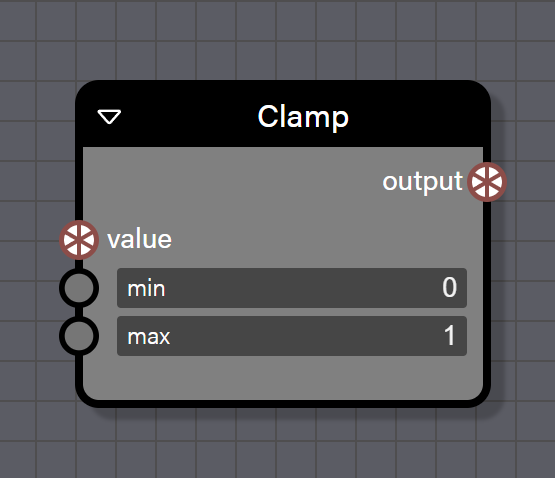
Clamp
This is a simple function which limits the input value to the range set by the minimum and maximum inputs. If the input is below the minimum, it is clamped to the minimum value. If it is over the maximum value, it is clamped to the maximum value. This block can support Float, Int, Vector2, Vector3, and Color4 types. The type for the block connected to the value input determines the type for the block output.
Inputs
- value is connected to a block providing the value to be clamped.
- min is a Float value setting the minimum allowed value.
- max is a Float value setting the maximum allowed value.
Outputs
- output is the clamped value from the input and matches the type of the value connected to the
valueinput.
Math: Scientific
These blocks are a collection of more complex mathematical functions, mostly trigonometric. They are all very straightforward blocks with one input and one output. All blocks in this set can support Float, Int, Vector2, Vector3, and Color4 types and operate component-wise.
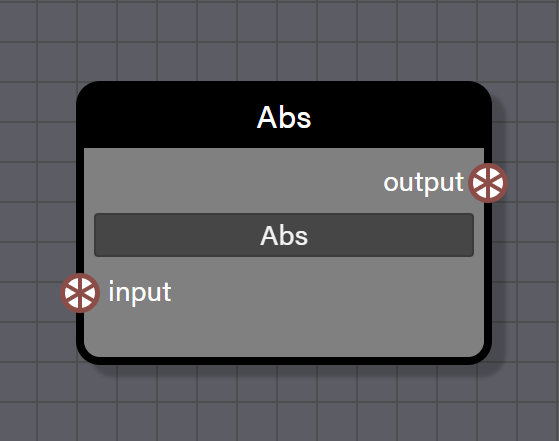
Abs
This is a simple function to return the absolute value of the input, which is always a positive value. This block can support Float, Int, Vector2, Vector3, and Color4 types. The type for the block connected to the input determines the type for the block output.
Advanced
- Operation determines which math operation to perform on the inputs to this block. Pre-set to Abs.
Inputs
- input is connected to a block providing a value to be used in the function.
Outputs
- output is the absolute value of the input value in a type that matches the input value type.
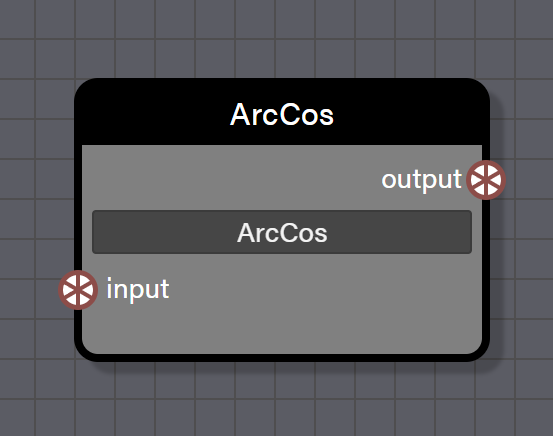
ArcCos
This function returns the inverse cosine of the input value. The input should be in the range of -1 to 1 and the result is in radians. This block can support Float, Int, Vector2, Vector3, and Color4 types. The type for the block connected to the input determines the type for the block output.
Advanced
- Operation determines which math operation to perform on the inputs to this block. Pre-set to ArcCos.
Inputs
- input is connected to a block providing a value to be used in the function.
Outputs
- output is the inverse cosine of the input value in a type that matches the input value type.
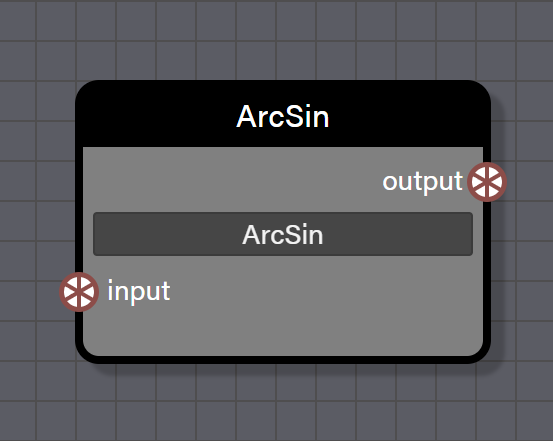
ArcSin
This function returns the inverse sine of the input value. The input should be in the range of -1 to 1 and the result is in radians. This block can support Float, Int, Vector2, Vector3, and Color4 types. The type for the block connected to the input determines the type for the block output.
Advanced
- Operation determines which math operation to perform on the inputs to this block. Pre-set to ArcSin.
Inputs
- input is connected to a block providing a value to be used in the function.
Outputs
- output is the inverse sine of the input value in a type that matches the input value type.
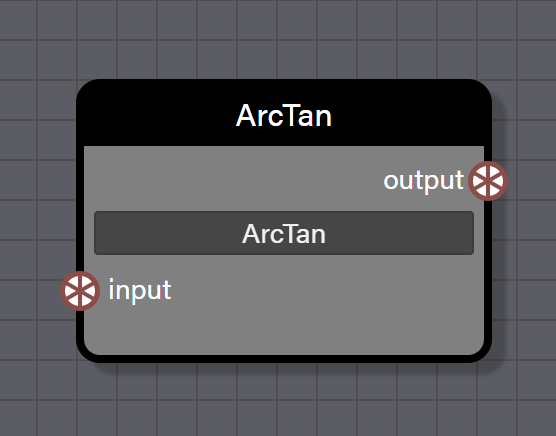
ArcTan
This function returns the inverse tangent of the input value with the result in radians. This block can support Float, Int, Vector2, Vector3, and Color4 types. The type for the block connected to the input determines the type for the block output.
Advanced
- Operation determines which math operation to perform on the inputs to this block. Pre-set to ArcTan.
Inputs
- input is connected to a block providing a value to be used in the function.
Outputs
- output is the inverse tangent of the input value in a type that matches the input value type.
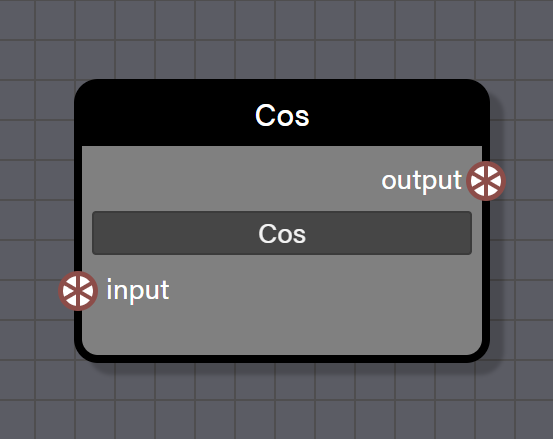
Cos
This function returns the cosine of the input angle in radians. This block can support Float, Int, Vector2, Vector3, and Color4 types. The type for the block connected to the input determines the type for the block output.
Advanced
- Operation determines which math operation to perform on the inputs to this block. Pre-set to Cos.
Inputs
- input is connected to a block providing an angle in radians to be used in the function.
Outputs
- output is the cosine of the input value in a type that matches the input value type.
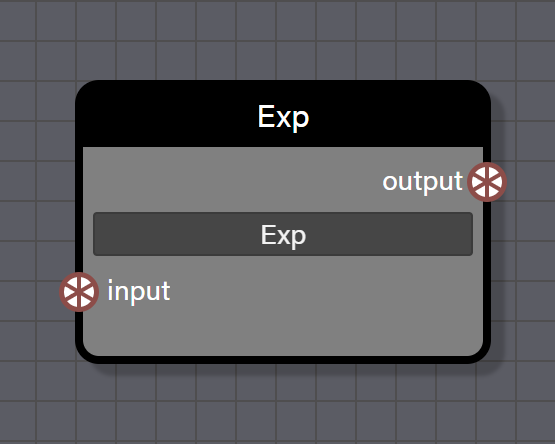
Exp
This function returns e raised to the power of the input value. This block can support Float, Int, Vector2, Vector3, and Color4 types. The type for the block connected to the input determines the type for the block output.
Advanced
- Operation determines which math operation to perform on the inputs to this block. Pre-set to Exp.
Inputs
- input is connected to a block providing a value to be used as the exponent.
Outputs
- output is e raised to the power of the input value in a type that matches the input value type.
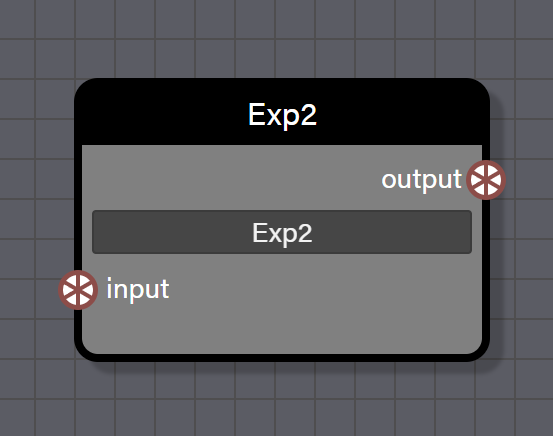
Exp2
This function returns 2 raised to the power of the input value. This block can support Float, Int, Vector2, Vector3, and Color4 types. The type for the block connected to the input determines the type for the block output.
Advanced
- Operation determines which math operation to perform on the inputs to this block. Pre-set to Exp2.
Inputs
- input is connected to a block providing a value to be used as the exponent.
Outputs
- output is 2 raised to the power of the input value in a type that matches the input value type.
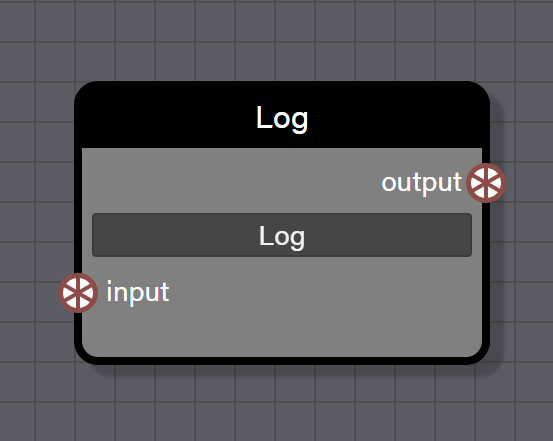
Log
This function returns the natural logarithm of the input value. The input must be positive. This block can support Float, Int, Vector2, Vector3, and Color4 types. The type for the block connected to the input determines the type for the block output.
Advanced
- Operation determines which math operation to perform on the inputs to this block. Pre-set to Log.
Inputs
- input is connected to a block providing a value to be used in the function.
Outputs
- output is the natural logarithm of the input value in a type that matches the input value type.
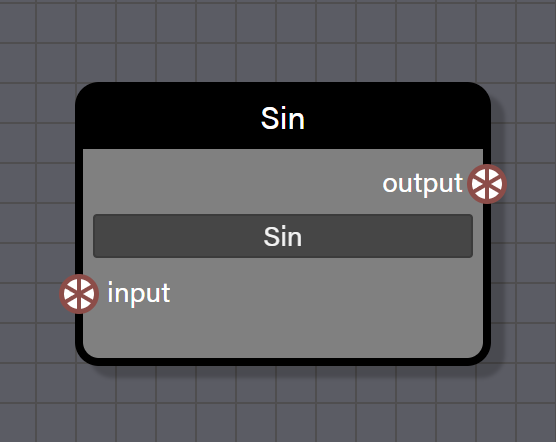
Sin
This function returns the sine of the input angle in radians. This block can support Float, Int, Vector2, Vector3, and Color4 types. The type for the block connected to the input determines the type for the block output.
Advanced
- Operation determines which math operation to perform on the inputs to this block. Pre-set to Sin.
Inputs
- input is connected to a block providing an angle in radians to be used in the function.
Outputs
- output is the sine of the input value in a type that matches the input value type.
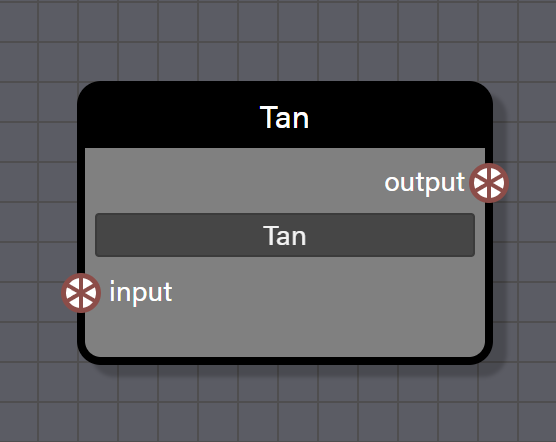
Tan
This function returns the tangent of the input angle in radians. This block can support Float, Int, Vector2, Vector3, and Color4 types. The type for the block connected to the input determines the type for the block output.
Advanced
- Operation determines which math operation to perform on the inputs to this block. Pre-set to Tan.
Inputs
- input is connected to a block providing an angle in radians to be used in the function.
Outputs
- output is the tangent of the input value in a type that matches the input value type.
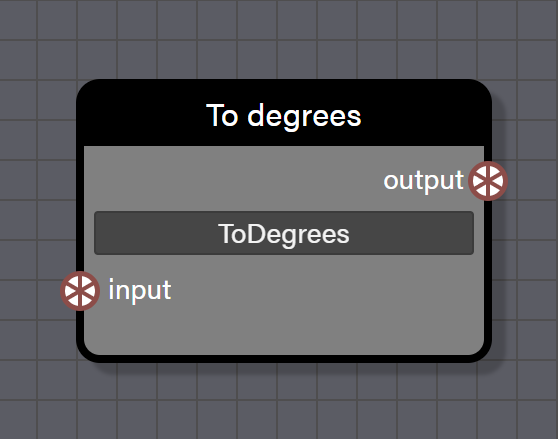
To Degrees
This function converts a value from radians to degrees. This block can support Float, Int, Vector2, Vector3, and Color4 types. The type for the block connected to the input determines the type for the block output.
Advanced
- Operation determines which math operation to perform on the inputs to this block. Pre-set to ToDegrees.
Inputs
- input is connected to a block providing an angle in radians to be converted.
Outputs
- output is the angle converted to degrees in a type that matches the input value type.
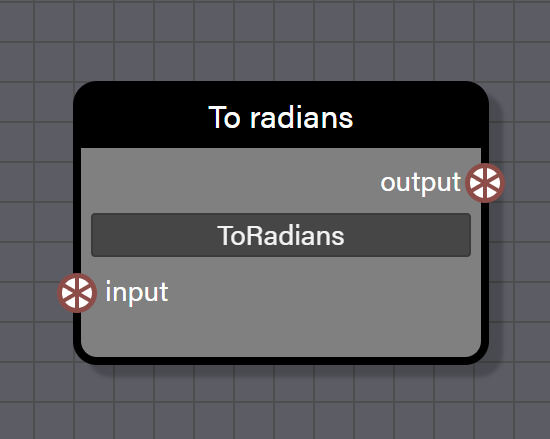
To Radians
This function converts a value from degrees to radians. This block can support Float, Int, Vector2, Vector3, and Color4 types. The type for the block connected to the input determines the type for the block output.
Advanced
- Operation determines which math operation to perform on the inputs to this block. Pre-set to ToRadians.
Inputs
- input is connected to a block providing an angle in degrees to be converted.
Outputs
- output is the angle converted to radians in a type that matches the input value type.
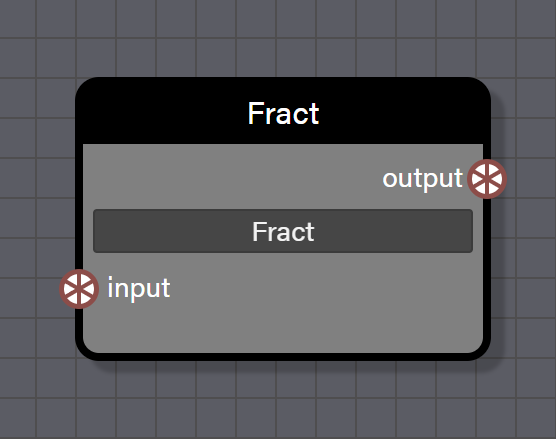
Fract
This function returns only the fractional part of a floating-point number. For a value of 3.7 the result would be 0.7. This is useful for creating repeating patterns, wrapping values, or extracting the decimal portion for oscillation effects. This block can support Float, Int, Vector2, Vector3, and Color4 types and operates component-wise. The type for the block connected to the input determines the type for the block output.
Advanced
- Operation determines which math operation to perform on the inputs to this block. Pre-set to Fract.
Inputs
- input is connected to a block providing a value to be used in the function.
Outputs
- output is the fractional part of the input value in a type that matches the input value type.
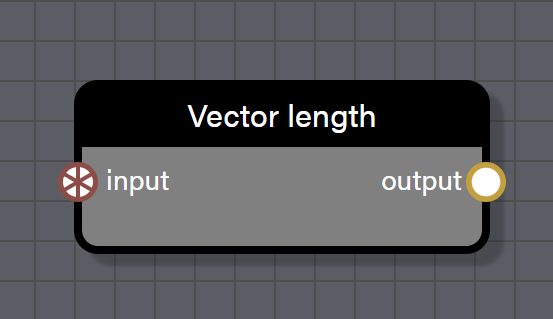
Vector Length
This block calculates the length or magnitude of a vector. It computes the Euclidean distance from the origin and is useful for speed calculations such as finding the length of a direction vector, distance checks, or normalizing vectors when combined with division.
Inputs
- input is connected to a block providing a Vector2 or Vector3 value to measure.
Outputs
- output is the length of the input vector as a Float value.
Logical
Logical blocks are used to branch a particle graph by performing a test between two Float values. If the test between the two values meets the condition set by the block, a value of true is returned and the block connected to the ifTrue port is passed to the output. Otherwise, the block connected to the ifFalse port is passed to the output. There are common properties that are shared by all logical blocks as follows.
- ifTrue and ifFalse ports on each logical block do not need to be connected to anything for the block to function. If a block is connected to ifTrue or ifFalse, that value will be passed when the appropriate condition is met. If nothing is connected to ifTrue or ifFalse, the block will output 1.0 and 0.0 respectively. This allows for successive logical tests by testing if the previous logical test was true or false without the need to wire Float blocks for ifTrue and ifFalse in the graph.
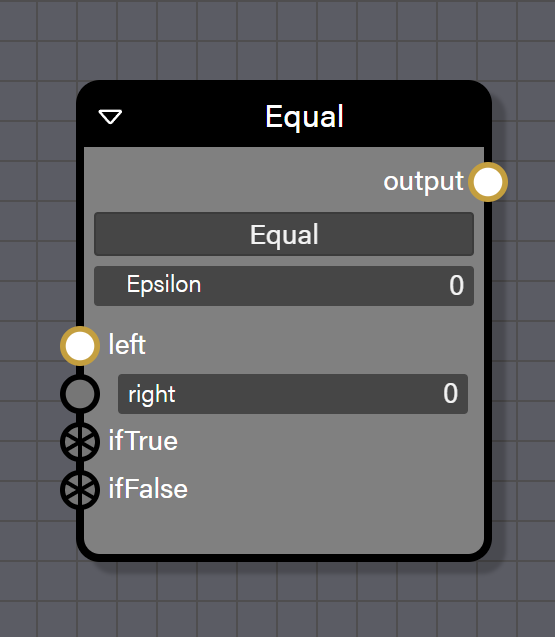
Equal
This logical block tests if the Float value in the left port and the right port are both equal to one another within the epsilon tolerance. If the test returns true, the value of ifTrue is passed otherwise the value of ifFalse is passed.
Advanced
- Test is the type of logical operation to perform on the inputs. Pre-set to Equal.
- epsilon is a Float value that provides tolerance for the floating-point comparison.
Inputs
- left is connected to a block providing a Float value to be used in the test.
- right can be connected to a block providing a Float value to be used in the test.
- ifTrue can be connected to any data type but needs to be the same data type as connected to ifFalse and will determine the data type for the output port on this block. If nothing is connected, the value assumed by ifTrue is 1.0.
- ifFalse can be connected to any data type but needs to be the same data type as connected to ifTrue and will determine the data type for the output port on this block. If nothing is connected, the value assumed by ifFalse is 0.0.
Outputs
- output is the value attached to ifTrue if the test returns true or the value attached to ifFalse if the test returns false. If a port for ifTrue or ifFalse is not connected, the output passes either 1.0 or 0.0 for that condition based on if the unconnected port is ifTrue or ifFalse.
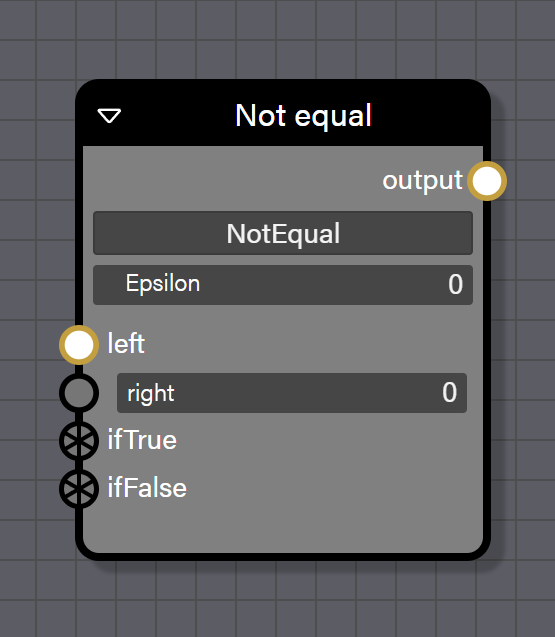
Not Equal
This logical block tests if the Float value in the left port and the right port are not equal to one another outside the epsilon tolerance. If the test returns true, the value of ifTrue is passed otherwise the value of ifFalse is passed.
Advanced
- Test is the type of logical operation to perform on the inputs. Pre-set to NotEqual.
- epsilon is a Float value that provides tolerance for the floating-point comparison.
Inputs
- left is connected to a block providing a Float value to be used in the test.
- right can be connected to a block providing a Float value to be used in the test.
- ifTrue can be connected to any data type but needs to be the same data type as connected to ifFalse and will determine the data type for the output port on this block. If nothing is connected, the value assumed by ifTrue is 1.0.
- ifFalse can be connected to any data type but needs to be the same data type as connected to ifTrue and will determine the data type for the output port on this block. If nothing is connected, the value assumed by ifFalse is 0.0.
Outputs
- output is the value attached to ifTrue if the test returns true or the value attached to ifFalse if the test returns false. If a port for ifTrue or ifFalse is not connected, the output passes either 1.0 or 0.0 for that condition based on if the unconnected port is ifTrue or ifFalse.
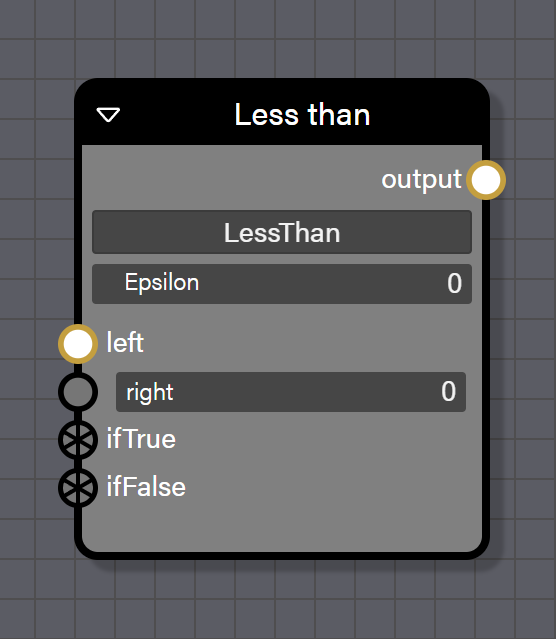
Less Than
This logical block tests if the Float value in the left port is less than the Float value in the right port. If the test returns true, the value of ifTrue is passed otherwise the value of ifFalse is passed.
Advanced
- Test is the type of logical operation to perform on the inputs. Pre-set to LessThan.
- epsilon is a Float value that provides tolerance for the floating-point comparison.
Inputs
- left is connected to a block providing a Float value to be used in the test.
- right can be connected to a block providing a Float value to be used in the test.
- ifTrue can be connected to any data type but needs to be the same data type as connected to ifFalse and will determine the data type for the output port on this block. If nothing is connected, the value assumed by ifTrue is 1.0.
- ifFalse can be connected to any data type but needs to be the same data type as connected to ifTrue and will determine the data type for the output port on this block. If nothing is connected, the value assumed by ifFalse is 0.0.
Outputs
- output is the value attached to ifTrue if the test returns true or the value attached to ifFalse if the test returns false. If a port for ifTrue or ifFalse is not connected, the output passes either 1.0 or 0.0 for that condition based on if the unconnected port is ifTrue or ifFalse.
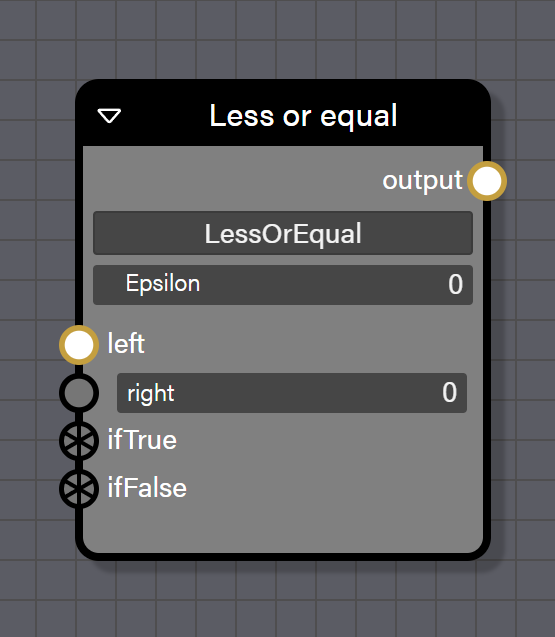
Less Or Equal
This logical block tests if the Float value in the left port is less than or equal to the Float value in the right port. If the test returns true, the value of ifTrue is passed otherwise the value of ifFalse is passed.
Advanced
- Test is the type of logical operation to perform on the inputs. Pre-set to LessOrEqual.
- epsilon is a Float value that provides tolerance for the floating-point comparison.
Inputs
- left is connected to a block providing a Float value to be used in the test.
- right can be connected to a block providing a Float value to be used in the test.
- ifTrue can be connected to any data type but needs to be the same data type as connected to ifFalse and will determine the data type for the output port on this block. If nothing is connected, the value assumed by ifTrue is 1.0.
- ifFalse can be connected to any data type but needs to be the same data type as connected to ifTrue and will determine the data type for the output port on this block. If nothing is connected, the value assumed by ifFalse is 0.0.
Outputs
- output is the value attached to ifTrue if the test returns true or the value attached to ifFalse if the test returns false. If a port for ifTrue or ifFalse is not connected, the output passes either 1.0 or 0.0 for that condition based on if the unconnected port is ifTrue or ifFalse.
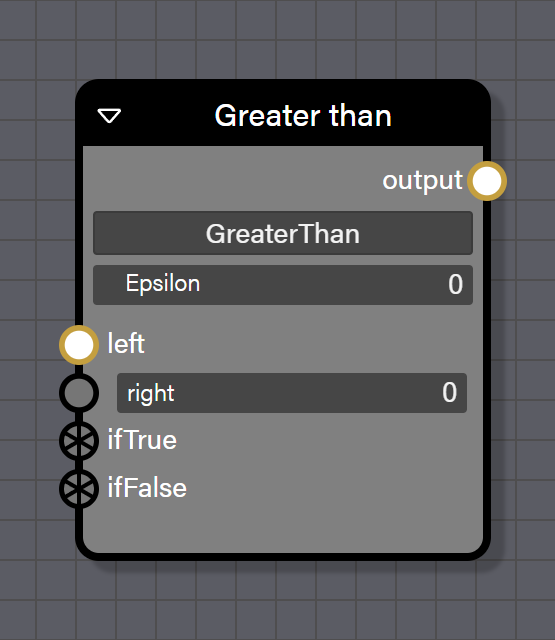
Greater Than
This logical block tests if the Float value in the left port is greater than the Float value in the right port. If the test returns true, the value of ifTrue is passed otherwise the value of ifFalse is passed.
Advanced
- Test is the type of logical operation to perform on the inputs. Pre-set to GreaterThan.
- epsilon is a Float value that provides tolerance for the floating-point comparison.
Inputs
- left is connected to a block providing a Float value to be used in the test.
- right can be connected to a block providing a Float value to be used in the test.
- ifTrue can be connected to any data type but needs to be the same data type as connected to ifFalse and will determine the data type for the output port on this block. If nothing is connected, the value assumed by ifTrue is 1.0.
- ifFalse can be connected to any data type but needs to be the same data type as connected to ifTrue and will determine the data type for the output port on this block. If nothing is connected, the value assumed by ifFalse is 0.0.
Outputs
- output is the value attached to ifTrue if the test returns true or the value attached to ifFalse if the test returns false. If a port for ifTrue or ifFalse is not connected, the output passes either 1.0 or 0.0 for that condition based on if the unconnected port is ifTrue or ifFalse.
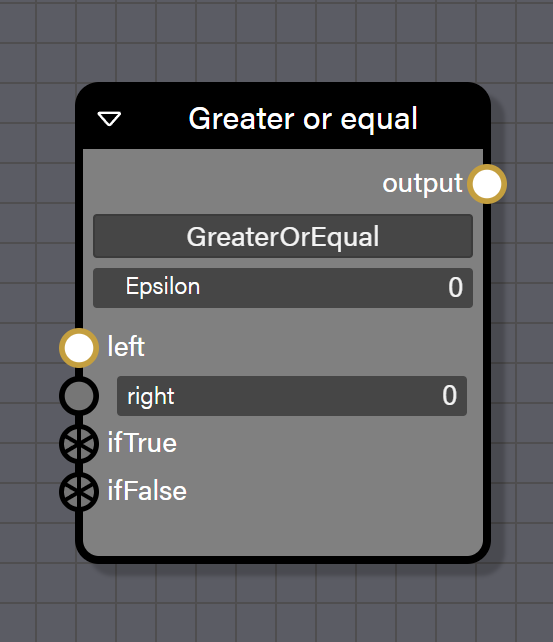
Greater Or Equal
This logical block tests if the Float value in the left port is greater than or equal to the Float value in the right port. If the test returns true, the value of ifTrue is passed otherwise the value of ifFalse is passed.
Advanced
- Test is the type of logical operation to perform on the inputs. Pre-set to GreaterOrEqual.
- epsilon is a Float value that provides tolerance for the floating-point comparison.
Inputs
- left is connected to a block providing a Float value to be used in the test.
- right can be connected to a block providing a Float value to be used in the test.
- ifTrue can be connected to any data type but needs to be the same data type as connected to ifFalse and will determine the data type for the output port on this block. If nothing is connected, the value assumed by ifTrue is 1.0.
- ifFalse can be connected to any data type but needs to be the same data type as connected to ifTrue and will determine the data type for the output port on this block. If nothing is connected, the value assumed by ifFalse is 0.0.
Outputs
- output is the value attached to ifTrue if the test returns true or the value attached to ifFalse if the test returns false. If a port for ifTrue or ifFalse is not connected, the output passes either 1.0 or 0.0 for that condition based on if the unconnected port is ifTrue or ifFalse.
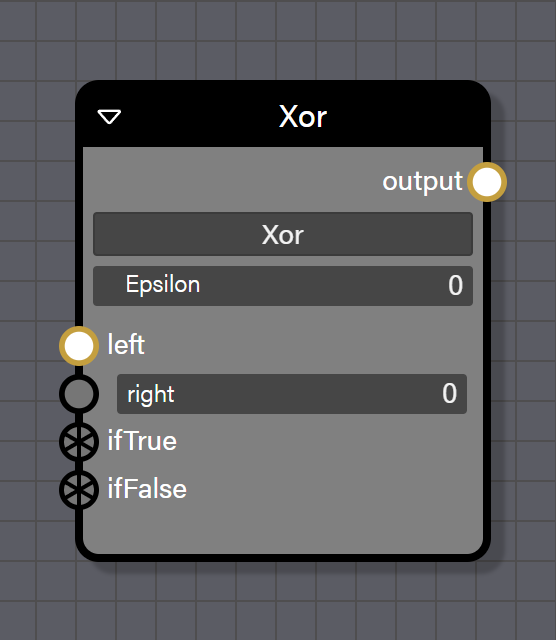
Xor
This logical block tests if exactly one of the left port or the right port contains a Float value not equal to 0.0, but not both. If the test returns true, the value of ifTrue is passed otherwise the value of ifFalse is passed.
Advanced
- Test is the type of logical operation to perform on the inputs. Pre-set to Xor.
- epsilon is a Float value that provides tolerance for the floating-point comparison.
Inputs
- left is connected to a block providing a Float value to be used in the test.
- right can be connected to a block providing a Float value to be used in the test.
- ifTrue can be connected to any data type but needs to be the same data type as connected to ifFalse and will determine the data type for the output port on this block. If nothing is connected, the value assumed by ifTrue is 1.0.
- ifFalse can be connected to any data type but needs to be the same data type as connected to ifTrue and will determine the data type for the output port on this block. If nothing is connected, the value assumed by ifFalse is 0.0.
Outputs
- output is the value attached to ifTrue if the test returns true or the value attached to ifFalse if the test returns false. If a port for ifTrue or ifFalse is not connected, the output passes either 1.0 or 0.0 for that condition based on if the unconnected port is ifTrue or ifFalse.
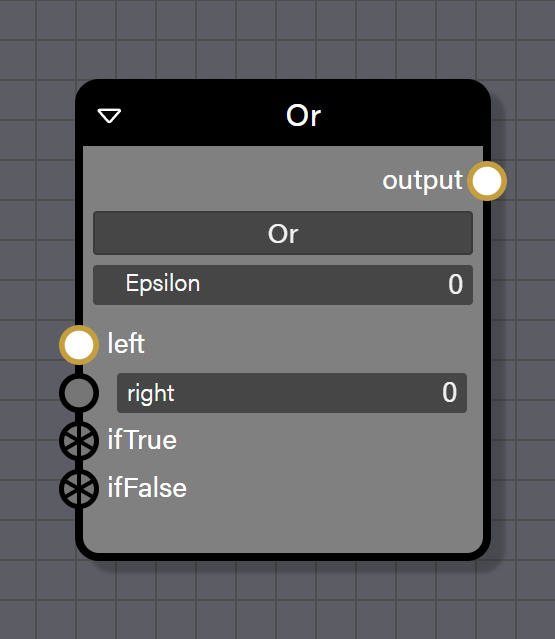
Or
This logical block tests whether either the left port or the right port contains a Float value not equal to 0.0. If the test returns true, the value of ifTrue is passed; otherwise, the value of ifFalse is passed.
Advanced
- Test is the type of logical operation to perform on the inputs. Pre-set to Or.
- epsilon is a Float value that provides tolerance for the floating-point comparison.
Inputs
- left is connected to a block providing a Float value to be used in the test.
- right can be connected to a block providing a Float value to be used in the test.
- ifTrue can be connected to any data type but needs to be the same data type as connected to ifFalse and will determine the data type for the output port on this block. If nothing is connected, the value assumed by ifTrue is 1.0.
- ifFalse can be connected to any data type but needs to be the same data type as connected to ifTrue and will determine the data type for the output port on this block. If nothing is connected, the value assumed by ifFalse is 0.0.
Outputs
- output is the value attached to ifTrue if the test returns true or the value attached to ifFalse if the test returns false. If a port for ifTrue or ifFalse is not connected, the output passes either 1.0 or 0.0 for that condition based on if the unconnected port is ifTrue or ifFalse.
And
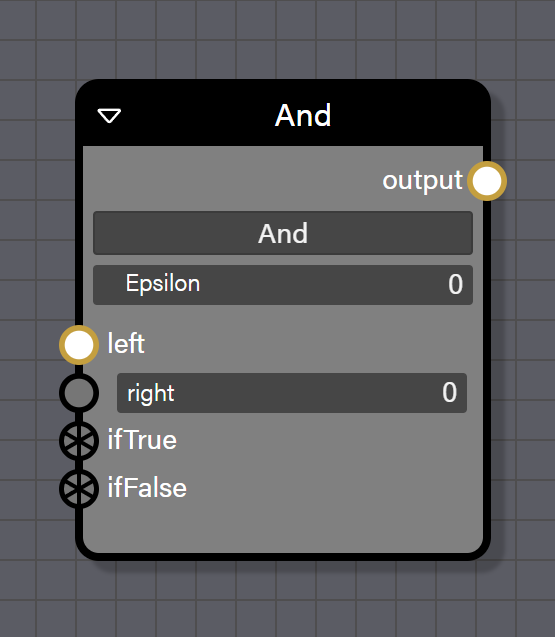
This logical block tests if the Float value in the left port and the right port are both not equal to 0.0. If the test returns true, the value of ifTrue is passed otherwise the value of ifFalse is passed.
Advanced
- Test is the type of logical operation to perform on the inputs. Pre-set to And.
- epsilon is a Float value that provides tolerance for the floating-point comparison.
Inputs
- left is connected to a block providing a Float value to be used in the test.
- right can be connected to a block providing a Float value to be used in the test.
- ifTrue can be connected to any data type but needs to be the same data type as connected to ifFalse and will determine the data type for the output port on this block. If nothing is connected, the value assumed by ifTrue is 1.0.
- ifFalse can be connected to any data type but needs to be the same data type as connected to ifTrue and will determine the data type for the output port on this block. If nothing is connected, the value assumed by ifFalse is 0.0.
Outputs
- output is the value attached to ifTrue if the test returns true or the value attached to ifFalse if the test returns false. If a port for ifTrue or ifFalse is not connected, the output passes either 1.0 or 0.0 for that condition based on if the unconnected port is ifTrue or ifFalse.
Interpolation
Interpolation blocks derive a value based on an input value range or an input value limit. They are essential for creating time-based particle effects and smooth transitions.
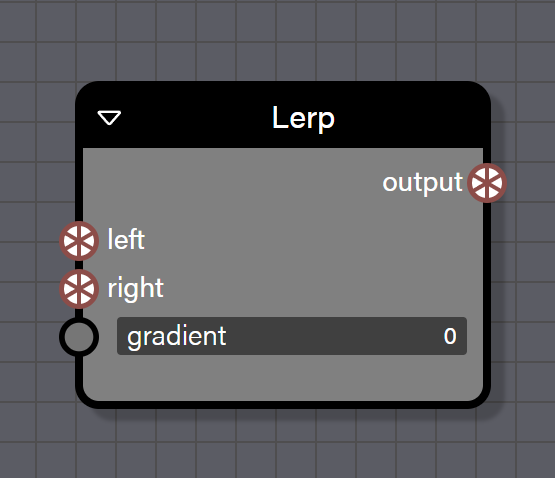
Lerp
This block will derive a value between the two input values based on the gradient value. It works with Float, Vector2, Vector3, and Color4 types.
Inputs
- left is a value that can be of any supported type and will be returned if the value for gradient is set to 0.
- right is a value that can be of any supported type and will be returned if the value for gradient is set to 1.
- gradient is a value of type float which determines the output value between the left and right inputs. A value passed to the gradient input that is not in the range of 0 to 1 will allow the value returned to fall outside the range of the left input to the right input.
Outputs
- output is the value that will match the type of the left and right input values and is a value derived from the range of the left input to the right input at the position of the gradient.
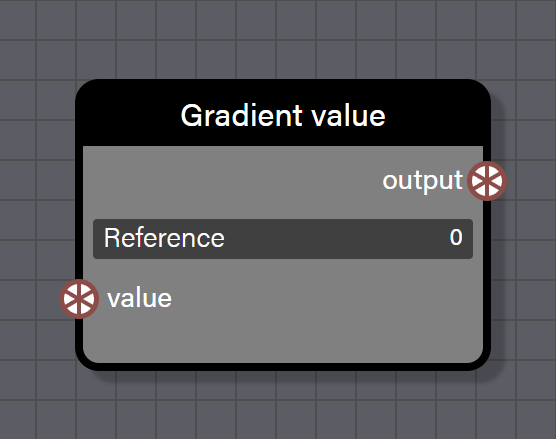
Gradient Value
This block defines a single value entry in a gradient. It is used as input to the Gradient block to define value stops at specific positions along the gradient. This block does not function alone and must be connected to a Gradient block's value inputs.
Advanced
- Reference sets the position of this value in the gradient on a scale of 0 to 1.
Inputs
- value is the value at this gradient position and can be of type Float, Vector2, Vector3, or Color4.
Outputs
- output is the gradient entry which converts to the appropriate gradient type for connection to a Gradient block.
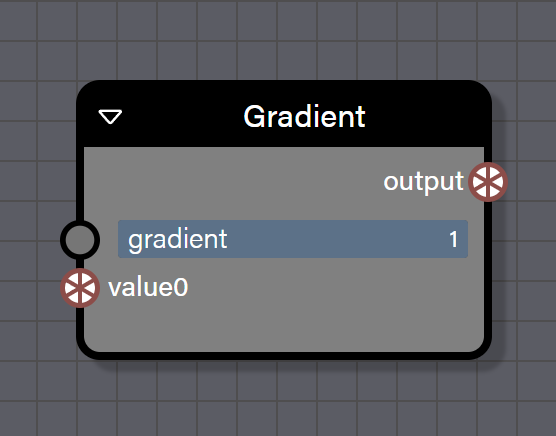
Gradient
This block interpolates between multiple Gradient Value entries based on an input gradient position. Connect the Age Gradient contextual block to the gradient input for lifetime-based transitions. The block dynamically adds new value inputs as Gradient Value blocks are connected.
Inputs
- gradient is a Float value that determines where in the gradient to sample. A value of 0 samples the beginning and a value of 1 samples the end.
- value0, value1, and so on are gradient value entries from Gradient Value blocks. New inputs are dynamically added as Gradient Value blocks are connected.
Outputs
- output is the interpolated value at the sampled position and matches the type of the connected gradient value entries.

NLerp
This block will derive a normalized value between the two input values based on the gradient value. It performs linear interpolation and then normalizes the result. This is more efficient than spherical interpolation for direction vectors when approximate results are acceptable.
Inputs
- left is a value that can be of any supported type and will be returned if the value for gradient is set to 0.
- right is a value that can be of any supported type and will be returned if the value for gradient is set to 1.
- gradient is a value of type float which determines the output value between the left and right inputs.
Outputs
- output is the value that will match the type of the left and right input values and is a normalized value derived from the range of the left input to the right input at the position of the gradient.
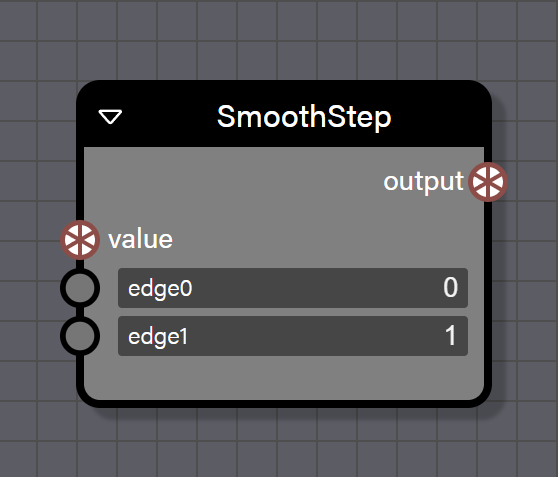
Smooth Step
This block will return a gradient value between 0 and 1 depending on how the input value compares with edge0 and edge1. It uses the formula 3x² - 2x³ for smooth transitions which produces a more natural-looking result than linear interpolation for fades and transitions. This block can support Float, Int, Vector2, Vector3, and Color4 types, though the block cannot operate on mixed types with the exception of one case. A float value can be connected to the right input of this block and that value will be used for the operation on each channel of the type connected to the left input. The type of the block first connected to an input determines the type for the block output, but a float can be connected to the right input in any case regardless of the type that has automatically been set.
Inputs
- value is a value that can be of any input type and will be evaluated against edge0 and edge1.
- edge0 is a value of Float type and sets the threshold for the lower limit of the transition.
- edge1 is a value of Float type and sets the threshold for the upper limit of the transition.
Outputs
- output is a value between 0 and 1 that matches the input type. If the input value is less than edge0, the output value will be 0. If the input value is between edge0 and edge1, the output will be a smooth interpolation. If the input value is greater than or equal to edge1, the output value will be 1.
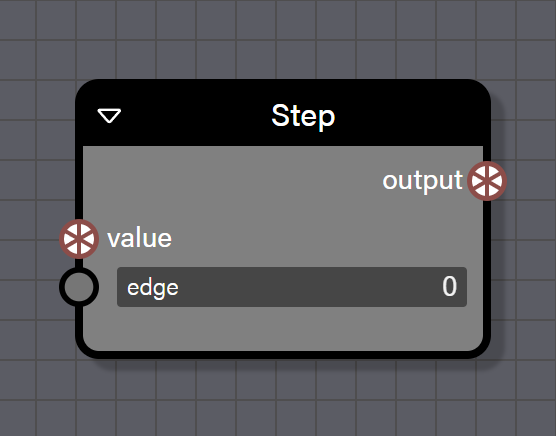
Step
This block will return a value of 0 or 1 depending on if the input value is less than or greater than the value connected to edge. It creates hard transitions without interpolation and is useful for binary decisions, triggers, or creating discrete states in particle behavior. This block can support Float, Int, Vector2, Vector3, and Color4 types, though the block cannot operate on mixed types with the exception of one case. A float value can be connected to the right input of this block and that value will be used for the operation on each channel of the type connected to the left input. The type of the block first connected to an input determines the type for the block output, but a float can be connected to the right input in any case regardless of the type that has automatically been set.
Inputs
- value is a value that can be of any input type and will be evaluated against the value connected to edge.
- edge is a value of Float type and sets the threshold for the comparison with the input value.
Outputs
- output is a value of either 0 if the value input is less than the edge input or 1 if the value input is equal to or greater than the edge input.
Misc
Miscellaneous utility blocks for type conversion, randomization, debugging, graph organization, and special effects.
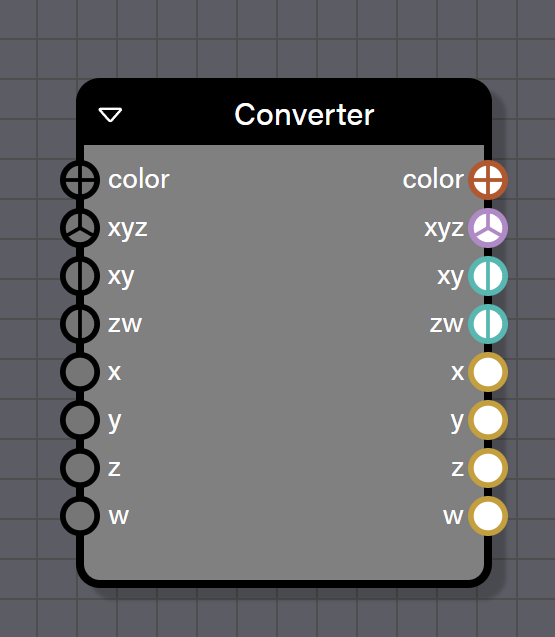
Converter
This block decomposes and recomposes values between Color4, Vector3, Vector2, and individual Float components. It enables bidirectional conversion allowing extraction of individual components from vectors and colors as well as constructing them from individual values. Input values take priority from higher-dimensional inputs so a connected Color4 will populate all component outputs.
Inputs
- color is a Color4 value to decompose.
- xyz is a Vector3 value to decompose.
- xy is a Vector2 value to decompose.
- zw is a Vector2 value mapped to z and w components.
- x is a Float value for the X or R component.
- y is a Float value for the Y or G component.
- z is a Float value for the Z or B component.
- w is a Float value for the W or A component.
Outputs
- color is the recomposed Color4 from components.
- xyz is the recomposed Vector3 from components.
- xy is X and Y as a Vector2.
- zw is Z and W as a Vector2.
- x is the X or R component as a float.
- y is the Y or G component as a float.
- z is the Z or B component as a float.
- w is the W or A component as a float.
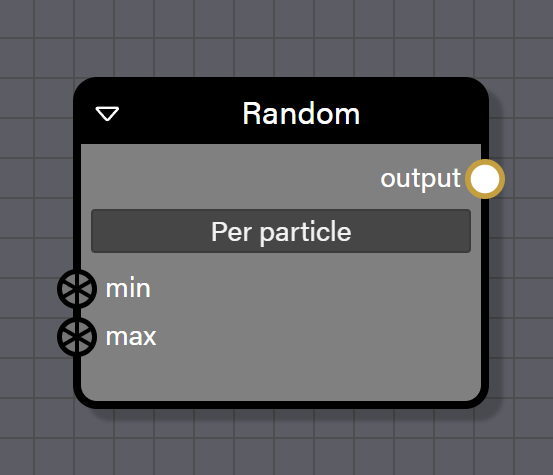
Random
This block generates random values within a specified range. It supports Float, Vector2, Vector3, and Color4 types with component-wise randomization. The lockMode property controls when random values are regenerated which is important for controlling consistency of randomization across particles and frames.
Advanced
- lockMode controls when random values are regenerated. The options are None which generates a new value every evaluation, PerParticle which caches a value per particle, PerSystem which uses the same value for all particles in one update, and OncePerParticle which generates a value once at particle birth that never changes.
Inputs
- min is connected to a block providing the minimum random value.
- max is connected to a block providing the maximum random value.
Outputs
- output is a random value between
minandmaxand matches the type of the values connected tominandmax.
Debug
This block outputs debug information to the console for troubleshooting. The value passes through unchanged, allowing debug blocks to be inserted anywhere in the flow for inspection without affecting particle behavior.
Advanced
- Reference sets the number of recent values to keep in the debug log.
Inputs
- input is connected to any block whose value needs to be inspected.
Outputs
- output is the pass-through of the input value in the same type.
Elbow
This is a purely organizational block that helps route wires for better graph readability. It has no functional impact on particle behavior and simply passes values through while allowing wires to be bent and routed for clarity. It can be quickly added to wires by option or alt-clicking on a wire.
Inputs
- input is connected to any block whose wire needs to be routed.
Outputs
- output is the same value as the input in the same type.
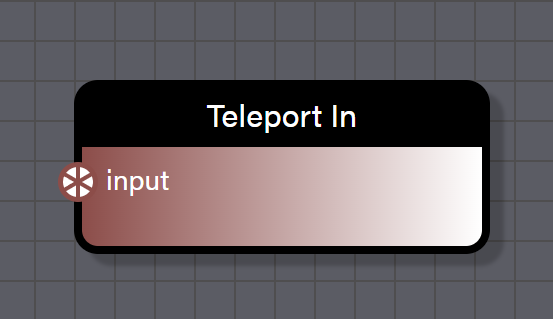
Teleport In
This block creates an entry point that sends data to one or more corresponding Teleport Out blocks without a visible wire. It reduces wire clutter by allowing data to jump across the graph without visible connections. A single Teleport In can feed multiple Teleport Out blocks, effectively duplicating the data stream. The data type is preserved through the teleport. To distinguish each Teleport In block, give it a unique name, which will be added to a list of possible connections found in a Teleport Out block's properties.
Inputs
- input is connected to any block whose value should be teleported.
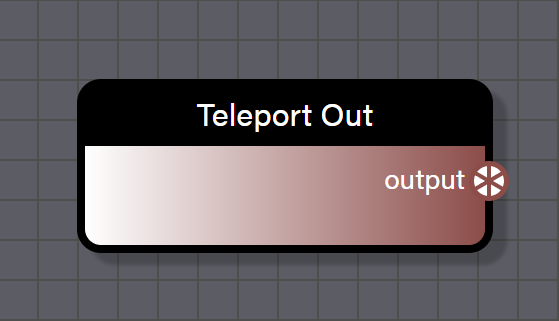
Teleport Out
This block receives data from a corresponding Teleport In block. It must be linked to a Teleport In block which can be selected from the properties panel. The output type matches the input type of the corresponding Teleport In block.
Properties
- Entry point is a list of all Teleport In blocks in the graph. Choosing a specific Teleport In block will connect the value and type from the connected Teleport In block to this Teleport Out block.
Outputs
- output is the value received from the linked Teleport In block and matches the type of the teleported value.
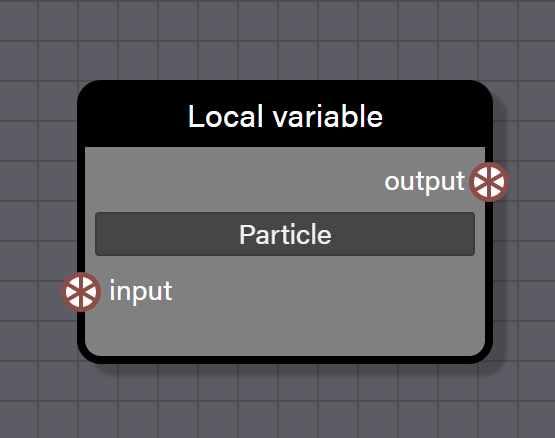
Local Variable
This block stores and reuses a value to avoid redundant calculations and improve graph readability. It acts like a variable in code by storing a snapshot of the value that can be reused multiple times without recalculating. It is useful for organizing complex graphs, avoiding duplicate calculations, and improving performance when the same computed value is needed in multiple places.
Advanced
- Scope determines when the stored value is captured. The options are Particle which captures the value per particle and Loop which captures the value once per system update loop.
Inputs
- input is connected to any block whose value should be stored.
Outputs
- output is the stored value in the same type as the input.
Triggers
Trigger blocks enable sub-emitter functionality, allowing particle systems to spawn other particle systems based on conditions.
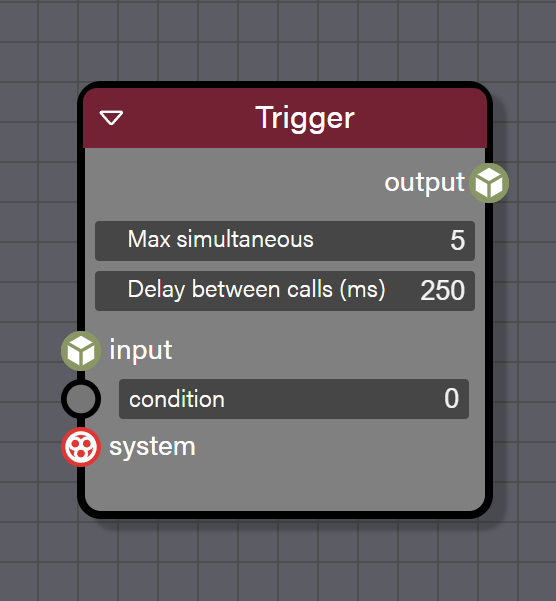
Trigger
This block triggers a sub-emitter particle system when a condition is met during particle updates. When the condition input evaluates to a non-zero value, the block spawns a clone of the connected system at the current particle's position. The limit property prevents excessive sub-emitter spawning and the delay property rate-limits trigger activations. Sub-emitters are automatically disposed when the parent system is disposed. Connect a separate System block with its own particle graph to the system input to define the sub-emitter behavior.
Advanced
- Max Simultaneous sets the maximum number of simultaneously active sub-emitter instances. A value of 0 means unlimited.
- Delay Between calls (ms) sets the minimum delay in milliseconds between trigger activations.
Inputs
- input is the particle stream to monitor and is required.
- condition is a Float value that triggers the sub-emitter when it is non-zero.
- system is the particle system to spawn when triggered and is required.
Outputs
- output is the pass-through of the input particle stream.
Tips for Using Blocks Effectively
- Start Simple — Begin with a Create Particle, Shape, and System flow then add complexity.
- Use Frames — Group related blocks in frames for organization, especially complex update chains. Collapse frames to save space in the graph and help reduce visual complexity. Hold Shift while clicking the expand frame button to open the frame in pop-out mode and isolate the editable graph to just the frame's contents.
- Test Incrementally — Add blocks one at a time and check the preview to understand each effect.
- Leverage Gradients — Use Gradient and Gradient Value blocks with the Age Gradient contextual block for smooth lifetime transitions.
- Combine Updates — Chain multiple update blocks for complex behaviors such as Color then Size then Position.
- Debug Often — Use Debug blocks to verify values are in expected ranges.
- Optimize with Teleports — Use Teleport In and Out blocks to reduce wire clutter in complex graphs.
- Save Custom Frames — Export useful block combinations as custom frames for reuse.
- Name Everything — Give blocks meaningful names for easier debugging and code access.
- Check Console — Always monitor the console for errors about missing connections or invalid values.