Babylon.js MCP Servers
Overview
Babylon.js MCP servers let MCP-compatible AI clients work with Babylon.js authoring tools. They can create, edit, validate, import, export, and live-sync editor graphs through the Model Context Protocol.
The servers are distributed in the @babylonjs/mcp-servers npm package. Dedicated extensions and plugins for specific environments are being worked on, but today you can use the package directly from any MCP client that can start a local command.
Included Servers
| Editor | Dispatcher name | Direct binary | Editor URL |
|---|---|---|---|
| Node Material Editor | nme | babylonjs-nme-mcp-server | nme.babylonjs.com |
| Node Geometry Editor | nge | babylonjs-nge-mcp-server | nge.babylonjs.com |
| Node Render Graph Editor | nrge | babylonjs-nrge-mcp-server | nrge.babylonjs.com |
| Node Particle Editor | npe | babylonjs-npe-mcp-server | npe.babylonjs.com |
| GUI Editor | gui | babylonjs-gui-mcp-server | gui.babylonjs.com |
| Flow Graph Editor | flow-graph | babylonjs-flow-graph-mcp-server | flowgraph.babylonjs.com |
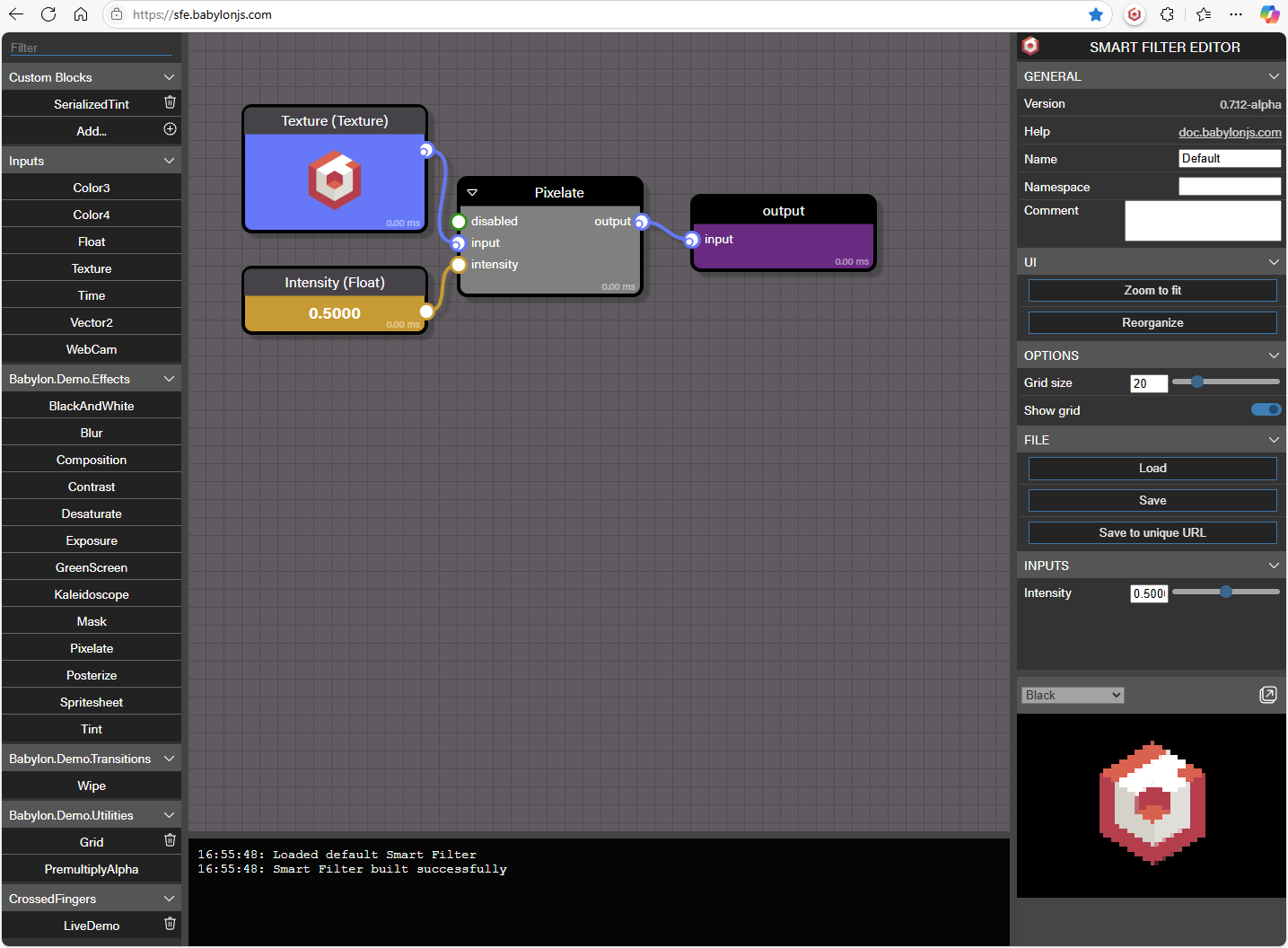
| Smart Filters Editor | smart-filters | babylonjs-smart-filters-mcp-server | sfe.babylonjs.com |
Use the dispatcher command when your client supports command arguments:
npx -y @babylonjs/mcp-servers nmeUse the direct binary form when your client expects the server executable name:
npx -y -p @babylonjs/mcp-servers babylonjs-nme-mcp-serverReplace nme or babylonjs-nme-mcp-server with the server you want to use.
VS Code
VS Code uses an mcp.json file. For a workspace configuration, create or edit .vscode/mcp.json and add the server under the servers object:
{ "servers": { "babylonjs-node-material": { "type": "stdio", "command": "npx", "args": ["-y", "@babylonjs/mcp-servers", "nme"] } }}To add multiple Babylon.js editor servers, add one entry per server:
{ "servers": { "babylonjs-node-material": { "type": "stdio", "command": "npx", "args": ["-y", "@babylonjs/mcp-servers", "nme"] }, "babylonjs-gui": { "type": "stdio", "command": "npx", "args": ["-y", "@babylonjs/mcp-servers", "gui"] }, "babylonjs-flow-graph": { "type": "stdio", "command": "npx", "args": ["-y", "@babylonjs/mcp-servers", "flow-graph"] } }}After saving the file, reload or restart the MCP servers from VS Code's MCP controls if the client does not pick up the change automatically.
Claude Desktop
Claude Desktop uses a claude_desktop_config.json file with an mcpServers object:
{ "mcpServers": { "babylonjs-node-material": { "command": "npx", "args": ["-y", "@babylonjs/mcp-servers", "nme"] } }}Restart Claude Desktop after changing the configuration.
Cursor
Cursor can use an MCP configuration with the same mcpServers shape:
{ "mcpServers": { "babylonjs-node-geometry": { "command": "npx", "args": ["-y", "@babylonjs/mcp-servers", "nge"] } }}Restart or refresh MCP servers in Cursor after saving the file.
Other MCP Clients
Most MCP clients need the same two values: a command and an argument list. Use the dispatcher form when possible:
{ "command": "npx", "args": ["-y", "@babylonjs/mcp-servers", "smart-filters"]}If the client requires an executable server name, use the direct binary form:
{ "command": "npx", "args": ["-y", "-p", "@babylonjs/mcp-servers", "babylonjs-smart-filters-mcp-server"]}Microsoft and other agent environments that support local stdio MCP servers can use the same command and arguments. If an environment only supports remote hosted tools, use an MCP-compatible local client until a dedicated integration is available.
Connect a Server Session to an Editor
The Babylon.js MCP servers can create a local editor session that links the MCP server to the matching Babylon.js editor.
- Start the MCP server in your AI client.
- Ask the client to get or start an editor session for the current graph.
- Copy the session URL returned by the MCP server.
- Open the matching Babylon.js editor URL.
- Paste the session URL in the editor's MCP session section.
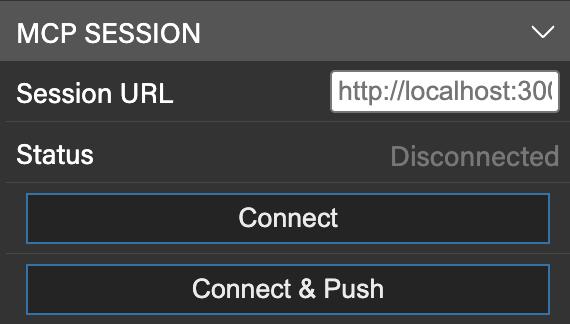
The local session is served from 127.0.0.1 or localhost by default. It stops when the MCP process exits, when the MCP session server is stopped, or after a period without MCP/editor activity.
Connect And Push
Use Connect and push when you want the editor to connect to the MCP session and immediately send the editor's current graph to the MCP server. This is useful when you already have work open in the editor and want the MCP server to use that graph as its current state. Make sure to notify your agent that you pushed a change so it can react to the pushed graph.
Push To MCP Server
Use Push to MCP server after the editor is already connected. It sends the current editor graph to the connected MCP server without starting a new connection. Make sure to notify your agent that you pushed a change so it can react to the updated graph.
Troubleshooting
The MCP Client Cannot Find npx Or node
Many MCP clients are launched as desktop apps and do not inherit the same shell environment as your terminal. This is common when Node.js is installed with nvm.
First, find the full paths from a terminal where Node.js works:
which nodewhich npxThen use the full path in the MCP configuration:
{ "servers": { "babylonjs-nme": { "type": "stdio", "command": "/Users/you/.nvm/versions/node/v22.12.0/bin/npx", "args": ["-y", "@babylonjs/mcp-servers", "nme"] } }}Replace the path with the value returned by which npx on your machine.
Load nvm Before Running npx
If you prefer to keep using npx through nvm, run the server through a login shell that loads nvm first:
{ "servers": { "babylonjs-nme": { "type": "stdio", "command": "/bin/zsh", "args": ["-lc", "source $HOME/.nvm/nvm.sh && npx -y @babylonjs/mcp-servers nme"] } }}Use the direct absolute path option if your MCP client has trouble with shell commands.
Use npm exec Instead of npx
Some environments can resolve npm more reliably than npx. In that case, use npm exec and run the dispatcher command from the package:
{ "servers": { "babylonjs-node-material": { "type": "stdio", "command": "npm", "args": ["exec", "--yes", "--package", "@babylonjs/mcp-servers", "--", "babylonjs-mcp-servers", "nme"] } }}Replace the final nme argument with the dispatcher name for the editor you want to use.
Windows npx Path
On Windows, point the command to npx.cmd if the client cannot resolve npx by name:
{ "mcpServers": { "babylonjs-nme": { "command": "C:\\Program Files\\nodejs\\npx.cmd", "args": ["-y", "@babylonjs/mcp-servers", "nme"] } }}If Node.js is installed somewhere else, run this in PowerShell to find it:
Get-Command npxPin a Package Version
The examples above use the latest published package. To make a configuration repeatable, pin a version:
{ "command": "npx", "args": ["-y", "@babylonjs/mcp-servers@9.11.0", "nme"]}A Session URL Does Not Connect
Make sure the MCP server process is still running, the editor matches the server type, and the session URL was copied exactly. For example, a Node Material Editor session belongs in the Node Material Editor, not the GUI Editor.
If you restarted the MCP server, ask the client for a new session URL and paste the new URL into the editor.
Further reading
The Node Material Editor
Learn all about the powerful Node Material Editor in Babylon.js.

Node Geometry Editor
Learn how use the Node Geometry Editor
Node Particle Editor
Learn how to use the Node Particle Editor
The GUI Editor
Learn all about the simple and easy GUI Editor in Babylon.js.

Smart Filter Editor
Learn how to use the Smart Filter Editor