Event Blocks
Why Event Blocks Matter
Event blocks are the most common starting points for interactive graphs. They define what external occurrence should cause graph execution to begin.
Scene Lifecycle Events
SceneReadyEvent
Use SceneReadyEvent when graph logic should run once the scene is ready.
This is often the best starting point for initialization-style graphs.
SceneTickEvent
Use SceneTickEvent when the graph should run every frame.
This is useful for time-based animation logic, continuous checks, or interpolation workflows.
Pointer And Pick Events
MeshPickEvent
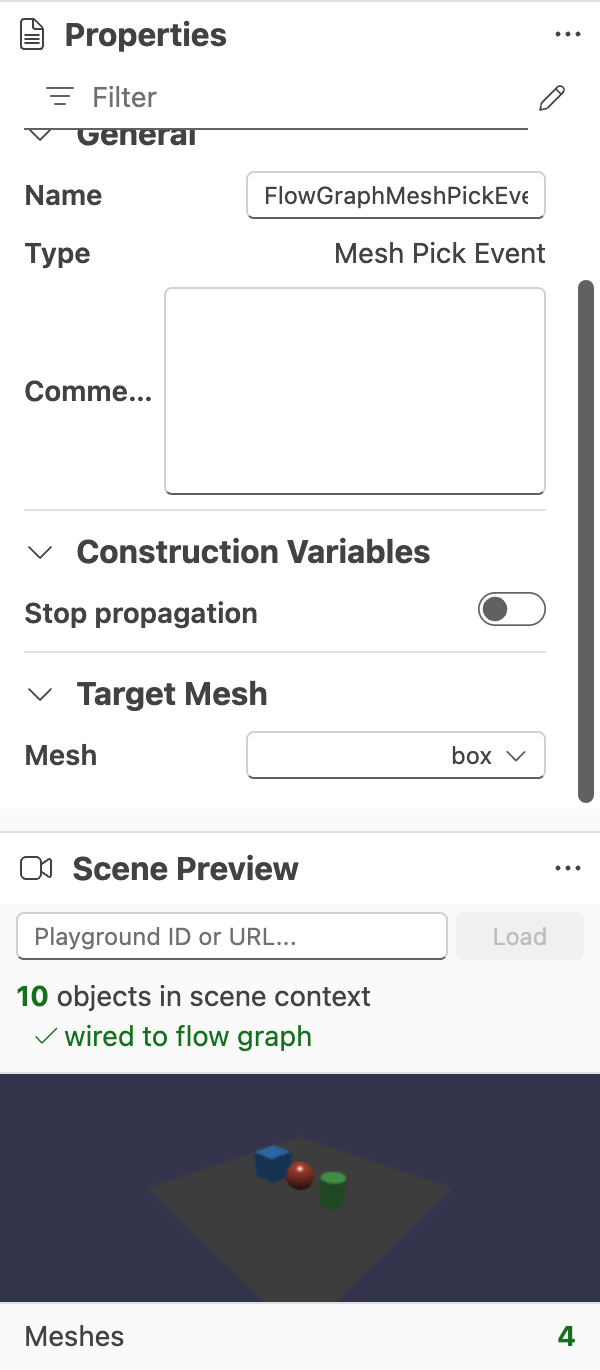
Use MeshPickEvent when the graph should react to a mesh being picked. This block can expose information such as the picked mesh and picked point, making it useful for scene interaction workflows.
PointerDownEvent
Use PointerDownEvent when a press or click should trigger logic.
PointerUpEvent
Use PointerUpEvent when release semantics matter more than press semantics.
PointerMoveEvent
Use PointerMoveEvent when continuous pointer motion should drive behavior.
PointerOverEvent
Use PointerOverEvent when the graph should react as a pointer enters a target.
PointerOutEvent
Use PointerOutEvent when the graph should react as a pointer leaves a target.
Many of these blocks become more precise once you configure their target mesh in the property panel.
Custom Communication Events
ReceiveCustomEvent
Use ReceiveCustomEvent when one graph section should respond to a named event emitted elsewhere.
SendCustomEvent
Use SendCustomEvent when a graph section should broadcast a named event, optionally carrying structured payload data.
Together, these blocks are useful for decoupling graph sections that should communicate without being directly connected by execution wires.
Choosing The Right Event Block
- Use
SceneReadyEventfor startup. - Use
SceneTickEventfor per-frame work. - Use pointer and pick events for user interaction.
- Use custom events when graph sections should communicate indirectly.
Further reading
Block Reference
First-pass reference for the current blocks available in the Babylon.js Flow Graph Editor.

Example - Click A Mesh And Log It
Build a simple interactive graph that reacts when a mesh is picked in the Babylon.js Flow Graph Editor.
Validation and Property Editing
Reference for graph validation, type compatibility, and the property panel in the Babylon.js Flow Graph Editor.