Edge Detection
Using the Edge Detection post-process
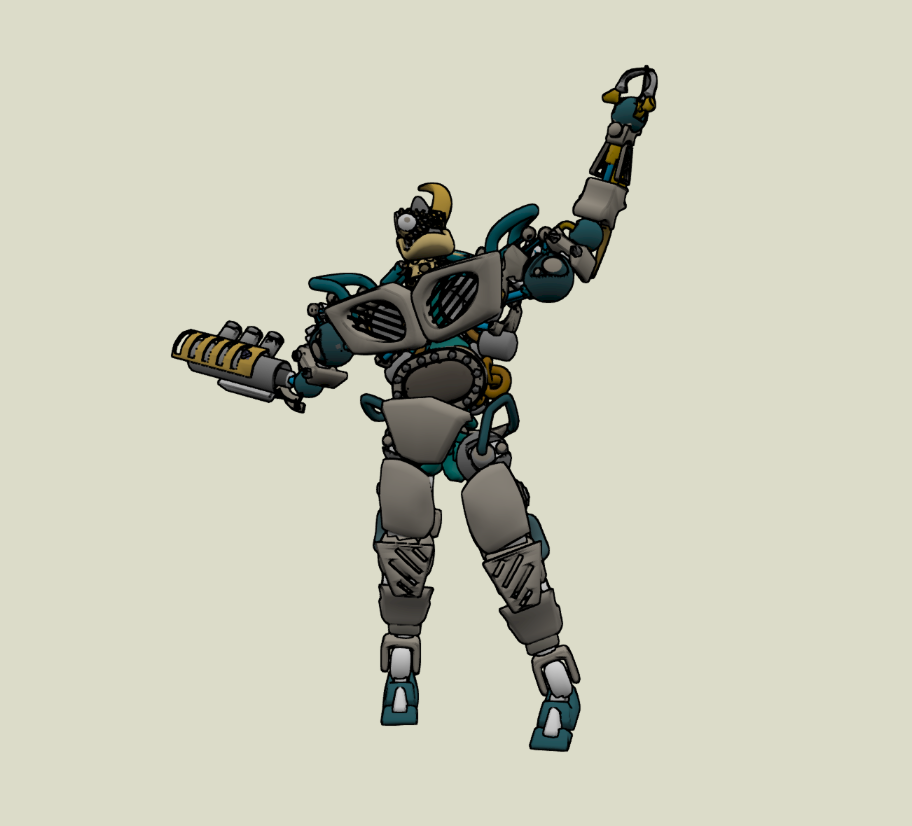
With this Edge Detection post-process, you can create full-scene outlines in a style suited for comics or games, which cannot be achieved with renderOutline, edgeRendering, or HighlightLayer.
If you’re aiming for that look, this tutorial is for you.
How to use?
To use it, attach the post-process to your main camera to enable the effect.
import { EdgeDetectionPostProcess } from "@babylonjs/post-processes/edgeDetection/edgeDetectionPostProcess";// Creates the post processvar edgeDetectionPostProcess = new EdgeDetectionPostProcess("EdgeDetection", camera);Going further
You can adjust the thickness of the outlines like so:
import { Color3 } from "@babylonjs/core/Maths/math.color";// Creates the post process with custom width, intensity, coloredgeDetectionPostProcess.edgeWidth = 1; // default is 1.0 edgeDetectionPostProcess.edgeIntensity = 1;edgeDetectionPostProcess.edgeColor = Color3.Red();Additionally, you can change the render mode:
// General :0, Normal: 1, Depth: 2, Only Outline: 3 edgeDetectionPostProcess.renderMode = 3; // default is 1Here is a full demo where you can control all the properties of the EdgeDetection PostProcess. Furthermore, you can also check the cel materials with outlines.
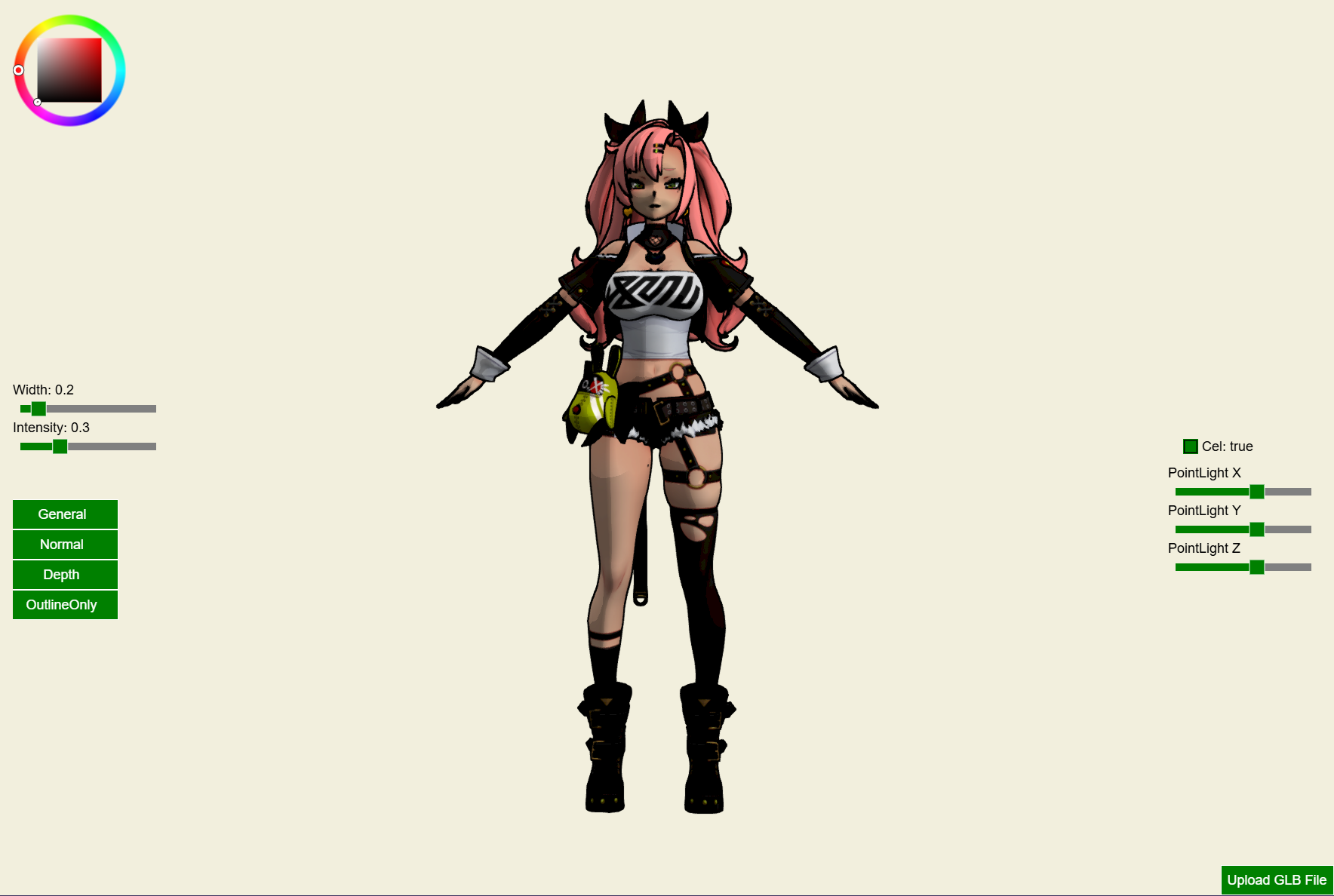
The available parameters are:
- edgeWidth: Controls the thickness of the edge lines. Higher values create thicker outlines. Default is 1.0.
- edgeIntensity: Adjusts the intensity or brightness of the outline effect. Higher values make edges appear more prominent. Default is 1.0.
- edgeColor: Defines the color of the outline using BABYLON.Color3 format, allowing for customization of edge hue. Default is BABYLON.Color3.Black().
- renderMode: Sets the rendering mode for the post-process effect: 0: General (combined view with edge effect and scene), 1: Normal (shows the scene with edge overlay), 2: Depth (emphasizes depth for 3D effect), 3: Only Outline (displays only the edges, hiding other details).
For optimal results, adjust edgeWidth and edgeIntensity in combination. Modifying only one may make it difficult to achieve the desired effect, as these parameters work best when balanced to create clear and precise outlines.