WebXR Teleportation feature
A lot of (native) VR games have a teleportation feature to allow movement in the scene. It is the most convenient way of moving in a scene without the user feeling dizzy or disoriented.
Babylon has supported teleportation in WebVR and has now upgraded the feature to have a lot of different abilities.
The teleportation feature enables the following ways to interact with the camera's position:
- Move forward using direct/indirect rays
- Move backwards
- Rotate in place.
Quick note about the WebXR emulator - Even though it doesn't support this just yet, the WebXR emulator adds a thumbstick to the emulated controller, making it impossible to simulate teleportation. To get teleportation working, you will need to enable useMainComponentOnly (described below) to disable thumbstick teleportation. It is recommended to enable this only during development, unless this is the required behavior.
Enabling teleportation
The teleportation module is turned on by default when using the WebXR Default Experience Helper. You can pass configuration options to the default experience helper itself:
const xrHelper = await scene.createDefaultXRExperienceAsync({ floorMeshes: [ground] /* Array of meshes to be used as landing points */, teleportationOptions: { // Options to pass to the teleportation module },});To disable teleportation (of course while being able to re-enable it at a later point), use the following flag:
const xrHelper = await scene.createDefaultXRExperienceAsync({ disableTeleportation: true,});To turn it on or re-enable it, use the following code:
const featuresManager = xr.baseExperience.featuresManager; // or any other way to get a features managerfeaturesManager.enableFeature(WebXRFeatureName.TELEPORTATION, "stable" /* or latest */, { xrInput: xr.input, // add options here floorMeshes: [ground, secondFloor, thirdFloor],});The latest options can be found in the WebXR teleportation feature's source code.
Some teleportation parameters are needed during construction and are therefore configurable only through the constructor's options parameter. To reconfigure parameters that have no public getter/setter, re-enable the feature:
const xrHelper = await scene.createDefaultXRExperienceAsync({ xrInput: xrHelper.input, floorMeshes: [ground] /* Array of meshes to be used as landing points */,});// ...// needs a reconfigure - re-enable the feature (will discard the old one and create a new one!)xrHelper.teleportation = featuresManager.enableFeature(WebXRFeatureName.TELEPORTATION, "stable" /* or latest */, { xrInput: xrHelper.input, floorMeshes: [ground], renderingGroupId: 1,});Notice that the only obligatory option for the teleportation feature is xrInput, which is the controllers it will use to teleport the user.
Setting floor meshes
Floor meshes are the most important part of teleportation, as the module needs to know where users are allowed to land and where they are not.
When using the WebXR Default Experience Helper you can set the floorMeshes during initialization:
const xrHelper = await scene.createDefaultXRExperienceAsync({ xrInput: xr.input, floorMeshes: [ground] /* Array of meshes to be used as landing points */,});const teleportation = xrHelper.teleportation;When enabling the feature yourself you can provide it in the options object:
const teleportation = featuresManager.enableFeature(WebXRFeatureName.TELEPORTATION, "stable", { xrInput: xr.input, floorMeshes: [ground],});If you want to add a mesh after the teleportation feature is enabled, you can use the addFloorMesh function:
teleportation.addFloorMesh(ground2);And to remove one, simply use the removeFloorMesh function:
teleportation.removeFloorMesh(ground2);A simple example for enabling floor meshes: Enable Floor Meshes
Direct and indirect landing zones
The teleportation landing zone is defined by the person holding the controllers. There are two ways of teleportation: direct teleportation and indirect (parabolic) teleportation.
Direct teleportation means the user aims at the position they want to land at (a straight line). This is used when the ground and the landing location are in sight, and it is the most convenient and straightforward way to move forward.
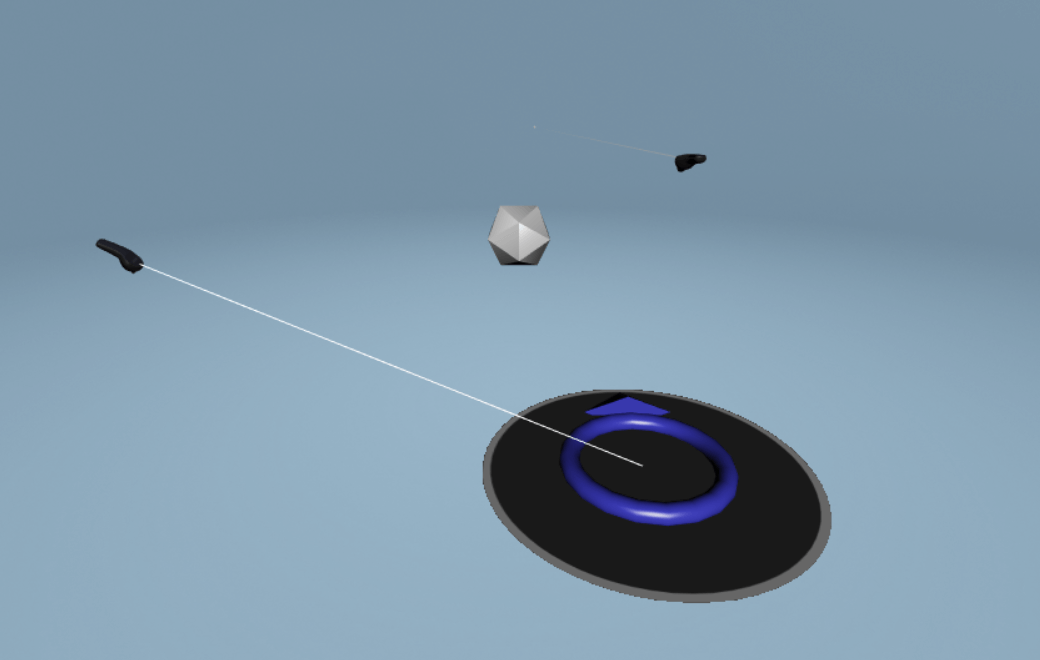
An indirect line means the user aims up high and creates a parabolic path. This is used to go across obstacles, or to teleport from one floor to the other.
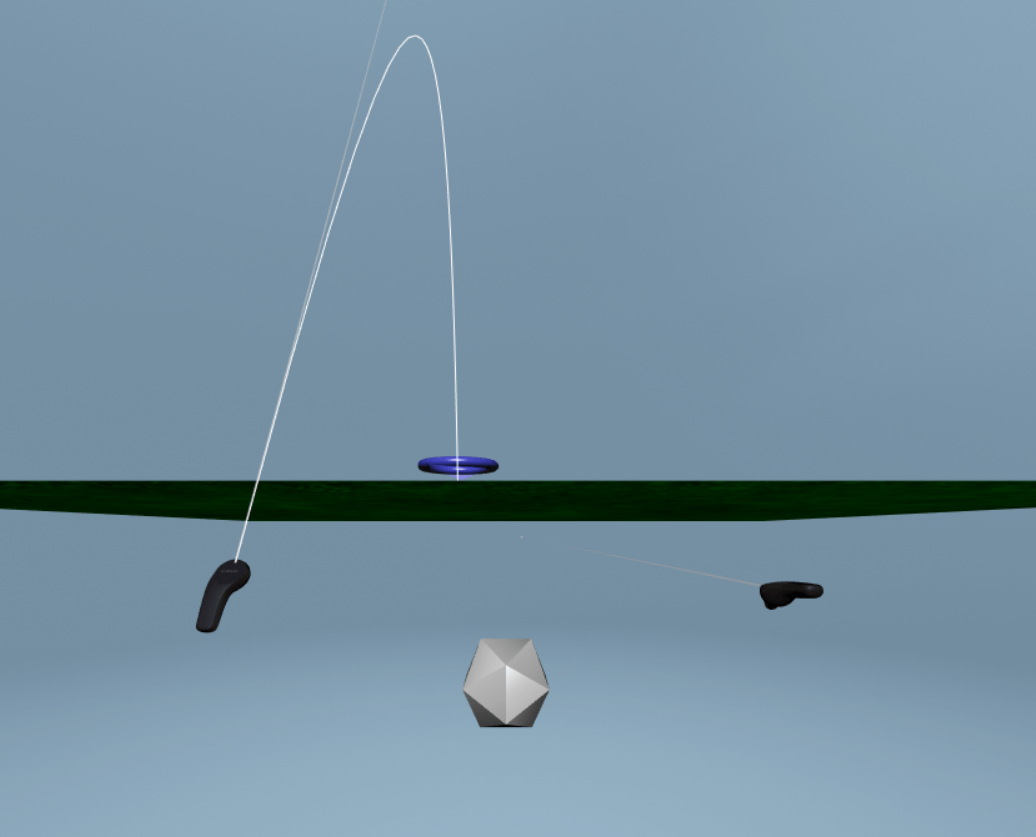
Direct teleportation is always enabled. Indirect teleportation is enabled by default, but it is possible to disable it using a flag:
// disable the parabolic (indirect) teleportation rayteleportation.parabolicRayEnabled = false;To make the parabolic ray go farther, you can set the radius used to create the inspection ray when pointing the ray 90 degrees upward (default is 5):
teleportation.parabolicCheckRadius = 10;Note that the parabolic ray's radius is bigger the lower the controller's rotation angle is. The compensation calculation is done using this formula:
const compensation = 1 + (Math.PI / 2 - Math.abs(rotationOnTheXAxis));The compensation is multiplied by the defined radius and changes the current ray intersection radius.
Different input sources
The default input source is an XR headset with two handheld controllers. This input source in WebXR is called TrackedPointer.
When the input source has a thumbstick or a touchpad, moving the finger forward will trigger ray-casting mode. Rotating the finger after the ray is cast will rotate the direction in which the user lands. Releasing the finger when a landing zone is visible will move the user there.
When no thumbstick or touchpad is available, the main component (usually a trigger) will be used. See WebXR input sources for more information about the main component. When using the main component, which is usually a button, you can define a certain amount of time in milliseconds after which the user will teleport, if still holding the trigger. The default is 3 seconds.
This configuration value can be found in the constructor's options and is called timeToTeleport:
const teleportation = featuresManager.enableFeature(WebXRFeatureName.TELEPORTATION, "stable", { xrInput: xr.input, floorMeshes: [ground], timeToTeleport: 5000,});Note that when using a button, it is impossible to allow rotation, so the user's orientation will stay the same as it was before they teleported.
To force the user to use the main component only (even if a thumbstick is available), use the useMainComponentOnly flag when constructing:
const teleportation = featuresManager.enableFeature(WebXRFeatureName.TELEPORTATION, "stable", { xrInput: xr.input, floorMeshes: [ground], timeToTeleport: 5000, useMainComponentOnly: true,});The teleportation landing zone
The teleportation landing zone is a group of meshes meant to show the user where they are going to land and in which direction. Its default version looks like this:
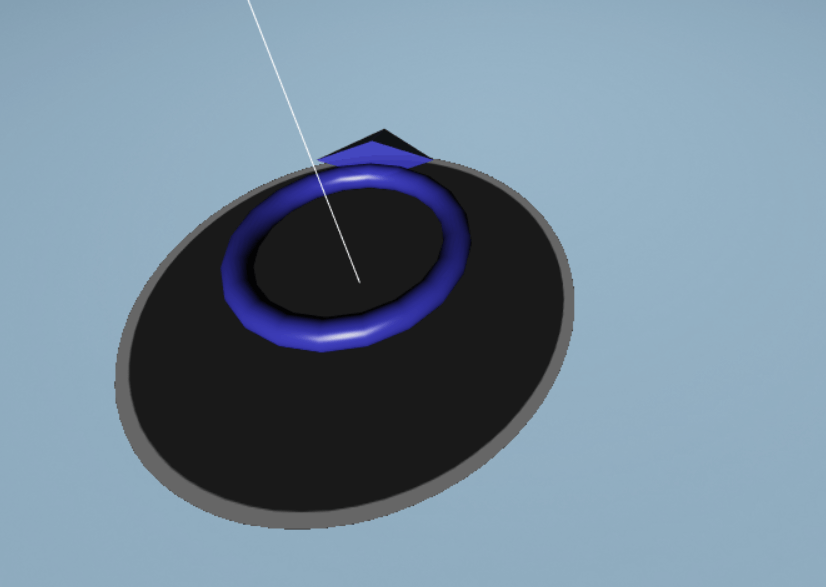
Each part of the teleportation landing zone is configurable:
The landing zone's material
The material of the landing zone (the dark circle on the floor) can be configured when constructing the feature using CSS colors:
const teleportation = featuresManager.enableFeature(WebXRFeatureName.TELEPORTATION, "stable", { xrInput: xr.input, floorMeshes: [ground], defaultTargetMeshOptions: { teleportationFillColor: "#55FF99", teleportationBorderColor: "blue", },});Which looks like this:
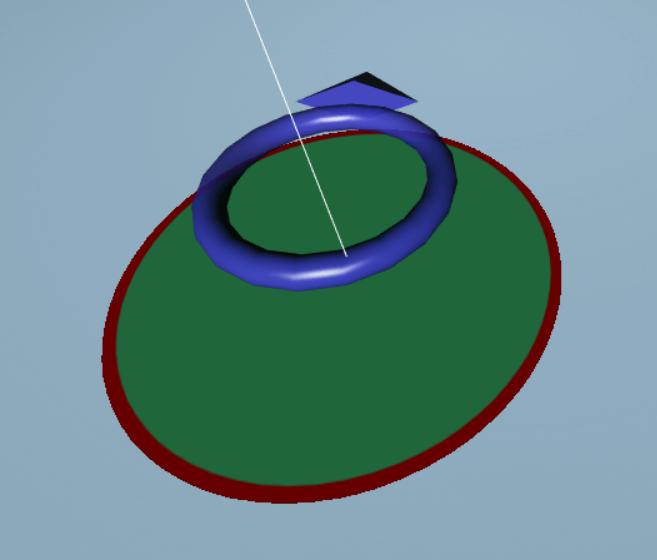
The example can be found here: Custom Landing Zone
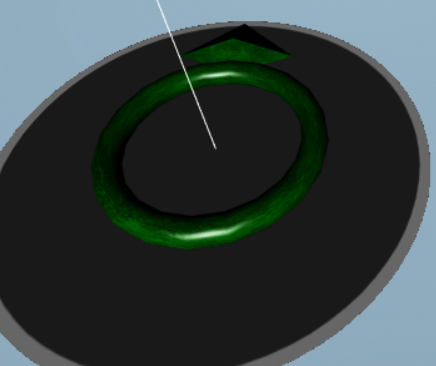
The ring's material
The rotation ring's material can be provided by the user:
import { StandardMaterial } from "@babylonjs/core/Materials/standardMaterial";import { Texture } from "@babylonjs/core/Materials/Textures/texture";import { Color3 } from "@babylonjs/core/Maths/math.color";let myCustomMaterial = new StandardMaterial("ground", scene);myCustomMaterial.backFaceCulling = false;myCustomMaterial.diffuseColor = Color3.Green();myCustomMaterial.diffuseTexture = new Texture("textures/grass.png", scene);const teleportation = featuresManager.enableFeature(WebXRFeatureName.TELEPORTATION, "stable", { xrInput: xr.input, floorMeshes: [ground], defaultTargetMeshOptions: { torusArrowMaterial: myCustomMaterial, },});Will look like this:
Disable the ring up-and-down animation
const teleportation = featuresManager.enableFeature(WebXRFeatureName.TELEPORTATION, "stable", { xrInput: xr.input, floorMeshes: [ground], defaultTargetMeshOptions: { disableAnimation: true, },});And now the ring won't animate up and down when the target zone is cast.
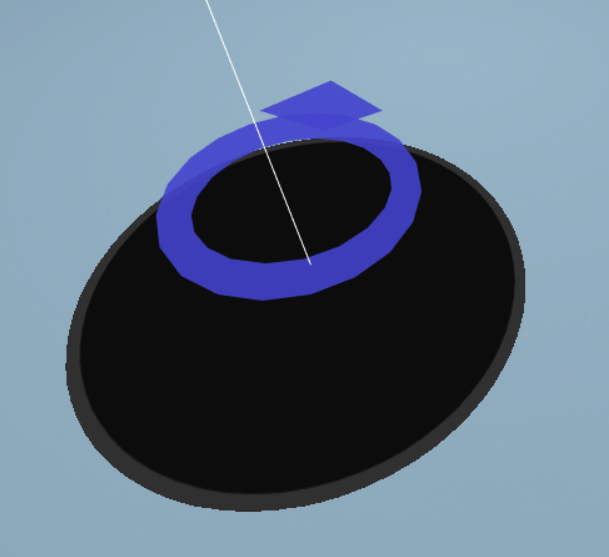
Disable lighting on the ring
To make sure the ring is always visible no matter what the lighting in the scene is, set the disableLighting flag when constructing the feature:
const teleportation = featuresManager.enableFeature(WebXRFeatureName.TELEPORTATION, "stable", { xrInput: xr.input, floorMeshes: [ground], defaultTargetMeshOptions: { disableLighting: true, },});This will look like this with light intensity 0.5:
Rotating while teleporting
It is possible to prevent the user from rotating after casting the initial ray. It is a flag directly on the teleportation object and is called rotationEnabled:
teleportation.rotationEnabled = false;Backwards movement
Backward movement is enabled by default. When the user "pulls" the thumbstick or touchpad backward, they will move a predefined distance if that distance is available on any floor mesh behind them.
To configure the distance to move use the backwardsTeleportationDistance flag:
teleportation.backwardsTeleportationDistance = 1.0; // Default is 0.7To disable backward movement, use this flag:
teleportation.backwardsMovementEnabled = false; // Default is trueRotation in place
When moving the thumbstick left and right (X-axis movement on the thumbstick/touchpad), the user will rotate by a predefined amount. The default rotation is 22.5 degrees (in radians: Math.PI / 8). To change this, use the rotationAngle flag:
// rotate 45 degreesteleportation.rotationAngle = Math.PI / 4;Rendering to a different layer or rendering group
If you want to render the teleportation target zone on top of the rest of the meshes, you can use one of two ways:
- rendering group id (See Rendering groups)
- Utility layer (See UtilityLayerRenderer)
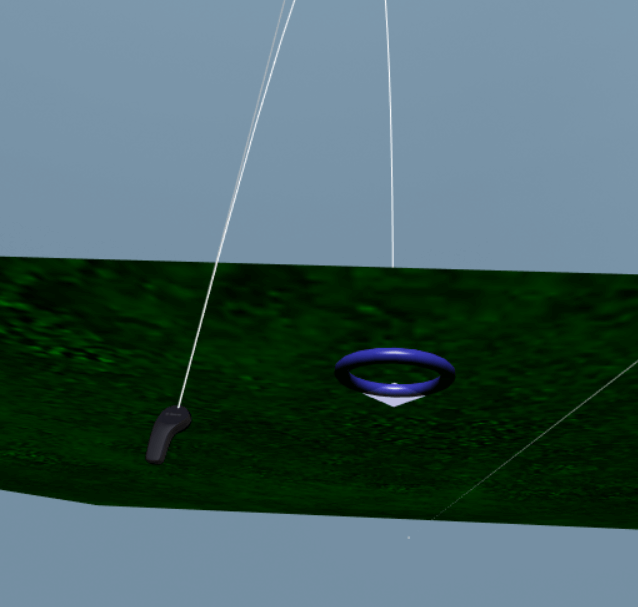
To set the rendering group ID:
const teleportation = featuresManager.enableFeature(WebXRFeatureName.TELEPORTATION, "stable", { xrInput: xr.input, floorMeshes: [ground], renderingGroupId: 1,});This will look like this (notice it renders on top of the ground that should hide it):
To set a utility layer:
const teleportation = featuresManager.enableFeature(WebXRFeatureName.TELEPORTATION, "stable", { xrInput: xr.input, floorMeshes: [ground], useUtilityLayer: true, // optional customUtilityLayerScene: customScene, // a different utility layer scene to use. If not the default utility layer scene will be used});Snap-to (Hotspots)
Some XR experiences require the user to land at an exact location (and sometimes ONLY at exact locations). The teleportation snap-to feature allows you to define spots where the user can land and where the teleportation ray will snap (with a specific threshold).
To enable snap-to points, you can use one of the following:
- provide an array of hotspots (Vector3) to the options when enabling the feature:
import { Vector3 } from "@babylonjs/core/Maths/math.vector";const interestingSpot = new Vector3(-4, 0, 4);const interestingSpot2 = new Vector3(4, 0, 4);const teleportation = featuresManager.enableFeature(WebXRFeatureName.TELEPORTATION, "stable", { xrInput: xr.input, floorMeshes: [ground], snapPositions: [interestingSpot, interestingSpot2],});- Add points after the feature is enabled:
import { Vector3 } from "@babylonjs/core/Maths/math.vector";teleportation.addSnapPoint(new Vector3(0, 0, 6));Note that it is always expected that the snap-to points will be on a mesh that is defined as a floor mesh. Babylon will not check that! If you put the hotspot too far away from a floor mesh, the results will be unexpected (for example, the user might hover).
To change the snap-to radius, use the snapToPositionRadius parameter. The default is 0.8 units, or 80 cm, and it cannot be 0:
import { Vector3 } from "@babylonjs/core/Maths/math.vector";const interestingSpot = new Vector3(-4, 0, 4);const interestingSpot2 = new Vector3(4, 0, 4);const teleportation = featuresManager.enableFeature(WebXRFeatureName.TELEPORTATION, "stable", { xrInput: xr.input, floorMeshes: [ground], snapPositions: [interestingSpot, interestingSpot2], snapToPositionRadius: 1.2,});Now any target zone position within a 1.2-unit radius of one of the snap-to points will move the target zone location to the closest point. You can test it in this playground:

If you want to disable the user's free movement and only let the user land on snap-to points, set snapPointsOnly, either during construction:
import { Vector3 } from "@babylonjs/core/Maths/math.vector";const interestingSpot = new Vector3(-4, 0, 4);const interestingSpot2 = new Vector3(4, 0, 4);const teleportation = featuresManager.enableFeature(WebXRFeatureName.TELEPORTATION, "stable", { xrInput: xr.input, floorMeshes: [ground], snapPositions: [interestingSpot, interestingSpot2], snapToPositionRadius: 1.2, snapPointsOnly: true,});or afterwards:
teleportation.snapPointsOnly = true;The feature will look like this:
You can play around in this playground:
Snap-to Hotspot Example