Introduction To Sprites
Sprites
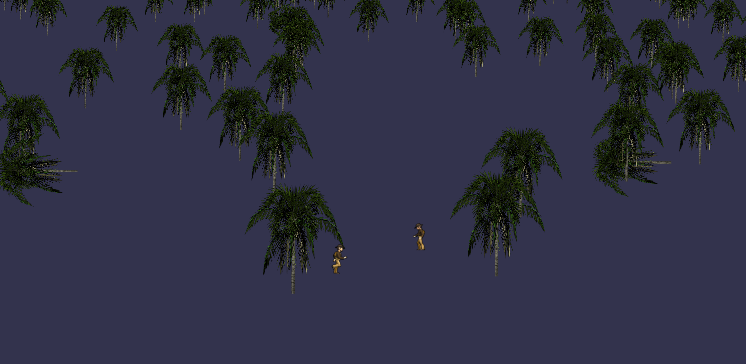
Babylon.js has three ways of managing sprites, the SpriteManager, the SpritePackedManager and the SpriteMap. The first manages a single image file or, for animation, a spritesheet (also called a sprite atlas) of multiple sprite images all of the same size. The second is for a packed spritesheet of different sized sprite images. The third uses a packed spritesheet to form a 2D (or 2.5D) grid of possibly thousands of sprites.
The separate images in a spritesheet of either type are in what are called cells.
The brief overviews on this page are further detailed within this section.
Sprite Manager
For a single sprite image or uniform spritesheet you create a sprite manager.
import { SpriteManager } from "@babylonjs/core/Sprites/spriteManager";const mySpriteManagerTrees = new SpriteManager(name, url, capacity, size, scene); //scene is optional and defaults to the current scene- name - (string) manager name;
- url - (string) path to the image/spritesheet url;
- capacity (number) maximum number of sprite instances in this manager;
- size ({width: number, height: number} | number), width and height or size of a sprite or a cell within a spritesheet;
- scene (scene) optional
Sprite Packed Manager
Available from BJS version 4.1
When your sprite images are of varying sizes you need a packed spritesheet file and a JSON file containing the positional data of the individual sprites within the packed spritesheet. The packed spritesheet file and the JSON file should have the same name and be in the same folder, for example, pack1.png and pack1.json. You can then create a sprite packed manager by either
referencing just the packed spritesheet file
import { SpritePackedManager } from "@babylonjs/core/Sprites/spritePackedManager";const mySpritePackedManager = new SpritePackedManager(name, spritesheet url, capacity, scene); //scene is optional and defaults to the current sceneor a packed spritesheet file and an appropriate JSON object
import { SpritePackedManager } from "@babylonjs/core/Sprites/spritePackedManager";const spm = new SpritePackedManager(name, spritesheet url, capacity, scene, atlasJSON);- name - (string) manager name;
- url - (string) path to the spritesheet url;
- capacity (number) maximum number of sprite instances in this manager;
- scene (scene) optional unless the following parameter is used
- JSONpack (JSON object) optional
Currently the sprite packed manager only uses the cell positional and cell size data from the packed spritesheet.
Sprite Map
Available from BJS version 4.1
When creating a 2D or 2.5D game you often need to render thousands of animated sprites on screen fast. This is beyond the capabilities of either of the sprite managers. The Babylon.js SpriteMap was made for use in this situation. The only current limitation of this sprite mapping system is that sprite positions are fixed to a specific grid dictated by the SpriteMap's initialization parameters.
Note: SpriteMap uses a different JSON format from SpritePackedManager, so their files are not interchangeable. Also, you need to create a texture from the packed spritesheet and pass this rather than a direct path to its URL.
Creating a SpriteMap is simple:
import { SpriteMap } from "@babylonjs/core/Sprites/spriteMap";const mySpriteMap = new SpriteMap(name, atlasJSON, spriteSheetTexture, options, scene);- name - (string) manager name;
- atlasJSON (JSON object) referencing the packed spritesheet;
- spriteTexture - (texture) a texture created from a packed spritesheet;
- options (number) initializing options;
- scene (scene) REQUIRED
The initializing options set up the data buffers in memory and get the system prepared for display. When making changes to any of the options it is recommended that you dispose the map and re-initialize with the correct options.
Pixel perfection
You can use the options object to set options for both sprite managers:
export interface SpriteManagerOptions { spriteRendererOptions: SpriteRendererOptions;}This way you can set options for the sprite renderer:
export interface SpriteRendererOptions { pixelPerfect?: boolean;}Setting pixelPerfect to true instantiates the sprite renderer in pixel-perfect mode. Creating the renderer in pixel-perfect mode is faster than creating it in non-pixel-perfect mode and setting its pixelPerfect property to true.
Example:
import { SpriteManager } from "@babylonjs/core/Sprites/spriteManager";const spriteManagerPlayer = new SpriteManager("playerManager", "sprite_url.png", 3, { width: 32, height: 32,}, scene, 0.003, undefined, undefined, undefined, { spriteRendererOptions: { pixelPerfect: true }});