Render Scenes To Video.
Record a Scene to a Video
First, you may ask why it is better than an external video capture tool.
As the HTML5 standard continues to evolve, modern browsers can now directly record a stream generated from a canvas. This ensures that no framerate drop occurs during recording, and it all happens automatically in the browser.
How to record with the Inspector
A new action has been added to the Tools tab of the inspector. You can find a Start Recording Video button in compatible browsers.
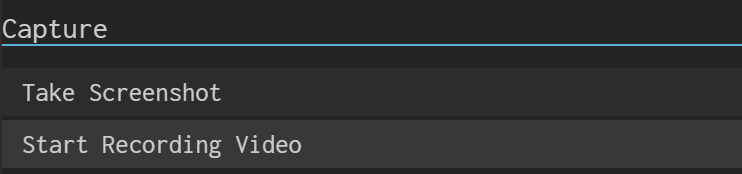
This records 7 seconds of video by default. You can press the button again at any time during the recording session to stop it earlier.
How to record by code
Check support
Because browser support is still limited, recording the canvas should always be preceded by a capability check. You can use this code to ensure that the required APIs are available in your browser:
import { VideoRecorder } from "@babylonjs/core/Misc/videoRecorder";if (VideoRecorder.IsSupported(engine)) { var recorder = new VideoRecorder(engine);}Simple Record
In order to record your currently displayed scene, you can simply use this code:
import { VideoRecorder } from "@babylonjs/core/Misc/videoRecorder";if (VideoRecorder.IsSupported(engine)) { var recorder = new VideoRecorder(engine); recorder.startRecording();}You can see a Simple Video Recording Example
This will by default record 7 seconds of video to a file name "babylonjs.webm".
Changing default File Name
You can pass the file name to the startRecording API:
import { VideoRecorder } from "@babylonjs/core/Misc/videoRecorder";if (VideoRecorder.IsSupported(engine)) { var recorder = new VideoRecorder(engine); recorder.startRecording("test.webm");}You can see a live version here: Changing The Default Recorded Video Name
This will by default record 7 seconds of video to a file name "test.webm".
Changing default Record Time
You can pass the default time in seconds to the startRecording API:
import { VideoRecorder } from "@babylonjs/core/Misc/videoRecorder";if (VideoRecorder.IsSupported(engine)) { var recorder = new VideoRecorder(engine); recorder.startRecording("test.webm", 2);}You can see a live demo here: Chaning Default Record Time
This will by default record 2 seconds of video to a file name "test.webm".
Stop video before the Record Time
Once a recording is in progress, you can stop it earlier by using the stopRecording API:
import { VideoRecorder } from "@babylonjs/core/Misc/videoRecorder";if (VideoRecorder.IsSupported(engine)) { var recorder = new VideoRecorder(engine); recorder.startRecording(); setTimeout(() => { recorder.stopRecording(); }, 500);}You can see a live version here: Stopping Video Before Record Time
This will record 500 milliseconds of video to a file name "babylonjs.webm".
When does recording end
To detect the end of the recording (either by reaching the record time or being manually stopped), you can use the promise returned by the startRecording API:
import { VideoRecorder } from "@babylonjs/core/Misc/videoRecorder";if (VideoRecorder.IsSupported(engine)) { var recorder = new VideoRecorder(engine); recorder.startRecording().then(() => { alert("done"); });}You can see a live version here: Detect Recording End
This will record 7 seconds of video to a file name "babylonjs.webm" and display the "done" message.
How not to download the file automatically
Passing null as the fileName will prevent the download from happening automatically and, as in the previous section, you can rely on the promise returned by startRecording to deal with the video data on your own:
import { VideoRecorder } from "@babylonjs/core/Misc/videoRecorder";if (VideoRecorder.IsSupported(engine)) { var recorder = new VideoRecorder(engine); recorder.startRecording(null, 1).then((videoBlob) => { // Do Something with the videoBlob. });}You can see a live version here: Not Downloading The Recorded Video
This will record 1 second of video to a blob.
Limitations
Video recording is based on both the MediaRecorder and Canvas.captureStream() APIs, which are still not broadly supported. Recording support is therefore limited by the browser's ability to record a canvas.
The second limitation is that the file format you can record to is currently limited to webm. You cannot directly record to .mp4 or .mov with this method so far.
Let's hope that wider browser and file format support will be added soon.