Applying Delta Changes To A Scene
Starting with Babylon.js v4.2, you have the opportunity to apply delta changes to a scene. This means you can "record" all changes made to a scene and later reapply them.
This is particularly useful when you load a scene from a .babylon or a .gltf file and want to apply changes to it without re-exporting the scene from your DCC tool.
Recording the changes
To record changes done to a scene, you simply have to create a new SceneRecorder and call its track() function:
import { SceneRecorder } from "@babylonjs/core/Misc/sceneRecorder";var recorder = new SceneRecorder();recorder.track(scene);This will mark the origin of the changes, e.g. the original state of your scene. All changes made after that call (well, almost all—please check the limitations chapter below) will be tracked and available in the delta file.
Applying the changes
Once you're done with the changes you want to record, you can get the delta file with this call:
var delta = recorder.getDelta();The returned value is a JSON object that you can download or reuse later.
To download it, you can leverage the Tools class:
import { Tools } from "@babylonjs/core/Misc/tools";Tools.Download(JSON.stringify(delta), "delta.json");If you want to apply it to your scene, you can call this static function:
import { SceneRecorder } from "@babylonjs/core/Misc/sceneRecorder";SceneRecorder.ApplyDelta(delta, scene);Example
Let's have a look at an example to see it in action:
import { FreeCamera } from "@babylonjs/core/Cameras/freeCamera";import { HemisphericLight } from "@babylonjs/core/Lights/hemisphericLight";import { Vector3 } from "@babylonjs/core/Maths/math.vector";import { MeshBuilder } from "@babylonjs/core/Meshes/meshBuilder";import { SceneRecorder } from "@babylonjs/core/Misc/sceneRecorder";import { Scene } from "@babylonjs/core/scene";var scene = new Scene(engine);var camera = new FreeCamera("camera1", new Vector3(0, 5, -10), scene);camera.setTarget(Vector3.Zero());camera.attachControl(canvas, true);var light = new HemisphericLight("light", new Vector3(0, 1, 0), scene);light.intensity = 0.7;var sphere = MeshBuilder.CreateSphere("sphere", { diameter: 2, segments: 32 }, scene);sphere.position.y = 1;var ground = MeshBuilder.CreateGround("ground", { width: 6, height: 6 }, scene);// Instantiate the recordervar recorder = new SceneRecorder();recorder.track(scene);// Let's make some changessphere.position.y = 0;scene.clearColor.r = 1;light.intensity = 0;var light2 = new HemisphericLight("light2", new Vector3(0, 1, 0), scene);ground.dispose();// Now we can get the delta filelet delta = recorder.getDelta();// Just to see the changes, we are updating the value so we can see what the delta is doingground = MeshBuilder.CreateGround("ground", { width: 6, height: 6 }, scene);light2.dispose();sphere.position.y = 2;scene.clearColor.r = 0;light.intensity = 1.0;// Apply the deltaSceneRecorder.ApplyDelta(delta, scene);You can play with this code on this Playground: Delta System Example
Using the Inspector
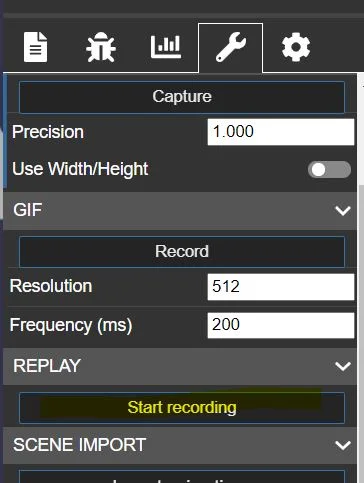
You can also use the Inspector to record your delta. To do so, jump to the Tools tab and select the [Start recording] button in the Replay section:
When you are done with your recording, go to the same place and hit the [Generate delta file]:
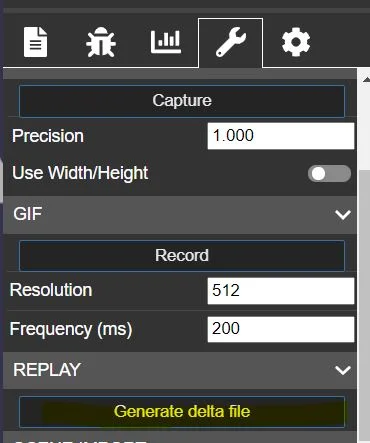
This will download the file locally.
Limitations
The recorder has some limitations:
- It will only record simple values (arrays, colors, vectors, booleans, numbers)
- It will not record large state changes like:
- Updating the material property of a mesh
- Updating the skeleton property of a mesh
- Updating mesh's geometry