Highlighting Meshes
How To Highlight a Mesh
How often have you wanted to highlight some of your meshes in a scene? It sounds easy at first, but it quickly becomes an issue when dealing with edges, blur, and antialiasing.
If you ever needed it, this tutorial is made for you.
How to use?
Before anything else, you must ensure that your engine was created with the stencil buffer enabled:
import { Engine } from "@babylonjs/core/Engines/engine";const engine = new Engine(canvas, true, { stencil: true });The HighlightLayer relies on stencil to determine which part of the image it needs to paint.
Default Use Case
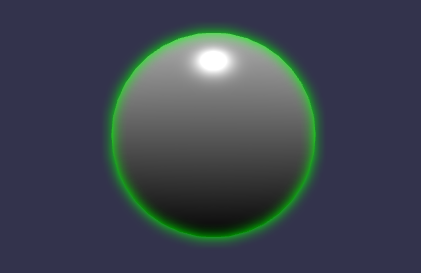
In the most basic case, you only need to instantiate one highlight layer in your scene and add the meshes you want to highlight to it.
import { HighlightLayer } from "@babylonjs/core/Layers/highlightLayer";import { Color3 } from "@babylonjs/core/Maths/math.color";// Add the highlight layer.const hl = new HighlightLayer("hl1", scene);hl.addMesh(sphere, Color3.Green());The highlight color is driven by the second parameter of the addMesh method:
Stop highlighting a Mesh
If one highlighted mesh no longer needs highlighting, you can simply remove it from the layer:
import { HighlightLayer } from "@babylonjs/core/Layers/highlightLayer";import { Color3 } from "@babylonjs/core/Maths/math.color";// Add the highlight layer.const hl = new HighlightLayer("hl1", scene);hl.addMesh(sphere, Color3.Green());hl.removeMesh(sphere);Emissive Input
If you wish, you can also use the emissive texture as a source for the highlight color. Simply pass true as the third parameter of the addMesh method.
import { Color3 } from "@babylonjs/core/Maths/math.color";hl1.addMesh(sphere, Color3.Black(), true);You can notice here that one side of the sphere is glowing in yellow, whereas the other is gray. The color is not uniform.
Going further
Overlapping Highlights
The first thing you will probably notice is that overlapping highlighted meshes do not show highlights in shared areas.
import { HighlightLayer } from "@babylonjs/core/Layers/highlightLayer";import { Color3 } from "@babylonjs/core/Maths/math.color";// Add the highlight layer.const hl = new HighlightLayer("hl1", scene);hl.addMesh(sphere, Color3.Green());hl.addMesh(ground, Color3.Red());This is the default behavior, optimized for performance. If you are running your scenes on a fast enough machine, you can create several highlight layers to work around the issue:
import { HighlightLayer } from "@babylonjs/core/Layers/highlightLayer";import { Color3 } from "@babylonjs/core/Maths/math.color";// Add the highlight layer.const hl1 = new HighlightLayer("hl1", scene);hl1.addMesh(sphere, Color3.White());const hl2 = new HighlightLayer("hl2", scene);hl2.addMesh(ground, Color3.Red());Blur Size
The next question you will probably have is whether you can animate the blur size of the highlight. You can dynamically change it at runtime through the blur size properties of the layer:
import { HighlightLayer } from "@babylonjs/core/Layers/highlightLayer";import { Color3 } from "@babylonjs/core/Maths/math.color";// Add the highlight layer.const hl2 = new HighlightLayer("hl2", scene);hl2.addMesh(ground, Color3.Red());const alpha = 0;scene.registerBeforeRender(() => { alpha += 0.06; hl2.blurHorizontalSize = 0.3 + Math.cos(alpha) * 0.6 + 0.6; hl2.blurVerticalSize = 0.3 + Math.sin(alpha / 3) * 0.6 + 0.6;});Inner vs Outer Glow
Finally, you can easily enable/disable inner and outer glow on the highlight layer.
import { HighlightLayer } from "@babylonjs/core/Layers/highlightLayer";import { Color3 } from "@babylonjs/core/Maths/math.color";// Add the highlight layer.const hl1 = new HighlightLayer("hl1", scene);hl1.addMesh(sphere, Color3.White());hl1.outerGlow = false;const hl2 = new HighlightLayer("hl2", scene);hl2.addMesh(ground, Color3.Red());hl2.innerGlow = false;In the previous scene, you can notice the white glow only inside the sphere and the red glow only outside the plane.
Exclude mesh
Depending on your scene, transparent meshes may not render correctly with other highlighted meshes:
Broken Transparency Mesh HighlightIn that case, try to exclude them from the highlight generation process in order to fix this:
hl.addExcludedMesh(skybox1);Multi Camera
By default, the highlight layer applies to all active cameras, but this creates extra processing on cameras where it is not needed.
You can easily specify what camera your highlights are related to in the options:
import { HighlightLayer } from "@babylonjs/core/Layers/highlightLayer";import { Color3 } from "@babylonjs/core/Maths/math.color";const hl1 = new HighlightLayer("hl1", scene, { camera: camera });hl1.addMesh(sphere, Color3.Green());Rendering Groups
If you rely on rendering groups in your application, be mindful that highlights require stencil and depth information from your scene to work accurately.
So you could disable the clear between rendering groups with the command: scene.setRenderingAutoClearDepthStencil(1, false, false) where the first parameter is the rendering group id, the second to prevent automatically clearing depth between groups and the last to prevent automatically clearing stencil information between groups.
Options
The available members of the option object are:
- mainTextureRatio?: number - Multiplication factor applied to the canvas size to compute the render target size used to generate the glowing objects (the smaller, the faster).
- mainTextureFixedSize?: number - Enforces a fixed size texture to ensure resize independent blur.
- blurTextureSizeRatio?: number - Multiplication factor applied to the main texture size in the first step of the blur to reduce the size of the picture to blur (the smaller, the faster).
- blurVerticalSize?: number - How big in texel of the blur texture is the vertical blur.
- blurHorizontalSize?: number - How big in texel of the blur texture is the horizontal blur.
- alphaBlendingMode?: number - Alpha blending mode used to apply the blur. Default is combine.
- camera?: Camera - The camera attached to the layer (only this camera can see the highlights).
- isStroke?: boolean - Should we display highlight as a solid stroke?
You can pass them during the construction of the highlight layer:
import { HighlightLayer } from "@babylonjs/core/Layers/highlightLayer";const hl1 = new HighlightLayer("hl1", scene, { camera: myCamera });