Introduction to Physically Based Rendering
Introduction
The aim of Physically Based Rendering, PBR, is to simulate real life lighting.
PBR is a grouping of techniques; it does not force you to choose one in particular. Among others, these include:
In Babylon.js, PBR is implemented through PBRMaterial. This material contains all the features required by modern physically based rendering. On this page, we look at two pre-set simplified versions that allow you to quickly get started with PBR.
You can find a demonstration of the effect of using the PBRMaterial from the main Babylon.js website.
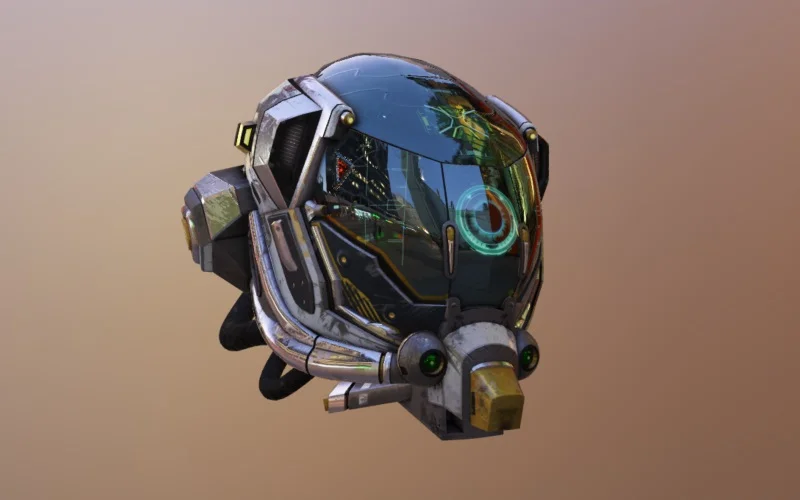
The two additional materials are PBRMetallicRoughnessMaterial and PBRSpecularGlossinessMaterial. They both implement a specific convention based on GLTF specifications:
- Metallic roughness convention (This is the recommended convention)
- Specular glossiness convention
PBRMetallicRoughnessMaterial
This material is based on five main values:
- baseColor / baseTexture: The base color has two different interpretations depending on the value of metalness. When the material is a metal, the base color is the specific measured reflectance value at normal incidence (F0). For a non-metal the base color represents the reflected diffuse color of the material.
- metallic: Specifies the metallic scalar value of the material. Can also be used to scale the metalness values of the metallic texture.
- roughness: Specifies the roughness scalar value of the material. Can also be used to scale the roughness values of the metallic texture.
- metallicRoughnessTexture: Texture containing both the metallic value in the B channel and the roughness value in the G channel to keep better precision. Ambient occlusion can also be saved in R channel.
- environmentTexture: texture
If you are already familiar with the Babylon Standard Material, we'll focus here on the main differences and the simplest setup; your only change will be to instantiate a PBRMetallicRoughnessMaterial instead of a StandardMaterial.
import { PBRMetallicRoughnessMaterial } from "@babylonjs/core/Materials/PBR/pbrMetallicRoughnessMaterial";const pbr = new PBRMetallicRoughnessMaterial("pbr", scene);Apply this material to the object of your choice, e.g.:
sphere.material = pbr;Now you can define the physically based values of your material to get a great look and feel:
import { Color3 } from "@babylonjs/core/Maths/math.color";pbr.baseColor = new Color3(1.0, 0.766, 0.336);pbr.metallic = 0;pbr.roughness = 1.0;With this specific configuration, you can see that there is no reflection at all (metallic set to 0) and no specular (roughness set to 1).
If we want to introduce more reflection we can just do the opposite:
import { Color3 } from "@babylonjs/core/Maths/math.color";pbr.baseColor = new Color3(1.0, 0.766, 0.336);pbr.metallic = 1.0;pbr.roughness = 0;But in this case, we need something to reflect. To define this environment, just add this line:
import { CubeTexture } from "@babylonjs/core/Materials/Textures/cubeTexture";pbr.environmentTexture = CubeTexture.CreateFromPrefilteredData("/textures/environment.dds", scene);This call will create all required data used by the materials to produce final output.
Reflective Metallic Surface Using PBRPerhaps a bit too reflective now, so let's add more roughness to give it a more golden look:
import { CubeTexture } from "@babylonjs/core/Materials/Textures/cubeTexture";import { Color3 } from "@babylonjs/core/Maths/math.color";pbr.baseColor = new Color3(1.0, 0.766, 0.336);pbr.metallic = 1.0;pbr.roughness = 0.4;pbr.environmentTexture = CubeTexture.CreateFromPrefilteredData("/textures/environment.dds", scene);To get more precise control over the metallic and roughness values on your object, you can also specify the metallicRoughnessTexture:
import { CubeTexture } from "@babylonjs/core/Materials/Textures/cubeTexture";import { Texture } from "@babylonjs/core/Materials/Textures/texture";import { Color3 } from "@babylonjs/core/Maths/math.color";pbr.baseColor = new Color3(1.0, 0.766, 0.336);pbr.metallic = 1.0; // set to 1 to only use it from the metallicRoughnessTexturepbr.roughness = 1.0; // set to 1 to only use it from the metallicRoughnessTexturepbr.environmentTexture = CubeTexture.CreateFromPrefilteredData("/textures/environment.dds", scene);pbr.metallicRoughnessTexture = new Texture("/textures/mr.jpg", scene);PBRSpecularGlossinessMaterial
This material is based on five main values:
- diffuseColor / diffuseTexture: Specifies the diffuse color of the material.
- specularColor: Specifies the specular color of the material. This indicates how reflective the material is (none to mirror).
- glossiness: Specifies the glossiness of the material. This indicates "how sharp is the reflection".
- specularGlossinessTexture: Specifies both the specular color RGB and the glossiness A of the material per pixel.
- environmentTexture: texture
The setup of this material is comparable to the one used for PBRMetallicRoughnessMaterial:
import { PBRSpecularGlossinessMaterial } from "@babylonjs/core/Materials/PBR/pbrSpecularGlossinessMaterial";import { CubeTexture } from "@babylonjs/core/Materials/Textures/cubeTexture";import { Color3 } from "@babylonjs/core/Maths/math.color";const pbr = new PBRSpecularGlossinessMaterial("pbr", scene);pbr.diffuseColor = new Color3(1.0, 0.766, 0.336);pbr.specularColor = new Color3(1.0, 0.766, 0.336);pbr.glossiness = 0.4;pbr.environmentTexture = CubeTexture.CreateFromPrefilteredData("/textures/environment.dds", scene);The specularGlossinessTexture can then, like the metallicRoughnessTexture, be used to provide more control over specular and glossiness:
import { CubeTexture } from "@babylonjs/core/Materials/Textures/cubeTexture";import { Texture } from "@babylonjs/core/Materials/Textures/texture";import { Color3 } from "@babylonjs/core/Maths/math.color";pbr.diffuseColor = new Color3(1.0, 0.766, 0.336);pbr.specularColor = new Color3(1.0, 1.0, 1.0);pbr.glossiness = 1.0;pbr.environmentTexture = CubeTexture.CreateFromPrefilteredData("/textures/environment.dds", scene);pbr.specularGlossinessTexture = new Texture("/textures/sg.png", scene);Light setup
Dynamic lights are an important part of your PBR setup. You can decide to have no light and only use the environment texture to light your scene or you can decide to add additional light sources to enhance your rendering.
By default, light intensities are computed using the inverse squared distance from the source. This is a type of falloff that is pretty close to how light behaves in real life. So, the farther you are, the higher your light intensity will need to be to reach a surface.
To go even further, the intensity you define on the lights follows physics-based units:
- Point and Spot lights are defined in luminous intensity (candela, m/sr)
- Directional and Hemispheric lights in illuminance (nit, cd/m2)
You'll find more info about how dynamic lighting works in Mastering PBR, but first we look at using high dynamic range (HDR) with PBR.