Flow Graph Examples and Write Your Own
Flow Graph Examples
As stated previously, the flow graph is a perfect match for a visual editor. However, if you want to use the flow graph in code, you will need to write your own graphs.
This section will show you how to write your own graphs using code. Let's start with a few basic examples.
Example 1: Simple output to the console
This flow graph logs a message on the console when the scene is loaded.
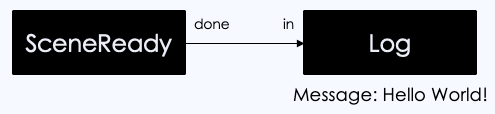
const coord = new FlowGraphCoordinator({ scene });
const graph = coord.createGraph();
const ctx = graph.createContext();
const sceneReady = new FlowGraphSceneReadyEventBlock();graph.addEventBlock(sceneReady);
const log = new FlowGraphConsoleLogBlock();log.message.setValue("Hello, world!", ctx);sceneReady.done.connectTo(log.in);
coord.start();Example 2: Simple output to the console using a GetVariable block
This flow graph logs a message on the console when the scene is loaded. The message is stored in a variable on the context and can be reused.
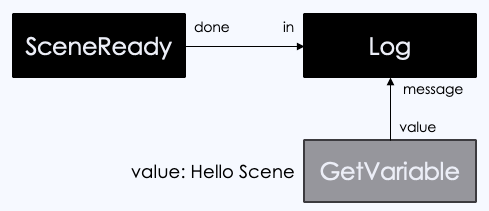
const coord = new FlowGraphCoordinator({ scene });const graph = coord.createGraph();graph.createContext();const sceneReady = new FlowGraphSceneReadyEventBlock();graph.addEventBlock(sceneReady);
const log = new FlowGraphConsoleLogBlock();const getVariableBlock = new FlowGraphGetVariableBlock({  variable: "sceneReadyLogMessage",  initialValue: "Hello Scene",});log.message.connectTo(getVariableBlock.value);sceneReady.done.connectTo(log.in);
coord.start();Example 3 - Position interpolation using the animation and interpolation blocks
This flow graph animates a sphere from one position to another using the animation and interpolation blocks.
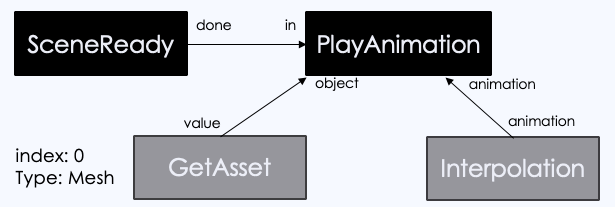
const coord = new FlowGraphCoordinator({ scene });const graph = coord.createGraph();const context = graph.createContext();const sceneReady = new FlowGraphSceneReadyEventBlock();graph.addEventBlock(sceneReady);
const interpolationBlock = new FlowGraphInterpolationBlock({  animationType: Constants.ANIMATIONTYPE_VECTOR3,  duration: 1,  propertyName: "position",});interpolationBlock.endValue.setValue(new Vector3(1, 2, 3), context);
const assetToWorkOn = new FlowGraphGetAssetBlock({  type: FlowGraphAssetType.Mesh,  index: 0,});
const playAnimation = new FlowGraphPlayAnimationBlock();playAnimation.object.connectTo(assetToWorkOn.value);playAnimation.animation.connectTo(interpolationBlock.animation);
sceneReady.done.connectTo(playAnimation.in);
coord.start();Example 4 - Multiple contexts running the same interpolation graph
This flow graph moves the two assets in the scene using the same interpolation graph.
const coord = new FlowGraphCoordinator({ scene });const graph = coord.createGraph();const sceneReady = new FlowGraphSceneReadyEventBlock();graph.addEventBlock(sceneReady);
const ctx1 = graph.createContext();ctx1.setVariable("assetToWorkOn", sphere);ctx1.setVariable("endPosition", new Vector3(1, 2, 3));const ctx2 = graph.createContext();ctx2.setVariable("assetToWorkOn", ground);ctx2.setVariable("endPosition", new Vector3(-3, -2, 1));
const getVariableBlock = new FlowGraphGetVariableBlock({  variable: "sceneReadyLogMessage",  initialValue: "Hello Scene",});
var log = new FlowGraphConsoleLogBlock();sceneReady.done.connectTo(log.in);log.message.connectTo(getVariableBlock.value);
// start an interpolation animationconst interpolationBlock = new FlowGraphInterpolationBlock({  animationType: Constants.ANIMATIONTYPE_VECTOR3,  duration: 1,  propertyName: "position",});
const endPosition = new FlowGraphGetVariableBlock({  variable: "endPosition",});
interpolationBlock.keyFrames[0].value.connectTo(endPosition.value);
const asset = new FlowGraphGetVariableBlock({  variable: "assetToWorkOn",});
const playAnimation = new FlowGraphPlayAnimationBlock();
playAnimation.object.connectTo(asset.value);playAnimation.animation.connectTo(interpolationBlock.animation);
sceneReady.done.connectTo(playAnimation.in);
coord.start();