Animation Retargeting
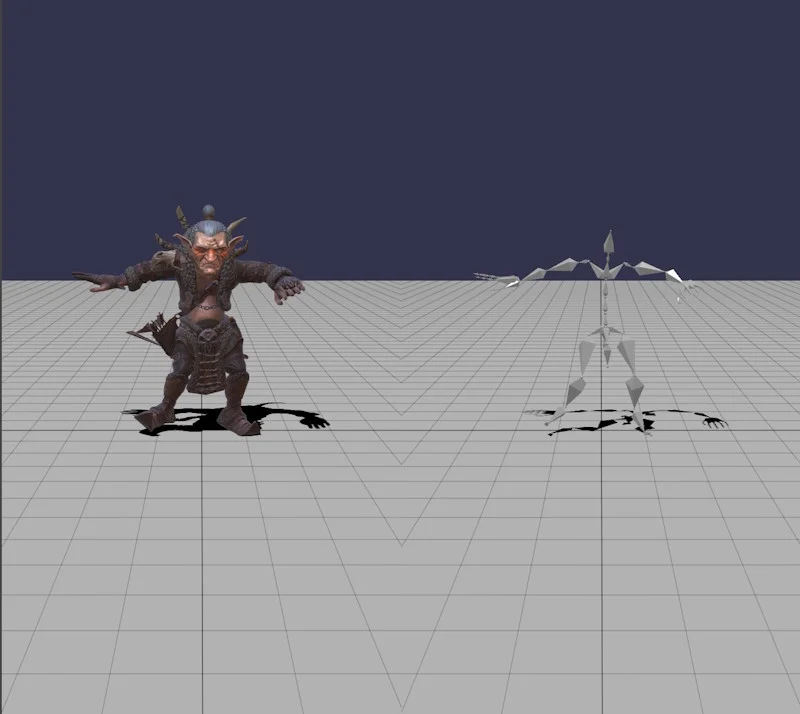
What is animation retargeting?
Animation retargeting is the process of applying an animation created for one character (the source) to a different character (the target) that may have a different skeleton structure, bone proportions, or naming conventions. In 3D game development and animation pipelines, it is common to reuse motion capture data or authored animations across multiple characters rather than creating unique animations for each one. Without retargeting, an animation designed for a tall humanoid would look incorrect on a shorter or differently proportioned character: limbs would clip through geometry, feet would float above the ground, or the character would slide unnaturally. Retargeting solves this by mathematically remapping each animated bone transform from the source skeleton to the corresponding bone in the target skeleton, compensating for differences in reference pose, bone length, and hierarchy. This makes it possible to share a library of locomotion, combat, or facial animations across many characters while preserving the intent of the original motion.
How does it work?
In Babylon.js, the retargeting process operates in several sequential steps.
Name mapping and bone lookup
The source animation group is first cloned. For each targeted animation in the clone, the method looks up the corresponding target in the avatar by name. Transform node animations (position, rotationQuaternion, scaling) are matched against the avatar's bones: a bone is considered a match if its linked transform node name equals the source node name, or, if the bone has no linked transform node, if the bone name itself matches. Morph target animations (influence) are matched by the mesh name and morph target name pair. Any animation whose target cannot be matched is removed from the group.
Keyframe transform compensation (retargetAnimationKeys)
Once a bone match is found, the keyframe values of the animation are adjusted to account for the difference in reference pose between the source and target skeletons. For each keyframe value expressed in the local space of the source bone, the following change of basis is applied:
where and are the world matrices of the target and source bones in their respective reference poses, and , are their parent world matrices. This remaps the local transform from the source bone's reference frame into the target bone's reference frame, so the target bone reproduces the same world-space motion as the source.
Root position scaling (fixRootPosition)
To compensate for overall size differences between the two characters, the positional keyframes of the root bone are rescaled. The method plays both the source and retargeted animations frame by frame. At each frame it measures the world-space displacement of the source root bone relative to its reference pose position, scales that displacement by the proportion ratio
where and are the distances along the vertical axis from the root bone to the ground reference bone in their respective reference poses, and then writes the scaled position into the corresponding retargeted keyframe. This ensures that a shorter or taller character travels the same apparent distance per step.
Ground reference correction (fixGroundReference, fixGroundReferenceDynamicRefNode)
When the foot-to-hip height of the target avatar differs from that of the source even after proportional scaling, the character can still float or sink. The ground reference pass corrects this by iterating over the root position keyframes again. At each frame it advances both animations, reads the world-space positions of the ground reference bones in both skeletons, and subtracts the vertical difference from the retargeted root position keyframe. This pins the ground reference bone to the same vertical world position as its source counterpart at every frame.
When fixGroundReferenceDynamicRefNode is also true, the pass does not assume that the configured ground reference bone is always the lowest point of the character. At each frame it scans all retargeted bones and, if any bone is further below the root than the ground reference bone at that frame, it uses that lower bone as the effective ground reference for that keyframe instead. This makes the correction robust to animations where the configured reference bone (e.g. a toe) is temporarily lifted off the ground while another part of the skeleton is lower (e.g. during a kick or a crouch).
Animation fix-up (fixAnimations)
As a final optional pass, the method inspects every pair of consecutive quaternion keyframes. If two consecutive quaternions are orthogonal to each other — which in practice is almost always a data error — the second quaternion is replaced with a copy of the first, preventing sudden large rotation jumps during playback.
The retargetAnimationGroup method
Available since Babylon.js v9.0, the AnimatorAvatar class provides the retargetAnimationGroup method to retarget a source animation group so that it drives the bones of the avatar's skeleton(s) and the morph targets of its morph target manager(s). Retargeting is name-based: the method matches the names of the TransformNode targets in the source animation against the names of the bones (matched either by their linked transform node name or directly by the bone name) and morph targets in the avatar. Any targeted animation whose name has no corresponding bone or morph target in the avatar is removed from the resulting group. The method returns a new AnimationGroup; the source group is not modified.
The AnimatorAvatar class exposes a showWarnings property (boolean, default true) that controls whether warnings are emitted during retargeting. When true, various diagnostic messages may be logged via Logger.Warn throughout the retargeting process. Set it to false to suppress these messages in production.
Method signature and parameters
retargetAnimationGroup( sourceAnimationGroup: AnimationGroup, options?: IRetargetOptions): AnimationGroup| Parameter | Type | Required | Description |
|---|---|---|---|
sourceAnimationGroup | AnimationGroup | Yes | The animation group to retarget. It must animate TransformNode targets (e.g. loaded from a glTF file). |
options | IRetargetOptions | No | An optional object controlling how the retargeting is performed. All properties are optional. |
Options
animationGroupName (string, default: source group name) The name to assign to the newly created, retargeted animation group. If omitted, the name of the source animation group is reused.
fixAnimations (boolean, default: false)
When true, the retargeted animations are post-processed to correct a known issue where two consecutive quaternion keyframes are orthogonal to each other. When this occurs it is almost always an error in the animation data, since two consecutive rotations should normally be close to one another. The fix replaces the second quaternion with a copy of the first. Enable this option if the retargeted character shows sudden, unexpected rotation jumps.
checkHierarchy (boolean, default: false)
When true, the parent-child hierarchy of bones and transform nodes is verified during retargeting. Animations whose source nodes have a different parent hierarchy from the corresponding target bones are removed from the retargeted group. This stricter matching helps avoid incorrect animations being applied when skeletons share bone names but have structurally different hierarchies.
retargetAnimationKeys (boolean, default: true)
When true, the keyframe values of each animation are adjusted to account for differences in the reference pose transforms between the source and target bones. This is the core of the retargeting process and should almost always be left enabled. Disabling it produces a purely name-based remap with no transform compensation, which is useful for debugging or for morph-target-only animation groups.
fixRootPosition (boolean, default: true)
When true, the root bone's positional animation is scaled to account for proportional size differences between the source and target avatars. This ensures that a character taller or shorter than the source still travels the correct distance per step. Requires that a root bone can be identified, either via rootNodeName or by auto-detection as the first bone without a parent.
fixGroundReference (boolean, default: false)
When true, the root position animation is corrected for any vertical offset caused by differences in the ground contact height between the source and target avatars. This prevents the character from floating above or sinking into the ground when the source and target rigs have different foot-to-hip distances in their reference pose. Requires groundReferenceNodeName to be set. This option is independent of fixRootPosition; either or both can be enabled.
fixGroundReferenceDynamicRefNode (boolean, default: false)
When true (and fixGroundReference is also true), the ground reference correction no longer assumes that the configured reference bone is always the lowest point of the character. At each keyframe the system scans all retargeted bones and selects whichever bone is furthest below the root in the vertical direction as the effective ground reference for that frame. This makes the ground correction work correctly for animations where the configured reference bone is temporarily lifted off the ground while another part of the skeleton is lower (e.g. walking, running, or kicking). Has no effect if fixGroundReference is false.
rootNodeName (string, default: auto-detect)
The name of the transform node in the source animation that represents the root of the skeleton hierarchy, typically "Hips". If not provided, the system automatically selects the first bone without a parent. Specifying this explicitly is recommended when the source skeleton has an unusual structure or when auto-detection picks the wrong node.
groundReferenceNodeName (string, default: undefined)
The name of the transform node used as the ground contact reference, typically a foot bone such as "LeftFoot" or "RightFoot". This node is used to compute the vertical offset needed to keep the character grounded when fixGroundReference or fixRootPosition is enabled. There is no auto-detection for this property; it must be set explicitly whenever those options are used.
groundReferenceVerticalAxis ("" | "X" | "Y" | "Z", default: auto-detect)
Identifies which world axis is the vertical (up) axis in the animation space. Pass "X", "Y", or "Z" to set it explicitly. Passing "" or omitting the property lets the system auto-detect the axis by inspecting the vector from the root node to the ground reference node in the source animation.
mapNodeNames (Map<string, string>, default: undefined)
A map that translates source transform node names to target bone names. The keys are the node names as they appear in the source animation group; the values are the corresponding names expected in the target avatar's skeleton. Use this when the source and target rigs use different naming conventions (e.g. the source uses "mixamorig:Hips" while the target uses "Hips"). Nodes not present in the map are matched by their original name.
Example
Here is the code required to retarget an animation on a character's mesh:
import { AnimatorAvatar } from "@babylonjs/core/Animations/animatorAvatar";const avatar = new AnimatorAvatar("hero", heroRootNode);const retargeted = avatar.retargetAnimationGroup(sourceGroup, { animationGroupName: "hero_walk", retargetAnimationKeys: true, fixRootPosition: true, fixGroundReference: true, rootNodeName: "Hips", groundReferenceNodeName: "LeftFoot", mapNodeNames: new Map([ ["mixamorig:Hips", "Hips"], ["mixamorig:LeftFoot", "LeftFoot"], ["mixamorig:RightFoot", "RightFoot"], ]),});retargeted.play(true);This PG shows a concrete example of retargeting:
Retargeted animationThe Animation Retargeting Tool
Link to the tool: Animation Retargeting Tool
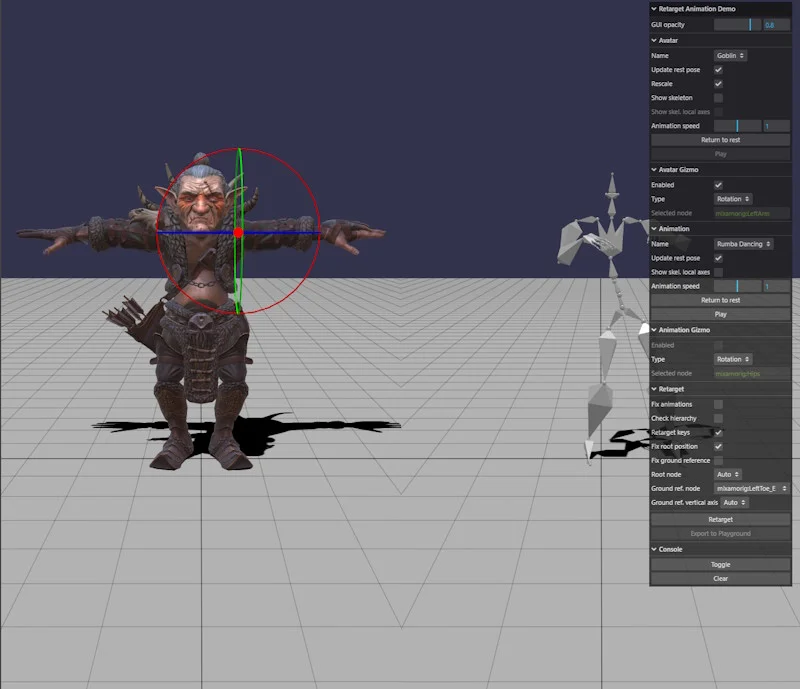
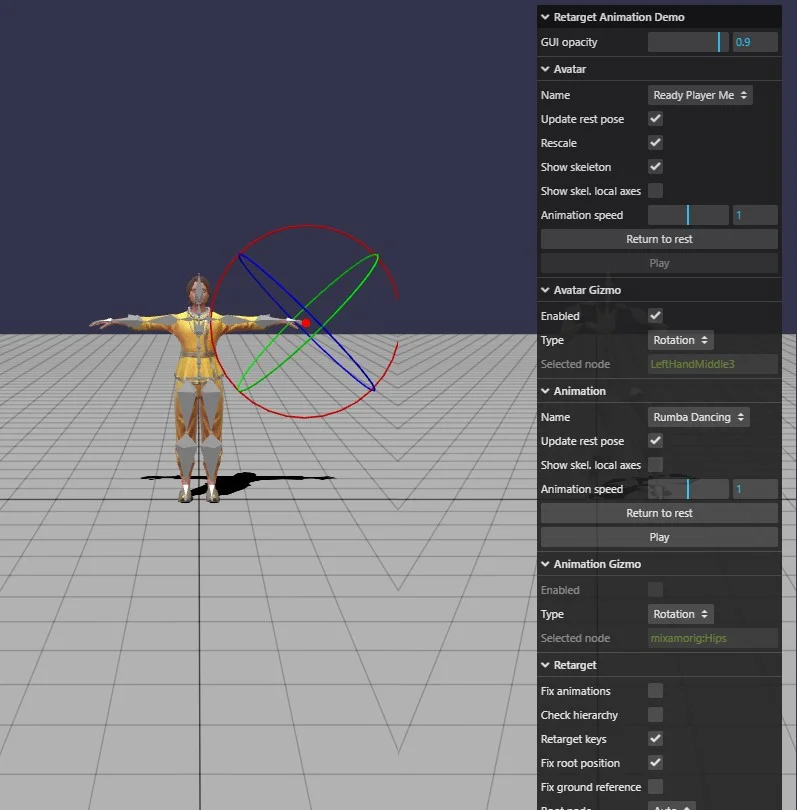
The Animation Retargeting Tool is an interactive playground that lets you experiment with retargeting without writing any code. The scene is split into two viewports: the left half shows the avatar (the target character that will be animated), and the right half shows the reference skeleton derived from the source animation file. A panel on the right side of the screen groups all the controls.
Loading a mesh
Open the Avatar section of the panel. The Name dropdown lists the built-in characters. Selecting a different entry reloads the character immediately.
The following options affect how the mesh is loaded and displayed:
-
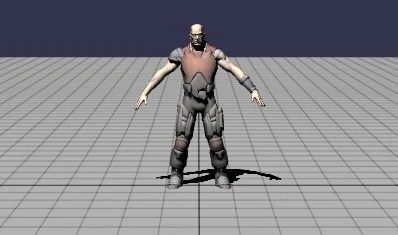
Update rest pose — when enabled, applies a set of pre-defined bone transform corrections (defined in


data.tsfor each built-in avatar) to bring the avatar's skeleton into a standard reference pose before retargeting. Disabling this option skips those corrections, which can be useful to demonstrate how retargeting a character whose rest pose differs from the animation's reference pose produces an incorrect result.Update rest pose enabled Update rest pose disabled 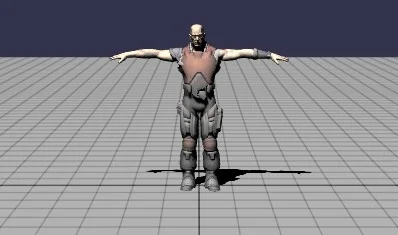
-
Rescale — when enabled, the character is scaled down to fit the viewport if it is larger than a reference size. Useful for assets that use real-world units.
-
Show skeleton — overlays the skeleton visualisation on the avatar mesh. The Show skel. local axes sub-option draws the local coordinate frame of every bone.
-
Animation speed — a slider that adjusts the playback speed of the retargeted animation.
-
Return to rest — stops the animation and restores the skeleton to its reference pose.
-
Play — starts or restarts the retargeted animation (only enabled after a successful retargeting).
Avatar Gizmo
The Avatar Gizmo section lets you manually adjust bone transforms in the rest pose to fine-tune the reference pose before retargeting. Enable the gizmo with the Enabled checkbox (only available while the avatar is in rest pose), then click on a bone in the left viewport to select it. The selected bone is highlighted with a red sphere. Use the Type dropdown to switch between Position, Rotation, and Scale gizmos. The read-only Selected node field shows the name of the currently selected bone.
Loading an animation
Open the Animation section. The Name dropdown lists the built-in source animations. Selecting a different entry reloads the reference skeleton on the right viewport.
- Update rest pose — applies pre-defined transform corrections (defined in
data.tsfor each built-in animation) to the source animation's transform nodes to bring them into the expected reference pose before retargeting. Disabling it is useful to observe how a mismatched reference pose affects the retargeting result. - Show skel. local axes — draws local axes on the reference skeleton in the right viewport.
- Animation speed — adjusts the playback speed of the source animation preview.
- Return to rest — stops the source animation and restores the transform nodes to their reference pose.
- Play — starts or restarts the source animation in the right viewport.
Animation Gizmo
Works identically to the Avatar Gizmo but operates on the transform nodes of the source animation hierarchy, shown in the right viewport. Click on a transform node in the right viewport to select it. This is useful for correcting the reference pose of the source animation before retargeting.
Retargeting options
The Retarget section exposes all the parameters of IRetargetOptions described above as checkboxes and dropdowns:
-
Fix animations — corresponds to
fixAnimations. -
Check hierarchy — corresponds to
checkHierarchy. -
Retarget keys — corresponds to
retargetAnimationKeys. -
Fix root position — corresponds to

fixRootPosition. When enabled, the root bone position is corrected during retargeting so the character stays at the origin. The videos below show the White Clown character retargeted with the Mousey walking animation, with the flag disabled (left) and enabled (right):Fix root position OFF Fix root position ON 
-
Fix ground reference — corresponds to

fixGroundReference. When enabled, a reference bone (typically a toe or foot bone) is used to anchor the character to the ground plane, preventing the character from floating or sinking. Note that even with Fix root position enabled, the character may still not be properly grounded without this flag. The videos below show the Big Vegas character retargeted with the Praying animation, with Fix root position ON in both cases but Fix ground reference disabled (left) and enabled (right):Fix ground reference OFF Fix ground reference ON 
-
Fix ground ref. dynamic — corresponds to
fixGroundReferenceDynamicRefNode. Only has an effect when Fix ground reference is also enabled. When enabled, the ground reference correction no longer assumes that the configured ground reference bone is always the lowest point: at each frame the system scans all retargeted bones and uses whichever bone is furthest below the root as the effective ground reference for that keyframe. This makes the correction work correctly for animations where the reference bone is temporarily lifted (e.g. walking, running, kicking). -
Root node — corresponds to
rootNodeName. The list is populated with the transform nodes of the source animation; the first entry is Auto (automatic detection). Only enabled when Fix root position or Fix ground reference is on. -
Ground ref. node — corresponds to
groundReferenceNodeName. The list is pre-populated with the transform node names from the source animation. The tool automatically pre-selects the node whose name contains "LeftToe_End" or "LeftToeBase" as a sensible default. Only enabled when Fix root position or Fix ground reference is on. -
Ground ref. vertical axis — corresponds to
groundReferenceVerticalAxis. Choices are Auto, X, Y, Z. Only enabled when Fix root position or Fix ground reference is on.
Click the Retarget button to run the retargeting with the current settings. After a successful retargeting the avatar starts playing the animation and the Console shows any warnings that were generated (e.g. bones that could not be matched). The console can be toggled or cleared from the Console section.
Exporting to a Playground
Once you are satisfied with the result, click Export to Playground (enabled after a successful retargeting) to automatically generate a standalone Babylon.js Playground snippet that reproduces the exact retargeting you configured — including any rest-pose corrections made with the gizmos and the full mapNodeNames remapping. The generated playground is automatically opened in a new browser tab.
Using a custom character or animation
The built-in assets are declared in the Avatars and Animations objects at the top of data.ts. To add your own character or animation, add a new entry to the appropriate object:
// In data.ts
export const Avatars = {    // ... existing entries ...    "My Character": {        path: "https://example.com/my_character.glb",        namingScheme: "mixamo_no_namespace",  // or "mixamo_full" / "dude"        restPoseUpdate: [],  // optional: pre-defined bone corrections    },};
export const Animations = {    // ... existing entries ...    "My Animation": {        path: "https://example.com/my_animation.glb",        namingScheme: "mixamo_no_namespace",        restPoseUpdate: [],  // optional: pre-defined transform node corrections    },};
The namingScheme field controls how bone name remapping is applied between source and target. The built-in schemes are:
"mixamo_full"— Mixamo bones with themixamorig:namespace prefix (e.g.mixamorig:Hips)."mixamo_no_namespace"— Mixamo bones without the namespace prefix (e.g.Hips)."dude"— the naming convention used by the legacy Dude character (bone0,bone7, etc.).
If your character uses a completely different naming convention, add a new scheme and the corresponding remapping table in the GetBoneRemapping function in helper.functions.ts.
The optional restPoseUpdate array contains a list of bone (or transform node) name / transform correction pairs. Each entry has a name field and a data field that can carry any combination of position, scaling, and quaternion arrays. These corrections are applied when Update rest pose is checked, and are used to normalise the reference pose of the asset before retargeting. When you use the Avatar or Animation gizmo to manually adjust bones and then click Export to Playground, those adjustments are captured and written back into this array in the exported snippet, so they can be reused without the interactive tool.
Documentation links
Animation Retargeting in the Wicked Engine
Animation Retargeting Algorithm
WebGL2 : 132 : Animation Retargeting