Grid Material
Grid material
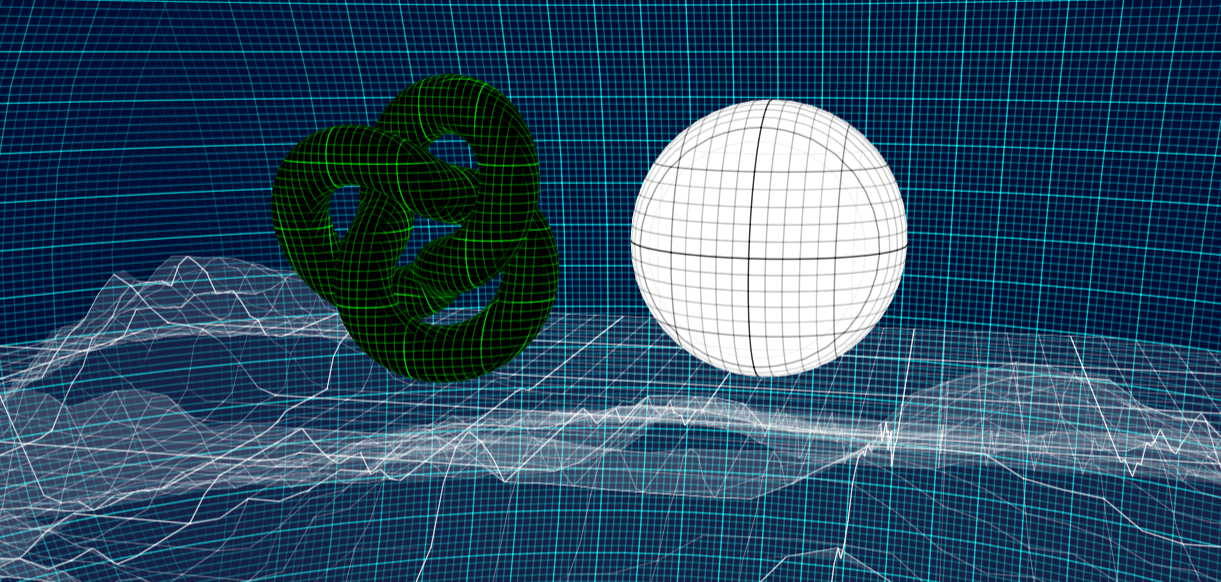
Playground example
A full playground example can be found here: PG: Grid Material
Using the Grid material
Because the grid material is a Babylon.js extension, it is not included in the main babylon.js file. To use the material, download and reference the extension from the CDN using babylon.gridMaterial.js or its minified version babylon.gridMaterial.min.js.
The default grid behavior does not require any setup and displays a black-and-white grid on your meshes:
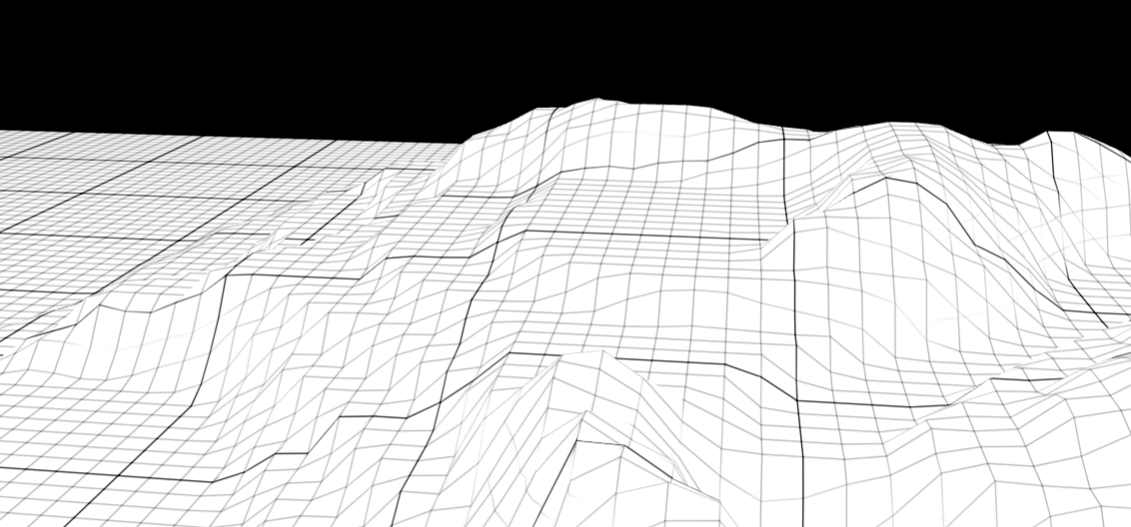
You can access the live example in this PG: Grid Material
The grid uses the local position to outline each axis, with one unit shown in black. Only one in ten lines will be fully black; the other lines will be lighter gray. You can think of it as a ruler with bigger marks for centimeters and smaller ones for millimeters.
import { MeshBuilder } from "@babylonjs/core/Meshes/meshBuilder";import { GridMaterial } from "@babylonjs/materials/grid/gridMaterial";var ground = MeshBuilder.CreateGroundFromHeightMap("ground", "textures/heightMap.png", { width: 100, height: 100, subdivisions: 100, minHeight: 0, maxHeight: 10 }, scene);ground.material = new GridMaterial("groundMaterial", scene);Customize the grid material
To help you make the grid fit your scenes, a few controls are available:
mainColor: the main color controls the color of the empty arealineColor: the line color controls the line coloropacity: the opacity helps changing the lines opacity. In transparent mode (opacity < 1.0), the empty area will always be at an opacity level of0.08gridRatio: subdivide the object size in order to fit with itmajorUnitFrequency: frequency of strong linesminorUnitVisibility: level of minor lines compared to the major onesgridOffset: the offset vector3 will shift the cells of the grid by a set amount
A few clarifications
gridRatio
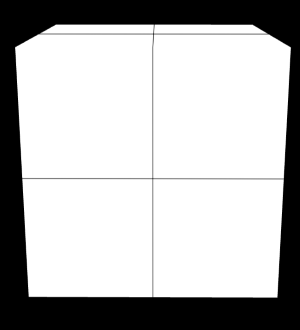
The grid will be projected on objects according to their size. If an object has a size of 1, you'll only see one line on it. For instance, a cube with a size of 1 will, by default, only have one line:
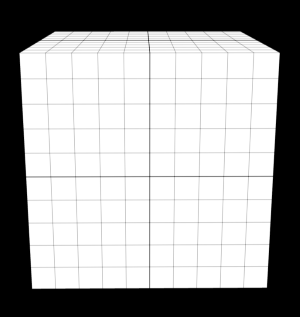
Using a gridRatio of 0.1 will make ten lines appear on it:
majorUnitFrequency
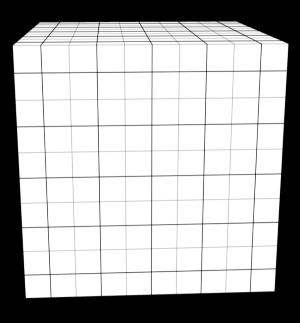
You may have noticed in the gridRatio examples above that only one in ten lines is stronger. This is controlled by the parameter named majorUnitFrequency, which has a default value of 10.
Setting it to 2 will make one strong line appear every 2 lines. This is only a scary parameter name for something simple:
minorUnitVisibility
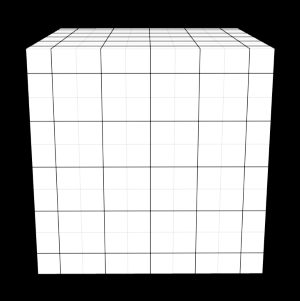
After setting the frequency of the stronger lines, you might wonder how to control the strength of the minor ones. The parameter minorUnitVisibility helps you control this. This value should be smaller than 1, which is the value applied to the main lines. The default value is 0.33, which corresponds to 33% of the lineColor.
Setting it to 0.1 will then reinforce the effect of the main lines (by dropping the value of the minor ones):
gridOffset
Note that the shift for each axis loops: using a gridOffset of (0, 0, 0) will give you the same visual result as (1, 0, 0).
useMaxLine
Sometimes the points where grid lines intersect may appear brighter than the rest of the grid. Set useMaxLine to true to remove this effect.