WebGPU Snapshot Rendering
Snapshot rendering is a new rendering mode available starting with Babylon.js v5.0. Only WebGPU supports it: activating this mode in WebGL has no effect.
Description
The snapshot rendering (SR) feature improves performance in some specific scenarios described below.
It works by recording the draw calls during one frame and by replaying this recording for all subsequent frames. So, the scene should be mostly static for this mode to work as expected. Note that this mode can be enabled or disabled whenever you want. So, if at some point something must change in the scene that is not supported by SR, you can disable the mode, apply the changes and re-enable SR afterwards.
Note that the performance improvement is on the JavaScript side only: GPU performance will be more or less the same with or without SR enabled, though you could still see some small GPU performance improvements depending on the browser.
The performance improvements can be quite large, especially when using fast SR mode (see below for explanations of the SR modes). Here are some figures collected with the first PG listed in the Examples section:
| WebGL 2 version | SR - Standard mode | SR - Fast mode |
|---|---|---|
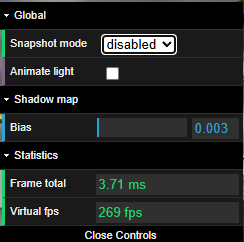 | 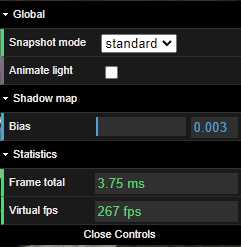 | 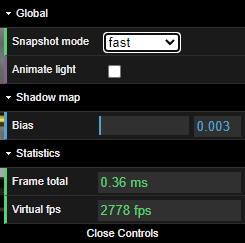 |
Enabling snapshot rendering mode
The snapshot rendering mode is enabled by setting:
engine.snapshotRendering = true;When doing this, the next frame will be recorded (and of course also displayed as usual!) and the recorded snapshot will be replayed in all subsequent frames until you either disable the mode or use engine.snapshotRenderingReset(). If calling the latter, a new snapshot will be created the next frame that will replace the current snapshot.
Calling engine.snapshotRenderingReset() is how you apply changes that are not supported by the current SR mode (see the available modes in the next section): apply your changes and call this function. It destroys the current snapshot and instructs the system to create a new one by recording the draw calls of the next frame, which will contain your changes. In effect, it is the same as doing engine.snapshotRendering = false; engine.snapshotRendering = true;. The first assignment stops and destroys the current snapshot, and the second asks the system to record the draw calls when rendering the next frame. Of course, for this to work, your changes should be in effect by the next frame. If, for example, you import a new mesh, it will probably take more than a frame to be added to the scene. So, you should call engine.snapshotRenderingReset() once you know the next frame will render the scene with the new state.
Standard and Fast modes
There are two different modes available when SR is enabled:
- Standard mode (
Constants.SNAPSHOTRENDERING_STANDARD). In this mode, the uniform buffers are still updated, so some dynamic behavior is still supported: you can update some parameters of a material, for example, and it will work. - Fast mode (
Constants.SNAPSHOTRENDERING_FAST). In this mode, only the scene uniform buffer is updated automatically by the system (meaning moving the camera works as expected). You can still update the uniform buffers of meshes "by hand", so moving/rotating meshes are also supported (see examples below).
Whatever the mode, as the draw calls of a given frame are recorded and replayed for all subsequent frames, adding or removing meshes won't work. You will need to disable the SR mode if you want to add/remove meshes and re-enable it afterwards.
Caveats
Always set alwaysSelectAsActiveMesh to true
Given how SR works, you will probably always want to set alwaysSelectAsActiveMesh = true for all your meshes because if this property is false (the default value) and the mesh is not displayed when recording the snapshot, no draw calls will be recorded for it. This means that if you later move the camera in a way that should make the mesh visible, it still will not be visible.
Statistics in the Inspector
In fast SR mode, most of the regular JavaScript code is skipped, so the statistics displayed by the Inspector in the COUNT section will not be accurate: all the Active XXX counters, as well as Total vertices, will stay at 0.
When to use
It's hard to list everything that will work/won't work depending on the mode, so the easiest way to use this new feature is to enable it and see if everything works as expected once enabled (try first fast mode, then standard mode). As explained above, if you need to update something at some point in time and the current SR mode can't handle it, you can always disable SR, apply the changes and re-enable SR.
eCommerce sites may greatly benefit from this feature because the scene is normally quite small, with everything visible on screen. Also, there generally is not much dynamic behavior, and when something needs to be updated it is usually a "one-shot" update, so either calling snapshotRenderingReset or temporarily disabling the feature should work.
Enable the snapshot rendering mode at the right time
Make sure everything in your scene is ready to be rendered on the next frame after you set engine.snapshotRendering = true! Once you set snapshotRendering to true, the next frame is recorded and replayed afterwards. If some textures, for example, are not ready at that time, the mesh will not be rendered in the recorded frame and therefore will never be visible. You should probably always set engine.snapshotRendering = true inside a scene.executeWhenReady(...) callback.
Examples
Here's a PG that demonstrates using the snapshot rendering feature: Snapshot rendering
You can choose to disable or enable standard / fast SR mode. Depending on the mode, you will see the JavaScript time it takes to render a frame (Frame total) and the virtual fps (the fps you would have if there were no GPU rendering / the fps were not capped by the browser - it is simply 1000/Frame total).
In fast mode, animating light / updating the bias would not work for the reasons explained above. When you update:
- the bias, the PG calls
engine.snapshotRenderingReset()so that the bias is taken into account for the next frame and the snapshot is recreated at that time too - the Animate light checkbox, the PG switches to standard SR mode until you uncheck the box. Moving the light does work in standard SR mode: if it did not, we would have switched to SR disabled mode instead.
Note also that in fast SR mode you must handle updates to the sky position yourself because the uniform buffers are not updated by the system, except for the scene buffer. See The SnapshotRenderingHelper class section for more details.
Here's another PG using the glow layer: Snapshot rendering with glow layer
This PG is using the standard SR mode because the fast mode does not work (try to set the fast mode and see for yourself - however, see next section for a way to make it work). Also, when a resize kicks in, we need to disable the SR mode and re-enable it only when the glow layer had time to recreate its internal texture with the new size. That's why we use a setTimeout(..., 1) to re-enable the SR mode.
The SnapshotRenderingHelper class
Fast SR mode is the most interesting mode because your scene can be handled several orders of magnitude faster than with SR disabled, or even than when using standard SR mode.
To simplify the use of fast SR mode, we have created a SnapshotRenderingHelper class to help you work with this mode. This class is available as of Babylon.js version 7.32.0.
To use it, create an instance of the class and call enableSnapshotRendering() after you have loaded or created your scene:
import { SnapshotRenderingHelper } from "@babylonjs/core/Misc/snapshotRenderingHelper";const sr = new SnapshotRenderingHelper(scene);...// make sure your scene is loaded/created...sr.enableSnapshotRendering();Call updateMesh() to update a mesh when its position/rotation/scaling property has changed.
If you create a layer (glow, highlight), call updateMeshesForEffectLayer() for that layer to make it compatible with fast SR mode.
If you create or add new meshes later on, call fixMeshes() to make sure they are compatible with fast SR mode:
- their
ignoreCameraMaxZproperty will be set tofalse, as this feature is not compatible with fast SR mode - the maximum number of influencers of morph target managers will be set to a fixed value (that you can define through the
optionsparameter of theSnapshotRenderingHelperconstructor). This is needed to make sure morphs work in fast SR mode
Thanks to this class, we can handle a number of dynamic cases very simply:
- Updating position/rotation/scaling/visibility properties of meshes: Update mesh matrix in fast SR mode with snapshot helper class
- Using the glow layer: Use glow layer in fast SR mode with snapshot helper class
- Animating bones: Use bones in fast SR mode with snapshot helper class
- Using a default skybox: Use default skybox in fast SR mode with snapshot helper class