Real-time Multiplayer with Colyseus
This guide will show you how to build a multiplayer experience with the Colyseus Multiplayer Framework and Babylon.js.
By the end of this guide, you will:
- Set up your first authoritative server with Colyseus
- Synchronize shared state data between server and client
- Exchange messages between client and server
- Match-make clients into game sessions (rooms)
Full source code
Before you start
Prior Knowledge Expected
- Basic Babylon.js knowledge (See Getting Started with Babylon.js)
- Basic knowledge of Node.js (See Introduction to Node.js)
Software Requirements
Creating the server
We will be making a basic server, hosted locally on your computer to keep player states. Changes will then be synchronized with clients accordingly.
To create a fresh Colyseus server, run the following from your command line:
npm init colyseus-app ./babylonjs-multiplayer-serverLet's make sure you can run the server locally now, by running npm start:
cd babylonjs-multiplayer-servernpm startIf successful, the output should look like this on your command line:
> my-app@1.0.0 start> ts-node-dev --respawn --transpile-only src/index.ts
✅ development.env loaded.✅ Express initialized🏟 Your Colyseus App⚔️ Listening on ws://localhost:2567
Including the Colyseus JavaScript SDK
For simplicity, the examples in this guide use the Babylon.js Playground, although the full source code available for download uses NPM + Webpack.
In the Playground, we inject the Colyseus JavaScript SDK manually through a <script> tag created via code, as described in "Using External Assets In The Playground" → "Javascript files".
(This is not recommended in a real-world scenario)
// Load Colyseus SDK (asynchronously)var scriptUrl = "https://unpkg.com/colyseus.js@^0.15.0-preview.2/dist/colyseus.js";var externalScript = document.createElement("script");externalScript.src = scriptUrl;document.head.appendChild(externalScript);In a real-world scenario, please follow the official Colyseus documentation on how to include the Colyseus JavaScript SDK.
Loading the SDK ExampleEstablishing a Client-Server Connection
Now we can instantiate a Colyseus Client instance and join a game from any script.
var createScene = function () {  // (...)
  //  // Create the Colyseus Client.  //  var colyseusSDK = new Colyseus.Client("ws://localhost:2567");
  //  // Connect with Colyseus server  //  colyseusSDK    .joinOrCreate("my_room")    .then(function (room) {      console.log("Connected to roomId: " + room.roomId);    })    .catch(function (error) {      console.log("Couldn't connect.");    });
  // (...)};
Note that we're using the local
ws://localhost:2567endpoint here. You need to deploy your server to the public internet in order to play with others online.
If you happen to see
net::ERR_BLOCKED_BY_CLIENTerror in the console, make sure to disable ad-block or shields due to untrusted origin.
When you run your BabylonJS project now, your client is going to establish a connection with the server, and the server is going to create the room my_room on demand for you.
Notice that my_room is the default room identifier set by the barebones Colyseus server. You can and should change this identifier in the arena.config.ts file.
You will be seeing the following message in your server logs, which means a client successfully joined the room!
19U8WkmoK joined!Room State and Schema
In Colyseus, we define shared data through its Schema structures.
Schemais a special data type from Colyseus that is capable of encoding its changes/mutations incrementally. The encoding and decoding process happens internally by the framework and its SDK.
The state synchronization loop looks like this:
- State changes (mutations) are synchronized automatically from Server → Clients
- Clients, by attaching callbacks to their local read-only
Schemastructures, can observe for state mutations and react to it. - Clients can send arbitrary messages to the server - which decides what to do with it - and may mutate the state (Go back to step 1.)
Let's go back to editing the Server code, and define our Room State in the Server.
We need to handle multiple Player instances, and each Player will have x, y and z coordinates:
// MyRoomState.tsimport { MapSchema, Schema, type } from "@colyseus/schema";
export class Player extends Schema {  @type("number") x: number;  @type("number") y: number;  @type("number") z: number;}
export class MyRoomState extends Schema {  @type({ map: Player }) players = new MapSchema<Player>();}
See more about the Schema structures.
Now, still on the server side, let's modify our onJoin() method to create a Player instance whenever a new connection is established with the room.
// MyRoom.ts// ...    onJoin(client: Client, options: any) {        console.log(client.sessionId, "joined!");
        // create Player instance        const player = new Player();
        // place Player at a random position        const FLOOR_SIZE = 500;        player.x = -(FLOOR_SIZE/2) + (Math.random() * FLOOR_SIZE);        player.y = -1;        player.z = -(FLOOR_SIZE/2) + (Math.random() * FLOOR_SIZE);
        // place player in the map of players by its sessionId        // (client.sessionId is unique per connection!)        this.state.players.set(client.sessionId, player);    }// ...}
Also, when the client disconnects, let's remove the player from the map of players:
// MyRoom.ts// ...    onLeave(client: Client, consented: boolean) {        console.log(client.sessionId, "left!");
        this.state.players.delete(client.sessionId);    }// ...
The state mutations we've done in the server-side can be observed in the client-side, and that's what we're going to do in the next section.
Setting up the Scene for Synchronization
For this demo, we need to create two objects in our Scene:
- A plane mesh object to represent the floor
- A sphere mesh object to represent the players, which we will instantiate for each new player joining the room.
Creating the Plane
Let's create a Plane with size 500.
import { MeshBuilder } from "@babylonjs/core/Meshes/meshBuilder";// Create the groundvar ground = MeshBuilder.CreatePlane("ground", { size: 500 }, scene);ground.position.y = -15;ground.rotation.x = Math.PI / 2;Listening for State Changes
After a connection with the room has been established, the client-side can start listening for state changes, and create a visual representation of the data in the server.
Adding new players
As described in the Room State and Schema section, whenever the server accepts a new connection, the onJoin() method creates a new Player instance within the state.
We're going to listen to this event on the client-side now:
// (...)
// connect with the roomcolyseusSDK.joinOrCreate("my_room").then(function (room) {  // listen for new players  room.state.players.onAdd((player, sessionId) => {    //    // A player has joined!    //    console.log("A player has joined! Their unique session id is", sessionId);  });});
// (...)
When playing the scene, you should see a message in the browser's console whenever a new client joins the room.
For the visual representation, we need to clone the "Player" object and keep a local reference to the cloned object based on its sessionId, so we can operate on it later:
import { MeshBuilder } from "@babylonjs/core/Meshes/meshBuilder";// (...)// we will assign each player visual representation here// by their `sessionId`var playerEntities = {};colyseusSDK.joinOrCreate("my_room").then(function (room) { // listen for new players room.state.players.onAdd(function (player, sessionId) { // create player Sphere var sphere = MeshBuilder.CreateSphere(`player-${sessionId}`, { segments: 8, diameter: 40, }); // set player spawning position sphere.position.set(player.x, player.y, player.z); });});The "Current Player"
We can give the current player the color #ff9900 and other players grey by checking the sessionId against the connected room.sessionId:
import { StandardMaterial } from "@babylonjs/core/Materials/standardMaterial";import { Color3 } from "@babylonjs/core/Maths/math.color";// (...)room.state.players.onAdd((player, sessionId) => { var isCurrentPlayer = sessionId === room.sessionId; // (...) // set material to differentiate CURRENT player and OTHER players sphere.material = new StandardMaterial(`player-material-${sessionId}`); if (isCurrentPlayer) { // highlight current player sphere.material.emissiveColor = Color3.FromHexString("#ff9900"); } else { // other players are gray colored sphere.material.emissiveColor = Color3.Gray(); } // (...)});Removing disconnected players
When a player is removed from the state (upon onLeave() on the server side), we need to remove their visual representation as well.
// ...room.state.players.onRemove(function (player, sessionId) { playerEntities[sessionId].dispose(); delete playerEntities[sessionId];});// ...Moving the players
Sending the new position to the server
We are going to use the Scene.onPointerDown event to determine the exact Vector3 position the player should move toward, and then send it as a message to the server.
scene.onPointerDown = function (event, pointer) {  if (event.button == 0) {    const targetPosition = pointer.pickedPoint.clone();
    // Position adjustments for the current play ground.    // Prevent spheres from moving all around the screen other than on the ground mesh.    targetPosition.y = -1;    if (targetPosition.x > 245) targetPosition.x = 245;    else if (targetPosition.x < -245) targetPosition.x = -245;    if (targetPosition.z > 245) targetPosition.z = 245;    else if (targetPosition.z < -245) targetPosition.z = -245;
    // Send position update to the server    room.send("updatePosition", {      x: targetPosition.x,      y: targetPosition.y,      z: targetPosition.z,    });  }};
Receiving the message from the server
Whenever the "updatePosition" message is received in the server, we're going to mutate the player that sent the message through its sessionId.
// MyRoom.ts// ...  onCreate(options: any) {    this.setState(new MyRoomState());
    this.onMessage("updatePosition", (client, data) => {      const player = this.state.players.get(client.sessionId);      player.x = data.x;      player.y = data.y;      player.z = data.z;    });  }// ...
Updating Player's visual representation
Having the mutation on the server, we can detect it on the client-side via player.onChange(), or player.listen().
player.onChange()is triggered per schema instanceplayer.listen(prop)is triggered per property change
We are going to use .onChange() since we need all the new coordinates at once, no matter if just one has changed individually.
// (...)
room.state.players.onAdd(function (player, sessionId) {  // (...)  player.onChange(function () {    playerEntities[sessionId].position.set(player.x, player.y, player.z);  });
  // Alternative, listening to individual properties:  // player.listen("x", (newX, prevX) => console.log(newX, prevX));  // player.listen("y", (newY, prevY) => console.log(newY, prevY));  // player.listen("z", (newZ, prevZ) => console.log(newZ, prevZ));});
// (...)Updating player's position Example
Interpolating the player's position
To enable position interpolation, we're going to use the Render Loop and the Scalar.Lerp() method.
Instead of updating the player position directly (as in previous section), we are going to cache the next position, and constantly interpolate each player position during the Render Loop:
// (...)var playerNextPosition = {};
room.state.players.onAdd(function (player, sessionId) {  // (...)  playerNextPosition[sessionId] = sphere.position.clone();
  player.onChange(function () {    playerNextPosition[sessionId].set(player.x, player.y, player.z);  });});// (...)
And finally, the Render Loop:
import { Vector3 } from "@babylonjs/core/Maths/math.vector";scene.registerBeforeRender(() => { for (let sessionId in playerEntities) { var entity = playerEntities[sessionId]; var targetPosition = playerNextPosition[sessionId]; entity.position = Vector3.Lerp(entity.position, targetPosition, 0.05); }});Extra: Monitoring Rooms and Connections
Colyseus comes with an optional monitoring panel that can be helpful during the development of your game.
To view the monitor panel from your local server, go to http://localhost:2567/colyseus.
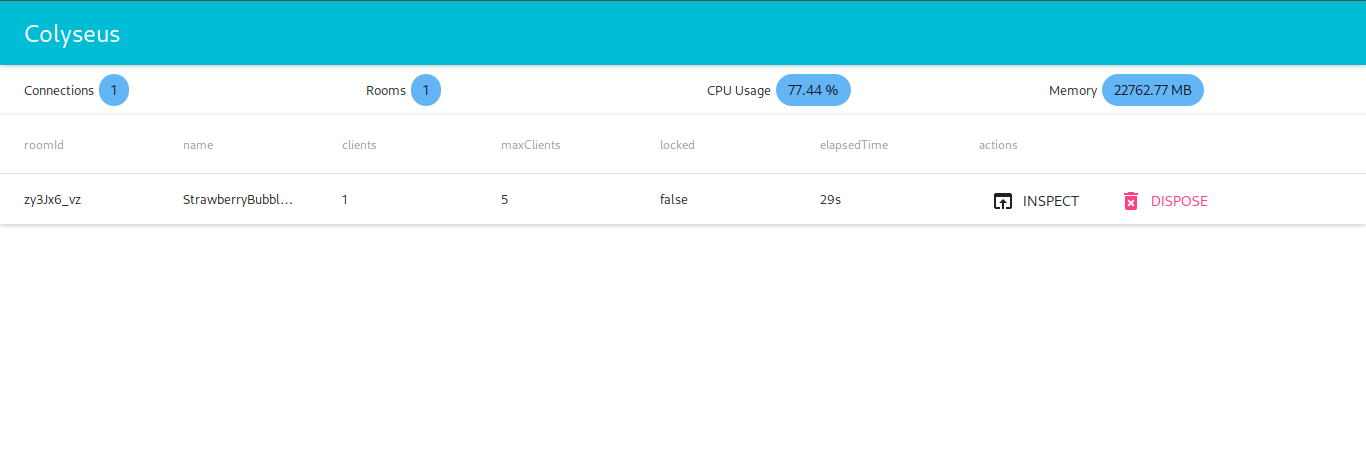
You can see and interact with all spawned rooms and active client connections through this panel.
More
We hope you found this tutorial useful. If you'd like to learn more about Colyseus, please have a look at the Colyseus documentation and join the Colyseus Discord community.