Going Cross-Platform
Summary
We have an awesome game now, but how do we get it on mobile?!
Making our game cross-platform is really simple with Babylon.js!
Inputs
The first thing that we need to do is start detecting our touch inputs.
- In index.html, add this to the body.
<script src="https://code.jquery.com/pep/0.4.3/pep.js"></script>Now, whenever we're using pointerEvents, it will account for touch inputs as well!
Controls
GUI
Now that we're no longer using key presses for our character, we need another way to get them moving around. This is where it gets a little tricky. The joystick class works really well if the game's main mechanic is using only the joystick. The joystick class creates an overlay canvas that ends up blocking any other inputs that may be on the screen. Since we need buttons to also jump and dash, I had to find a different way to get player movement. The final layout looked like this:
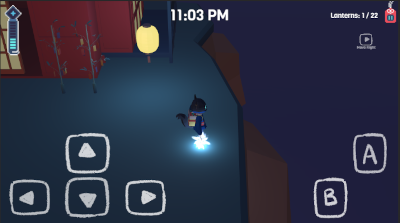
Since these controls are only visible in the game state, I added them to the Hud. Since we only want to see these buttons if we're on mobile, we need to have a check to tell us whether the device is a mobile device.
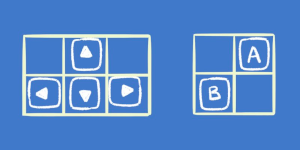
if (/Android|webOS|iPhone|iPad|iPod|BlackBerry|IEMobile|Opera Mini/i.test(navigator.userAgent)) { //make mobile controls}The layout for controls took some experimentation, but I ended up creating grids to hold the buttons depending on which side of the screen they were on.
- Create Rectangles to hold our buttons
- Create Grids to manage button placement
const actionGrid = new Grid();actionGrid.addColumnDefinition(0.5); //create a column that's 50% the width of the gridactionGrid.addColumnDefinition(0.5);actionGrid.addRowDefinition(0.5);actionGrid.addRowDefinition(0.5);actionContainer.addControl(actionGrid);When you make a grid, you add columns separately and pass in a size for each one.
- Add the buttons to a grid position
actionGrid.addControl(dashBtn, 0, 1);actionGrid.addControl(jumpBtn, 1, 0);If you look at the code above, you can actually see the grid placement of the buttons based on the location of 0s and 1s (of course, this only works in this case since there are just two buttons). This is how you get the effect of them being stacked on opposite sides of each other!
Movement
Now that we've made the new GUI elements for our character movement, we just need to hook them up to our current input system.
In inputController.ts, there's a function _setUpMobile that creates pointer observables for each of the new character movement buttons. These will set flags for whether the button was pressed (similar to how we're storing keyboard inputs in our inputMap).
Then all we need to do is add the mobile equivalent of our key presses to the existing structure in _updateFromKeyboard. For example, dashing would be:
//dashif (this.inputMap["Shift"] || this._mobileDash) { this.dashing = true;} else { this.dashing = false;}We have our character moving! But wait, the running animations don't work? If we return to the _animatePlayer function from the Animation tutorial, you'll see that we were looking at our inputMap for movement detection. We just need to add our mobile inputs to this as well.

Now we have a cross-platform game! Wasn't that easy?
Extra Features
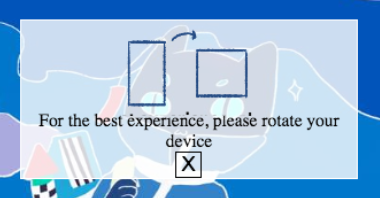
Because the game is in a web browser, we need to make sure that the player knows the intended orientation is landscape mode. Not all browsers or devices allow fullscreen mode, so I decided to create a notification that told the player to rotate the device to get the best experience.
This followed a similar structure to how we set up the mobile controls for the game state by first checking whether we were on a mobile device in _goToStart. It was just a simple image, text, and button.
Resources
Files Used: