Sprite Manager
Sprite Manager
Take a single sprite image as an example, i.e. just one cell.
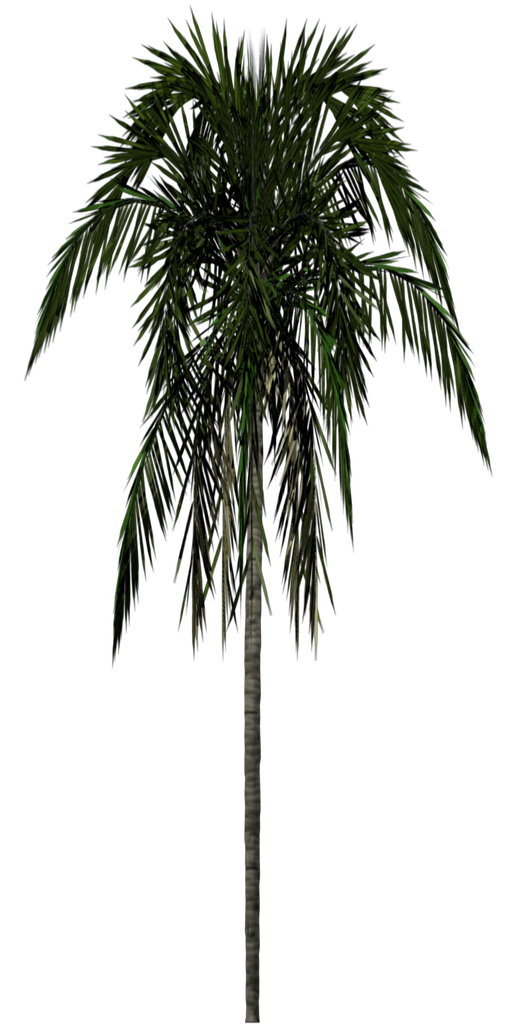
Using an image format that contains an alpha channel for transparency, like .png, allows complex shapes to be displayed.
Create the sprite manager for the trees:
import { SpriteManager } from "@babylonjs/core/Sprites/spriteManager";const spriteManagerTrees = new SpriteManager("treesManager", path to palm.png, 2000, {width: 512, height: 1024});Creating sprites only uses a name and the sprite manager linked to the sprite image. For an accurately scaled representation of the image, the width and height of the sprite should be in the same ratio as the sprite image.
import { Sprite } from "@babylonjs/core/Sprites/sprite";const tree = new Sprite("tree", spriteManagerTrees);tree.width = 1;tree.height = 2;single sprite image Single Sprite Image
You can alter the cell width and height after creation using these properties: mySpriteManager.cellWidth and mySpriteManager.cellHeight.
with single image size altered Single Sprite Image Altered multiple trees Multiple Sprites Example
As well as width and height, you can apply the following properties:
import { Vector3 } from "@babylonjs/core/Maths/math.vector";sprite.position = new Vector3(1, 1, 1);sprite.angle = Math.PI / 4;sprite.invertU = true; //vertical reflectionsprite.invertV = true; //horizontal reflectionPlease note that the z-axis position of a sprite will affect its size on the screen, i.e. sprites with a higher z-axis value will appear farther away and, as such, will be smaller on the screen: Sprite size affected by z position
A spritesheet example:

There are 44 cells in the above spritesheet, each one 64 x 64 pixels. Since the cells are square, you can just use the cell size rather than its width and height. Create the sprite manager with:
import { SpriteManager } from "@babylonjs/core/Sprites/spriteManager";const spriteManagerPlayer = new SpriteManager("playerManager", "path to Player.png", 1, 64);which can then be used to produce just one sprite instance.
import { Sprite } from "@babylonjs/core/Sprites/sprite";const player = new Sprite("player", spriteManagerPlayer);player.cellIndex = 1;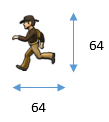
Since the cells are square, the default values for player width and height are 1, and the ratio is correct, so they are not needed. However, if the sprite is to be drawn from a cell with an index other than 0, it must be specified.
Sprites from different cells: Sprites From Different Cells
You create a sprite animation by changing cell numbers.
To begin an animation, use:
mySprite.playAnimation(start cell, end cell, loop, delay);The sprite will be animated from the start cell to the end cell. When loop is set to true, the animation will loop. The delay is the time between animation frames (the smaller it is, the faster the animation). The cells must be in animation frame order.