Solid Particle System Materials
Different Materials
The SPS renders all the particles in a single draw call because, so far, you have used only one material, or none, which means a default material is used under the hood.
Sometimes, however, you may want to use several materials, for instance to render some glowing particles with the glow layer, some others with a bump texture, and others with a colored standard material. In this case, you may accept a higher draw call count, but you still want to keep it as low as possible.
The SPS supports MultiMaterials and provides a mechanism to keep the draw call count to a minimum. You can use them in different ways.
Simple way
The simplest way to set different materials to the particles is to set a different material to each model used to create the particles and to ask the SPS to use these materials at construction time with the optional parameter useModelMaterial set to true (default false).
import { SolidParticleSystem } from "@babylonjs/core/Particles/solidParticleSystem";// model1, model2 and model3 are meshes with already set materials at this stepvar sps = new SolidParticleSystem("sps", scene, { useModelMaterial: true});sps.addShape(model1, 300);sps.addShape(model2, 300);sps.addShape(model3, 300);sps.buildMesh();This enables MultiMaterial support, copies the model geometries, and automatically creates the SPS MultiMaterial from the model materials, with the following rules:
- if several models share the same material, this material is used only once in the SPS: particles are sorted for this purpose to minimize the number of draw calls,
- if a model has no material, a standard material is created,
- if another following model also has no material, the first rule applies: the newly created standard material is shared among the particles depicting all the models with no material.
Example: Materials In SPS
You can obviously notice that this method associates the model materials with the particles on a per-shape basis: all the particles of a given shape share the same material.
You can still change this behavior by assigning materials on a per-particle basis by setting the particle property .materialIndex to the desired material index. The material index is simply the index of the shape material in the order the shapes are created: 0 for the first shape, 1 for the second one, and so on. If set, it overwrites the assigned shape material index.
This can be done at creation time in a positionFunction of an immutable SPS, for instance.
import { SolidParticleSystem } from "@babylonjs/core/Particles/solidParticleSystem";var initParticle = function (particle, i) { particle.position.x = areaSize * (Math.random() - 0.5); particle.position.y = areaSize * (Math.random() - 0.5); particle.position.z = areaSize * (Math.random() - 0.5); // above a given altitude, it's given the material 1 // whatever the initial shape material if (particle.position.y > areaSize * 0.1) { particle.materialIndex = 1; }};var sps = new SolidParticleSystem("sps", scene, { useModelMaterial: true, updatable: false});sps.addShape(model1, 300, { positionFunction: initFunction });sps.addShape(model2, 300, { positionFunction: initFunction });sps.addShape(model3, 300, { positionFunction: initFunction });sps.buildMesh();Example: Solid Particle Material Assignment
This method can be used to build non-updatable meshes with MultiMaterials by assembling shapes of different materials, even when you know nothing about indices or vertices, as would be required to define a MultiMaterial object by hand: https://doc.babylonjs.com/how_to/multi_materials
Intermediate way
When you set the SPS useModelMaterial property to true, this enables the support for MultiMaterial.
You can also enable this support by just setting the property enableMultiMaterial to true.
In this case, the difference is that the support is enabled but the model materials aren't copied at construction time.
You may then want to use your own set of materials instead of the model ones.
So, whether the SPS is immutable or not, and whether you are using enableMultiMaterial or useModelMaterial, you can pass your own materials to the SPS once it is built with the method sps.setMultiMaterials(arrayOfMaterials).
import { SolidParticleSystem } from "@babylonjs/core/Particles/solidParticleSystem";var sps = new SolidParticleSystem("sps", scene, { enableMultiMaterial: true, updatable: false});sps.addShape(model1, 300, { positionFunction: initFunction });sps.addShape(model2, 300, { positionFunction: initFunction });sps.addShape(model3, 300, { positionFunction: initFunction });sps.buildMesh();// mat0, mat1, mat2 are Material objectssps.setMultiMaterial([mat0, mat1, mat2]);// ... later in the code, swap mat0 and mat1sps.setMultiMaterial([mat1, mat0, mat2]);This method can be called as many times as needed once the SPS mesh is built.
It recomputes the underlying MultiMaterial object and the SPS geometry to group the particles by material, so it is probably not a good idea to call it each frame in the render loop.
Example: Intermediate Solid Particle Material Assignment
Advanced way
Until now, you have essentially set the particle materialIndex values at construction time and they have not changed; only the materials themselves have.
You can still change the particle materialIndex values at any time, for instance in a call to sps.updateParticle() from sps.setParticles(), just as you would do to change particle positions or rotations, or in any other function of your own.
The difference from the other particle properties (position, rotation, etc.) is that setParticles() does not compute the materials at all.
Indeed, setParticles() is designed to be called each frame in the render loop and to keep garbage collector activity to a minimum by allocating nothing.
Applying changes to materialIndex values requires sorting all the particles again, recomputing the whole SPS geometry, and recreating new SubMesh objects from the SPS mesh.
Therefore, a dedicated method, sps.computeSubMeshes(), is provided. This method must be called manually after each change to particle materialIndex values for them to be taken into account immediately.
Like setMultiMaterials(), it's probably not a good idea to call it each frame in the render loop.
import { SolidParticleSystem } from "@babylonjs/core/Particles/solidParticleSystem";// updatable SPS creationvar sps = new SolidParticleSystem("sps", scene, { enableMultiMaterial: true});sps.addShape(model1, 300);sps.addShape(model2, 300);sps.addShape(model3, 300);sps.buildMesh();// mat0, mat1, mat2 are Material objectssps.setMultiMaterial([mat0, mat1, mat2]);// the particle materialIndex are set in the call to updateParticle// while the mesh and the multimaterial are already builtsps.updateParticle = initFunction;sps.setParticles(); // updates the particle positionssps.computeSubMeshes(); // actually computes the submeshes and materialsExamples: Advanced Solid Particle Material Assignment 1 In this second example, the particles above a given altitude are assigned the next material in turn every 15 frames. Advanced Solid Particle Material Assignment 2
If you still want to call computeSubMeshes() each time you call setParticles() because your particle materials are updated at the same frequency, you can set the property sps.autoUpdateSubMeshes to true (default false). In this case, there is no need to call sps.computeSubMeshes() manually, as setParticles() will do it for you internally.
sps.autoUpdateSubMeshes = true;sps.setParticles(); // updates the particle material indexes AND recomputes the subMeshesExample: Advanced Solid Particle Material Assignment 3
If you want to create your own MultiMaterial object by hand, set it on the SPS mesh material property and call sps.computeSubMeshes() to internally build the needed SubMesh objects.
import { MultiMaterial } from "@babylonjs/core/Materials/multiMaterial";var multimat = new MultiMaterial("multi", scene);multimat.subMaterials.push(material0);multimat.subMaterials.push(material1);multimat.subMaterials.push(material2);sps.mesh.material = multimat;sps.computeSubMeshes();Note 1 : By default, the particle materialIndex value is null.
When MultiMaterial is enabled in the SPS, this value is set to zero for every particle until it is overwritten by the user or automatically set to some model material index by useModelMaterial.
Note 2 : Particle depth sorting does not work with MultiMaterial support because particles cannot be sorted both by their distance to the camera and by material at the same time. So, if you enable both modes, it will not crash, but it can produce odd visible results.
Note 3 : SPS MultiMaterial support also works with an expandable SPS, meaning you can add/store/remove particles with different materials. When sps.buildMesh() is called again, everything is recomputed automatically.
Solid Particle Systems and Node Materials
As mentioned above, setting useModelMaterial to true in the SPS constructor allows the material assigned to an added mesh to be used with the SPS mesh's multimaterial. This material can be any type of material defined in the engine, including a node material. Using a node material can give added flexibility to the SPS mesh, as it can be authored to work in concert with the initParticles and updateParticle methods to create a striking render.
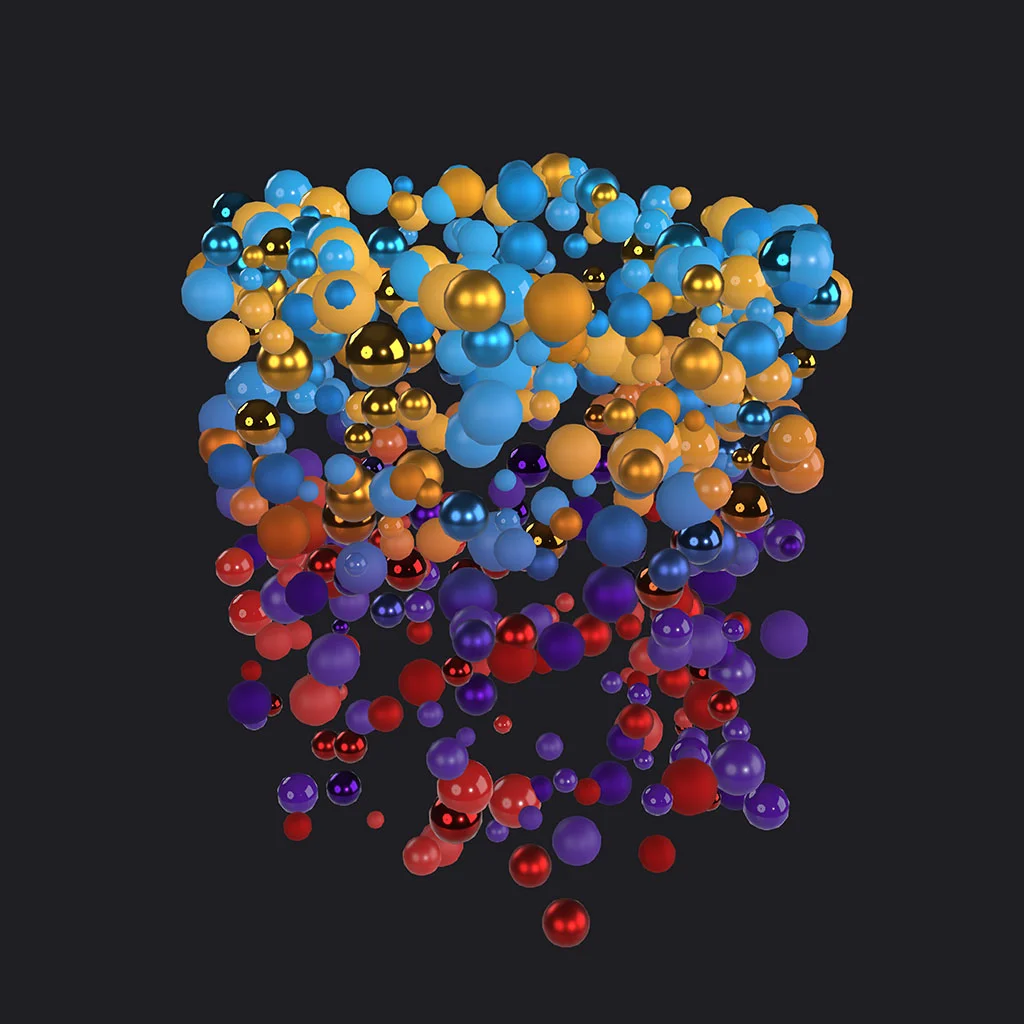
This render shows a solid particle system using a node material that employs PBRMetallicRoughness nodes, random metallic and roughness values, world position-based base color gradients, and randomized color pairings. Normally, setting useModelMaterial in the SPS constructor is all that is needed, but there are a couple of considerations to keep in mind.
- Cleaning up scene memory by deleting the original mesh added to the SPS is fine, but leaving the original node material in the scene is important. With the node material available, changes can be made to the material's uniforms to update the node material in real time, and those changes will be reflected in the SPS mesh.
- If the SPS Mesh is taking advantage of
particle.colorthe property is a nullable Color4, but can be assigned aColor3in code. Node material will be able to accessparticle.colorusing the mesh colorInputBlock, but it is important to understand what class,Color3orColor4, was assigned in code. If the property was assigned aColor3, then theInputBlockneeds to be connected to aColorSplitterBlockand theColor3output should be used for calculations. If connecting theColor4output to another block is attempted, the type mismatch will cause an unexpected conflict due to the missing channel that will likely result in nothing rendering. Matching the declaration ofparticle.colorto the component channels used in the node graph will ensure the node material renders correctly. - Not all node material blocks will work with an SPS mesh. For example, SPS meshes do not contain bones or morph targets, so those blocks will not add any benefit to the node material.
- Performance needs to stay top of mind when using node materials with SPS meshes. It is easy to create an SPS mesh that is very dense, depending on the complexity of the original mesh and the number of particles in the SPS mesh. If a node material added to the SPS mesh performs many calculations per vertex or per pixel on a dense SPS mesh, a drop in frame rate is to be expected. Balance is needed when doing something like vertex displacement on an SPS mesh to ensure that the mesh is not too dense, either because the original mesh has too many vertices or because too many particles were added to the SPS mesh.
SPS and Node Material example
The render above is from the following example, which leverages particle.color to randomize PBR parameters while also using world position to drive the color blend of the particles. particle.color could easily have been used as the base color input of the PBRMetallicRoughnessBlock, or even combined with a color uniform in the graph, but instead it is used to help create more contrast in the material by providing up to four random values to work with.
In this case, the particle.color value uses the red channel to randomly choose between a blue-purple gradient and an orange-red gradient for the particle color. The green channel is used directly as the roughness value, allowing every particle to have a different roughness value. The blue channel is used with a step node to assign either 0.0 or 1.0 to the metallic factor of the particle, so some are metallic and others are dielectric. A fourth value could have been added through the alpha channel if particle.color had been defined as a Color4.
The other calculation that is being done is a normalized world position on each particle to drive the interpolation between the two colors of either gradient. This results in the particles slowly changing colors as they move along the Y-axis. This is a simple example, but is a good launching point to illustrate how leveraging node materials with SPS meshes is a powerful technique available in Babylon.js.
Combining SPS with Node Material