Morph Targets
Morph targets
Morph targets are a new feature introduced with Babylon.js v3.0.
Basics
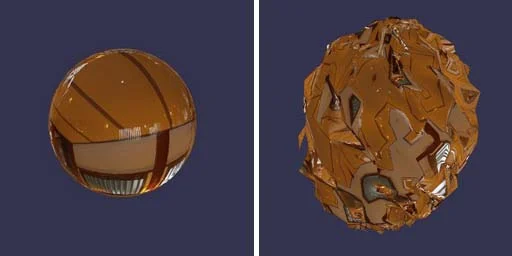
Meshes can be deformed by using morph targets. A morph target must be built from a mesh with the EXACT same number of vertices as the original mesh. Morph targets are used by the GPU to create the final geometry by applying the following formula:
final mesh = original mesh + sum((morph targets - original mesh) * morph targets influences)
For instance, you can use morph targets to simulate the opening of a mouth. The initial mesh has a closed mouth. The morph target can be the same mesh but with an open mouth. Then, by changing the influence of the morph target from 0 to 1, you can display a closed mouth, an open mouth, or a mix of both.
You can find live examples here:
Animated Morph TargetsThe following two examples are best seen in the full Playground, where sliders can be used to change the influences.
Animated Morph Targets with Standard Material Animated Morph Targets with PBR MaterialHow to Use Morph Targets
To use morph targets, you first have to create a MorphTargetManager and assign it to a mesh:
import { MorphTargetManager } from "@babylonjs/core/Morph/morphTargetManager";const manager = new MorphTargetManager();sphere.morphTargetManager = manager;Then you can create a MorphTarget either with the FromMesh static function:
import { MorphTarget } from "@babylonjs/core/Morph/morphTarget";const target = MorphTarget.FromMesh(sphereTarget, "target", 0.25);or simply by creating a target and specifying positions and normals:
import { MorphTarget } from "@babylonjs/core/Morph/morphTarget";const target = new MorphTarget(name, influence);target.setPositions(...);target.setNormals(...);Once done, you can specify the influence of a specific target with target.influence = 0.25.
Targets with influence = 0 are disabled.
Here is a complete example with 4 targets:
import { Vector3 } from "@babylonjs/core/Maths/math.vector";import { MeshBuilder } from "@babylonjs/core/Meshes/meshBuilder";import { MorphTarget } from "@babylonjs/core/Morph/morphTarget";import { MorphTargetManager } from "@babylonjs/core/Morph/morphTargetManager";const scramble = function (data) { for (index = 0; index < data.length; index++) { data[index] += 0.1 * Math.random(); }};// Main sphereconst sphere = MeshBuilder.CreateSphere("sphere1", { segments: 16, diameter: 2 }, scene);// Let's create some targetsconst sphere2 = MeshBuilder.CreateSphere("sphere2", { segments: 16, diameter: 2 }, scene);sphere2.setEnabled(false);sphere2.updateMeshPositions(scramble);const sphere3 = MeshBuilder.CreateSphere("sphere3", { segments: 16, diameter: 2 }, scene);sphere3.setEnabled(false);sphere3.scaling = new Vector3(2.1, 3.5, 1.0);sphere3.bakeCurrentTransformIntoVertices();const sphere4 = MeshBuilder.CreateSphere("sphere4", { segments: 16, diameter: 2 }, scene);sphere4.setEnabled(false);sphere4.updateMeshPositions(scramble);const sphere5 = MeshBuilder.CreateSphere("sphere5", { segments: 16, diameter: 2 }, scene);sphere5.setEnabled(false);sphere5.scaling = new Vector3(1.0, 0.1, 1.0);sphere5.bakeCurrentTransformIntoVertices();// Create a manager and affect it to the sphereconst manager = new MorphTargetManager();sphere.morphTargetManager = manager;// Add the targetsconst target0 = MorphTarget.FromMesh(sphere2, "sphere2", 0.25);manager.addTarget(target0);const target1 = MorphTarget.FromMesh(sphere3, "sphere3", 0.25);manager.addTarget(target1);const target2 = MorphTarget.FromMesh(sphere4, "sphere4", 0.25);manager.addTarget(target2);const target3 = MorphTarget.FromMesh(sphere5, "sphere5", 0.25);manager.addTarget(target3);At any time, you can remove a target with manager.removeTarget(target).
How to Access Morph Targets in a glTF File
You can access a morph target influence on a mesh in a glTF file through the morphTargetManager which is automatically created for a loaded glTF file containing morph targets. You can see how many influences are present on the mesh by writing to the console.
console.log(mesh.morphTargetManager);If you want to view or change the value of a morph target influence, you can access it by getting the target from the morphTargetManager by key.
myInfluence = mesh.morphTargetManager.getTarget(key);See the following example for a full playground using morph targets from a glTF file.
List of Morphable Properties
You can morph the following mesh attributes:
- position
- normal (can be turned off by calling
manager.enableNormalMorphing = false) - tangents (can be turned off by calling
manager.enableTangentMorphing = false) - uvs (can be turned off by calling
manager.enableUVMorphing = false)
Animating Morph Targets
You can animate any morph target influence by creating a BABYLON.Animation targeting the influence you wish to control. When creating your animation, you need to list "influence" as the property to be animated. This property will always be of type FLOAT.
import { Animation } from "@babylonjs/core/Animations/animation";const myAnim = new Animation(name, "influence", frames_per_second, Animation.ANIMATIONTYPE_FLOAT, loop_mode);To play the morph target animation, add the animation to the mesh that owns the MorphTargetManager so that the animation is easy to access later. You can then call scene.beginAnimation while targeting the specific morph target you want to animate.
mesh.animations.push(myAnim);scene.beginAnimation(morphTarget, from, to, true);You can animate multiple morphs on the same mesh by creating a new animation for each morph and targeting the appropriate influence. If you want to play several morph animations simultaneously - such as playing blink animations on morph targets driving each individual eye - you can add these animations to an animation group.
Use Morph Targets with Node Material
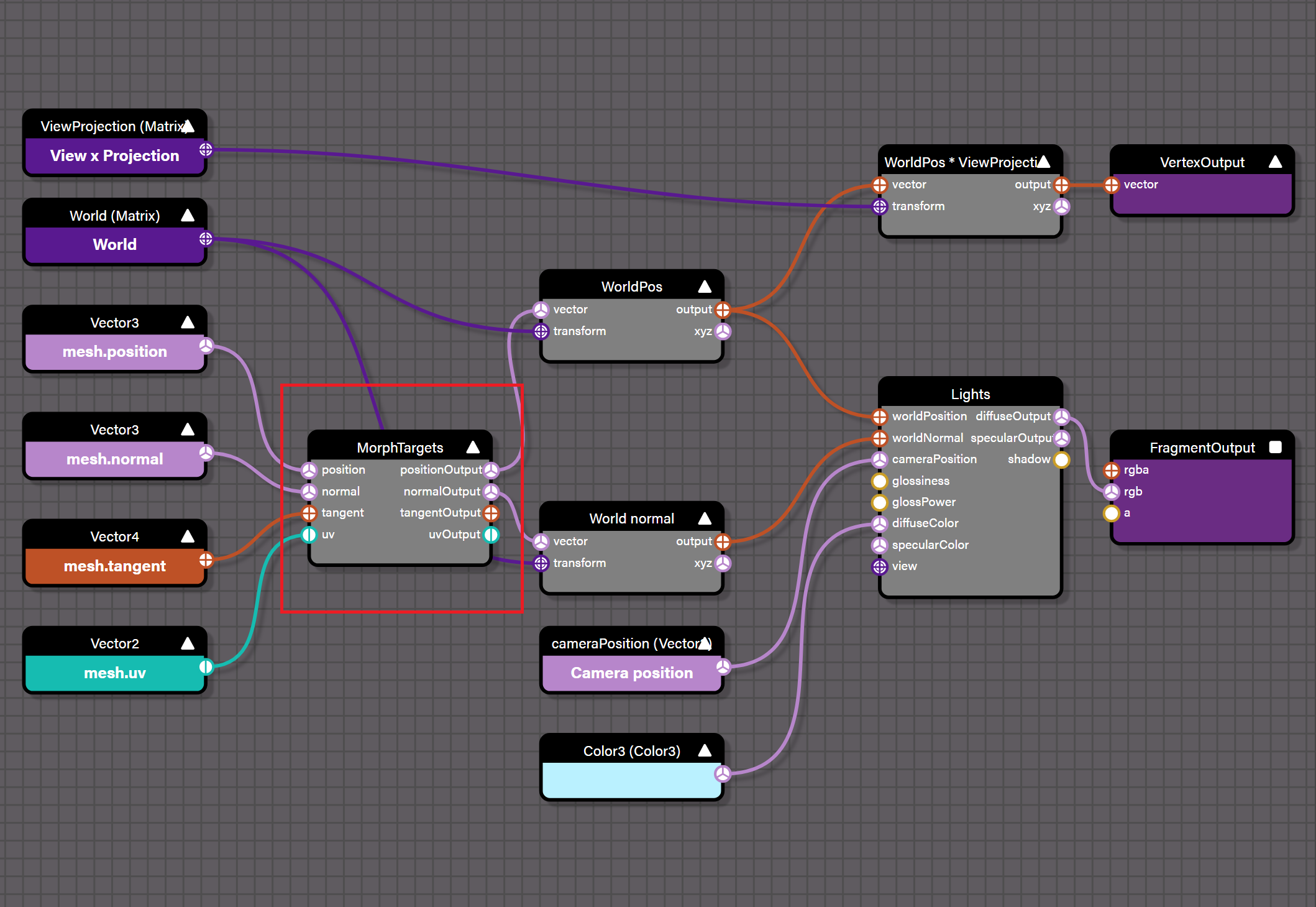
The Node Material is a powerful tool that lets you create shaders without writing GLSL. To use a Node Material on a mesh with Morph Targets, you need to add the Morph Target node to it so that vertex positions, normals, and UVs properly respond to the effects of the morph:
Limitations
On WebGL2+, Babylon.js uses textures to store the targets, so the only limit is GPU memory. You can find an example with a large number of targets here: - Lots of Morph Targets
On WebGL1, the system cannot store inside textures (it requires float textures) so as a fallback it will store the targets inside mesh vertices.
- Please be aware that most browsers are limited to 16 attributes per mesh. Adding a single morph target to a mesh adds up to 4 new attributes (position + normal + tangents + UVs). This could quickly exceed the maximum attributes limit.
- All targets within the same manager must have the same vertex count.
- A mesh and its MorphTargetManager must have the same vertex count.
You can find a video explaining how morph targets work here: