Mesh Picking
Raycasts
The rays are like sunrays. They are used to check collisions or intersections in the scene between meshes and points.
In the previous tutorial, we used it to select meshes with the mouse (a ray goes from camera to mouse position in 3D),
using the function scene.pick(scene.pointerX, scene.pointerY).
But here we will see that we can throw a ray from any point and in any direction. For example, in a third-person shooting game, we can detect collisions between our bullets and obstacles.
Documentation of classes :
You must first create a ray.
The method scene.pickWithRay() throws a ray in your scene to pick a mesh.
Use the picking info that is returned by scene.pickWithRay().
Detect the first mesh touched by the ray
Check out an example here: Get First Mesh Hit By Ray
(The following descriptions will reference this example. All line references are from the most recent example link)
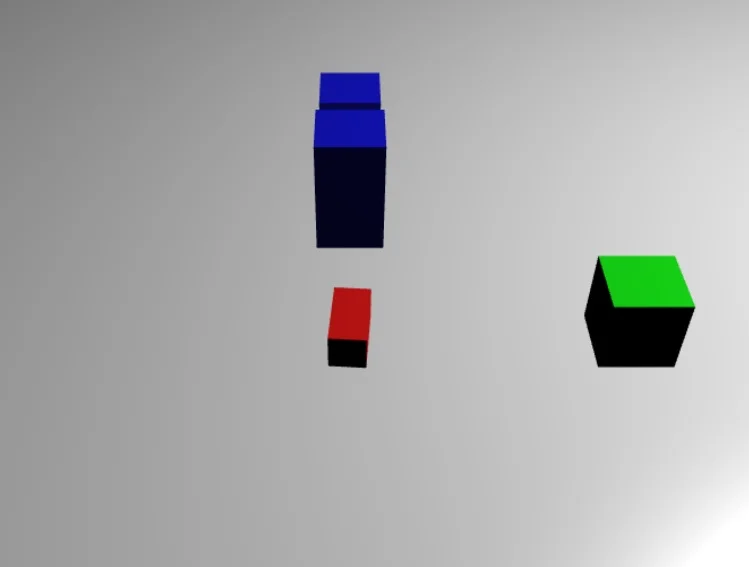
In all our playgrounds, we will imagine that our character is the main box at the center. It will shoot laser beams continually forward and detect which enemy (other boxes) is hit.
So with the mouse, you don't need to click but move to turn the box with this trigonometry function mousemovef (line #34).
When it is created, a ray requires an origin, a direction, and a length.
First, we set box.isPickable to false to avoid the ray touching the box from the inside (line #16).
Because we set the starting point (origin) of the ray in the center of the box.
The most important part is to get the correct direction vector (line #57):
import { Vector3 } from "@babylonjs/core/Maths/math.vector";var forward = new Vector3(0, 0, 1);forward = vecToLocal(forward, box);var direction = forward.subtract(origin);direction = Vector3.Normalize(direction);We want the forward vector relative to the box space and orientation.
Then, to get the direction, we subtract it from the origin, the box position.
The function vecToLocal is designed to transform a position from a mesh point of view by multiplying a vector by the mesh matrix.
Then, we create the ray with all elements given and a length of 100 for example (line #65):
import { Ray } from "@babylonjs/core/Culling/ray.core";var ray = new Ray(origin, direction, length);Finally, we get the hit point of the ray if it touches a mesh (line #68):
var hit = scene.pickWithRay(ray);And if a mesh is hit, we can do whatever we want with the picking info, such as getting the mesh name or the position of the point. Here we change its size because it's more fun!
You're not forced to set box.isPickable to false, if you need later to check rays intersection on this box for example.
You can set the origin point of the vector in front of the box, the direction a little further and the length that you want (line #55):
Predicate function
It is a filter to choose which meshes will be selectable:
Predicate Function Example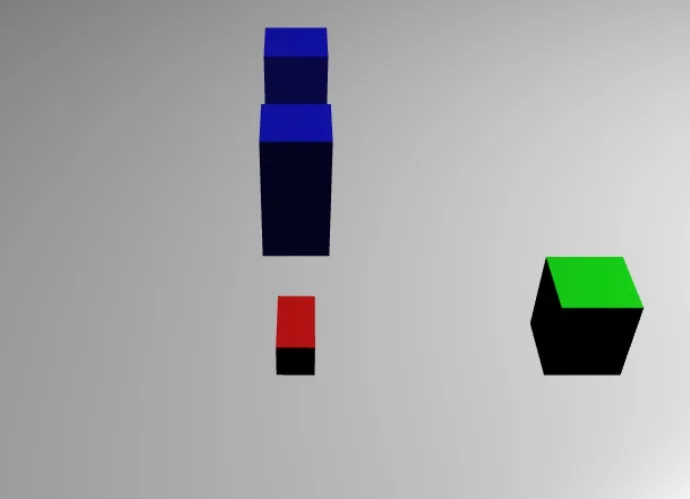
We added a new function predicate (line #54):
function predicate(mesh) { if (mesh == box2 || mesh == box) { return false; } return true;}and in parameter here:
scene.pickWithRay(ray, predicate);The isPickable = false argument becomes irrelevant, so we have to exclude the box.
We also exclude box2 for testing and allow the rest, box3 and box4 by default.
And the result is, only box3, the second blue one behind, and box4 will grow. So it works as if box2 were transparent to the ray!
There is one other optional argument to the method pickWithRay. It's the boolean fastCheck (false by default).
True will return the first mesh that intersects with the ray (in the order of the meshes array), not the closest mesh to the ray's starting point.
Triangle predicate
Starting with Babylon.js v4.0 you can define a custom predicate to filter the triangles selected to be tested against the incoming ray. The predicate will be called with the 3 vertices of each face and the upcoming ray:
import { Vector3 } from "@babylonjs/core/Maths/math.vector";scene.pick(scene.pointerX, scene.pointerY, null, false, null, (p0, p1, p2, ray) => { var p0p1 = p0.subtract(p1); var p2p1 = p2.subtract(p1); var normal = Vector3.Cross(p0p1, p2p1); return Vector3.Dot(ray.direction, normal) < 0;});In this example we are filtering out all the triangles that are not facing towards the camera.
Live example: Triangle Predicate
Multi pick
We can use scene.multiPickWithRay if we don't want the ray to stop at the first obstacle:
The picking result will be an array (line #68).
We can loop through the array to change all meshes hit. In the example you can see that the two blue boxes change in size. It's like a strong bullet!
Alternative picking methods
Another method of picking with a ray is to directly use the Ray class. There is one caveat to this method, however. When using pickWithRay, the method automatically transforms the ray from world coordinates to the local coordinates of the mesh being picked. If you want to use the Ray class itself, the conversion from the world coordinates of the ray to the local space of an intersecting mesh must be done manually.
To do this, first create a ray and mesh to check for intersection, then convert the ray into the local space of the mesh to determine the correct intersection point on the mesh.
import { Ray } from "@babylonjs/core/Culling/ray.core";import { RayHelper } from "@babylonjs/core/Debug/rayHelper";import { Vector3 } from "@babylonjs/core/Maths/math.vector";import { MeshBuilder } from "@babylonjs/core/Meshes/meshBuilder";// create a mesh to intersectlet box = MeshBuilder.CreateBox("box", { size: 1.0 }, scene);// define the ray origin, direction, and lengthlet origin = new Vector3(0.0, 0.0, 1.5);let dir = new Vector3(0.0, 0.0, -1.0);let length = 5.0;// create the raylet myRay = new Ray(origin, dir, length);// use the ray helper to render the ray in the scenelet rayHelper = new RayHelper(myRay);rayHelper.show(scene);// transform the ray into the local space of the mesh to get an accurate intersection point - in this case we are using the inverse of the mesh's world matrix to transformRay.Transform(myRay, box.getWorldMatrix().invert());Then simply check if the ray intersects the mesh and capture the picking information.
// check to see if the ray intersects the mesh and capture the pick informationlet pickingInfo = myRay.intersectsMesh(box);Picking Ray
Another handy feature is the createPickingRay. This special ray is cast from a camera, out to infinity, in the direction of the cursor (relative to the virtual lens). Confusing? Basically think of it as a ray that's cast out of the camera and 'aimed' by the cursor. This is another method for picking objects in your scene. Here's a playground and video to check out on the subject.
Picking Ray ExampleDebugging
It can be hard to understand where a ray starts and what its direction is. To help you debug, you can use the RayHelper.
You can either use a static function to create and show one:
import { RayHelper } from "@babylonjs/core/Debug/rayHelper";import { Color3 } from "@babylonjs/core/Maths/math.color";RayHelper.CreateAndShow(ray, scene, new Color3(1, 1, 0.1));or you can use a more detailed version:
import { RayHelper } from "@babylonjs/core/Debug/rayHelper";var rayHelper = new RayHelper(ray);rayHelper.show(scene);The helper can also be attached to a mesh to track its direction:
import { Vector3 } from "@babylonjs/core/Maths/math.vector";var localMeshDirection = new Vector3(0, 0, -1);var localMeshOrigin = new Vector3(0, 0, -0.4);var length = 3;rayHelper.attachToMesh(box, localMeshDirection, localMeshOrigin, length);GPU Picking
Picking can be an expensive feature to use as the CPU has to go through all the geometries to find the closest triangle which is intersecting with the picking ray.
Starting with Babylon v8.0, you can now use the GPU for your picking needs. This will mostly be useful if you have very complex objects where scanning all the triangles will kill your performance:
import { GPUPicker } from "@babylonjs/core/Collisions/gpuPicker";var picker = new GPUPicker();picker.setPickingList(myMeshes);scene.onPointerObservable.add(() => { if (picker.pickingInProgress) { return; } picker.pickAsync(scene.pointerX, scene.pointerY, scene, false).then((pickingInfo) => { if (pickingInfo) { console.log(pickingInfo.mesh.name); } });});As you can see, you only need to create a GPUPicker, define the list of pickable meshes, and call the pickAsync function.
The system will then render the scene onto a texture and read from that texture at the given coordinates. Each mesh is rendered with a unique color, so the picker can return the picked mesh.
Thanks to the call to setPickingList, the picker can prepare all the instances and associate a new vertex buffer to store their unique colors.
Please note that if you pick a mesh with thin instances then the pickingInfo.thinInstanceIndex will give you the index of the picked thin instance if any.
GPU Multi picking
You can perform a picking operation on multiple coordinates at once by using picker.multiPickAsync(coordinates: IVector2Like[]). The function returns Promise<BABYLON.IGPUMultiPickingInfo>.
export interface IGPUMultiPickingInfo { /** * Picked mesh */ meshes: Nullable<AbstractMesh>[]; /** * Picked thin instance index */ thinInstanceIndexes?: number[];}The meshes property always has the length of the array of meshes you set with the picker.setPickingList function, so you can use index-based lookup for a picking hit. If a mesh was not picked, the meshes property contains undefined at the given index. The thinInstanceIndexes property works the same way and returns indexes just as pickAsync does.
Before you can use multi picking, you have to set the meshes you intend to pick with setPickingList, just as you do when performing single picking.
You can use multi picking for occlusion detection, as demonstrated in the following Playground:
GPU Multipicking exampleMulti picking is optimized and always renders only a portion of the picking texture defined by an area from the minimum to the maximum picking coordinates. If this area is too big, you should consider calling multiPickAsync multiple times with smaller areas or calling pickAsync multiple times with a single coordinate.
Important
The following applies to meshes in the picking list. Due to performance reasons, checks are not performed. It is up to the user to ensure all pickable meshes follow simple rules.
- All meshes in the picking list should always be enabled.
- Mesh enabled states are not checked when picking. If you have a pickable mesh with
mesh.setEnabled(false), pick results will be invalid. If you really need to disable a mesh, remove it from the picking list first, update the pick texture withpicker.setPickingList([...newList]), then disable your mesh. - Any instances in the picking list must also be accompanied by their root mesh, even if it is not meant to be picked.
- Any instances added/removed from the picking list needs a
picker.setPickingList([...list])to update the pick texture. If you have to dispose said instance, remove instance from the picking list first, dispose said instance and then callpicker.setPickingList([...newList]). - For thin instances, if you make any changes to the matrix buffer, ie, add/remove thin instances, you have to call
picker.setPickingList([...list])to update the pick texture after. - GPU picking works with
mesh.visibility = 0andmesh.material.alpha = 0but not withmesh.isVisible = false. renderOverlaydoes not work with GPU picking for meshes (no instances/thin instances) and cloned meshes.