More On Height Maps
Introduction
In this tutorial, our goal is to understand height maps, a method used to generate realistic terrain. Height maps are easy to use, customizable, and still produce impressive terrain:
What we are going to try and achieve
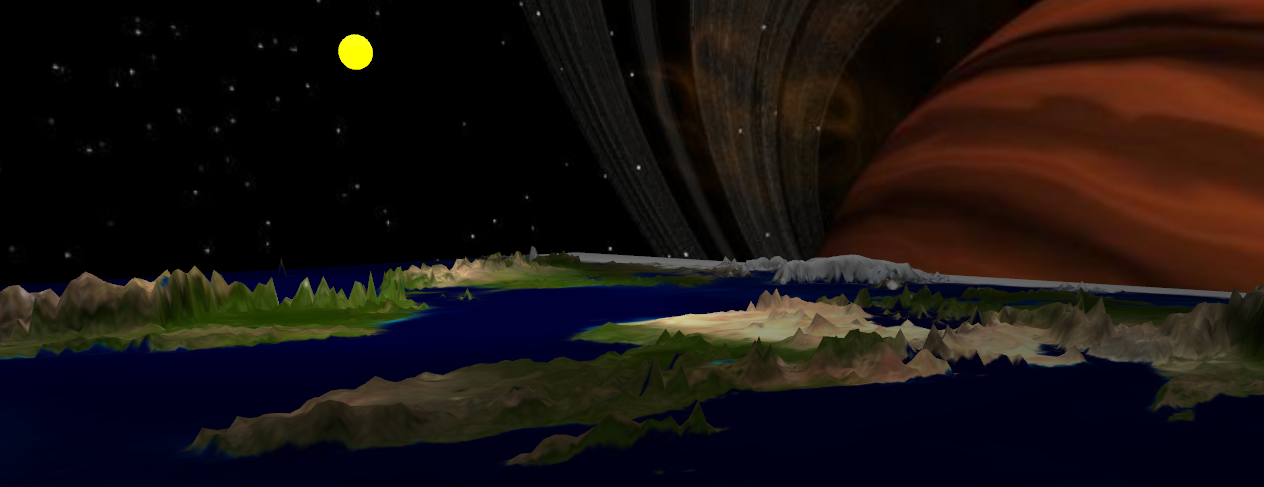
How to do this?
How height-maps work
Understanding height maps is the main objective of this tutorial. A height map is simply a gray-scale texture. Each pixel in the texture maps onto the height of a point on a plane, hence the name height map. The whiter the pixel, the higher the displacement; the darker the pixel, the smaller the displacement. From the variations of gray within the texture, we can map out terrain. For this example, we shall use the following texture:
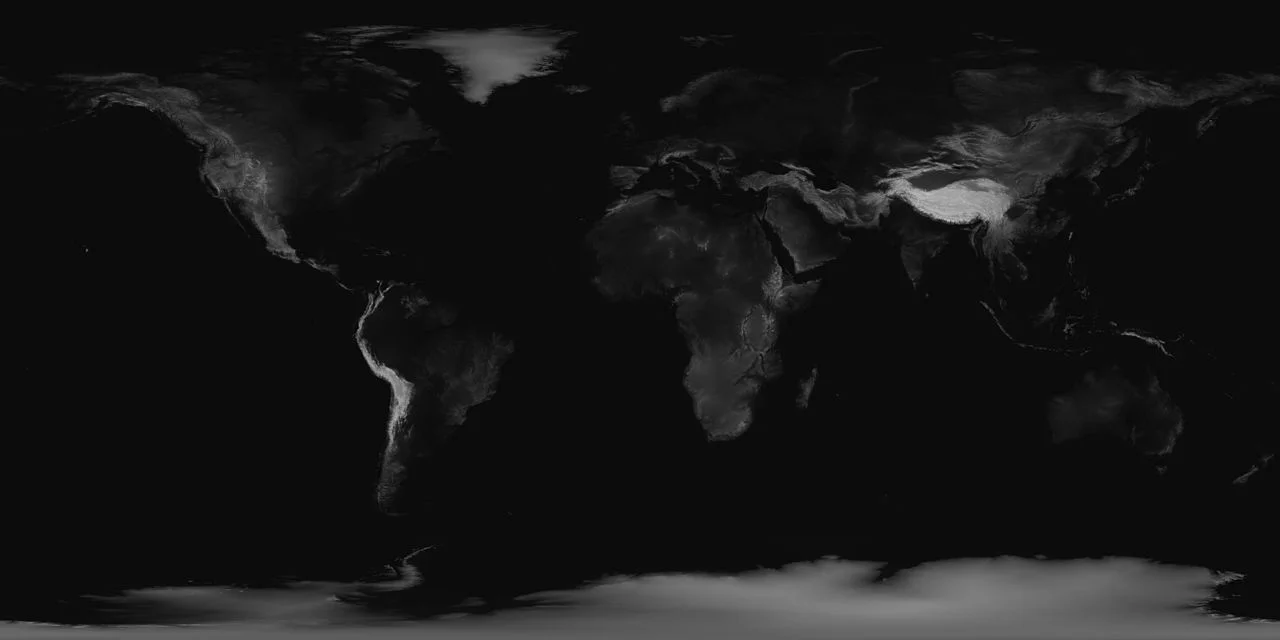
To help you generate height-map textures (like the one above), you can use software such as Terragen or Picogen (free).
Javascript code
Now let’s look at the powerful function named CreateGroundFromHeightMap:
import { StandardMaterial } from "@babylonjs/core/Materials/standardMaterial";import { Texture } from "@babylonjs/core/Materials/Textures/texture";import { MeshBuilder } from "@babylonjs/core/Meshes/meshBuilder";// Create a material with our land texture.let groundMaterial = new StandardMaterial("ground", scene);groundMaterial.diffuseTexture = new Texture("Earth__land.jpg", scene);// Use CreateGroundFromHeightMap to create a height map of 20 units by 20// And a height of to// units, with 250 subdivisions in each of the `x` and `z` directions, for a// total of 62,500 divisions.const ground = MeshBuilder.CreateGroundFromHeightMap("gdhm", "textures/heightMap.png", { width: 20, height: 20, subdivisions: 250, maxHeight: 10, minHeight: 2});// Bind our material to our meshground.material = groundMaterial;The parameters passed are:
- name: The name of the resulting mesh
- Height-map texture: The URL of the height-map texture.
- options: The options for producing the height-map.
- scene: The scene to which the resulting mesh is appended.
- updatable: Boolean to specify if the mesh should be updatable.
- successCallback: Callback that receives the successfully produced height-map terrain.
The following options, passed as the third parameter, are used to construct the height-mapped plane:
- width: The width of the plane
- height: The height of the plane
- minHeight: Lowest point on the plane
- maxHeight: Highest point on the plane
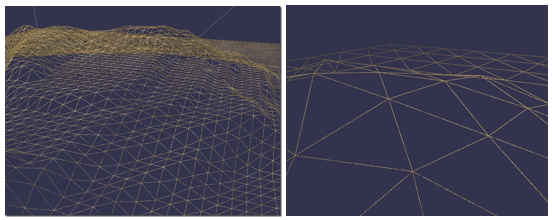
- subdivisions: How detailed the height-mapped plane should be. Higher values mean a higher polygon count and therefore better visual quality, as seen below:
Now we can see a 3D representation of the earth's surface on a plane!
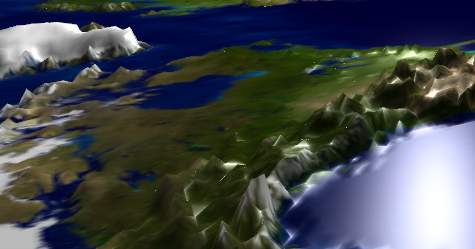
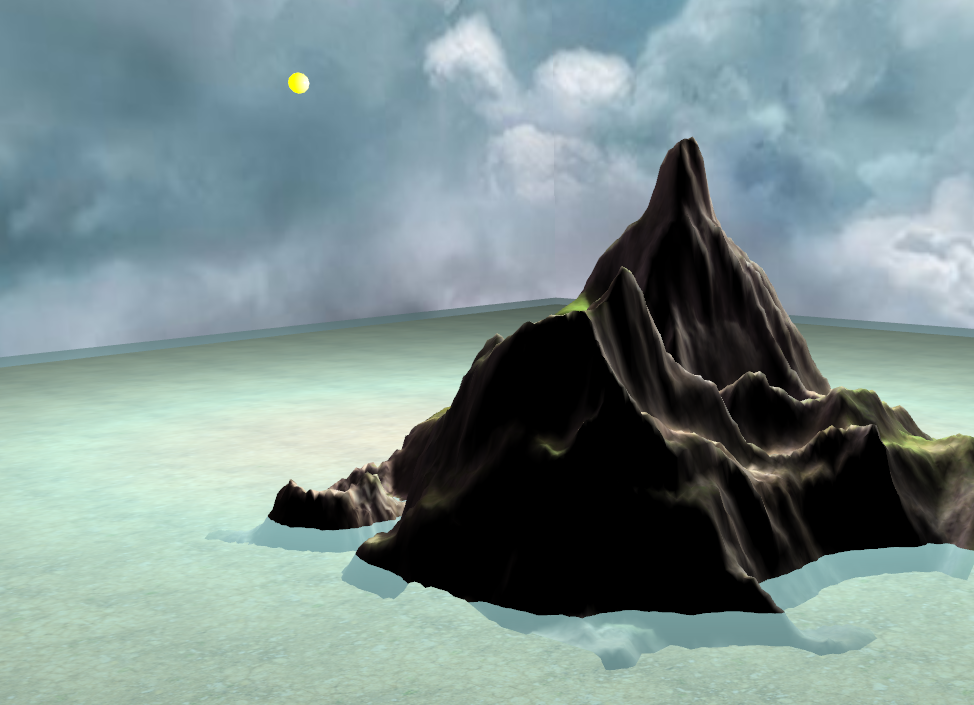
Another example showing basic lighting, height maps, and a skybox in use!
Tips.
If a height map negatively impacts performance, try reducing the subdivisions to reduce the number of polygons on the mesh. For further documentation, see the CreateGroundFromHeightMesh API reference.