Ribbon In Detail
Ribbon in Detail
Let's take a closer look at a ribbon.
It is formed using paths. A path is simply an array of a minimum of two vector3 points.
The image below shows the construction of a ribbon using two paths, A and B, each having five points.
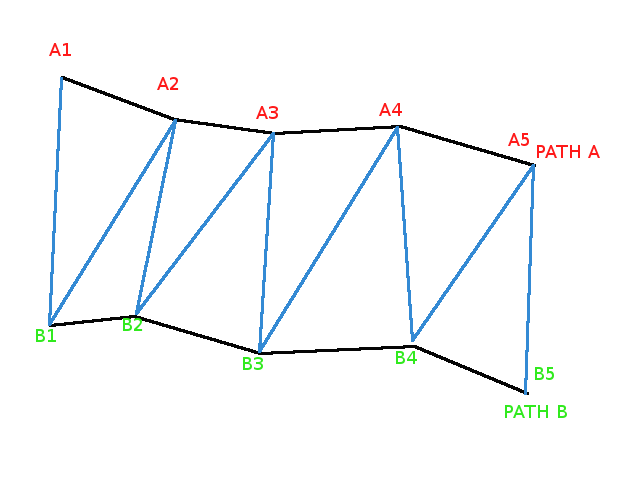
Here's a simple example:
Simple Ribbon ExampleYou can have as many paths as you wish, including just one. You can close all the paths and/or close the paths array itself. Imagine a long, narrow ribbon in the real world with wire running down its length. Closing the paths forms a loop of ribbon, while closing the array forms a tube.
Single Path Ribbon
First construct the single path, for example
import { Vector3 } from "@babylonjs/core/Maths/math.vector";pathHelix = [];let v;for (let i = 0; i <= 60; i++) { v = (2.0 * Math.PI * i) / 20; pathHelix.push(new Vector3(3 * Math.cos(v), i / 4, 3 * Math.sin(v)));}Showing the path: Showing Ribbon Path
The ribbon is formed by joining each point on the path to a later point where one exists. The offset property governs how many points ahead the current point will be joined to. The triangular facets for the mesh are formed from the current point, the next point, and the offset point.
For point p and offset f, the triangle is p, p + 1, p + f, provided, of course, that p + f < number of points in the path array.
Create the ribbon with a variety of offsets and show in wireframe
default offset, half the path length (60 / 2 = 30): Create a Ribbon Example 1
offset 10: Create a Ribbon Example 2
offset 5: Create a Ribbon Example 3
offset 20: Create a Ribbon Example 4
So playing with offset, closeArray, or other parameters, you can easily get volumes, even with a single path: Create a Ribbon Example 5
Length of Paths
It's not mandatory that all the ribbon paths have the same length, but it is not recommended.
The best way to emulate different lengths for some parts of your mesh is simply to use many ribbons.
In this example: Create a Ribbon With Path Lengths path2 and path3 are longer than path1 and path4.
As you can see, the final ribbon adjusts to different lengths. The rule is that they all start from the first path points, and each intermediate ribbon then stops at the first end reached by either of its two constituent paths. However, while you can add color using a material, as done here: Create a Colored Ribbon
There is no effect on light reflection for a ribbon with different-length paths.
Therefore you can't add a texture to a ribbon constructed with different length paths.
This is due to the fact that the nested ribbon texturing algorithm only knows how to deal with a unique length for all paths.
When applying a texture, the algorithm assumes that the ribbon can be unfolded into a rectangle that can be stretched to fit on top of the image used for the texture.
This is only possible when paths are of equal length.
Closed shapes : normals or textures ?
The ribbon mesh provides two ways to automatically close an unclosed shape.
- closeArray parameter : this will add an extra unit ribbon between the last path and the first path of your pathArray.
- closePath parameter : this will join the last and first points of each path in your pathArray.
import { MeshBuilder } from "@babylonjs/core/Meshes/meshBuilder";var ribbon = MeshBuilder.CreateRibbon("ribbon", { pathArray: paths }, scene);import { MeshBuilder } from "@babylonjs/core/Meshes/meshBuilder";var ribbon = MeshBuilder.CreateRibbon("ribbon", { pathArray: paths, closeArray: true }, scene);Notice that the texture isn't stretched on the surface added by the automatic closing but applied independently. The reason for this behavior is that, with ribbon closeXXX parameters, priority is given to the normals (the tools that compute light reflection) over textures. If you don't care about continuous light reflection but you do want your texture to be stretched along the whole surface, you just have to forget automatic closing and close the ribbon yourself. A simple way to do this is to push the first path again at the end of the pathArray.
Closed Textured Ribbonimport { MeshBuilder } from "@babylonjs/core/Meshes/meshBuilder";paths.push(paths[0]);var ribbon = MeshBuilder.CreateRibbon("ribbon", { pathArray: paths }, scene);The same rules and workarounds apply to the closePath parameter.
Ribbon With ClosePath Textured Ribbon With ClosePath