Map Materials to Individual Mesh Faces
This method is only available when creating a mesh using the MeshBuilder method.
The following meshes have identifiable faces when created with the MeshBuilder method: box, cylinder, extruded polygon, and polyhedron. They have the faceUV and faceColors parameters in their options. This means that each face can have a different texture or color. For colors, a particular color is mapped to a particular face. For textures, part of the image file is mapped to a particular face. This can be done with any image, and it is often useful to use a texture atlas containing a number of images combined into one file.
If you are concerned about the orientation of the images on the faces, it may be necessary to use different orientations for the separate images in the source file.
Using these methods on the meshes above means there is no need for submaterials or submeshes.
As a prerequisite, you may want to learn more about UV mapping on Wikipedia.
Face Numbers
The playground below shows that face numbering for MeshBuilder.CreateBox is as follows:
- side 0 faces the positive z direction
- side 1 faces the negative z direction
- side 2 faces the positive x direction
- side 3 faces the negative x direction
- side 4 faces the positive y direction
- side 5 faces the negative y direction
Texture Atlas
A texture atlas, also known as a sprite sheet or sprite atlas, contains a range of images, as in the example below.
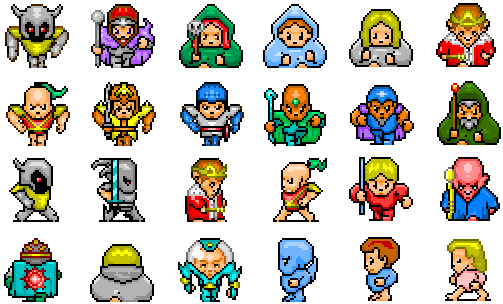
In this atlas there are 24 different images in 4 rows of 6. Each sprite image is mapped onto a face using uv coordinates. The u coordinate goes horizontally left to right from 0 to 1 and the v coordinate goes vertically bottom to top from 0 to 1.
To map part of the image, the bottom-left coordinates and top-right coordinates are used. Using (0, 0) and (1, 1) uses the whole texture atlas. In this case, there are six sprites in a row and four in a column, so divide the image into a grid and mark the axes as below.
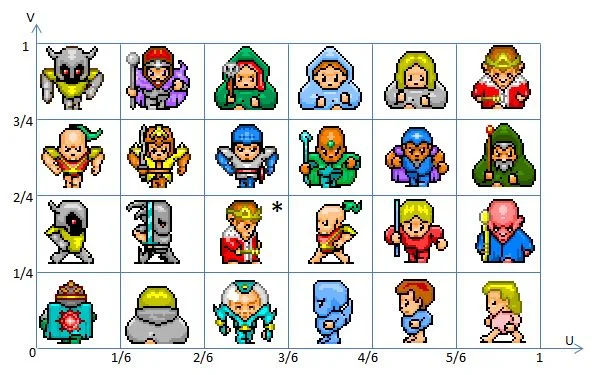
Consider the sprite in the grid space marked with a *. Counting the columns as 0, 1, 2, 3, 4, 5 and the rows as 0, 1, 2, 3, it is in column 2 and row 1, so the bottom left is (2 * 1/6, 1 * 1/4) = (2/6, 1/4) and the top right is ((2 + 1) * 1/6, (1 + 1) * 1/4) = (3/6, 2/4).
In general for this texture atlas a sprite in column c and row r will have coordinates bottom left (c * 1/6, r * 1/4) and top right ((c + 1) * 1/6, (r + 1) * 1/4). With faces of the mesh numbered from 0 when you want to map face f to the sprite at grid (c, r) take an array faceUV and put
faceUV[f] = ((c * 1) / 6, (r * 1) / 4, ((c + 1) * 1) / 6, ((r + 1) * 1) / 4);Assigning the texture atlas as a texture material to the mesh is done as usual
import { StandardMaterial } from "@babylonjs/core/Materials/standardMaterial";import { Texture } from "@babylonjs/core/Materials/Textures/texture";const mat = new StandardMaterial("mat", scene);const texture = new Texture("URL of Texture Atlas", scene);mat.diffuseTexture = texture;mesh.material = mat;Colors
To apply a color to a face f, just use a faceColors array and assign a color.
import { Color4 } from "@babylonjs/core/Maths/math.color";faceColors[f] = new Color4(r, g, b, a);For colors only no material is needed.
These colors are BJS Color4-class values. The Color4 alpha values become active if we set hasVertexAlpha = true :
Combine Colors and Textures
You can even combine the vertex colors with a colored material.
import { Color4 } from "@babylonjs/core/Maths/math.color";faceUV[f] = ((c * 1) / 6, (r * 1) / 4, ((c + 1) * 1) / 6, ((r + 1) * 1) / 4);faceColors[f] = new Color4(r, g, b, a);Examples of Per Face Material
The box example demonstrates the full scope of this feature. At least one example is provided for each of the other mesh types that can use faceUV and faceColors.
Box - faceUV
A box has six faces so only the bottom row, row 0, of the texture atlas above is used on the box in these examples.
To map sprites 0 to 5 onto faces 0 to 5 it is sufficient for the face number to match the column number and to set the row number to 0.
import { Vector4 } from "@babylonjs/core/Maths/math.vector";const columns = 6; // 6 columnsconst rows = 4; // 4 rowsconst faceUV = new Array(6);for (let i = 0; i < 6; i++) { faceUV[i] = new Vector4(i / columns, 0, (i + 1) / columns, 1 / rows);}Then this array is passed to the faceUV option to be used in the MeshBuilder.CreateBox() method along with any options for the size of the box and the material formed with the given texture atlas.
import { StandardMaterial } from "@babylonjs/core/Materials/standardMaterial";import { Texture } from "@babylonjs/core/Materials/Textures/texture";import { MeshBuilder } from "@babylonjs/core/Meshes/meshBuilder";const options = { width: 10, height: 3, depth: 5, faceUV: faceUV,};const box = MeshBuilder.CreateBox("box", options, scene);const mat = new StandardMaterial("mat", scene);const texture = new Texture("URL of Texture Atlas", scene);mat.diffuseTexture = texture;box.material = mat;You do not have to map all the faces. If you want just one face with an image, map only that face.
Take the alien sprite on row 0 and column 3 and just map this sprite to face 1.
import { Vector4 } from "@babylonjs/core/Maths/math.vector";const columns = 6; // 6 columnsconst rows = 4; // 4 rowsconst faceUV = new Array(6);faceUV[1] = new Vector4(3 / columns, 0, (3 + 1) / columns, 1 / rows);As you view the box in the above playground from different angles you will notice that the whole texture atlas is applied to all the other faces, that is the default value (0, 0, 1, 1). When you want to display just the one sprite on the one face and leave the others blank then you need to set all the other faceUV values to (0, 0, 0, 0).
import { Vector4 } from "@babylonjs/core/Maths/math.vector";const columns = 6; // 6 columnsconst rows = 4; // 4 rowsconst faceUV = new Array(6);//set all values to zerofor (let i = 0; i < 6; i++) { faceUV[i] = new Vector4(0, 0, 0, 0);}//overwrite wanted face with sprite coordinatesfaceUV[1] = new Vector4(3 / columns, 0, (3 + 1) / columns, 1 / rows);Of course, you can do this with one, two, three, four, or five box faces.
If you want to add some all-over color to the box, just add a diffuseColor to your material.
Sprite on Box Face With Material ColorYou can also use one texture atlas to apply two different images from the same sheet onto two different meshes.
Sprites Sheet On Faces of 2 MeshesLooking more closely at the face images around the sides, you will see that some images are rotated by 90 degrees relative to others. Unfortunately, if you want all images around the sides to have the same orientation, this is not possible by adjusting only the UV coordinates. What can be done by swapping coordinates is covered next, followed by a method that adjusts the texture atlas to orient the images on the sides.
How To Orientate a Sprite on a Face with faceUV
Because of how UV coordinates are interpreted it is possible to reflect a sprite horizontally, vertically or both (which is the same as an 180 degree rotation). Any other rotation has to be dealt with by rotating the sprite within the texture atlas.
Consider the alien with bottom left and top right coordinates for UV as shown.
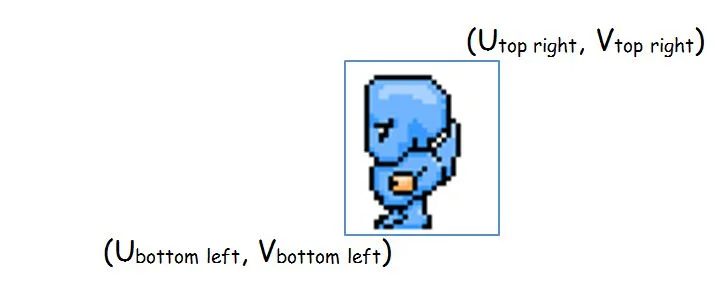
To set this to face one in its current orientation you would use
import { Vector4 } from "@babylonjs/core/Maths/math.vector";faceUV[1] = new Vector4(Ubottom_left, Vbottom_left, Utop_right, Vtop_right);To reflect in a vertical line swap the horizontal, U, coordinates.
import { Vector4 } from "@babylonjs/core/Maths/math.vector";faceUV[1] = new Vector4(Utop_right, Vbottom_left, Ubottom_left, Vtop_right);To reflect in a horizontal line swap the vertical, V, coordinates.
import { Vector4 } from "@babylonjs/core/Maths/math.vector";faceUV[1] = new Vector4(Ubottom_left, Vtop_right, Utop_right, Vbottom_left);To reflect in both horizontal and vertical lines, swap the U coordinates and also swap the V coordinates.
import { Vector4 } from "@babylonjs/core/Maths/math.vector";faceUV = new Vector4(Utop_right, Vtop_right, Ubottom_left, Vbottom_left);You can use the images on the other faces in the following playground to check the change on orientation of the alien sprite in all the reflections.
Understanding Face Orientation With SpritesSince a Vector4 has the properties x, y, z, w (in that order), setting
import { Vector4 } from "@babylonjs/core/Maths/math.vector";faceUV[1] = new Vector4(Ubottom_left, Vbottom_left, Utop_right, Vtop_right);means
faceUV[1].x = Ubottom_left;faceUV[1].y = Vbottom_left;faceUV[1].z = Utop_right;faceUV[1].w = Vtop_right;which gives another way to swap coordinates. For example, to reflect in a vertical line, do
const temp = faceUV[1].x;faceUV[f].x = faceUV[f].z;faceUV[f].z = temp;How To Orientate a Sprite on a Face with the Texture Atlas From Version 4.0
Three new optional parameters were added to CreateBox in the V4.0 update:
- wrap - boolean (default = false), when true all vertical sides (0, 1, 2, 3) will apply image textures in the correct upright direction, and the two horizontal sides (4, 5) will apply image textures so that when the box is rotated around the x axis and these sides become vertical, the applied image textures will keep their original orientations;
- topBaseAt - integer, 0, 1, 2, 3, (default = 1), the bottom (base) of the image for the top of the box is next to the side with the number given;
- bottomBaseAt - integer, 0, 1, 2, 3, (default = 0), the bottom (base) of the image for the bottom of the box is next to the side with the number given.
In the following playground, the two boxes at the top do not use the wrap parameter, and the results are backward compatible with earlier versions of Babylon.js. The lower boxes have wrap set to true.
Wrap Sprite OrientationThe next playground shows the use of non-default values for topBaseAt and bottomBaseAt.
Wrap Top and Bottom Rotate Wrap Cartoon HeadHow To Orientate a Sprite on a Face with the Texture Atlas Before Version 4.0
Here consider just the orientation of the sides as viewed in the playground below.
Take the following texture atlas

and apply it to a cube to give the playground below
Default Image RotationLooking at the playground tells you two things
- Which face is number 0, which is number 1 and so on by matching letter to number
- Going round the sides the orientations vary by 90 degrees.
As you saw in the previous section it is possible to doubly reflect A so it is the right way up. It is not possible to do this with C and D. To have A, B, C, and D all the same way up the texture atlas itself has to be changed.
A is rotated 180 degrees and C and D are rotated 90 degrees counter clockwise. Taking this into account change the texture atlas to

resulting in the following playground
Aligning Images on FacesBox - faceColors
For this, no material is needed.
Define a 6-element array faceColors (one entry for each box face) and set the color of the faces you want.
import { Color4 } from "@babylonjs/core/Maths/math.color";const faceColors = new Array(6);faceColors[4] = new Color4(1, 0, 0, 1); // red topfaceColors[1] = new Color4(0, 1, 0, 1); // green frontThen pass this array to the MeshBuilder.CreateBox() method with the new faceColors parameter of options.
import { MeshBuilder } from "@babylonjs/core/Meshes/meshBuilder";const options = { width: 10, height: 3, depth: 5, faceColors: faceColors,};const box = MeshBuilder.CreateBox("box", options, scene);These colors are BJS Color4-class values. The Color4 alpha values become active if you set hasVertexAlpha = true for the box.
Box - Mix Face Textures and Colors
Finally, you can also mix per-face colors with per-face textures, and/or mix either with the material's standard colors.
Mixed Textures and Colors Per FaceCylinder
A cylinder has three surfaces: the top, the bottom, and the tube joining them. For the face options, face 0 is the bottom, face 1 is the tube, and face 2 is the top.
The following texture image is split into two parts, an approximation to a top and the label. The bottom will be colored just using faceColors and so the bottom face uv coordinates will be 0, 0, 0, 0.
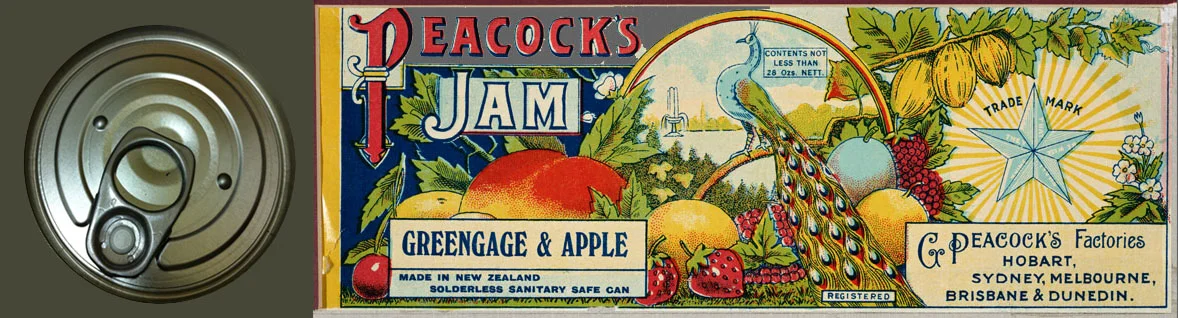
The label part has width 866 pixels and height 319 pixels.
So you need the tube surface to have the same height-to-width ratio.
When you create a cylinder with a default diameter of 1, the rectangle wrapping around the tube surface will have a width of π.
Letting h be the height of the cylinder then to not distort the aspect ratio of the image wrapped around the cylinder keep the ratios h/π and 319/866 the same.
So make h = π * 319/866 = 1.16 to 2 decimal places.
Also note that because of how a cylinder's mesh is constructed, the horizontal coordinates (U) are swapped in faceUV[1] for the wrapped image to correct the reflection of the image.
Different Texture on Cylinder and Its TopExtruded Polygon
An extruded polygon has three surfaces: top, bottom, and extruded sides. Face 0 is the top, face 1 is the extruded sides, and face 2 is the bottom.
Extruded Polygon with Different Textures on Sides and TopPolyhedra
You can use a texture atlas with all polyhedra; however, without very careful consideration of the nature of the texture atlas, the results can look a little random.
Polyhedra with Different Characters Per FaceUsing each sprite as a texture rather than as part of a picture makes more sense.
Polyhedra with Different Textures Per FaceJust colors work well.
Polyhedra with Different Colors Per Face