Node Material and PBR
Creating PBR materials
It is incredibly easy to utilize Physically Based Rendering with Node Materials thanks to the PBRMetallicRoughness block.
You can use these playgrounds and materials as starting points for your own experiments creating PBR materials in the NME (note that the node material may take some time to load in the PG - the mesh will stay black until the material is loaded):
- Full use of all PBR blocks:
- PG: PBR Blocks Playground
- Material: PBR Blocks NME
- PBR material with sheen only:
- PBR material with clear coat only:
- PBR material with sub surface only:
The inputs of the different PBR blocks are using the same names as in the PBRMetallicRoughnessMaterial class, so you can refer to this doc for explanations about them.
Some of the parameters are available as properties when clicking on the block in the NME.
For example, for Reflection:

Or for PBRMetallicRoughness:
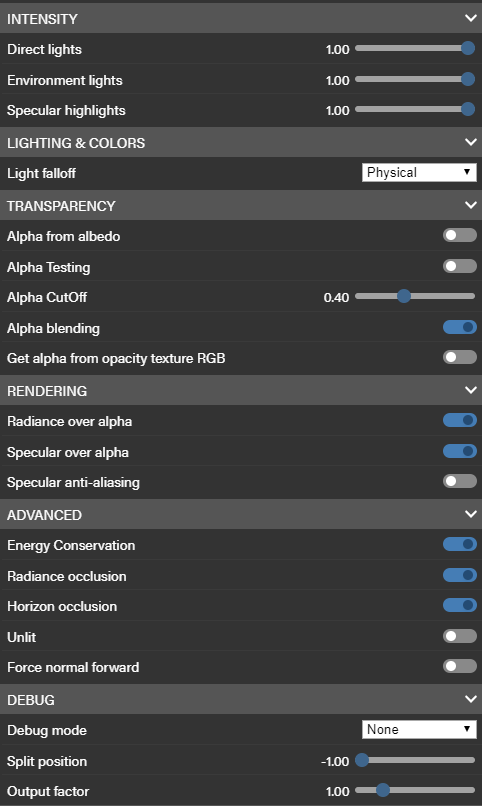
As for the standard PBRMaterial, if no texture is provided for the Reflection / Refraction texture, the one declared at the scene level (scene.environmentTexture) is used instead.
By default, if something is connected to the a input of the FragmentOutput block, alpha blending is enabled. If you don't need alpha blending, don't connect this input.
Regarding the PBRMetallicRoughness block, you have access to each output component separately (ambient, diffuse, specular, ...) if you want, or you can directly use lighting to get the composite output. In the names of the separate outputs, dir means direct (component from direct lights) and Ind means Indirect (component from indirect lighting, meaning the environment).
A note about image processing and manual compositing: the composited lighting output of the PBRMetallicRoughness block also adds image processing from the scene. If you want to add additional components to the standard lighting setup, you will want to do the compositing yourself using the separate components. The outputs of the separate components are in linear color space. This is important because if you want to calculate scene image processing in your manual composite, you'll need the ImageProcessing block. This block assumes input values in gamma color space by default and runs an internal conversion to a linear color space output. You will need to turn this conversion off in the ImageProcessing block properties to pass linear values through without conversion.