# .obj File Loader Plugin
> Learn about the .obj File Loader Plugin available in Babylon.js.
Source: https://doc.babylonjs.com/features/featuresDeepDive/importers/oBJ
## OBJ File Import
To use it, you just have to reference the loader file:
```html
```
You can find it [here](https://cdn.babylonjs.com/loaders/babylon.objFileLoader.js).
> [!WARNING]
> **Warning**
>
> The CDN should not be used in production environments. The purpose of our CDN is to serve Babylon packages to users learning how to use the platform or running small experiments. Once you've built an application and are ready to share it with the world at large, you should serve all packages from your own CDN.
When using the Babylon npm packages in your own build, it is preferable to register the OBJ file importer via the top-level dynamic loader registration function `registerBuiltInLoaders`. See [Loading Any File Type](https://doc.babylonjs.com/features/featuresDeepDive/importers/loadingFileTypes#npm) for more information.
If you want to import the OBJ file importer statically (not recommended), you can do so via:
```javascript
import "@babylonjs/loaders/OBJ/objFileLoader";
```
You can read more about [NPM support](https://doc.babylonjs.com/setup/frameworkPackages/npmSupport).
### Load
See [how to load from any file type](https://doc.babylonjs.com/features/featuresDeepDive/importers/loadingFileTypes).
Babylon.js will know how to load the obj file and its mtl file automatically:
## Good things to know
- Your model doesn't have to be triangulated, as this loader will do it automatically.
- A `Babylon.Mesh` will be created for each object/group.
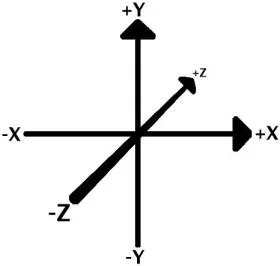
- The obj model should be exported with -Z axis forward and Y axis upward to be compatible with Babylon.js.
- By default, because the code is optimized for loading time, UV problems can appear, like this:
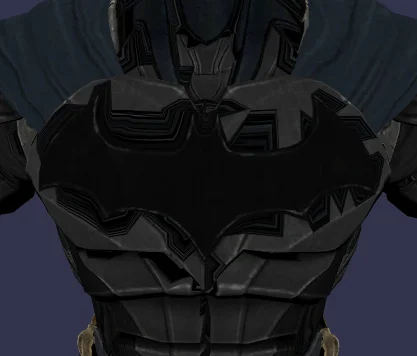
If you meet this problem, set the variable:
```javascript
BABYLON.OBJFileLoader.OPTIMIZE_WITH_UV = true;
```
Then, you'll get a better texture, but with a longer loading time.
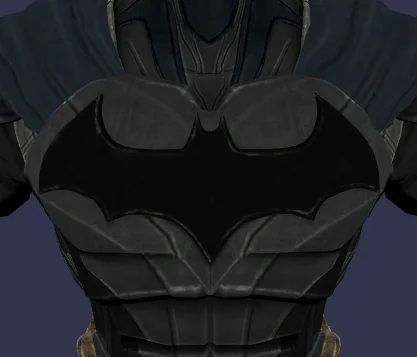
Depending on the modeling program you export your OBJ files from, textures may appear distorted or inverted. As a workaround, you can modify your imported model's UV coordinate scale via setting the variable:
```javascript
BABYLON.OBJFileLoader.UV_SCALE = new BABYLON.Vector2(xValue, yValue);
```
Although not part of the Wavefront OBJ file format, some OBJ files include vertex colors. If you are loading such a file and want vertices with colors, set the variable:
```javascript
BABYLON.OBJFileLoader.IMPORT_VERTEX_COLORS = true;
```
If you have an OBJ file without normals or wish to have them calculated for you, set the variable:
```javascript
BABYLON.OBJFileLoader.COMPUTE_NORMALS = true;
```
When using OPTIMIZE_WITH_UV = true you may experience some discontinuities in shading. Setting OPTIMIZE_NORMALS will help with this problem:
```javascript
BABYLON.OBJFileLoader.OPTIMIZE_NORMALS = true;
```
To have your imported model inverted on the y-axis, set the variable:
```javascript
BABYLON.OBJFileLoader.INVERT_Y = true;
```
To invert your imported textures on the y-axis, set the variable:
```javascript
BABYLON.OBJFileLoader.INVERT_TEXTURE_Y = true;
```
By default if an MTL file cannot be loaded (missing/error) it will silently fail. The model will still be loaded, but if you want to enforce a stricter loading of materials you can use onSuccess() and onError() callbacks accordingly. Set the variable:
```javascript
BABYLON.OBJFileLoader.MATERIAL_LOADING_FAILS_SILENTLY = false;
```
If an MTL is defined in your OBJ and you wish to have it ignored, set the variable:
```javascript
BABYLON.OBJFileLoader.SKIP_MATERIALS = true;
```
The OBJ-Loader's behavior has changed in this PR - [https://github.com/BabylonJS/Babylon.js/pull/14920](https://github.com/BabylonJS/Babylon.js/pull/14884) to support handedness correctly. If you have issues loading your OBJ after the change, but it had worked previously, you can set the following flag to fix it:
```javascript
OBJFileLoader.USE_LEGACY_BEHAVIOR = true;
```
## Supported
- Object/group
- Geometric vertex
- colors
- Faces
- triangles
- quads
- polygons
- Colors
- diffuseColor
- ambientColor
- specularColor
- specularPower
- alpha
- Textures
- ambientTexture
- diffuseTexture
- specularTexture
- bumpTexture
- opacityTexture
- Multimaterial
- For each material defined in the same mesh, it creates a new BABYLON.Mesh.
- The name of the created BABYLON.Mesh follows this syntax: meshName_mmX
- X is the nth BABYLON.Mesh created with this method
## Not supported currently
- Smoothing groups (s parameter in OBJ file)
- Illumination (illum parameter in MTL file)
- The different options for loading textures in MTL file.
- A good description about MTL files and their options can be found here: http://paulbourke.net/dataformats/mtl/