XML Loader
When you want to create GUI layouts in an easy, structured way, you may want to take a look at the Xml Loader.
Creating the Xml Loader
The Xml Loader can load Babylon GUI layouts directly from XML. You create it with:
import { AdvancedDynamicTexture } from "@babylonjs/gui/2D/advancedDynamicTexture";import { XmlLoader } from "@babylonjs/gui/2D/xmlLoader";const advancedTexture = AdvancedDynamicTexture.CreateFullscreenUI("UI");const xmlLoader = new XmlLoader();The XmlLoader can be used as part of a JavaScript class or function. For the class to correctly map observables and dynamic attributes to its methods and attributes, you must provide the class object in the constructor. This is how the XmlLoader would be initialized inside a class.
import { AdvancedDynamicTexture } from "@babylonjs/gui/2D/advancedDynamicTexture";import { XmlLoader } from "@babylonjs/gui/2D/xmlLoader";const advancedTexture = AdvancedDynamicTexture.CreateFullscreenUI("UI");const xmlLoader = new XmlLoader(this);You can then proceed to load a layout using the loadLayout method.
xmlLoader.loadLayout("layouts/testgui.xml", advancedTexture);This is all that is needed to initialize and load a layout. In some cases, you may need to load a layout without attaching it to the advancedTexture. In that case, it is enough to set the second parameter to null, as follows.
xmlLoader.loadLayout("layouts/testgui.xml", null);The third parameter in the loadLayout function is a callback that is called once the layout has been parsed. Inside the callback, you can retrieve elements and add events to them. For example:
xmlLoader.loadLayout("layouts/testgui.xml", advancedTexture, function () { xmlLoader.getNodeById("helloButton").onPointerClickObservable.add(clickEvent);});After the layout has been loaded, there are a couple of methods available to you.
xmlLoader.getNodeById("helloButton"); // Gets a node by ID. Similar to how DOM elements are retrieved.xmlLoader.getNodes(); // Gets all parsed nodes.xmlLoader.isLoaded(); // Returns true or false depending on whether the layout has finished loading.If you need to detach a container from the scene:
const node = xmlLoader.getNodeById("firstContainer");advancedTexture.removeControl(node);Then attach it again:
const node = xmlLoader.getNodeById("firstContainer");advancedTexture.addControl(node);XML Layouts
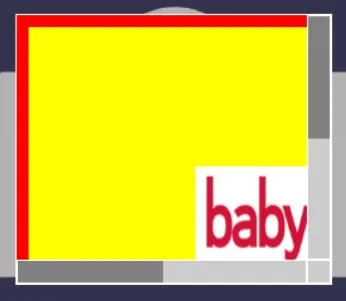
The structure of an XML layout is very straightforward. This is what a simple XML layout would look like:
<?xml version="1.0"?><root> <Rectangle id="firstContainer" verticalAlignment="Control.HORIZONTAL_ALIGNMENT_TOP" background="yellow" width=".8" height=".4" color="Orange"> <Button id="imageButton" name="imageButton" width="0.2" background="red" height="0.3"> <Image id="image" source="assets/icon.png" width="1" height="1" name="image" stretch="Image.STRETCH_FILL" horizontalAlignment="Control.HORIZONTAL_ALIGNMENT_LEFT" /> </Button> </Rectangle></root>The control names in the layouts strictly follow the names in the BABYLON.GUI library. The same is true for the attributes. The only use case where this differs is the Grid element. This is what a Grid element looks like in the layout.
<Grid id="grid" name="grid" top="50px" background="black" height="200px" width="200px"> <Row height="0.5" > <Column width="0.2"> </Column> <Column width="0.5"> <Rectangle id="1rect" thickness="0" name="1rect" background="green"></Rectangle> </Column> </Row> <Row height="0.5"> <Column> </Column> <Column> <Rectangle id="2rect" thickness="0" name="2rect" background="red" ></Rectangle> </Column> </Row></Grid>In the Grid's case, the rows and columns are not controls in Babylon GUI. It is important to add the maximum number of columns in the first row, as all subsequent rows will have the same number of columns. This is because the Xml Loader creates the Grid's column definitions from the first row. However, after the first row, it is possible to add fewer columns to subsequent rows. The width and height attributes for Rows and the Columns of the first row are mandatory. For columns in subsequent rows, the value is not taken into consideration by the loader. The isPixel attribute is mandatory if the width and height are in pixels.
Dynamic Attributes
It is possible to add dynamic attributes to your XML layouts. These attributes can be either class attributes or global variables. The following shows how to set a value in your XML layout by referencing a class attribute or a global variable.
<?xml version="1.0"?><root> <Rectangle name="firstContainer" id="firstContainer" verticalAlignment="Control.HORIZONTAL_ALIGNMENT_TOP" background="blue" id="popupContainer" width=".8" height=".4" color="Orange" > <InputText id="inputText1" width="{{textWidth}}" maxWidth="0.3" height="40px" color="white"/> <Button id="helloButton" width="0.2" verticalAlignment="Control.VERTICAL_ALIGNMENT_BOTTOM" height="0.2" name="helloButton" background="green" onPointerUpObservable="storeUsernameEvent" > <TextBlock text="Store Input" color = "white" /> </Button> </Rectangle></root>By wrapping the attribute value with double curly brackets {{}}, it is assigned the value of the class attribute or global variable with that name.
Linking Control to Mesh
It is possible to link a control to a mesh directly from XML. This can be done by setting the attribute linkWithMesh="meshName" on the control you want to add. Even though the curly brackets are not needed, this is also a dynamic attribute. If the Xml Loader has been initialized with a class or function context, it will use that context to retrieve the mesh; otherwise, it will look for it globally.
Dynamic Array and Object source
It is also possible to connect a structure like an Array or Object directly to XML. This is handy when you need to fill a StackPanel from an array of values or an object of key-value pairs. More generally, it can be used whenever you need to repeat a specific XML block by filling in values from an Array or an Object. The only use case not implemented is the Grid.
Let's suppose you have the following object in your JavaScript:
const objTexts = { first: { name: "john", surname: "smith", }, second: { name: "ben", surname: "Stiller", },};Let's also suppose the following list stores the users of your application and you want to show them in the GUI. This would be possible on the JavaScript side, but it would mean copying the control over and over again. XmlLoader makes this much easier and cleaner directly from XML. This is how you iterate over the aforementioned structure:
<StackPanel background="#ffffff" width="300px" top="100px" left="200px" id="panel" dataSource="text in {objTexts}"> <Container width="1" height="40px" > <TextBlock id="myImage" height="1" text="{{text.name}}" color="red" resizeToFit="true" fontSize="24"/> <TextBlock left="50px" height="1" text="{{text.surname}}" color="black" resizeToFit="true" fontSize="24"/> </Container></StackPanel>Or
xmlLoader.getNodeById("myName").text = "john";xmlLoader.getNodeById("mySurname").text = "smith";<StackPanel background="#ffffff" width="300px" top="100px" left="200px" id="panel" dataSource="text in {objTexts}"> <Container width="1" height="40px" > <TextBlock id="myName" height="1" text="{{text.name}}" color="red" resizeToFit="true" fontSize="24"/> <TextBlock id="mySurname" left="50px" height="1" text="{{text.surname}}" color="black" resizeToFit="true" fontSize="24"/> </Container></StackPanel>The source is associated with the StackPanel by using the dataSource attribute. The dataSource attribute should always have three values in it: the variable name, the keyword in, and the structure name. For an object structure, the name must be wrapped in curly brackets {} like the example above. For an array structure, the name can be wrapped in normal brackets, but that is not mandatory. When the dataSource is an array, it can be written as dataSource="text in [objTexts]" or simply dataSource="text in objTexts".
The variable part of the dataSource attribute is how you access the source values. Notice in the above example the section text="{{text.surname}}" is how you set a value from the source to your XML.
Further reading
Selector
Learn about the selector in Babylon.js.
The Babylon GUI
Learn all about the Babylon.js 2D GUI system.
Scroll Viewer
Learn about Scroll Viewer in Babylon.js.
Babylon 3D GUI
Learn all about the Babylon.js 3D GUI System.