> Learn about Scroll Viewer in Babylon.js.
Source: https://doc.babylonjs.com/features/featuresDeepDive/gui/scrollViewer
# The Scroll Viewer
When you want to keep your user interface small but need to present a lot of information, you can use the **ScrollViewer** to contain it.
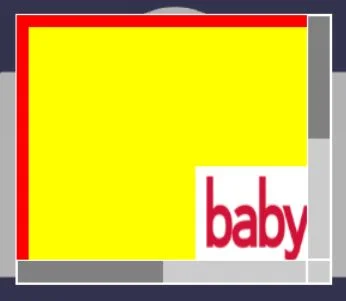.
It consists of vertical and horizontal scroll bars and a viewing area. The information you want to present is created as a control that you add to the scroll viewer and display in the viewing area. If the control fits inside the scroll viewer, no scroll bars are shown.
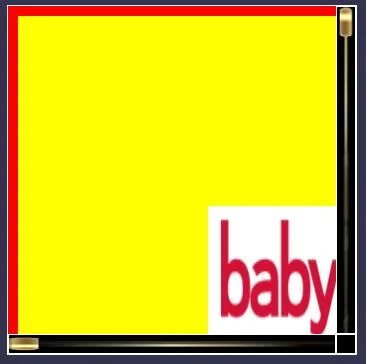
From Babylon.js version 4.1 onward, it is possible to use an image for the thumb control and the bars.
.
## Creating the Scroll Viewer
The scroll viewer base is a rectangle container that holds the scroll bars and the viewing area. You can create it with or without a name.
```javascript
const myScrollViewer = new BABYLON.GUI.ScrollViewer();
// OR
const myScrollViewer = new BABYLON.GUI.ScrollViewer("name");
```
Then add it to an advanced texture as usual.
```javascript
const myAdvancedTexture = BABYLON.GUI.AdvancedDynamicTexture.CreateFullscreenUI("UI");
myAdvancedTexture.addControl(myScrollViewer);
```
You can then create your control or container of controls to add to the scroll viewer using the **addControl** method.
```javascript
myScrollViewer.addControl(myControl);
```
- [Playground: Scroll Viewer Example](https://playground.babylonjs.com/#13CF95#1) - Simple example showing how to add a Scroll Viewer to your scene.
The default width and height of the scroll viewer are 100% of the parent control.
The following table shows the additional properties of a scroll viewer.
| Property | Type | Default | Comments |
| ------------- | ------ | ----------- | ------------------------------------------------------------ |
| barColor | string | grey | Foreground color of the scroll bar and color of the thumb |
| barBackground | string | transparent | Background color of the scroll bar and bottom right square |
| thumbLength | number | 0.5 | Proportion of thumb compared to scroll bar length (0 to 0.9) |
| barSize | number | 20 | Height of scroll bar |
**NOTE** All padding values for the scroll viewer are set to 0. Any padding should be set on the control added to the scroll viewer.
- [Playground: Scroll Viewer of Fixed Size](https://playground.babylonjs.com/#C3RDBS#3) - Simple example showing how to add a Scroll Viewer of fixed size to your scene.
- [Playground: Scroll Viewer of Relative Size](https://playground.babylonjs.com/#C3RDBS#2) - Simple example showing how to add a Scroll Viewer of relative size to your scene.
## Scrollbars
Both scrollbars can be reached with:
- horizontalBar
- verticalBar
You can then set the scrollbar position with `scrollViewer.horizontalBar.value`. This value must be between 0 and 1.
## Image Scrollbars
To use images in the scroll bar, you need to pass a name (which can be an empty string) and a `true` parameter when creating the scroll viewer.
```javascript
const myScrollViewer = new BABYLON.GUI.ScrollViewer("", true);
```
Additional properties are available.
| Property | Type | Default | Comments |
| ---------------------------------------------------------- | --------- | ------- | ---------------------------------------------------------------------------------------------------------------- |
| thumbImage
horizontalThumbImage
verticalThumbImage | GUI Image | none | Image used for the thumb; required for image scroll bars |
| barImage
horizontalBarImage
verticalBarImage | GUI Image | none | Image for the scroll bars |
| thumbHeight | number | 1 | Proportion of thumb compared to bar height (0 to 1) |
| barImageHeight | number | 1 | Proportion of barImage compared to bar height (0 to 1) |
| scrollBackground | string | grey | background color of scroll bars excluding the bottom right square; useful behind a thin or transparent bar image |
You do not have to have a barImage.
The images for the vertical bar and thumb are by default rotated copies of those used for the horizontal bar and thumb. You may want to keep the image sizes small if memory is an issue in your project.
You can also choose to have different images for the vertical and horizontal bar / thumb. In that case, use `horizontalThumbImage` / `verticalThumbImage` instead of `thumbImage` and `horizontalBarImage` / `verticalBarImage` instead of `barImage`.
- [Playground: Image Scroll Bars](https://playground.babylonjs.com/#4ZC0G4#2) - Simple example showing how to add Image Scroll Bars to your scene.
- [Playground: Image Scroll Bars in a Grid](https://playground.babylonjs.com/#4ZC0G4#1) - Simple example showing how to add Image Scroll Bars in a grid to your scene.
## Adding an Adjustable TextBlock Window
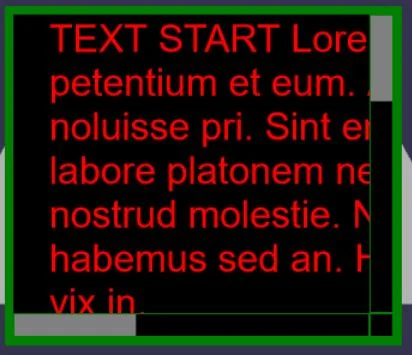
When you add a TextBlock of a given size to a scroll viewer, both horizontal and vertical scroll bars are shown as needed.
- [Playground: Scroll Viewer with Fixed TextBlock](https://playground.babylonjs.com/#FX6KVK#3) - Simple example showing how to add a Scroll Viewer with Fixed TextBlock to your scene.
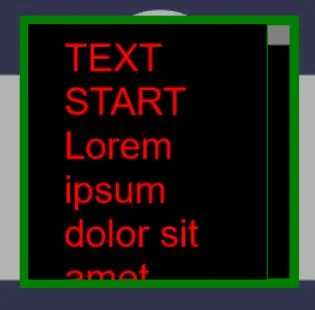
However, you will often need to present text that fits the width of the viewing window and scrolls vertically. This is achieved by setting `textWrapping` and `resizeToFit` as follows:
```javascript
myTextBlock.textWrapping = BABYLON.GUI.TextWrapping.WordWrap;
myTextBlock.resizeToFit = true;
```
- [Playground: Scroll Viewer with Adjusting TextBlock](https://playground.babylonjs.com/#3EF49E#5) - Simple example showing how to add a Scroll Viewer with Adjusting TextBlock to your scene.
## Live-Updating and Child Containers
The ScrollViewer accepts only ONE child control. If that single child is a textBlock, then you can modify its _.text_ property (including \\n linebreaks), to add/remove text content to/from that single textBlock.
The ScrollViewer also accepts a single CONTAINER (such as a stackpanel) for its single child. In that container, you may add/remove any type of control(s). For certain types of containers, you might choose to add `container.ignoreLayoutWarnings = true;`, and you might need to set a non-percentage _height_ value to certain children within the container(s).
## Rendering optimization
If you have a lot of controls in your scroll viewer window, you may notice slower rendering.
To help improve your FPS, you can set `myScrollViewer.freezeControls = true`. This "freezes" the controls in their current positions in the window and makes rendering faster when the window is scrolled. When controls are frozen, changing their position or size may not work, so if you need to do that, first set `freezeControls` to `false`, make your changes, then set `freezeControls` back to `true`.
You can further improve the rendering time by using the `setBucketSizes` method:
```javascript
myScrollViewer.setBucketSizes(100, 40);
```
When `freezeControls` is true, setting a non-zero bucket size improves performance by updating only visible controls. Bucket sizes are used to subdivide the window area internally into smaller areas to which controls are assigned. So, the size should be roughly equal to the average size of the controls inside the window. To disable buckets, set either width or height (or both) to 0.
Please note that using this option increases memory usage (the higher the bucket sizes, the less memory is used), which is why it is not enabled by default.
You can also use the `ScrollViewer.forceHorizontalBar` and `ScrollViewer.forceVerticalBar` properties.
When set to true, they force the display of the corresponding bars. When you know your scroll viewer will end up with visible bars, you can set these properties to true to save some initialization time, because if the scroll viewer itself makes a bar visible during initialization, it triggers a child layout rebuild and adds more time to the initialization process.
- [Playground: Rendering Optimization](https://playground.babylonjs.com/#KPLW9F) - Simple example showing how to optimize rendering in your scene.
## Further reading
- [How To Use the Selection Panel Helper](https://doc.babylonjs.com/features/featuresDeepDive/gui/selector)
- [How To Use Babylon GUI](https://doc.babylonjs.com/features/featuresDeepDive/gui/gui)
- [How To Use Babylon GUI Xml Loader](https://doc.babylonjs.com/features/featuresDeepDive/gui/xmlLoader)
- [How To Use Babylon GUI3D](https://doc.babylonjs.com/features/featuresDeepDive/gui/gui3D)