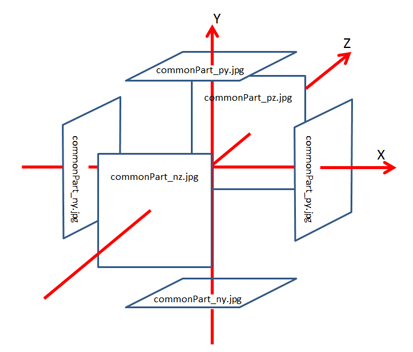
Reflection Probes
How to use Reflection Probes
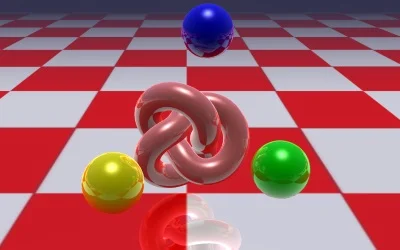
Reflection probes are used to dynamically generate cube maps that can then be used as reflection textures, for instance.
Here is how to use them:
import { ReflectionProbe } from "@babylonjs/core/Probes/reflectionProbe";const probe = new ReflectionProbe("main", 512, scene);probe.renderList.push(yellowSphere);probe.renderList.push(greenSphere);probe.renderList.push(blueSphere);probe.renderList.push(mirror);mainMaterial.reflectionTexture = probe.cubeTexture;As you can see, you have to define which meshes will be rendered by the reflection probe.
You have to be cautious with reflection probes, as they need to generate 6 textures per frame (one per face).
You can change the update rate (on every frame by default) with this code:
import { RenderTargetTexture } from "@babylonjs/core/Materials/Textures/renderTargetTexture";probe.refreshRate = RenderTargetTexture.REFRESHRATE_RENDER_ONCE;// orprobe.refreshRate = RenderTargetTexture.REFRESHRATE_RENDER_ONEVERYFRAME;// orprobe.refreshRate = RenderTargetTexture.REFRESHRATE_RENDER_ONEVERYTWOFRAMES;// orprobe.refreshRate = 3;To get the best possible rendering, you also need to move your probe to the center of the mesh that should use the generated cube map. (Internally, the probe will generate a ghost camera at that position and then render the faces from there.) You have two options to achieve this:
import { Vector3 } from "@babylonjs/core/Maths/math.vector";probe.attachToMesh(root);// orprobe.position = new Vector3(0, 1, 0);If you want to try it, check this out: Reflection Probe Example
Probes and PBR
If you want to achieve the highest quality for your PBR materials using probes for real-time reflections, the engine needs additional processing to achieve the right glossiness/roughness effect. Getting it right is really simple: first, set up a probe on your mesh with a PBR material, as described in the previous paragraph. Then you need to enable this flag on your material:
mainMaterial.reflectionTexture = probe.cubeTexture;mainMaterial.realTimeFiltering = true;This flag will ensure your PBR material is rendered correctly with the probe. However, it involves more GPU processing for your materials, so be sure to use it wisely. To keep performance under control, you can set the quality of the filtering process for your material:
import { Constants } from "@babylonjs/core/Engines/constants";mainMaterial.realTimeFilteringQuality = Constants.TEXTURE_FILTERING_QUALITY_MEDIUM;The default is TEXTURE_FILTERING_QUALITY_LOW. Try different qualities and see which gives the best performance/quality tradeoff for your scene.
Here is a playground example with a reflection probe and PBR material: Reflection Probe and PBR Example
You can also have a look at this blog post for more information about HDR filtering.