Environment
How do you achieve a good and appropriately realistic environment for your game or app? We will start with the simple scene clearColor (background color), then talk briefly about scene ambientColor, move on to 6-texture skyboxes, and finally cover fog to give an illusion of depth to your scenes.
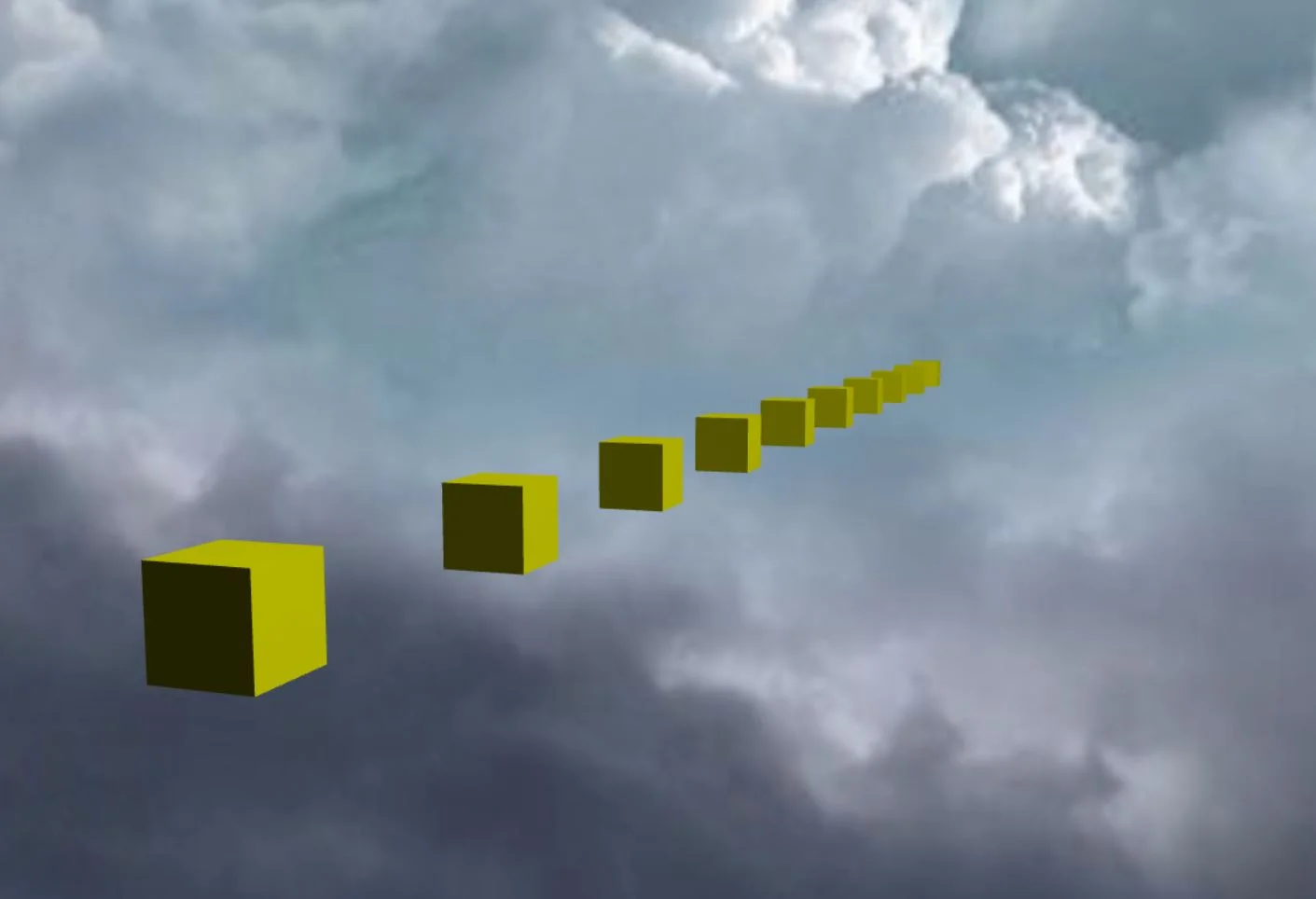
A picture showing Babylon.js fog in action
How can I do this?
We will talk about that nice fog effect shortly. First, I want to introduce you to two interesting properties on the scene class object:
scene.clearColor- changes the 'background' color.scene.ambientColor- changes the color used in several effects, including ambient lighting.
Both of them are very useful and powerful in their own right.
Changing the Background color (scene.clearColor)
The clearColor property on the scene object is the most basic environment adjustment. Simply put, this is how you change the background color of the scene. Here is how it is done:
import { Color3 } from "@babylonjs/core/Maths/math.color";scene.clearColor = new Color3(0.5, 0.8, 0.5);Or maybe you want to use one of our preset colors and avoid using the new keyword:
import { Color3 } from "@babylonjs/core/Maths/math.color";scene.clearColor = Color3.Blue();This color and property are not used in any calculations for the final colors of meshes, materials, textures, or anything else. It is simply the background color of the scene. Easy.
Changing the Ambient color (scene.ambientColor)
Conversely, the ambientColor property on the scene object is a very powerful and influential environment property/adjustment. First, let's have a look at its syntax:
import { Color3 } from "@babylonjs/core/Maths/math.color";scene.ambientColor = new Color3(0.3, 0.3, 0.3);As you can see, it is set using the same format as clearColor, but ambientColor is used in quite a few calculations toward determining the final colors of scene items. Mainly, it is used in conjunction with a mesh's StandardMaterial.ambientColor to determine a FINAL ambientColor for the mesh material.
You will find that when there is no scene.ambientColor, StandardMaterial.ambientColor and StandardMaterial.ambientTexture will appear to do nothing. Set scene.ambientColor to some value, like in the example above, and StandardMaterial.ambientColor/StandardMaterial.ambientTexture will become active on meshes where you have applied them.
By default, scene.ambientColor is set to Color3(0, 0, 0), which effectively means there is no ambient color.
(Please see the section on ambientColors in our Unleash the Standard Material tutorial, for more information.)
Fog
Fog is quite an advanced effect, but Babylon.js simplifies it as much as possible. It’s now very easy to add fog to your scenes. First, we define the fog mode like this:
import { Scene } from "@babylonjs/core/scene";scene.fogMode = Scene.FOGMODE_EXP;Here are the available modes:
BABYLON.Scene.FOGMODE_NONE- the default mode; fog is deactivated.BABYLON.Scene.FOGMODE_EXP- the fog density follows an exponential function.BABYLON.Scene.FOGMODE_EXP2- the same as above, but faster.BABYLON.Scene.FOGMODE_LINEAR- the fog density follows a linear function.
If you choose the EXP, or EXP2 mode, then you can define the density option (default is 0.1):
scene.fogDensity = 0.01;Otherwise, if you choose LINEAR mode, then you can define where fog starts and where fog ends:
scene.fogStart = 20.0;scene.fogEnd = 60.0;Finally, whatever the mode, you can specify the color of the fog (default is BABYLON.Color3(0.2, 0.2, 0.3)):
import { Color3 } from "@babylonjs/core/Maths/math.color";scene.fogColor = new Color3(0.9, 0.9, 0.85);See, we told you it was easy.
If you want to see and play with the Playground scene for this tutorial, you can check it out here: Simple Fog Example
Skybox
To give a perfect illusion of a beautiful sunny sky, we are going to create a simple box, but with a special texture to simulate a sky.
All the information regarding this skybox creation can be found in the skybox documentation.