Mixamo to Blender to Babylon.js
Interested in getting Adobe Mixamo characters into Babylon.js? Mixamo uses .fbx files, so you'll have to go through either .glb or .babylon files to load your animated characters in Babylon.js.
- For the .glb route, go to this page: Animating Characters
- For the .babylon route, which uses the Blender To Babylon Exporter, use this page. Follow the guide below!
Start by downloading and installing the Blender to Babylon.js exporter. Here are the Installation instructions.
From Mixamo, under Characters, select Y Bot. Download Y Bot with the following settings:
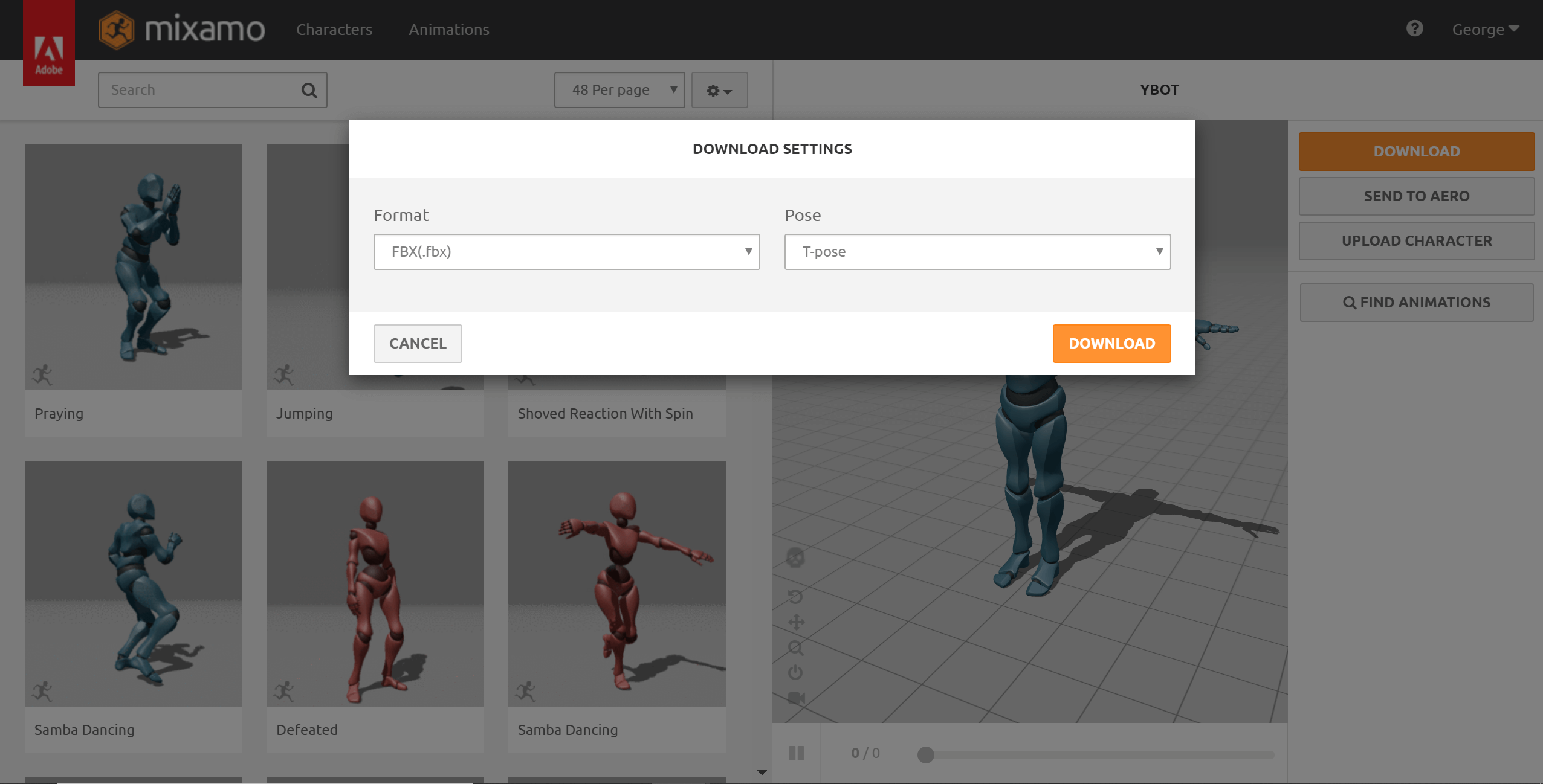
Rename this file to ybot.fbx
In Mixamo, under Animations, choose the animations that you want to export (for this guide I chose punch and kick). Download the animations with the following settings:
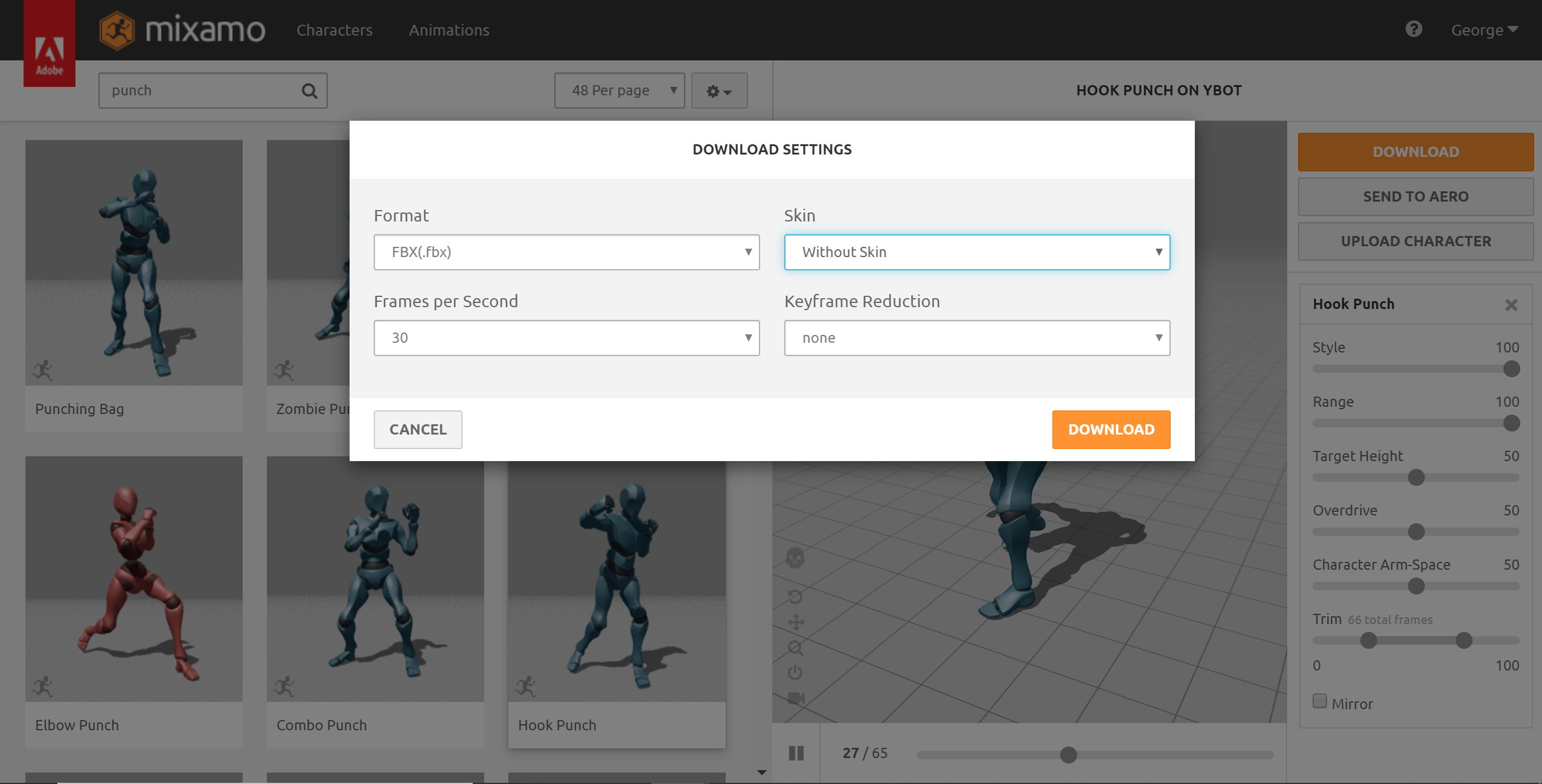
Rename these files to ybot@animation.fbx, e.g. ybot@punch.fbx and ybot@kick.fbx.
Open a new Blender 2.8+ scene, and delete all 3 default objects (cube, camera, and light).
In the Blender top menu, click File → Import → FBX (.fbx). In Operator Presets on the right, check Manual Orientation and Automatic Bone Orientation. Select ybot.fbx and then click Import FBX.
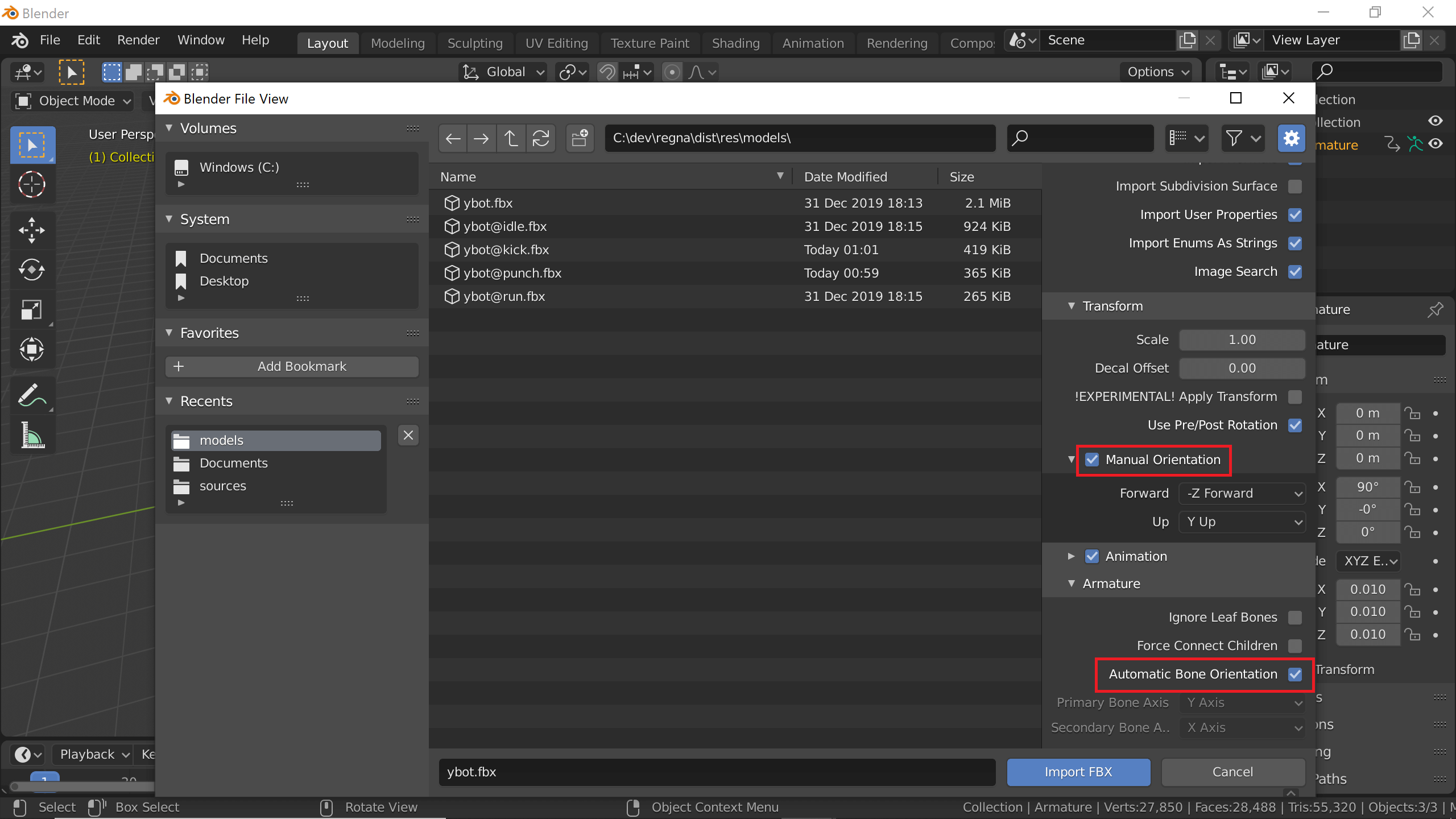
Import ybot@punch.fbx and ybot@kick.fbx into Blender the same way you did ybot.fbx.
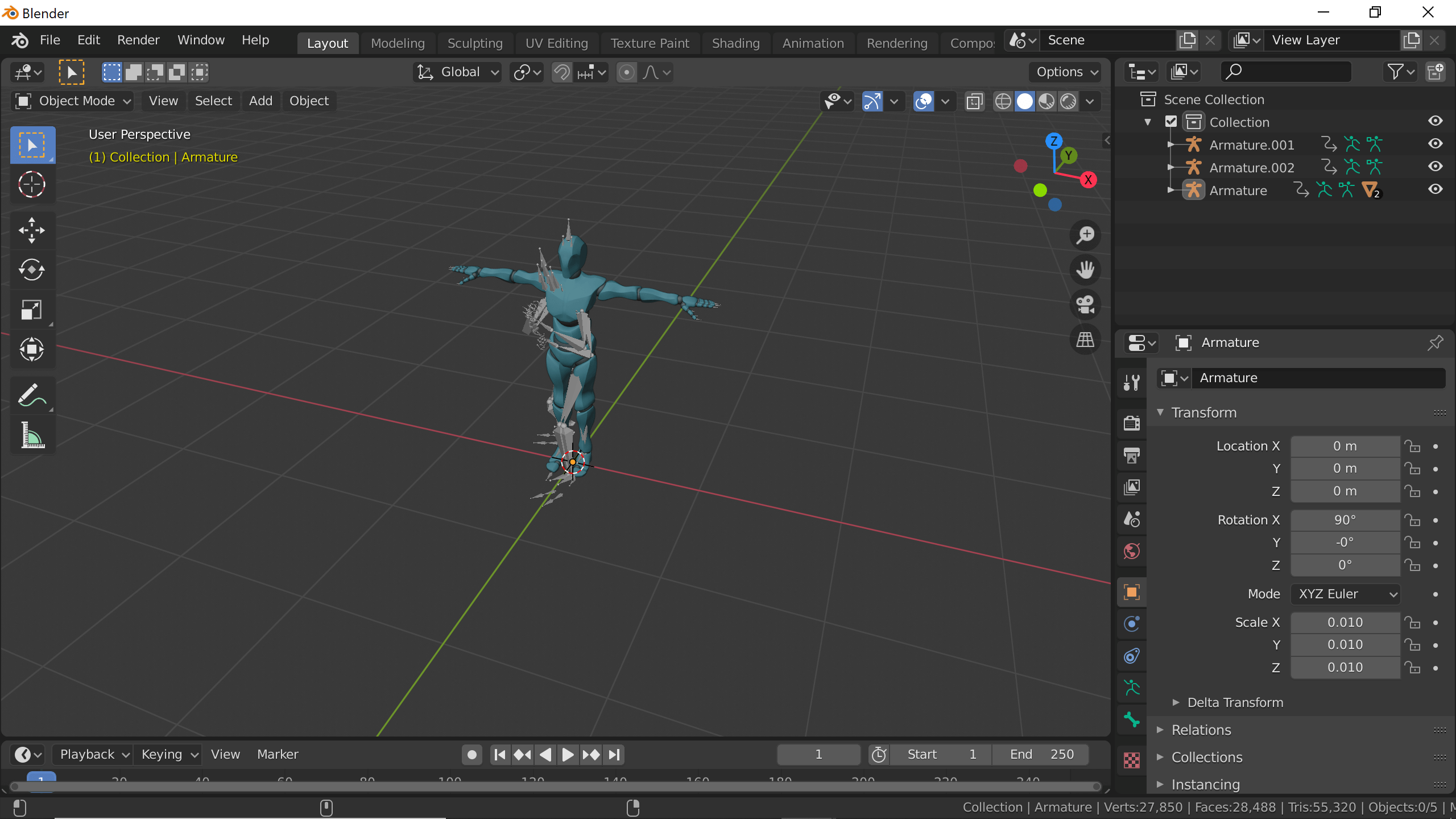
Rename Armature to Character and rename all animations, as shown in the image below (bordered in red):
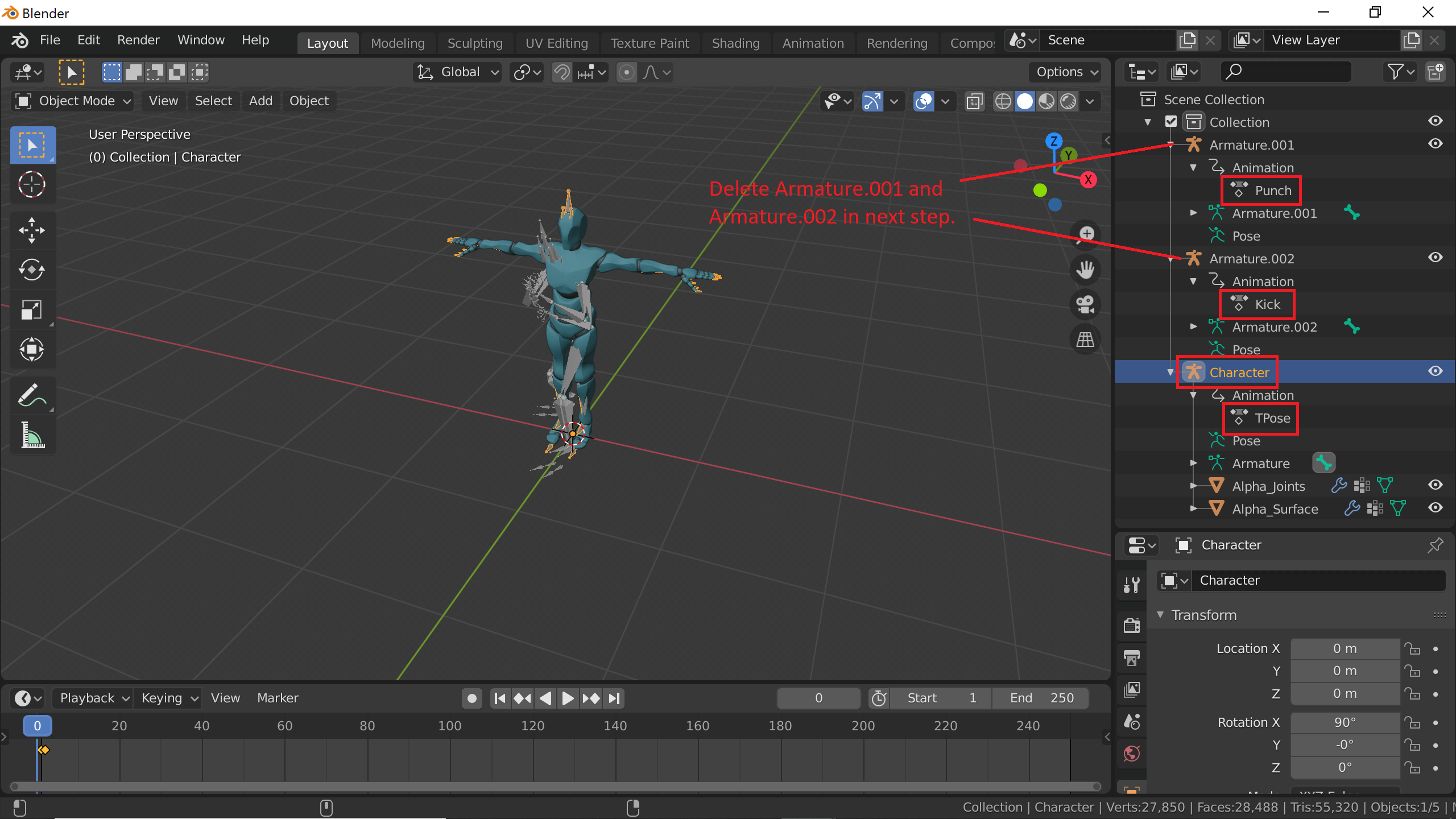
Delete Armature.001 and Armature.002.
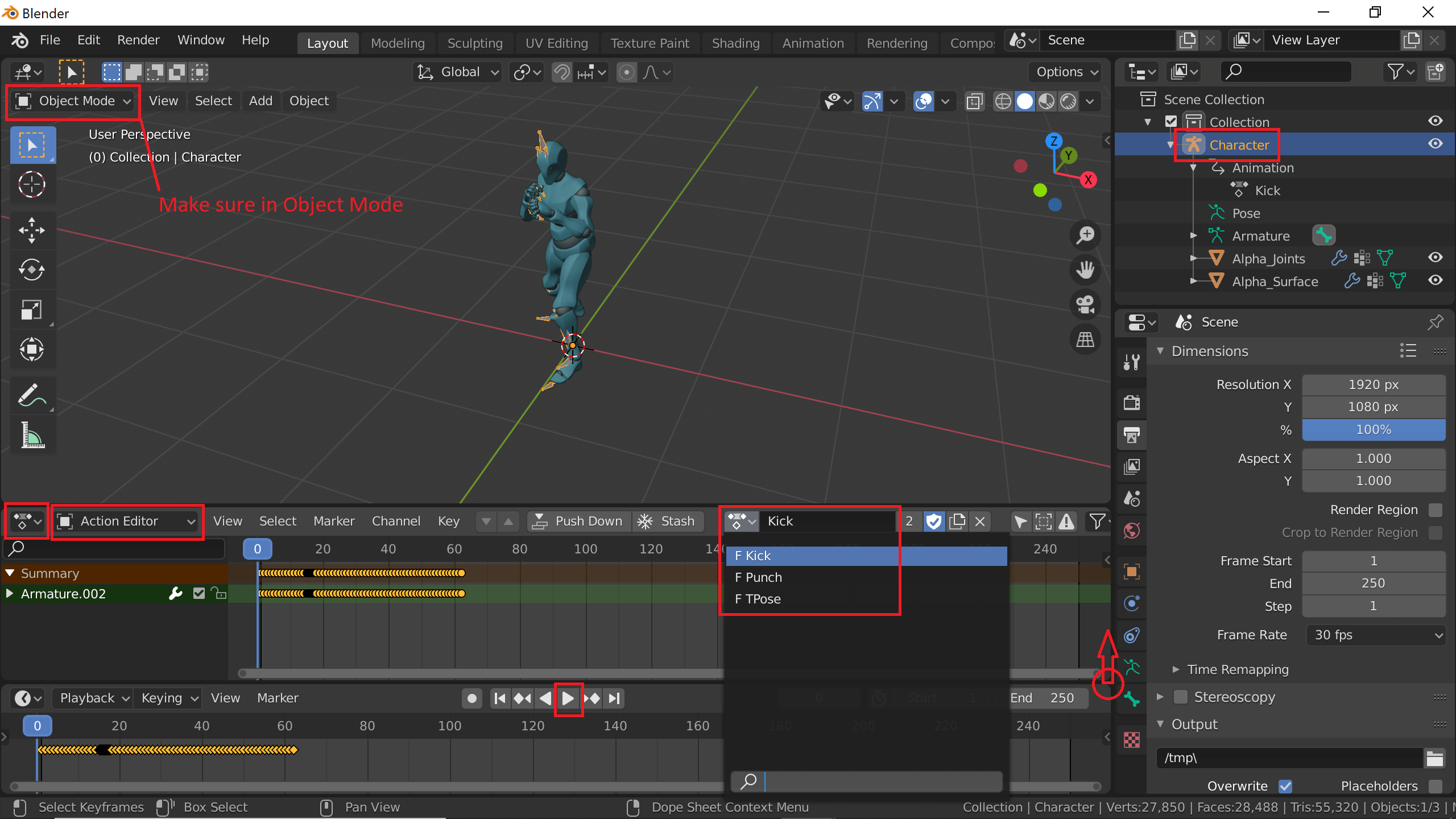
As shown in the image below (bordered in red), select Character (top right), click in the center of the circle (bottom right), and drag up to create a new sub-window. Select Dope Sheet (bottom left) and Action Editor (next to it), then select an animation (middle), for example Kick. Click Play (bottom middle) to play the animation. If your character is not animating, make sure you selected Character (top right, bordered in red). Also, make sure you're in Object Mode.
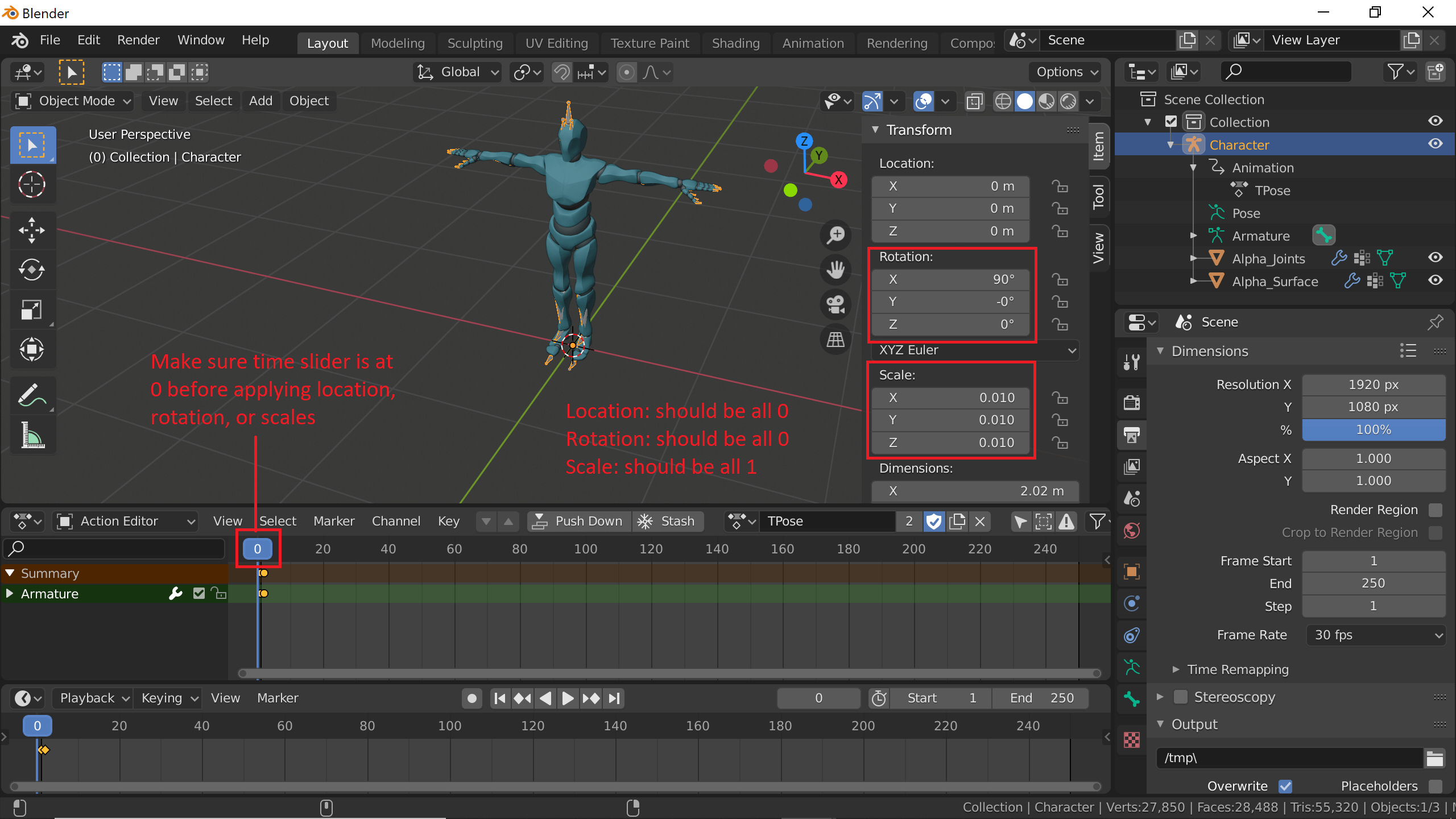
Change animation back to TPose from Kick. In Blender, press N, which opens the Transform tab. Note that Rotation is not all 0° and Scale is 0.010 instead of 1.
As shown in the image below (bordered red), in Object Mode, press A to select all. Press S to scale. Type 100 to scale from 0.010 to 1.
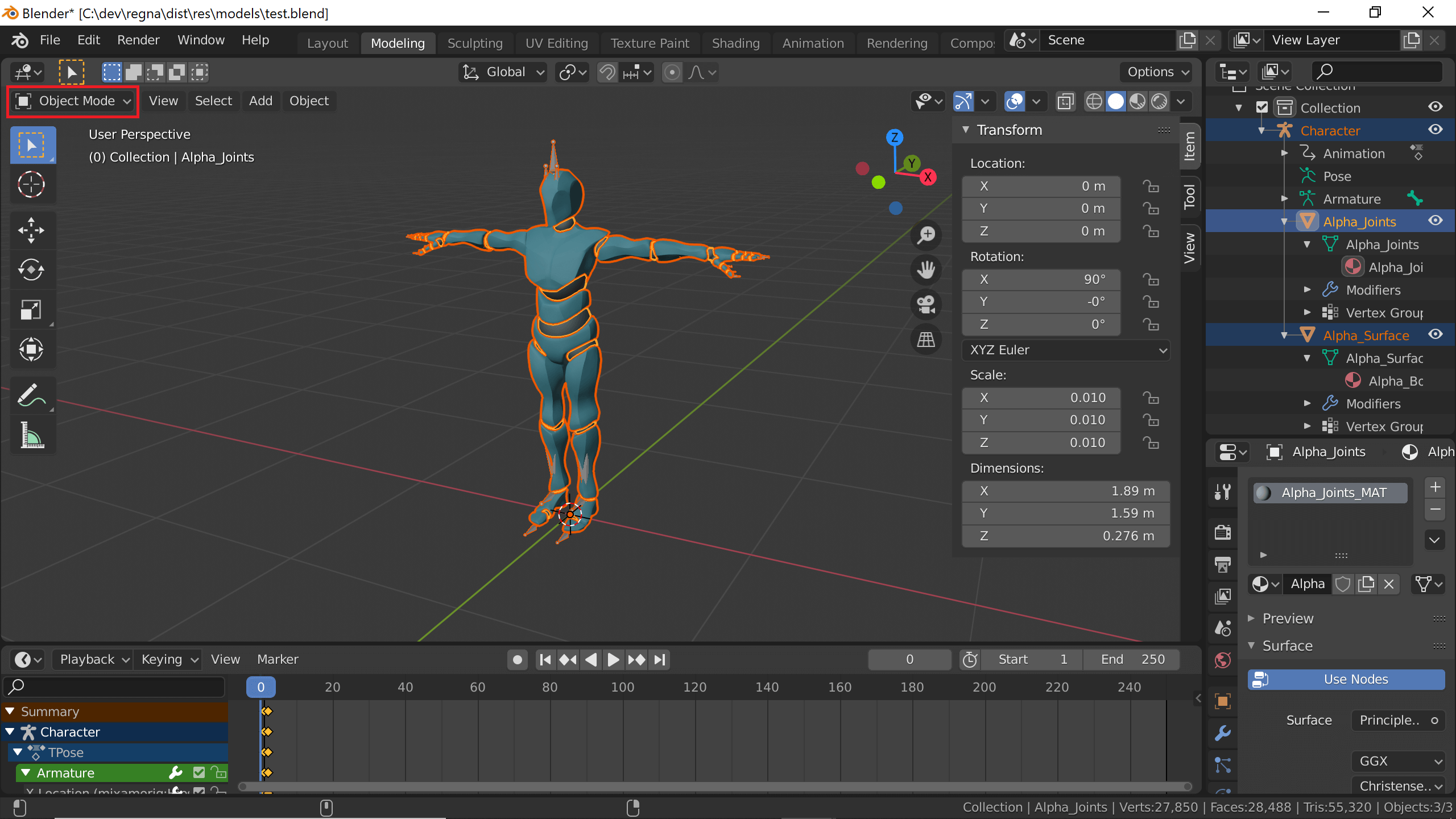
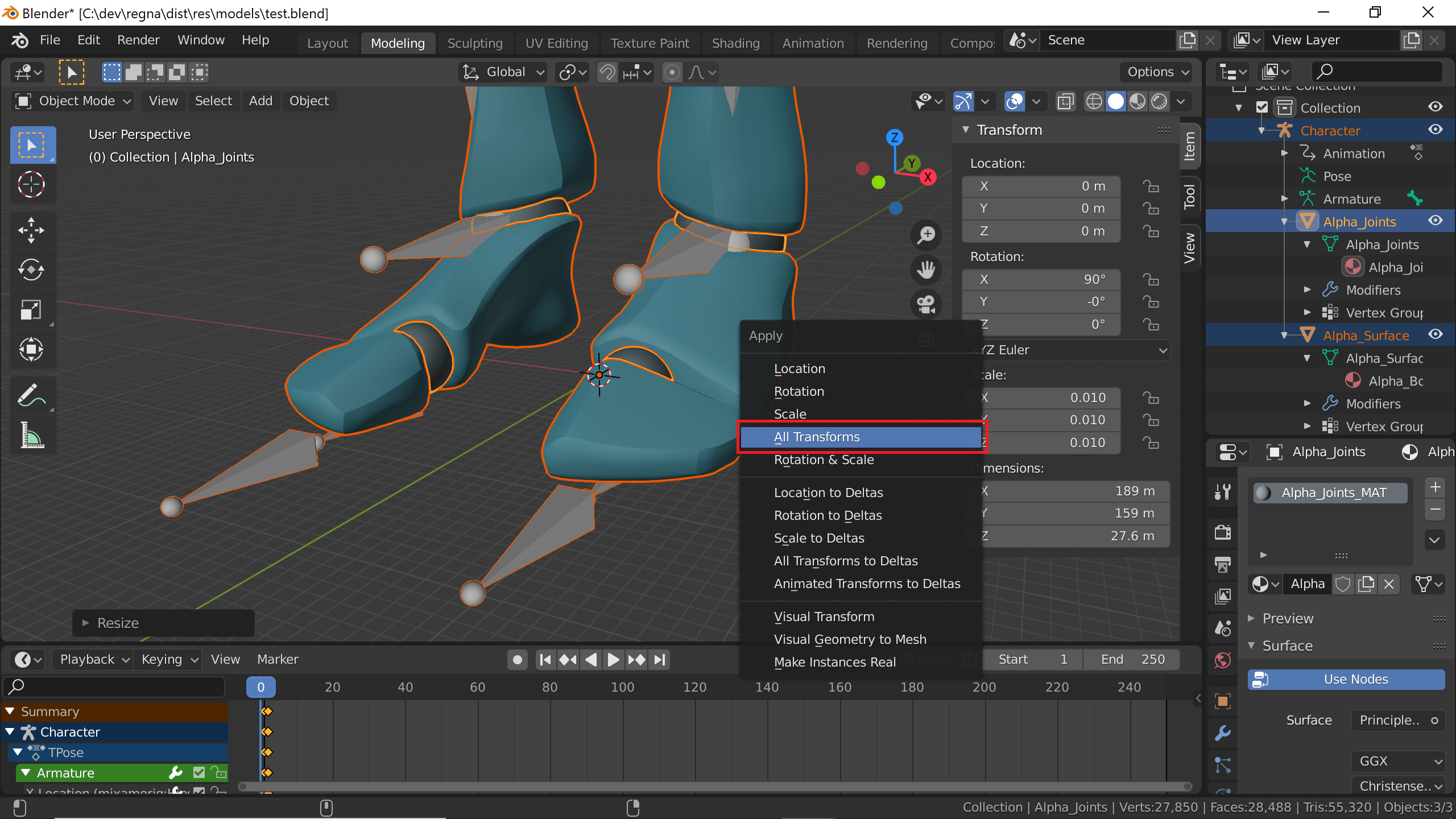
As shown in the image below (bordered red), press Ctrl + A to open the Apply menu. Click All Transforms. Location should all be set to 0, Rotation should all be set to 0, and Scale should all be set to 1.
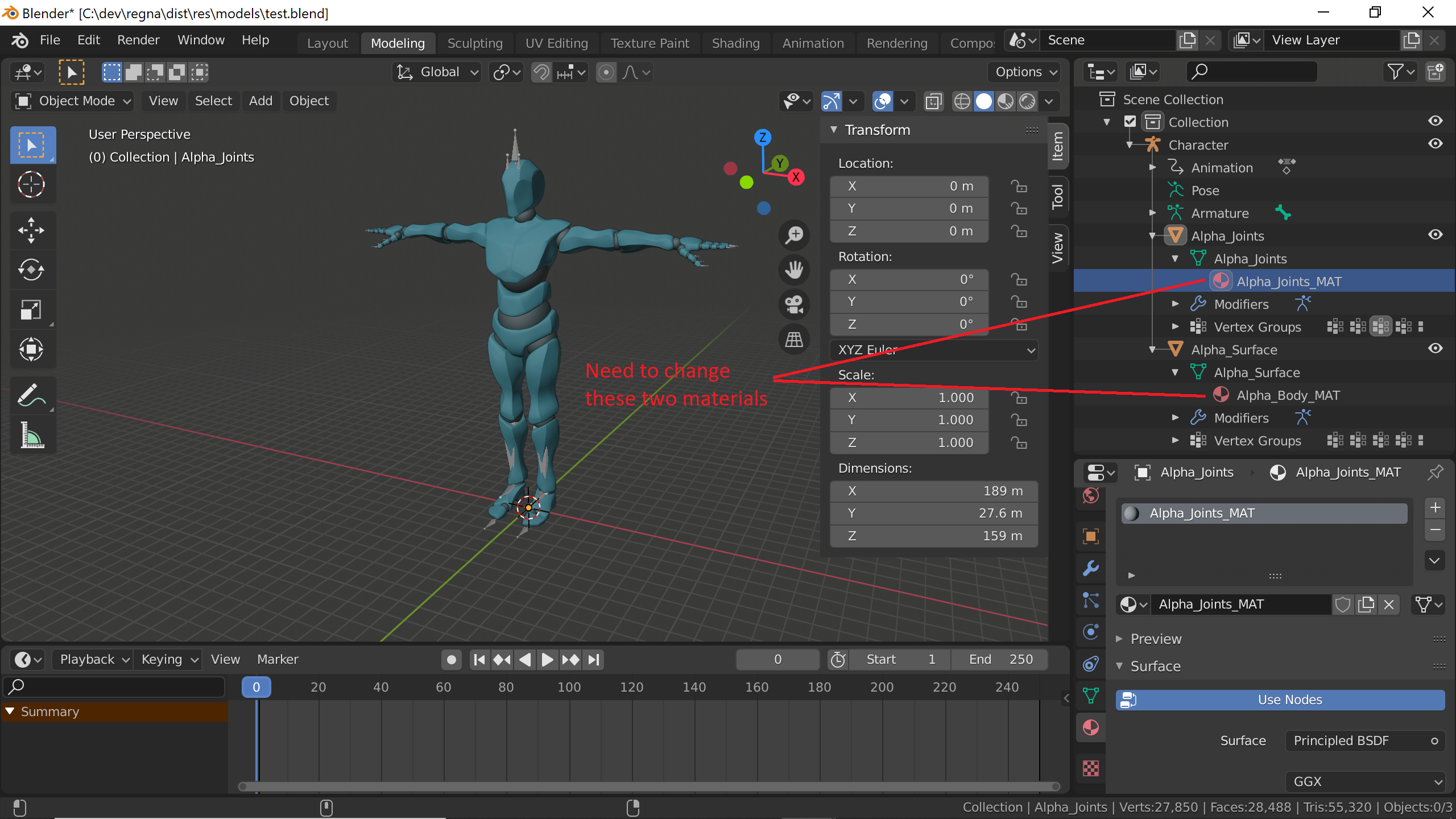
We need to change the two materials, as shown in the image below. Something in them is incompatible with the .babylon format.
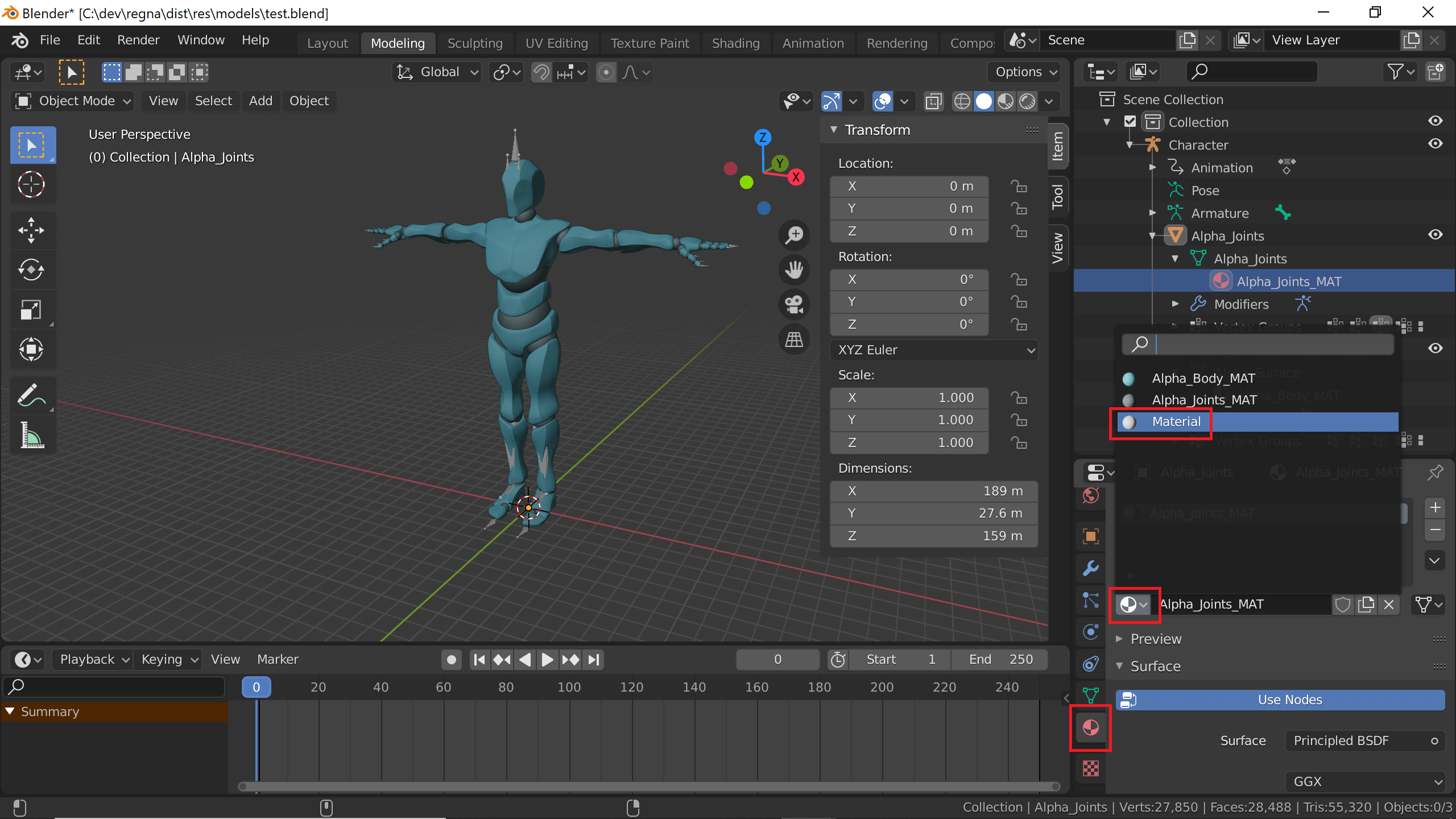
Click Alpha_Joints_MAT. As shown in the image below (bordered red), click Material Properties (bottom most), Browse Materials (slightly above), and select Material (slightly above). Do the same for Alpha_Body_MAT.
You should be able to add custom colors and other material properties to Material.
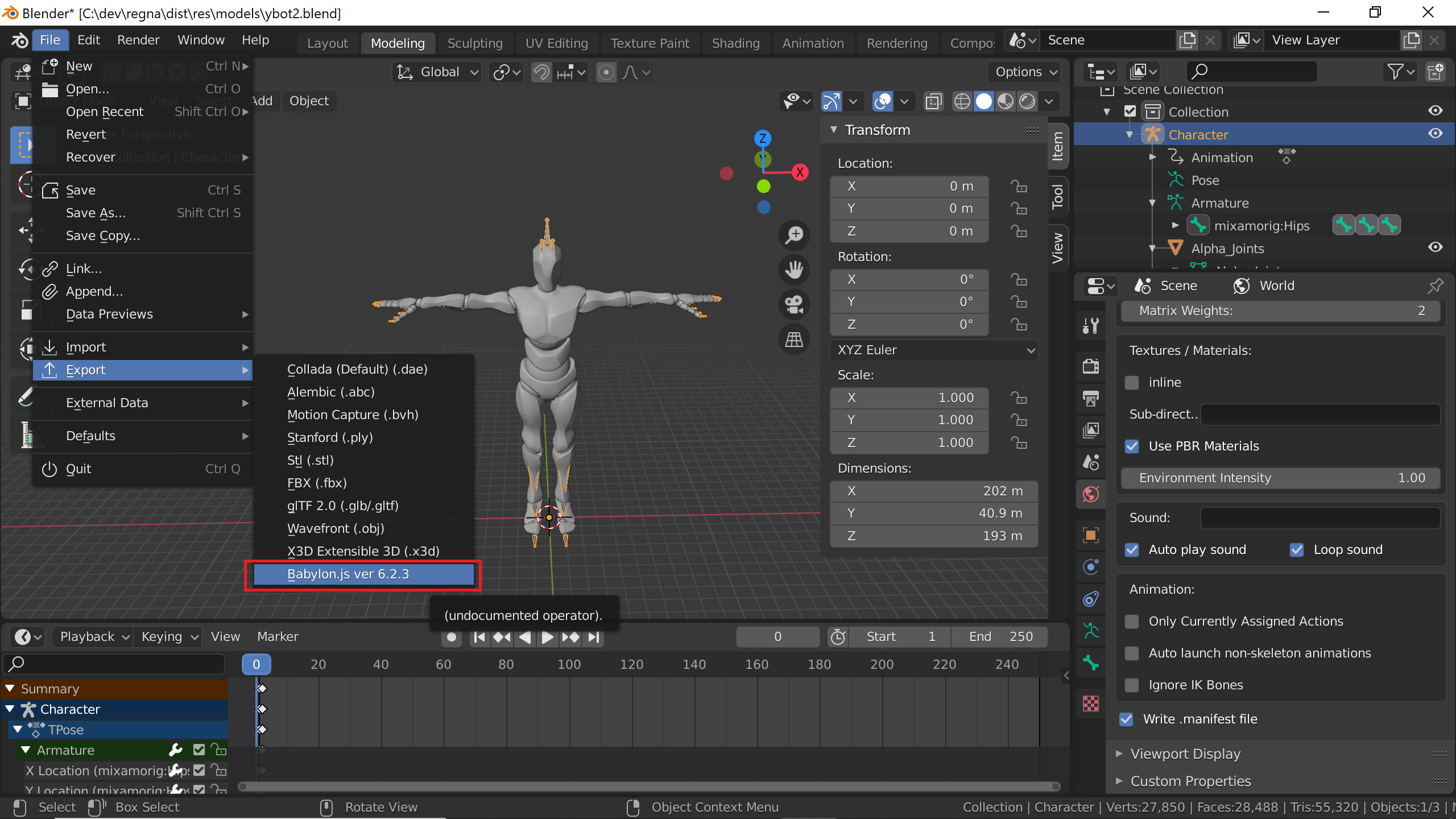
In Blender top menu, click File → Export → Babylon.js ver 6.2.3. Click Export Babylon.js scene.
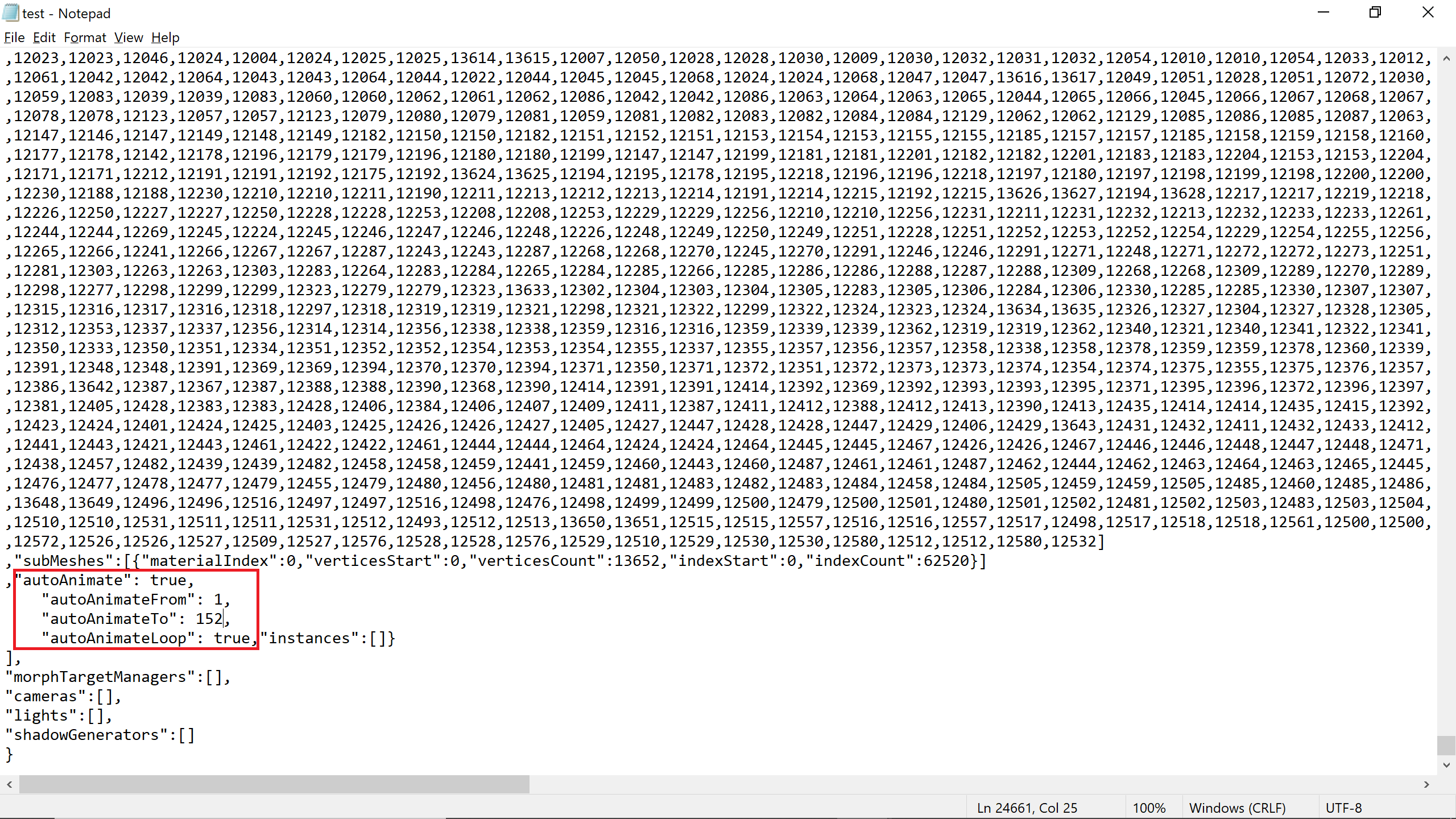
Open your .babylon file in Notepad. Scroll to bottom, and paste the following text:
"autoAnimate": true,"autoAnimateFrom": 1,"autoAnimateTo": 152,"autoAnimateLoop": true,before "instances":[]. Save your .babylon file.
Go to Babylon.js Sandbox. Drag your .babylon file into the browser.
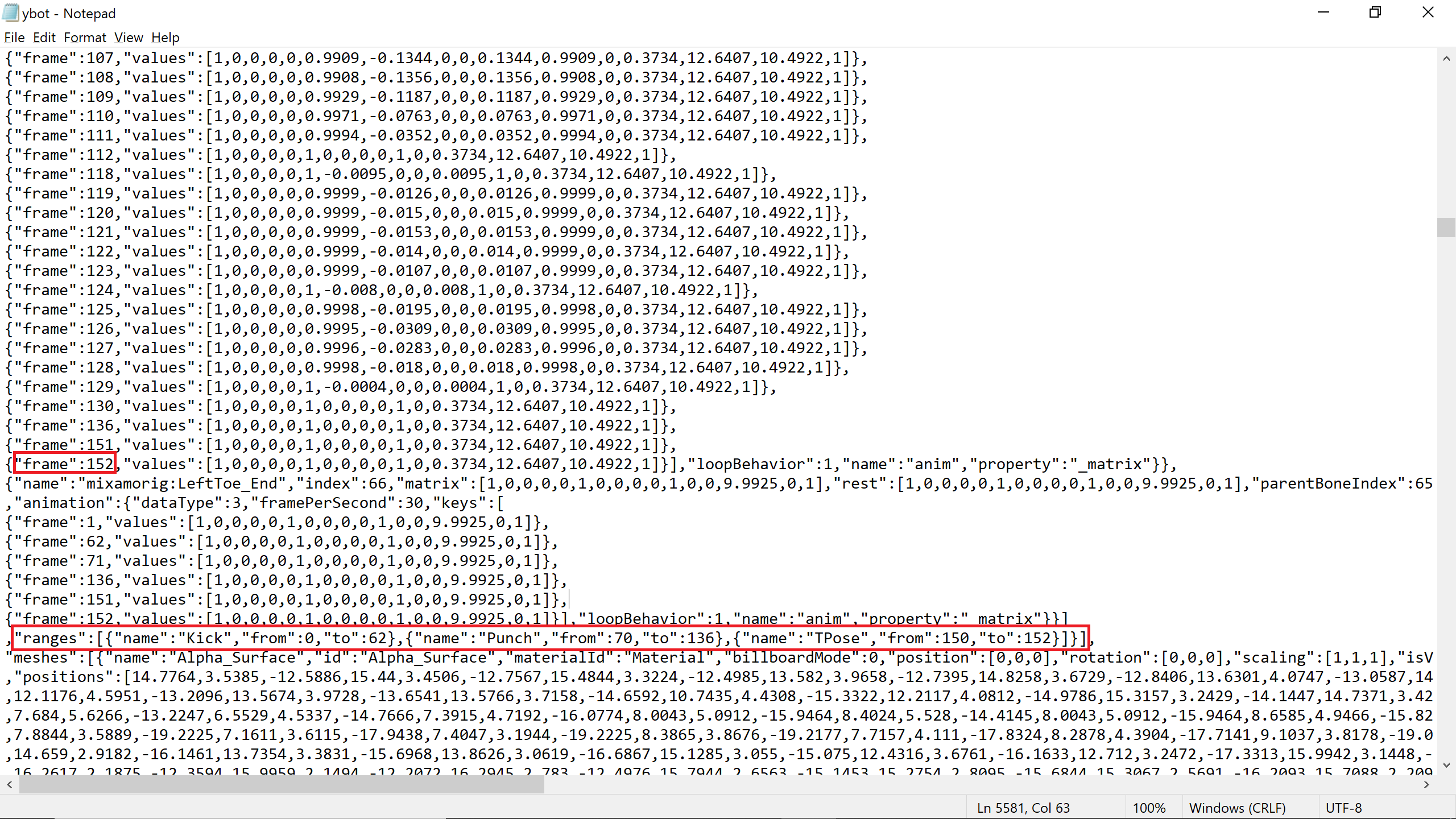
autoAnimate lets your model animate automatically when dragged into the Babylon.js Sandbox. Why autoAnimateTo frame 152? According to the Sandbox animation list and the image of the .babylon file below, all 3 animations (Kick, Punch, and TPose) take a total of 152 frames.
So how do you trigger these animations in Babylon.js code? Check out PG: Animation Blending
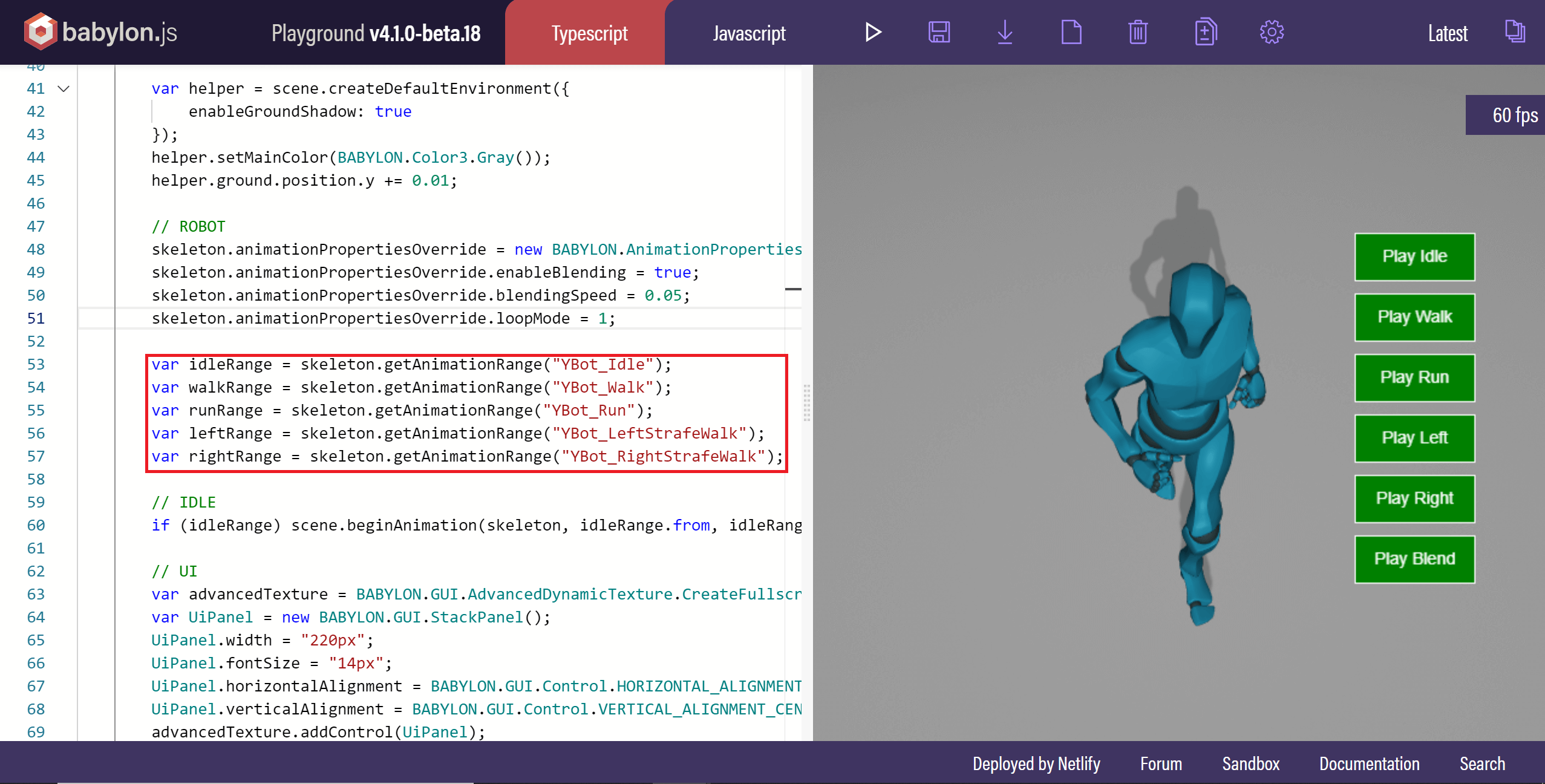
Click the image below to see the final result!

Check out this Babylon.js Demo: Dancers. In this demo, a .babylon model of the dancer is loaded just once! Its mesh and skeleton are cloned many times. The dance animation can be applied to each cloned skeleton separately whenever we choose!
All .fbx, .blend, and .babylon files are included in files/.