Blender Tips
Since Babylon and Blender often do things differently, it can sometimes be a pain working with both of them together. Here are a few tips that will smooth things out a bit.
Geometry
Smooth shading
If you export the default Blender scene to BJS, you'll quickly see that your cube doesn't look exactly as it should:
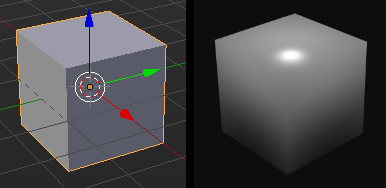
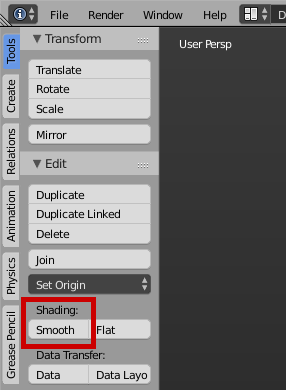
This is because a 3D modeler's viewport doesn't act like a 3D real-time engine. By default, Blender always creates objects using flat shading. If you want to see your scene smoothed as it appears in BJS, select all your objects and click Shading > Smooth in the 3D View Toolshelf.
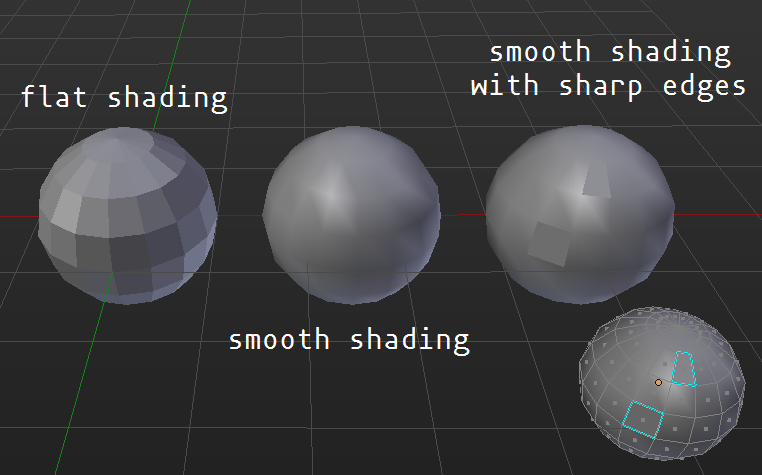
Now, your cube looks ugly. You have to adjust its sharpness by adding an edge split modifier and playing with the edge angle and sharp edges. Job done!
Cameras
ArcRotate
When choosing the ArcRotate camera type, you have to add a target to your camera.
To do that:
- first select your camera, then its target (for example, an object or an empty),
- press
Ctrl+T>Track To Constraint.
Workflow
Quickly Export
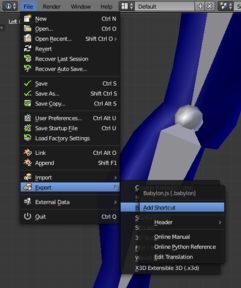
If you go to File > export and right click on babylon, you can select Create Shortcut, and make an easy-to-use shortcut to export to babylon! For example, you can use Ctrl-E.
Animation
Commons
One file per animated object
Usually, you will have one master scene containing all static elements, and a blend file for each animated element.
To easily see your animated element inside the master scene, open your master scene and go to File > Link, then go inside the blend containing the animated element, and import your objects. It can be simpler to link groups instead of objects, which makes updating links easier.
Rotation mode
By default, Blender uses the XYZ Euler rotation mode, which is fine for most cases, but you should know that Quaternion (which avoids gimbal lock issues) is also supported.
XYZ Eulerwill be stored in the mesh.rotation propertyQuaternionwill be stored in the mesh.rotationQuaternion property
For armatures, it does not matter because the animation is kind of baked during export.
Armatures
Maximum ## of influencers fix
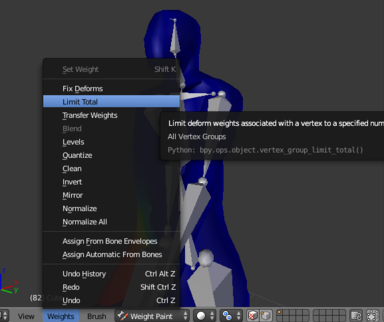
If you ever get the error WARNING: Maximum ## of influencers exceeded for a vertex, extras ignored, never fear!
In weight painting mode, click weights and then limit total. This will automatically limit the mesh's vertices to 4 influences.