Blender to Babylon.js exporter
The Blender export plugin can be found on github repository. We assume you're using the latest version.
Note that v6 is for Blender 2.8 (currently in beta), v5 for Blender 2.79b or below can be found in the deprecated folder.
Installation
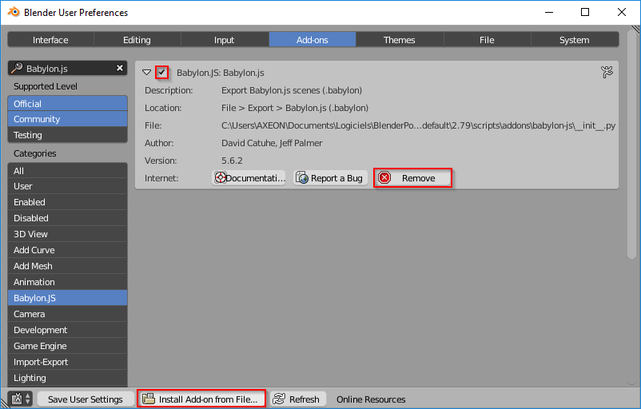
This add-on uses the standard Blender installation procedure:
- Download the last version from Github (click on the zip file with the appropriate exporter version you'd like to download: Blender2Babylon-X.X.zip and then hit the "Download" button).
- In Blender, go to
Filemenu >User Preferences. - Switch to the
Add-onstab. - (optional) If you already have an old version installed, search for Babylon.js in the filter, expand the info for the Babylon.js add-on, and click the
Removebutton. - Click the
Install from File...button at the bottom. - Select the zip file and click the
Install Add-on from File...button. - Check the box to enable it.
- Click
Save User Settingsto enable it at every Blender launch.
Features
Scene

| Blender | BJS equivalent |
|---|---|
Scene  |
|
Exporter panel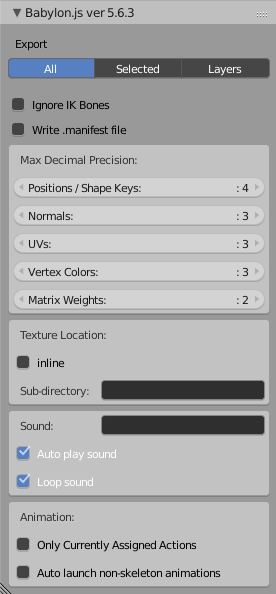 |
|
World

Blender Render
| Blender | BJS equivalent |
|---|---|
World 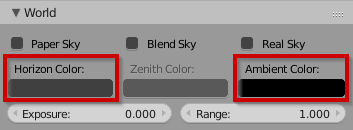 |
|
Exporter panel 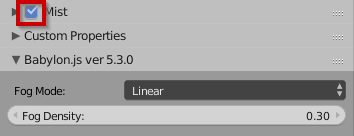 |
|
Object

| Blender | BJS equivalent |
|---|---|
 |
|
Transform 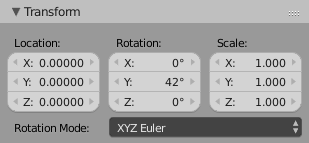 |
|
Relations 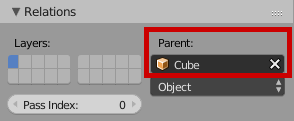 |
|
Constraints

| Blender | BJS equivalent |
|---|---|
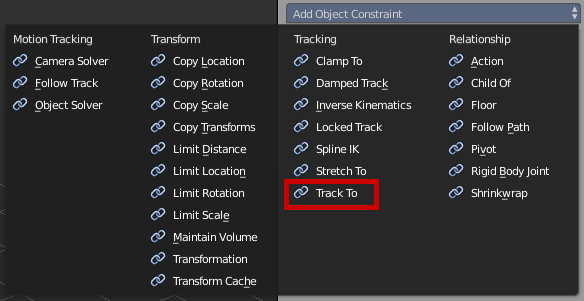 |
|
Cameras

| Blender | BJS equivalent |
|---|---|
Lens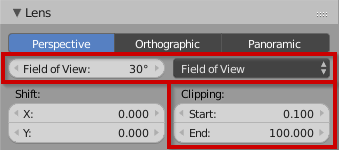 |
|
Exporter panel 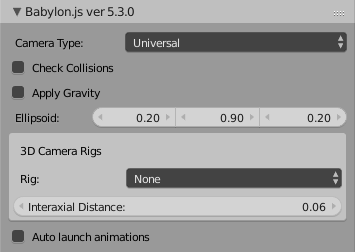 |
|
Lights

| Blender | BJS equivalent |
|---|---|
Lamp 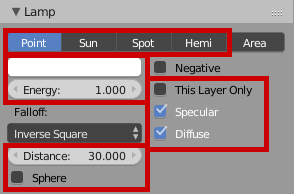 |
|
Spot Shape (only available when light type is Spot) 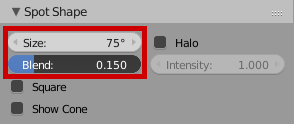 |
|
Exporter panel 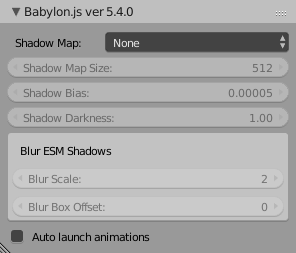 |
|
Meshes

| Blender | BJS equivalent |
|---|---|
Normals 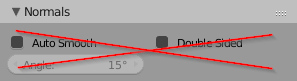 | Auto Smooth is often used by Blender users, but it is not supported. Use an edge split modifier instead, see tip. |
UV Maps 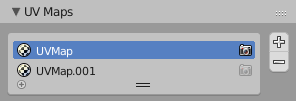 |
|
Vertex Colors 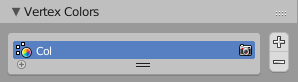 |
|
Exporter panel 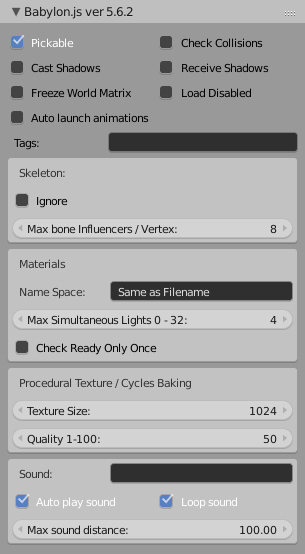 |
|
Materials

General
- as you can see in the BJS mesh panel, materials will be suffixed with the .babylon filename,
- other options can be found on this mesh panel, like max simultaneous lights, texture size for baking, etc,
- texture baking will be automatic when:
- cycles render is the current render engine,
- procedural textures are used.
Blender Render on Babylon.js
| Blender | BJS equivalent |
|---|---|
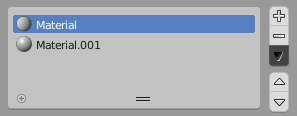 |
|
Diffuse 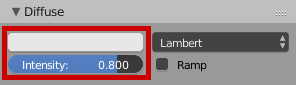 |
|
Specular 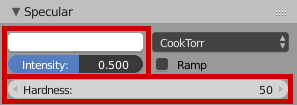 |
|
Shading 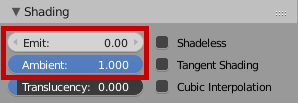 |
|
Transparency 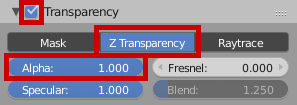 |
|
Specials
- you can temporarily switch to Blender Game to gain access to some materials settings:

| Blender | BJS equivalent |
|---|---|
Game Settings 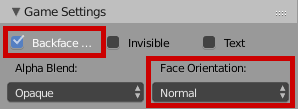 |
|
Cycles Render
| Blender | BJS equivalent |
|---|---|
Node Editor 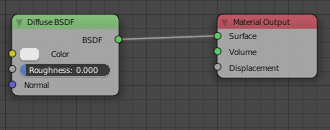 | Exporter will do automatic baking, and try to detect some nodes:
|
Textures

General
- Blender can handle packed images, even if there isn't a source file on disk, but you have to unpack them all before export,
- about automatic baking, see Materials.
Blender Render
| Blender | BJS equivalent |
|---|---|
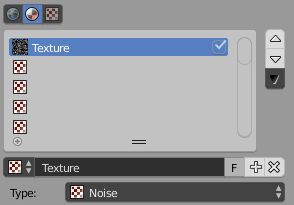 |
|
Texture Type  |
|
Image 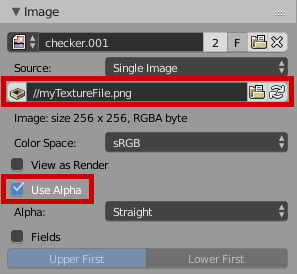 |
|
Image Sampling 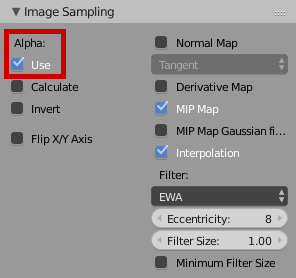 |
|
Image Mapping 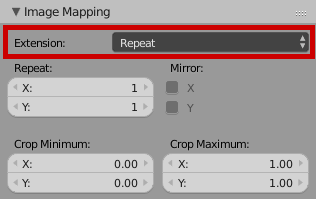 |
|
Mapping 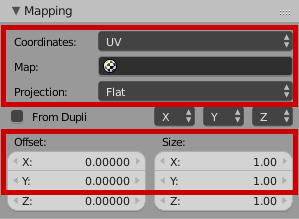 |
|
Influence 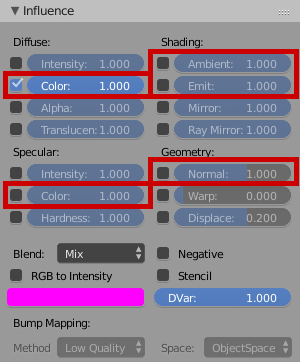 | Be sure to enable only one influence by texture, to avoid automatic baking. |
Commons & Good practices
- you should export one .babylon file per animated object to make your life easier, both in BJS and when handling the timeline in Blender. See tip for a basic workflow.
- before starting animation in Blender, be sure your objects have their transformations applied! (3DView > Object > Apply)
Classic Animations
You will find an example in this .zip archive. 3D source files are in the sources folder, and the BJS app is in the BJS folder.
In sources, we have our master scene, with only static objects (on layer 1), and just so we can see it, we have the logo linked on layer 6. When exporting, make sure only layer 1 is active, as we have checked in the scene panel Export only selected layers.
Once exported, you can see in BJS/index.html that we create our main scene using this .babylon: line 36
import { LoadSceneAsync } from "@babylonjs/core/Loading/sceneLoader";LoadSceneAsync("01.master-static-scene.babylon", engine).then(function (scene) { });The same goes for our animated object in sources/02.classic-animation.blend: layer 1 is for our object, layer 6 is just for us to see the main scene in our .blend. Export only selected layers is used to help us export only the first layer to Babylon.
Once exported, we can import our meshes inside the onSuccess callback of the loader above. Check on BJS/index.html, line 64:
import { ImportMeshAsync } from "@babylonjs/core/Loading/sceneLoader";ImportMeshAsync("02.classic-animation.babylon", scene).then(function (result) { });Now, you already have a basic scene with animations auto-playing in it.
Armatures
- you can use any Blender rotation mode you want; the animation will essentially be baked during export
Try it out
Once your scene is exported, you have multiple solutions to test it:
- do a quick check in the sandbox
- edit the file through the editor
- use the viewer
- script your own app using the loader
Example
Simple scene
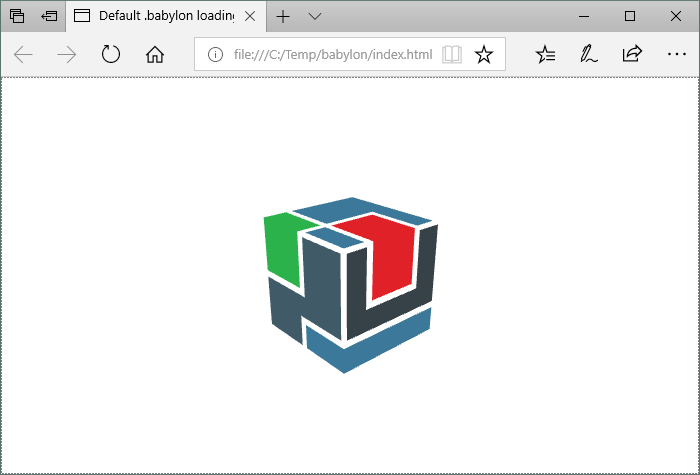
Let's say you have exported your first scene. In this example we will use blend files of the BJS logo:
- export the Babylon file into a folder
- create a file named index.html, and copy the code above:
<!DOCTYPE html><html>  <head>    <title>Default .babylon loading scene</title>    <meta charset="UTF-8" />    <!-- this link to the preview online version of BJS -->    <script src="https://preview.babylonjs.com/babylon.js"></script>    <!-- this is needed for BJS to load scene files -->    <script src="https://preview.babylonjs.com/loaders/babylonjs.loaders.js"></script>    <style>      html,      body {        overflow: hidden;        width: 100%;        height: 100%;        margin: 0;        padding: 0;        color: white;      }
      #canvas {        width: 100%;        height: 100%;        touch-action: none;      }    </style>  </head>
  <body>    <canvas id="canvas"></canvas>    <script type="text/javascript">      const canvas = document.getElementById("canvas");      const engine = new BABYLON.Engine(canvas, true);
      // here the doc for Load function: //doc.babylonjs.com/typedoc/classes/babylon.sceneloader#load      BABYLON.LoadSceneAsync("babylonJS_logo_v3.babylon", engine).then(function (scene) {        //as this .babylon example hasn't camera in it, we have to create one        const camera = new BABYLON.ArcRotateCamera("Camera", 1, 1, 4, BABYLON.Vector3.Zero(), scene);        camera.attachControl(canvas, false);
        scene.clearColor = new BABYLON.Color3(1, 1, 1);        scene.ambientColor = new BABYLON.Color3.White();
        engine.runRenderLoop(function () {          scene.render();        });
        window.addEventListener("resize", function () {          engine.resize();        });      });    </script>  </body></html>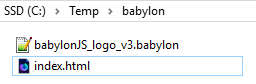
- double-click on the index.html file... profit!
- some browsers may not allow loading the scene for security reasons (e.g.: Chrome). In this case, you have to open the HTML file through a web server (local or not), or try another browser (e.g.: Firefox, Edge).