3DS MAX Plugin
Installer
Installing the installer (so meta...)
We have recently introduced a new tool to simplify the installation of the plugin for both Max and Maya.
First, you can download the latest version of the installer from our GitHub Releases. Once on the releases page, you can find all our packages in the assets section of each release:
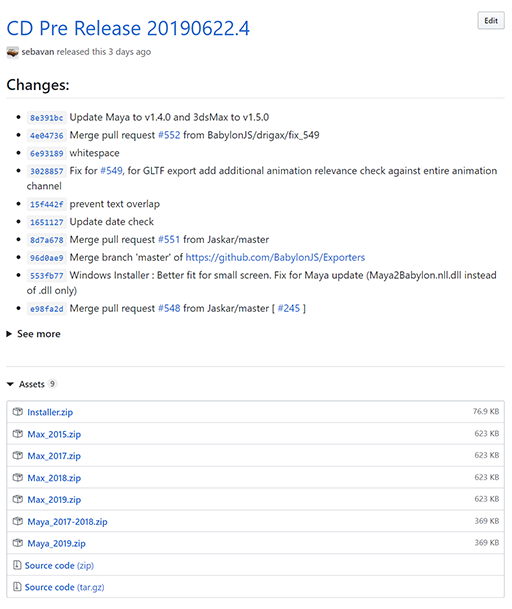
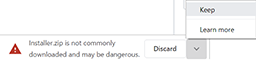
From there, you can download the Installer.zip file. Chrome currently warns of a potential threat because installer.exe has not been downloaded enough to pass the Chromium checks. In this case, you might see a message like this:

You can nevertheless continue to download by pressing the little arrow and choosing to "Keep" the file:
Once downloaded, you can extract the contents of the zip in your preferred location.
Using the installer
Launch the executable file contained in the zip. On first launch, Windows, like Chrome previously, will show a SmartScreen warning because the application has not yet been launched enough times to be trusted.
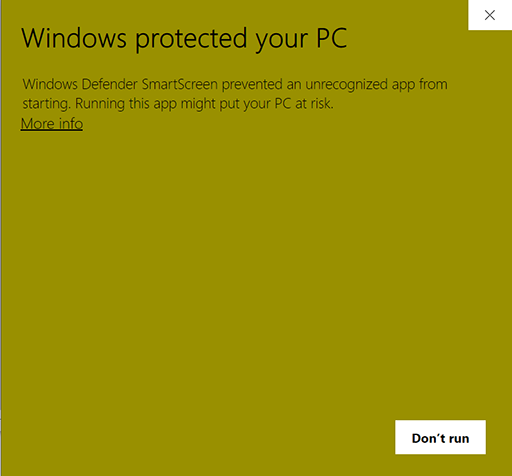
As before, you can choose to continue by pressing More info and then Run anyway:
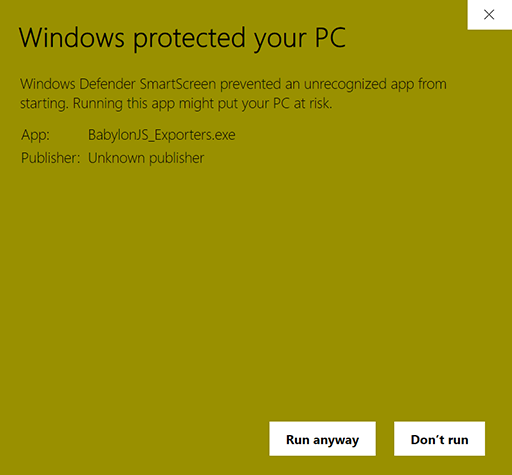
No worries, you are almost there. A second warning is raised by Windows because the installer needs to write files in Program Files and therefore run in elevated mode. Approve the User Account Control prompt to start using the application.
From this point, it gets simpler:
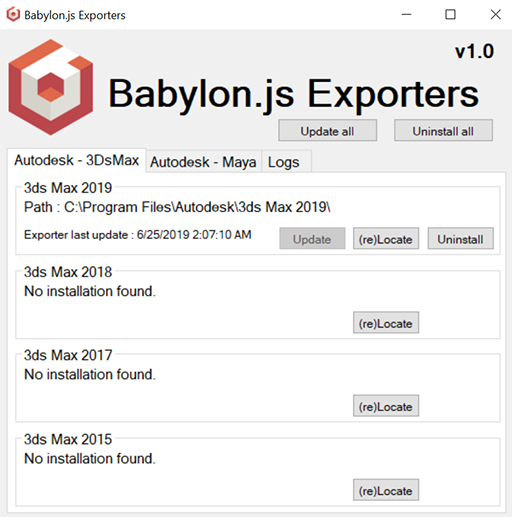
Once launched, the application should auto-detect all the installation folders for your Autodesk applications. If it fails to do so, you can still manually locate the target software.
You can now easily install or update any of your 3D authoring tools to the latest prerelease available on GitHub.
If you want to upgrade to the latest available pre-release of the exporter plugins, you can simply launch the installer again and follow the same procedure to update the installed plugins to their latest versions.
Please note that the software you are installing the plugin for should be closed during the installation.
Manual Install
The plugin is designed for 3DS Max 2015 or later. To download it, go to the GitHub project Releases.
In the assets section of the release you can find one zip file per supported tool (like max_2019.zip) containing the plugin files.
Click on the zip file to start downloading.
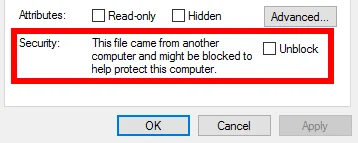
By default, Windows blocks all .dll files coming from the web, so we have to unblock them first. Select the zip file, right-click it, select Properties, select Unblock, and then OK.
Then, extract the contents of the zip file on your computer and open the directory corresponding to your 3DS Max version. Finally, make sure 3ds Max is not running, and move all .dll files into the installation directory of 3DS Max (in C:/Programs/Autodesk/3ds Max 2015/bin/assemblies). The next time you start 3ds Max, the plugin will be launched automatically, and a new tab should appear:

Congratulations! You did it!
Dependencies
Visual Studio
Visual Studio is required to build the Max2Babylon project from source.
.NET Framework
The .NET Framework Redistributable needs to be installed in order to run the Max2Babylon plugin properly.
-
Max2Babylon 2015-2016
- Requires at least .NET Framework 4.5
-
Max2Babylon 2017
- Requires at least .NET Framework 4.5
-
Max2Babylon 2018
- Requires at least .NET Framework 4.6
-
Max2Babylon 2019
- Requires at least .NET Framework 4.7
-
Max2Babylon 2020
- Requires at least .NET Framework 4.7
-
Max2Babylon 2021
- Requires at least .NET Framework 4.7
Other Dependencies
- For 3ds Max 2020
- Max2Babylon 2020 requires 3dsMax 2020.2 or newer.
Features
Exported features
-
Scene
- Clear color
- Ambient color
- Fog
- Environment texture (.dds)
-
Cameras * Fov * MinZ * MaxZ * Speed () _ Inertia () _ Collisions (_) _ Position * Target / Rotation * Animations: Position, Target, Fov * Custom attributes
-
Lights * Omni / spot / directional / Ambient(Hemispheric) * Shadow maps for directional lights (Variance shadow maps can be activated by checking [Absolute Map Bias] in light properties) * Inclusion / exclusion lists * Position / direction * Intensity * Diffuse * Specular * Animations: Position, direction, intensity, diffuse * Custom attributes
-
Meshes * Visibility * Renderable * Shadows * Collisions () _ Pickable () _ Position / rotation / scaling * Smoothing groups * Skin * Geometry (position, normal, color, texture coordinates (2 channels))
- Instances _ Morph targets _ Show Bounding box and submeshes bounding boxes (_) _ Animations: Position, scaling, rotation, visibility, bones, morph weights * Custom attributes
-
Materials * Multi-materials * Alpha * Diffuse color and texture * Ambient color and texture * Specular color and texture * Bump * Emissive color and texture * Opacity texture * Reflection texture * Fresnel for diffuse, emissive, opacity and reflection _ Physical materials (PBR) _ Standard Surface Arnold material _ Coating (Standard Surface Arnold only) _ Double sided material _ Unlit _ Backface culling _ Max Simultaneous Lights _ Opacity/Transparency mode _ Custom attributes _ RGB Multiply map
-
Textures
- UV offset / scaling / angle
- Level
- Coordinates mode (Spherical, planar, explicit)
- Wrapping (Clamp, mirror, wrap)
-
Hierarchies are exported
-
Animations
- Animation groups
- Export without animations
- Export animations only
(*): Through custom UI
Scene properties
If you right-click on your scene, you will see the menu Babylon -> Babylon Properties: All the available properties are listed below:
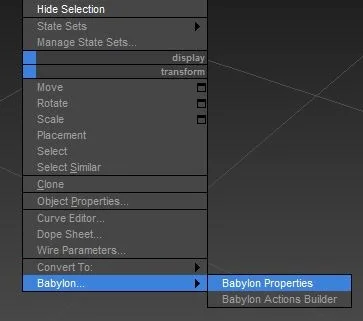
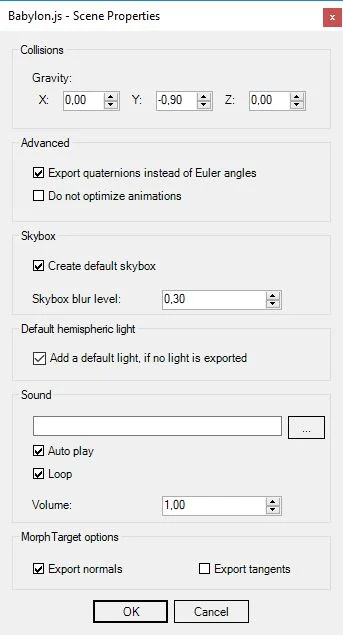
The scene properties allow you to do these things:
- Set the scene gravity
- Export quaternions for all nodes instead of Euler angles. If this option is selected, an exported model rotation won’t be updated by setting its
rotationparameter. Instead, you will have to use therotationQuaternionparameter. - Do not optimize animations. You should check this option if animations are not exported correctly.
- Create a default skybox from the environment texture when the scene is loaded. An environment texture must be set up to enable this feature.
- Set the blur effect intensity applied to the skybox texture. By default it is slightly blurred. Setting value to 0 disables the blur effect.
- Add a default light, if no light is exported. If this option is checked and there is no light selected for the export, a hemispheric light is added in the exported scene. By default this option is checked.
- Export normals and Export tangents checkboxes allow you to control the morph target export. Note that if you want to export the target morph tangent, you have to check both the Export tangents checkbox and the other Export tangents checkbox of the exporter window.
Object properties
Right-click a mesh and select the menu Babylon -> Babylon Properties to open the Object Properties window:
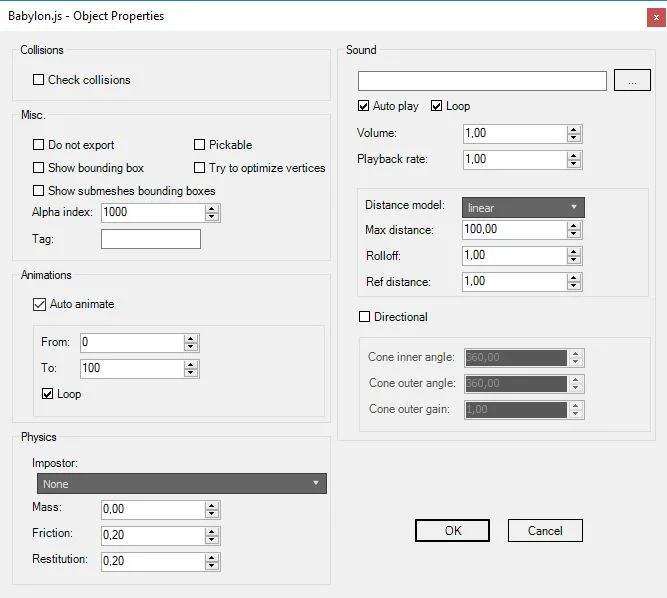
With this window, you can set the following properties:
- Check collisions: Activate it to enable collisions between the camera and this object. False by default.
- Do not export: Self-explanatory, this object won’t be exported. False by default.
- Pickable: This object can be picked with the mouse. False by default.
- Try to optimize vertices: The Babylon exporter will try to optimize the number of vertices to export instead of exporting everything naively (if a vertex is part of two faces, this vertex won’t be exported twice with this option checked). False by default.
- Show bounding box: Display the bounding box of this object in the scene. False by default.
- Show submeshes bounding boxes. Same as above. False by default.
- Alpha index: Used to sort transparent meshes. The mesh with the larger alpha index is rendered first (then the depth is taken into account). Default value is 1000.
- Tag: Used to add a custom tag to this object. Empty by default.
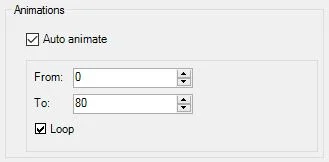
- Auto animate: All animations for this object will start when this object is added to the scene. True by default.
- From/To/Loop: The starting and ending frame for this object, and if the animation loops. Default values are 0, 100 and true.
- Impostor: Add an impostor to this object. Default is none.
- Mass/Friction/Restitution: Set the physics values of the impostor. Default values are 0.20, 0.20, and 0.20.
Light properties
If you create a standard light and right-click it, select the menu Babylon -> Babylon Properties to display this window:
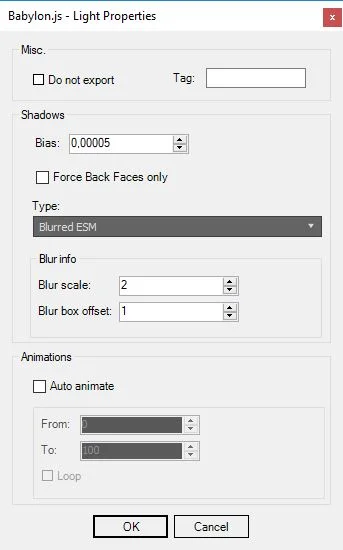
The options Do not export, Tag and animations are exactly the same as the Object properties window.
Camera properties
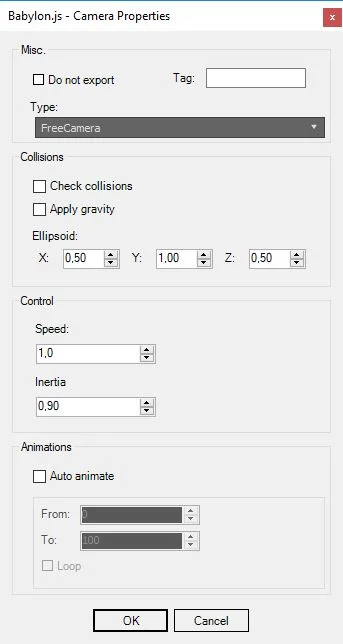
In this window, you can choose the kind of camera you want to create in Babylon.js. You can also:
- Check collision: The camera can collide against objects where check collisions is activated.
- Apply gravity: The camera will be subject to the scene’s gravity (in the Scene properties window)
- Ellipsoid: With collisions enabled, the camera will be wrapped in an ellipsoid, the size of which can be set here.
- Speed / inertia: The speed and inertia of the camera. Default values are 1 and 0.9.
- Animations: Same as in Object properties window.
- Tag: Same as in Object properties window.
The exporter window
When your scene is ready to be exported, click on the Babylon tab on the top menu, and click on Babylon File Exporter to display the exporter window.
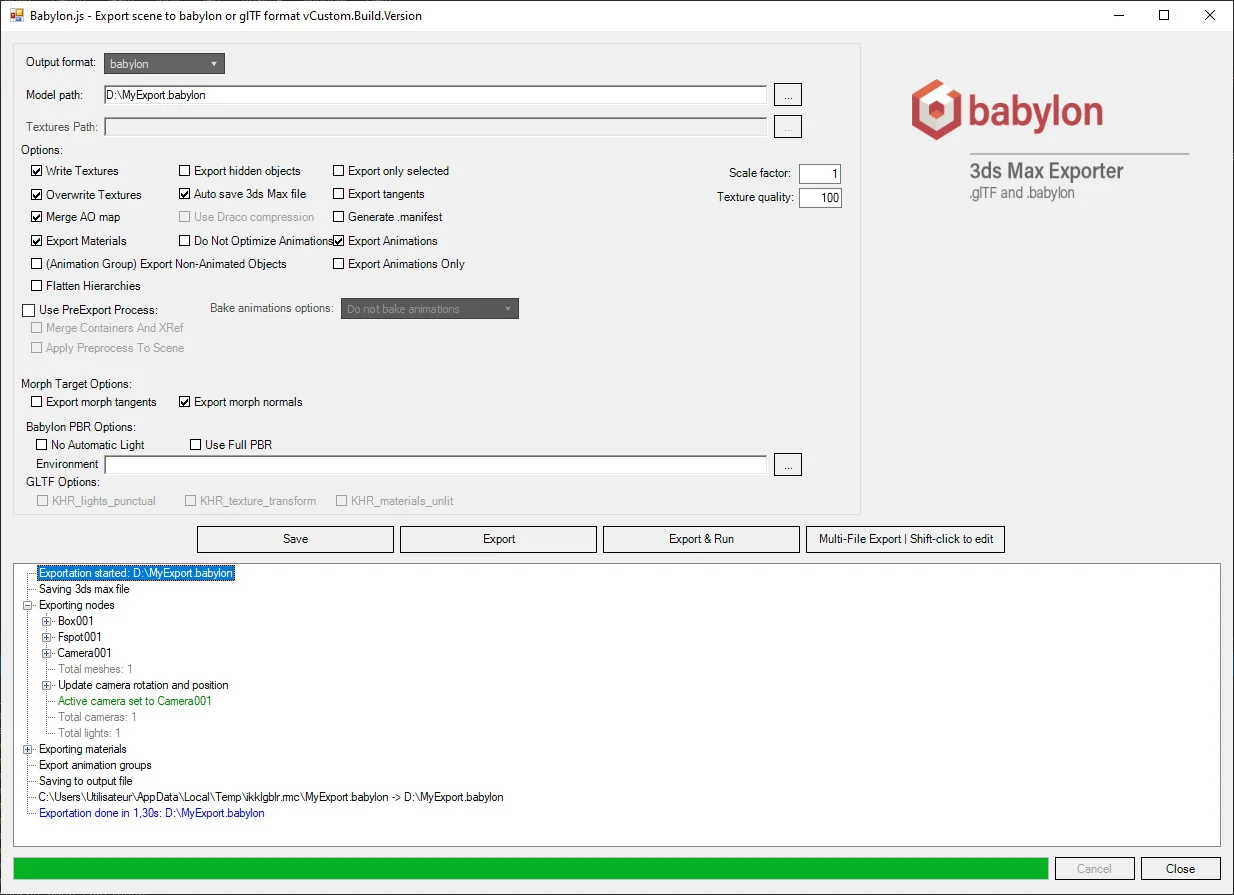
This window is composed of 3 panels:
- A top panel with a file path and a button. With this panel, you choose where your Babylon file will be exported by clicking on the right button.
- Several options and two buttons Export and Export & Run
- A log panel
The Scale factor can be used to rescale the whole world. If you set a scale factor equal to 100, the resulting scene will be 100 times smaller (1%). By default the scale factor is equal to 1, meaning no rescale.
The Texture quality sets the conversion quality of bitmaps to JPEG. At 100 (the maximum value), it gives the highest image quality but no file size reduction. Conversely, at 0 (the minimum value), it gives the lowest image quality but the greatest file size reduction. By default, the Texture quality is set to 100.
The Merge AO map option enables the merging of the Ambient Occlusion shadow map (stored on Diffuse Roughness slot) with the Metalness and Roughness map.
The write textures option enables writing the textures to the output directory. Note that this is force enabled when exporting glb files.
The overwrite textures option enables overwriting existing textures in the output directory.
The Use Draco compression option is only available for gltf and glb output formats. More details here.
The Export Animations option enables you to export only the geometry and materials.
The Export Animations Only option enables you to export only animations. The Export Animations option must be checked as well.
The Export button should be used to create the Babylon file representing your scene. The Export & Run button will also create the Babylon file, but will also launch your default browser and run the newly made Babylon file. This button is very useful if you just want to test the render of your scene in Babylon.js.
As the babylon.js script is retrieved directly from the official website, you should have internet access in order to use Export & Run correctly.
The log panel indicates in real time which mesh has been exported, which material, and if there are any problems with these objects.
Export with MaxScript
You can also export the scene using MaxScript. A sample script file is available here.
You will need to update the path to your babylon dll and the output path.
All parameters are editable. Default values are the same as in the exporter window except for autoSave3dsMaxFile which is false.
Logs are limited to errors, warnings and core messages to avoid excessive amount of prints.
What you should know
Camera
If you want to test your scene right away by using the button Export & Run, your scene should have a camera created. Otherwise, the log panel will display the warning “No camera defined” and a default one would be created at runtime but won't be exported in .babylon file.
If you have more than one camera, the first one will be set as activeCamera in Babylon.
Light
If you don’t have any lights in your scene, the exporter will add a hemispheric light by default. The log panel will display the warning “No light defined – A default hemispheric light was added for your convenience”.
Pivot and position
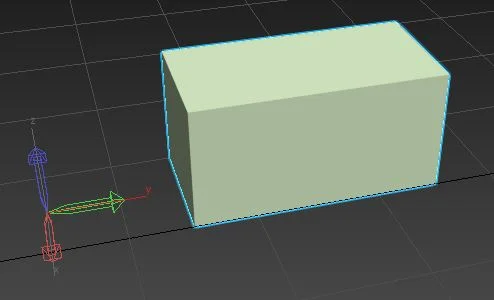
The object position will be defined with your object pivot position. In the image below, the pivot position is not at the center of the box: updating the object position in Babylon.js will update this pivot position, and not the box position.
Negative scale
Using a negative scale will reverse the normal of your objects. These objects will appear correctly in 3DSMax, but incorrectly in a Babylon.js application.
Mirror by Transform
Using mirror tool affecting Transform will make mirrored object appear correctly in 3DSMax, but incorrectly in a Babylon.js application. Consider using mirror tool affecting Geometry instead.
If mirror by Transform is what you need (or what you got), you can fix this issue doing the following after mirroring:
- apply a ResetXForm
- make object editable: add an Edit modifier or collapse Xform modifier
- flip normals
Be aware animations for this object will likely be incorrect after that.
Animations
Cameras, lights and meshes have custom properties (Right-click and select "Babylon properties" menu) to automatically launch animations at startup.
Animations are exported by sampling keyframes which can generate a lot of data. To reduce file size, you can opt to use linear interpolation instead of bezier or TCB.
Also, if animations are not exported correctly, you may want to disable animation optimization by using the Babylon properties menu on the scene (Right-click on the scene and select "Babylon properties" menu).
Considerations about bones
To ensure that bones are correctly exported, you have to use the Skin modifier. Skin should be positioned at the origin. More info here
Textures image format
Babylon engine fully supports the following image formats: jpg, bmp, png, gif, tga. You are advised to use those formats for your textures when exporting to Babylon.
Note that the exporter also supports textures with tif and dds formats. But, those textures will be automatically converted to png by the exporter to ensure compatibility with the Babylon engine.
About dds format, Babylon engine partially supports this format depending on compression. To avoid any issue with this format, the exporter automatically converts it to png as stated previously. As an exception, the dds format is allowed for the environment texture and will not be automatically converted.
Specular color and specular level
Specular color and specular level are split into two attributes in 3ds Max while merged in Babylon.
For the global value, the specular color and level are multiplied to obtain the resulting specular color in Babylon.
For the texture, the Babylon specular color map is either:
- directly the specular color map setup in 3ds max when the specular level map is not defined. To ensure backward compatibility, the global specular level is ignored in this case. It is assumed the specular color map is already pre-multiplied by the desired amount.
- a mix between specular color map and specular level map. Maps are multiplied by the exporter.
- a mix between specular level map and global specular color. The global specular color is multiplied to each pixel of the specular level map.
Even though a specular level map should be a grayscale, its 3 components (RGB) are multiplied individually to the specular color.
Multi-Materials
Multi-Materials are supported, but inputting a Multi-Material into another Multi-Material is not supported.
Physical materials
The handling of physical materials mimics the glTF format. Detailed explanations here
Arnold materials
The handling of Arnold materials mimics the glTF format. Detailed explanations here
As well as the default supported GLTF parameters, in Babylon format, we support the coating parameters of the material. You can see below the supported parameters:
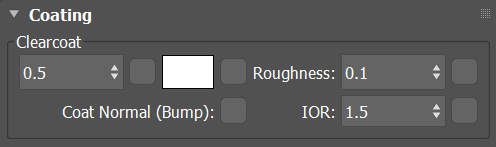
Please note that if a map is used for the weight or roughness parameter, they will be combined in the same way the ORM texture is created in the detailed explanations. In 3DS MAX, metalness and roughness maps are black and white images (R=G=B). The 2 maps must have the same size to be merged successfully.
In Babylon format, weight is stored in red channel, roughness in green.
The roughness of the coating can be inverted to mean Glossiness - this is controlled by the same parameter as the roughness map.
Double sided material
Simply use the Double Sided material natively present in 3ds Max (Materials > General > Double Sided).
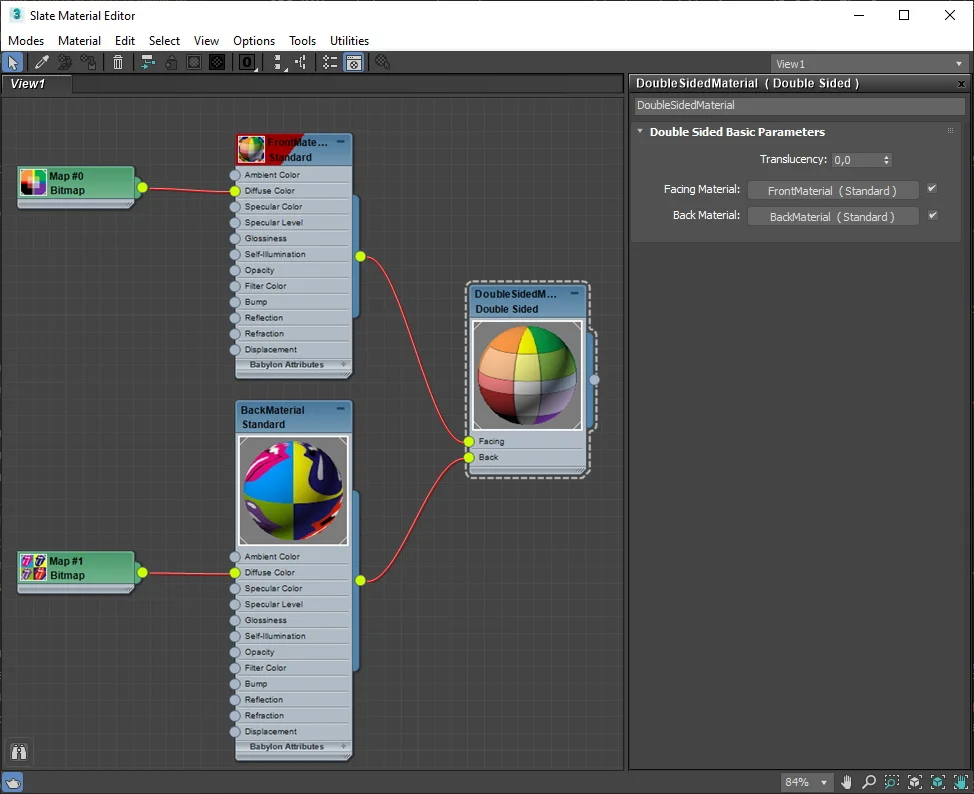
From there, you can specify the Facing and Back materials. Those sub-materials are independent from each other. For example, one can be a standard material and the other a physical.
The Translucency parameter is not used.
When exporting, the geometry of all meshes using a double sided material is duplicated:
- the number of vertices and faces is doubled
- faces, normals and tangents are inverted for the duplicated geometry
This means that the exporter automatically creates a back side. If you already have a back side, you should use a Multi-material instead.
Moreover, the Double sided material should not be confused with the 2-sided property of a Standard material. This last property is used to put the same material to the front and back faces.
RGB Multiply map
The RGB Multiply map can be used as an intermediate node between a bitmap texture and a material.

The texture is retrieved from one channel and the color from the other one.
Limitations:
- only the diffuse texture (Standard material) and base color texture (Physical and Arnold materials) fields will accept an RGB Multiply map as input.
- the RGB Multiply map must specify exactly a single texture. Two textures or two colors are not supported.
Shell material
The handling of the shell material mimics the glTF format. Detailed explanations here
DirectX Shader
The handling of the DirectX shader material mimics the glTF format. Detailed explanations here
Texture transparency
Babylon supports PNG, DDS and TGA formats for texture transparency. You can choose to include the transparency directly in your diffuse texture, or create an opacity map. Here are the options to check if you want to have transparency on your diffuse texture:
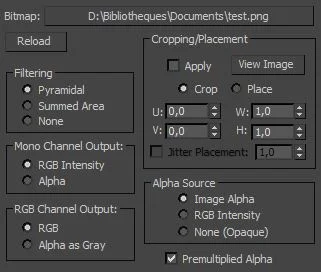
Important: if you are relying on a physically based material, you can choose the transparency mode through a dedicated material attribute. You can refer to the following documentation to learn more about this feature.
Babylon material attributes
Native materials are enhanced to have extra attributes under Babylon attributes section.
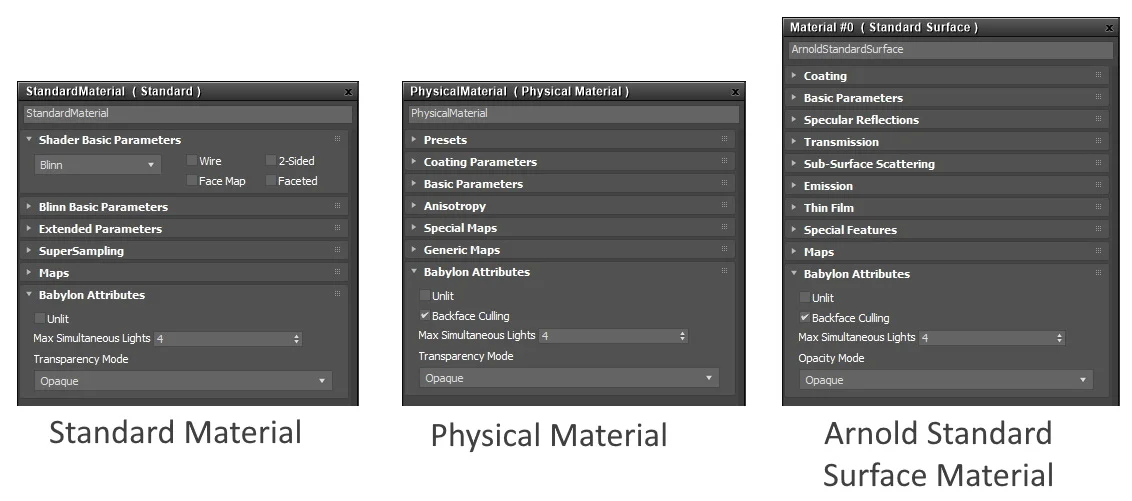
Most Babylon attributes are common to all materials:
- Unlit: A material can be exported as Unlit, meaning independent of lighting. This implies that light-relative attributes or textures are not exported: ambient, specular, emissive, bump mapping and reflection texture.
- Backface Culling: When true, the back faces are not rendered. When false, back faces are rendered using the same material as the front faces. This property is native to the Standard material and is called 2-Sided.
- Max Simultaneous Lights: Number of Simultaneous lights allowed on the material.
- Opacity/Transparency Mode: You can select how transparency is handled for this material among 3 choices:
- Opaque: The alpha color and texture are ignored during export process.
- Cutoff: The alpha cutoff value is 0.5. Alpha values under this threshold are fully transparent. Alpha values above this threshold are fully opaque.
- Blend: This is how 3ds Max handles transparency when rendering. This is the default mode for any material with an alpha color or texture.
Custom attributes
Attributes defined by you, the user, are exported as well!
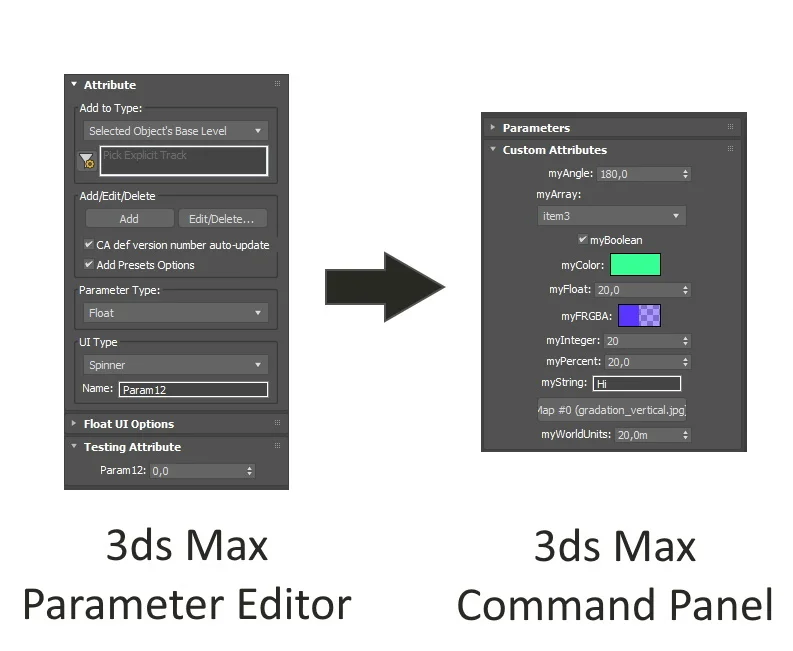
Almost all types of parameters are supported (Float, Color, Boolean, TextureMap...). The only exceptions are Node and Material types. All nodes (meshes, lights...) and materials have their custom attributes exported.
To define custom attributes either use the Parameter Editor window or scripting:
Custom attributes are exported under metadata:
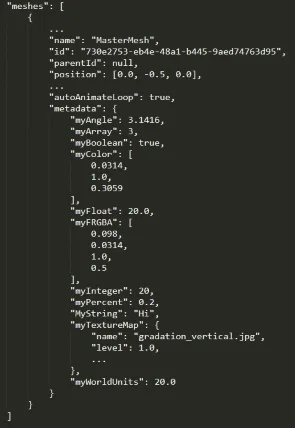
The following types have particularities you should know:
- Angle : Set in degrees (°) in 3ds Max but exported as radians. Ex: 360° => 3.1416 rads
- Array : An array in 3ds Max is an enumeration of values. Each value has an incremental index, starting from 1. Only one value can be selected. The index of selected item is exported, not the displayed label.
- Color and FRGBA : Exported in base 1 as all other colors. Ex: Red = (255,0,0) => (1,0,0)
- Percent : Exported in base 1 as well. Ex: 80% => 0.8
- Texture : The texture is fully exported, including its bitmap. However, the Babylon loader doesn't interpret the data as a BABYLON.Texture. It is instead raw data that can be read or parsed after import.
Now that you know all about the exporter features, it’s time to use it!
Using the exporter
First, create the model you will be using in the Key class. I choose to create a simple key (you might recognize a little inspiration from the Zelda games). As you can see, the key has 3 key frames creating a floating animation. Its material has no diffuse color (set to black), but a self-illumination color (corresponding to the emissive color in Babylon.js).
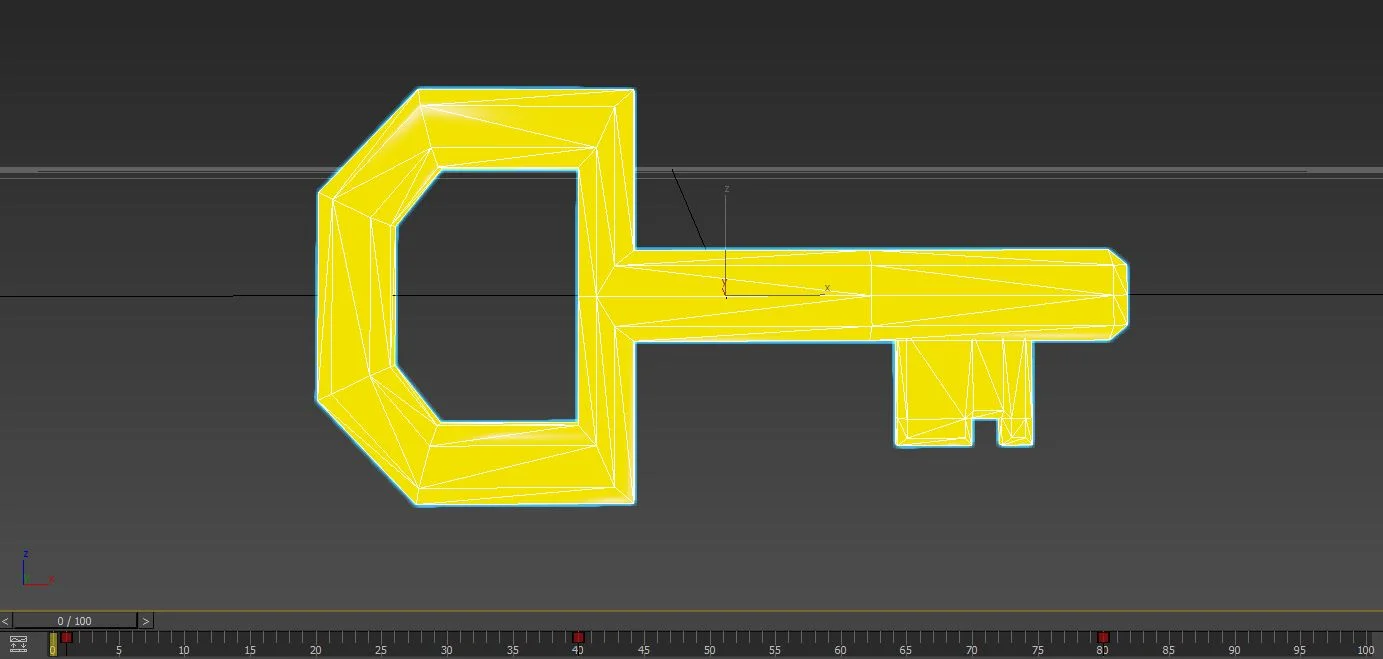
The only thing left to do is to export this key as a Babylon file, and we’re done with 3DS Max. As the animation is going from frame 0 to frame 80, the Babylon properties for this object have to be updated. And we’re done!