Figma to BabylonJS
Video Overview

Introduction
FigmaToBabylonJS is a Figma plugin that lets you export or serialize your Figma designs as BabylonJS GUI controls. It uses a headless Babylon GUI environment running inside the plugin to serialize your Figma designs into .json files. These can be parsed into a Fullscreen UI advanced dynamic texture (https://doc.babylonjs.com/features/featuresDeepDive/gui/gui#advanceddynamictexture) or as a single GUI control.
This plugin's goal is to quickly and easily export Figma designs to BabylonJS GUI controls.
Get the Plugin
The plugin is available via the Figma community page.
After adding the plugin to Figma, select the frame (artboard) that you want to export and right-click it.
In the right-click menu, select Plugins > Saved Plugins > FigmaToBabylonJS
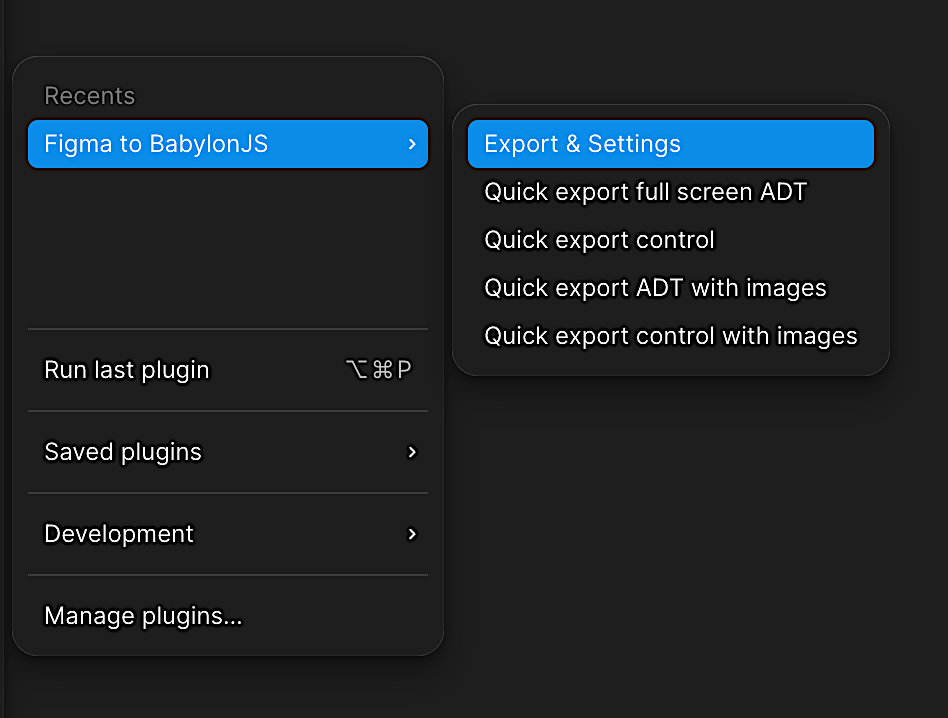
You will be presented with 5 menu options:
- Export & Settings
- This is the main export screen, where you can choose what to export and how.
- Quick Export Fullscreen ADT
- This will export the selected frame as a fullscreen advanced dynamic texture with your last settings.
- Quick Export Control Only
- This will export the selected frame as a single control with your last settings.
- Quick Export Fullscreen ADT with Images
- This will export the selected frame as a fullscreen advanced dynamic texture with images included.
- Quick Export Control Only with Images
- This will export the selected frame as a single control with images included.
How to Use
For first-time users, it is recommended to click the "Export & Settings" menu option first to set up how you want the export to work.
After clicking "Export & Settings", you should see this screen:
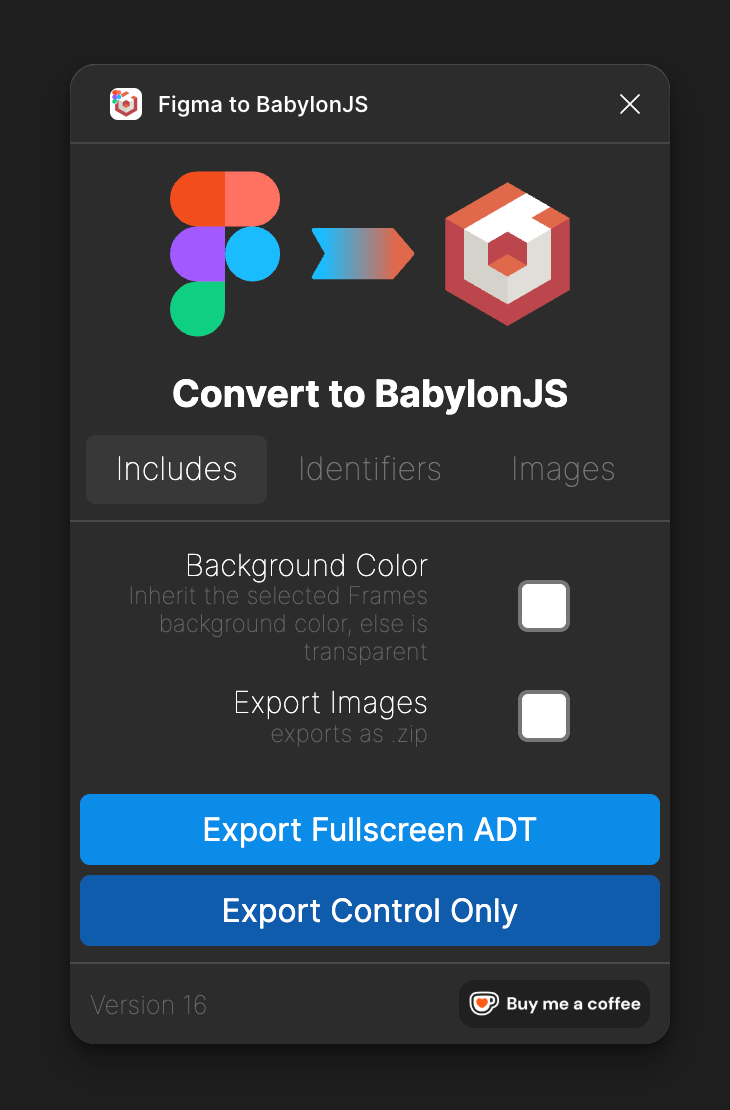 Each tab controls what will and will not be included in the export.
At the bottom, there are two large buttons. The first button, "Export Fullscreen ADT", exports the entire frame as an advanced dynamic texture, which can then be passed into Babylon.js's advanced dynamic texture function. For Export Fullscreen ADT exported JSON, you can use the "Load" menu option on gui.babylonjs.com or load it in your project using:
const guiData = require("../figmaToBabylonJS.json")let advancedTexture = AdvancedDynamicTexture.CreateFullscreenUI("UI")advancedTexture.parseSerializedObject(guiData, true)The secondary button, "Export Control Only", exports a single control that you want to pass into BabylonJS using the parse() command.
For Single Components in JSON, use the following code:
const guiData = require("../figmaToBabylonJS.json")let advancedTexture = AdvancedDynamicTexture.CreateFullscreenUI("UI")const guiRect = Rectangle.Parse(guiData, null)advancedTexture.addControl(guiRect)After clicking either export button, after a short wait you will see your file explorer. Choose where you want the JSON or ZIP file to go. For best results, place it directly into your project with the correct file name your code uses (by default the filename is the same as the name of the parent frame).
It is also good practice to load the UI in gui.babylonjs.com or the GUI Editor so you can check the output UI and tweak it. There may be inconsistencies; for those, please check inconsistencies and polyfills
Includes Tab
Basic "What should be in the output file" options; none of them are required. Please note that if you want to Include Images, the output file will be a .zip file and the .json will be inside it.
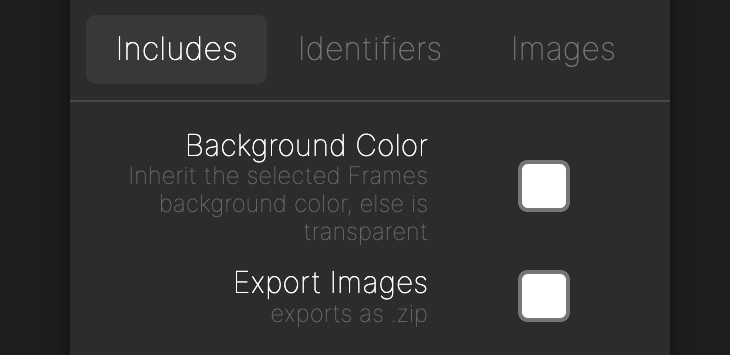
- Background Color
- This will decide if the export should have its background set to the same fill as the Figma frame.
- Include Images
- This enables the plug-in to package all images in a predefined folder and add them to a .zip file.
Identifiers Tab
Identifiers are the strings you put in layer names to identify specific BJS GUI controls. The controls that can be identified and converted to BabylonJS GUI controls are:
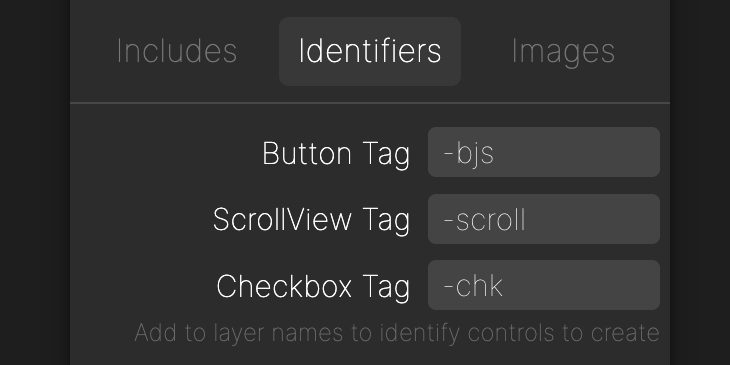
-
Buttons
- Can be a Figma Component/Instance/Frame with text in it. The button's text will be whatever the first text box it finds inside itself is.
- Can be a rectangle; the link text is set to null in this case.
-
Scroll View
- Can be a Frame or Group. Please note that although Figma allows you to have auto layouts on items that you define as scroll views, BabylonJS cannot have something that is both a stack panel and a scroll view. So if you want, for example, a stack panel of text, you need to place it inside an empty parent frame set as the scroll view.
-
Checkboxes
- Can be a Frame/Component/Instance or a flat rectangle.
- There is not much customization available for BJS checkboxes beyond their size, border color, and fill color.
Images Tab
This tab is for additional options that apply to exported images.
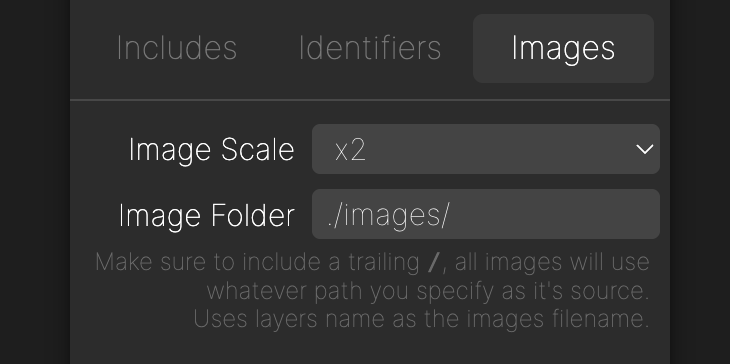
- Image Scale
- By default, the scale is set to x2. This means that any images exported from Figma will be 2 times their size in Figma. This can go all the way up to x4. Please be aware that if you export a very large design with lots of images at x4, you may have memory-usage issues within Figma. If the plug-in becomes unresponsive, please restart Figma and try again.
- Image Folder
- The image folder will define what the parent folder for the exported images should be.
- This will also affect the image "source" URL used in the BabylonJS .JSON format.
Compatibility warnings screen
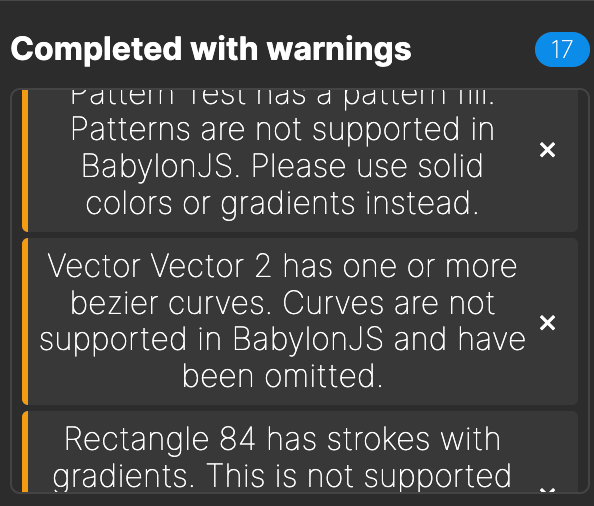 After clicking either export button, if there are any potential compatibility issues with the design you are exporting, you will see a list of warnings. These are not errors, just things to be aware of that may not export as expected.
It helps to preview the UI by loading it into either gui.babylonjs.com or your local project using the inspector to make sure that the export is correct (see inconsistencies and polyfills)
How it Works
The plugin recursively loops through the selected Figma frame and pulls out all the "nodes" in the design. It then maps each node to the correct BabylonJS GUI control. For example, a Figma rectangle will be converted to a BabylonJS Rectangle control, a Figma text node will be converted to a BabylonJS TextBlock control, and so on. When the plugin finishes creating the new controls, it uses BabylonJS's serialize function to convert the control group to a JSON string, writes it to a file, and makes it available to download or "stream" directly to Figma.
Video Demo
Below is a short YouTube video of the plugin's creator demonstrating how to use the plugin.
Inconsistencies & Polyfills
Figma has features that are beyond the scope of the BabylonJS GUI system. Below is a list of some areas where the plug-in has to decide how to interpret things that Figma supports but BabylonJS GUI cannot replicate 1:1.
Misc Inconsistencies
- Borders
- All borders are treated as "Inner" when porting to BabylonJS
- (BabylonJS does not differentiate between different types of positions).
- Colors not 1:1
- By default, Figma uses an "unmanaged" color space. To make Figma more closely represent what will actually be output when viewed in a web browser, go to
Figma > Preferences > Color Profile...and set the ColorSpace to sRGB.
- By default, Figma uses an "unmanaged" color space. To make Figma more closely represent what will actually be output when viewed in a web browser, go to
- Polygons
- Polygons are not supported by BabylonJS GUI, so the plug-in will simply skip over polygons when encountered. If you need to use complex shapes and polygons like this, it is recommended that you export them as PNGs and import them into the BabylonJS project as images.
- A "polygon" of Lines/Vector is supported; it is an array of lines with a master empty rect as a parent.
- Blending/Multi Fills
- Figma allows you to layer fills one on top of the other and use special blending options. Right now, the plugin will only use the topmost visible fill.
- Stack Panels + Scrollviews
- The plugin supports both of these BJS GUI controls, however, BabylonJS cannot have a control that is both a ScrollView AND Stackpanel. Whereas Figma will allow you to mark an Autolayout (Stackpanel) as a ScrollView.
- If you need, for example, a list that is also scrollable, please place the Autolayout list of items inside an empty group/frame that is marked as
-scroll(this can be customized in the Identifiers Tab). Borders on a parent will render in front of any children in BabylonJS. In Figma, borders are drawn behind any children. - StackPanels CAN'T have shadows, border radius or outlines.
- Frames/groups can have shadows and will give all children the same shadow. This doesn't look the same as in Figma, but it is the closest approximation.
- Text can't have gradient strokes, it will use the first color stop of the gradient and set it to a solid color.
- Images can't have a stroke, all images are square.
- Patterns and Video fills are not supported by BabylonJS GUI, the plugin will simply skip over these when encountered.
Tips & Tricks
- Use frames when possible, groups can sometimes cause unexpected issues.
- StackPanels CAN'T have shadows, border radius or outlines. If you need these features, wrap the Autolayout in a parent Frame with the desired effects.
- Avoid giving parents effects like shadows and borders as they will apply to all children and may not look as expected.
- Always use border inner when designing in Figma to get the closest match to BabylonJS GUI.
- Use single fills, do not rely on blend modes or multiple fills as BabylonJS GUI does not support these features.
Help & Support
- If the file output name is “undefined”, that means you are selecting a single item in the design and not the whole frame/artboard.
- The plugin export buttons are disabled after clicking them
- This could be due to a memory usage error. Please restart Figma
- Also check for union shapes, as they can cause issues.
- Very large designs may cause the plugin to "hang." Please be patient. If the plugin takes too much time, Figma will abort it for you.
- If you have this issue, make the design frame less complex or simplify Components which reference other Components.
- For help and support, please go to the dedicated thread for this plug-in on the BabylonJS forums.